
When your iPhone 16 Pro apps start closing unexpectedly or freezing up, it pulls you right out of whatever you were doing. This can happen for a bunch of reasons, from a minor software hiccup to an app that just needs a fresh install. I'd start with the simplest fix first, which is often just closing and reopening the app.
Force Quit the Problem App
If a single app is acting up, force quitting it gives it a clean slate. Swipe up from the bottom of your screen and pause in the middle to bring up the App Switcher. Find the problematic app's preview and swipe it up and off the top of the screen to close it. Wait a few seconds, then tap the app icon again to relaunch it from your Home Screen.
Restart Your iPhone 16 Pro
A force restart can clear temporary system glitches that might be affecting multiple apps. On your iPhone 16 Pro, press and quickly release the Volume Up button, then quickly press and release the Volume Down button. Finally, press and hold the Side button until you see the Apple logo appear, then let go.
This force restart sequence can help when an app freezes or stops responding. Give your phone a minute to fully boot back up before testing your apps again.
Update the App
Developers are constantly pushing updates to squash bugs and improve compatibility with new iOS versions. Open the App Store and tap your profile icon in the top right corner. Tap App Updates to see if any updates are pending.
If you see the crashing app in the update list, tap "Update" next to it. You can also tap "Update All" to make sure everything is current. This is one of the most common fixes I see for app crashes after a major iOS update.
Update iOS
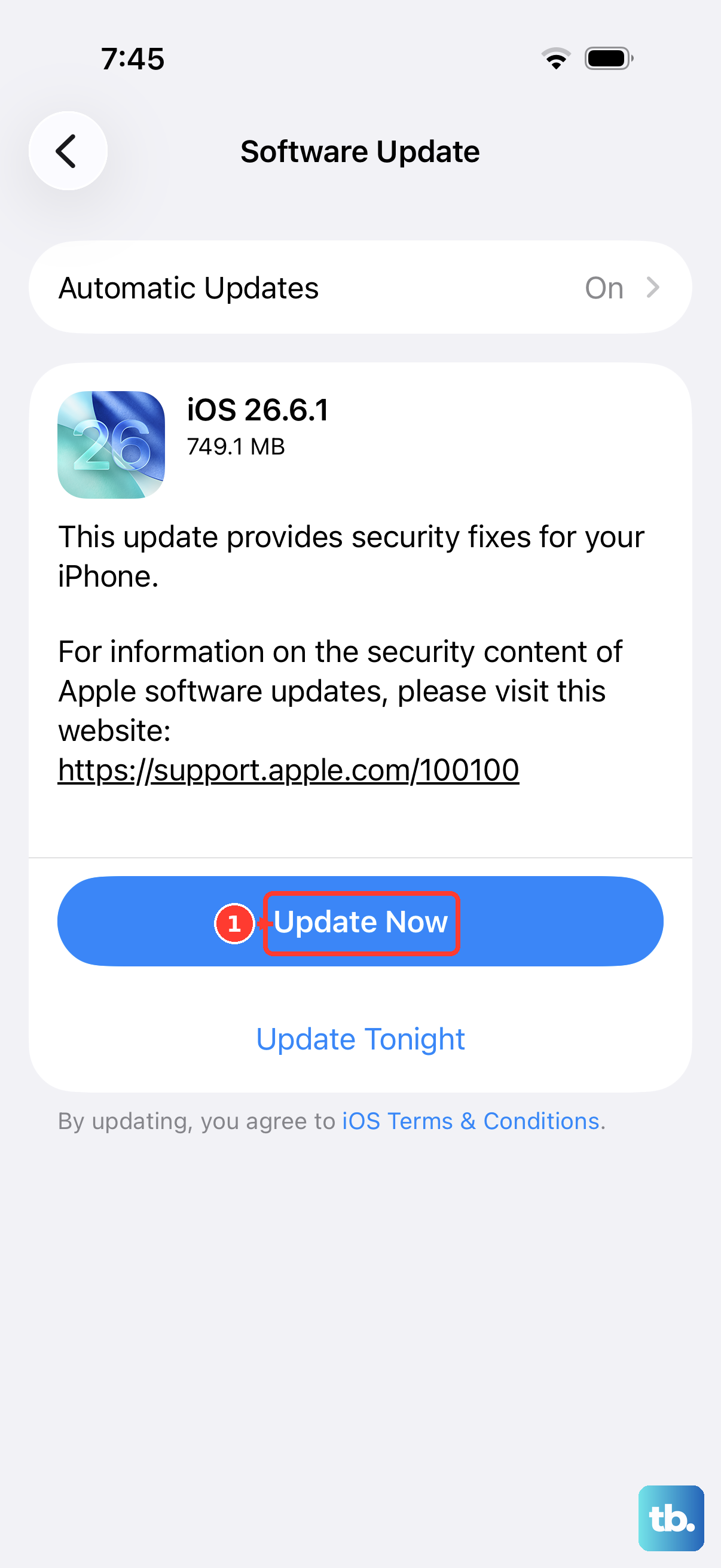
Sometimes the issue isn't with the app itself, but with the operating system. Apple releases iOS updates that include critical bug fixes and performance improvements. Go to Settings > General > Software Update.
If an update is available, tap "Download and Install." Make sure your iPhone 16 Pro is connected to Wi-Fi and has sufficient battery, or plug it into a charger. Keeping iOS updated can help with app stability.
Check Your iPhone's Storage
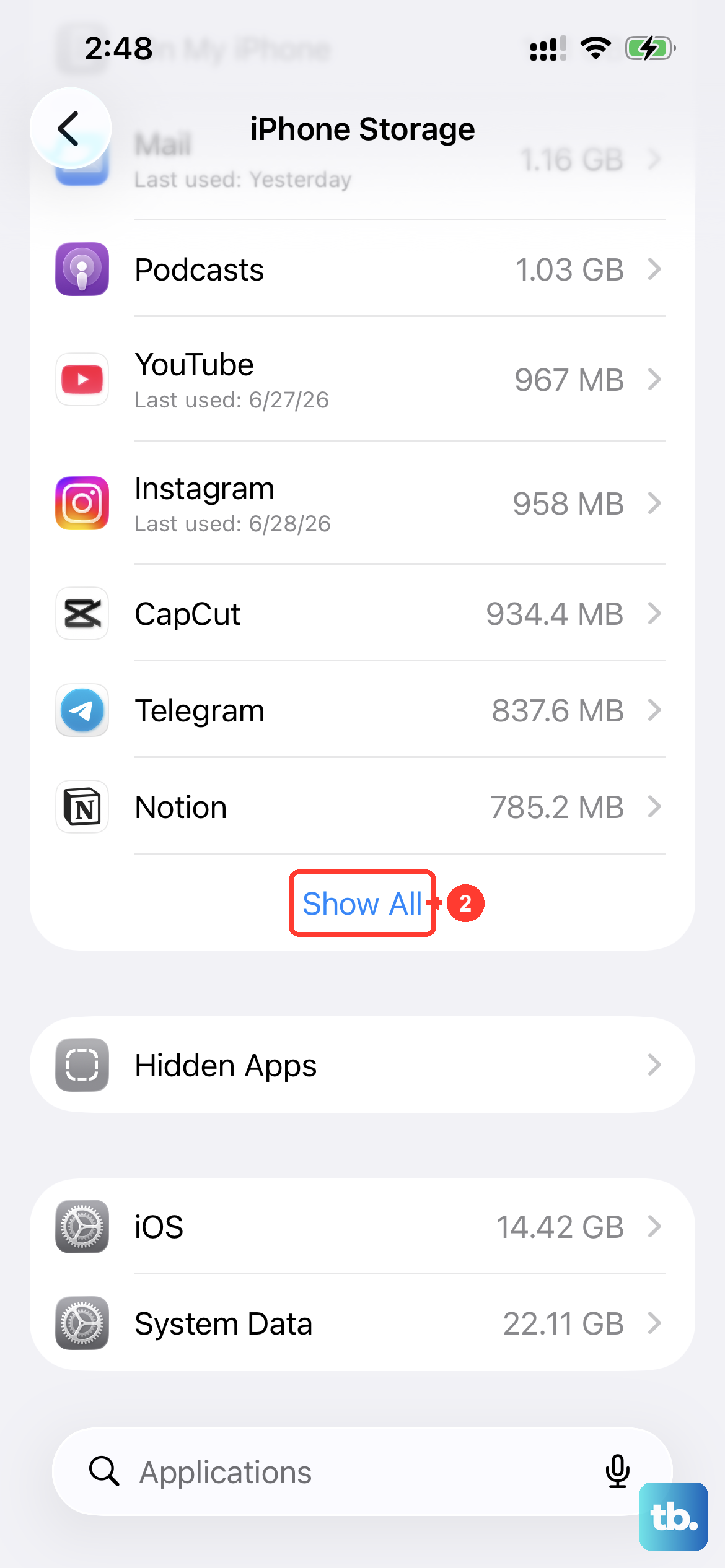
When your storage is critically low, apps don't have room to create temporary files or download new data, which can cause them to crash. Head to Settings > General > iPhone Storage.
The system will show you a breakdown and might even recommend "Offload Unused Apps," which removes the app but keeps its documents and data. Try to keep at least a few gigabytes free for the system to operate smoothly.
Offload and Reinstall the App
If updating didn't help, the next step is to offload the app. This clever feature deletes the app itself but keeps all your data and documents associated with it. Go to Settings > General > iPhone Storage.
Tap on the problematic app from the list and select "Offload App." Confirm, then go back to your Home Screen and tap the now-grayed-out icon to reinstall it from the App Store. Your saved documents and data should still be there.
Reset All Settings
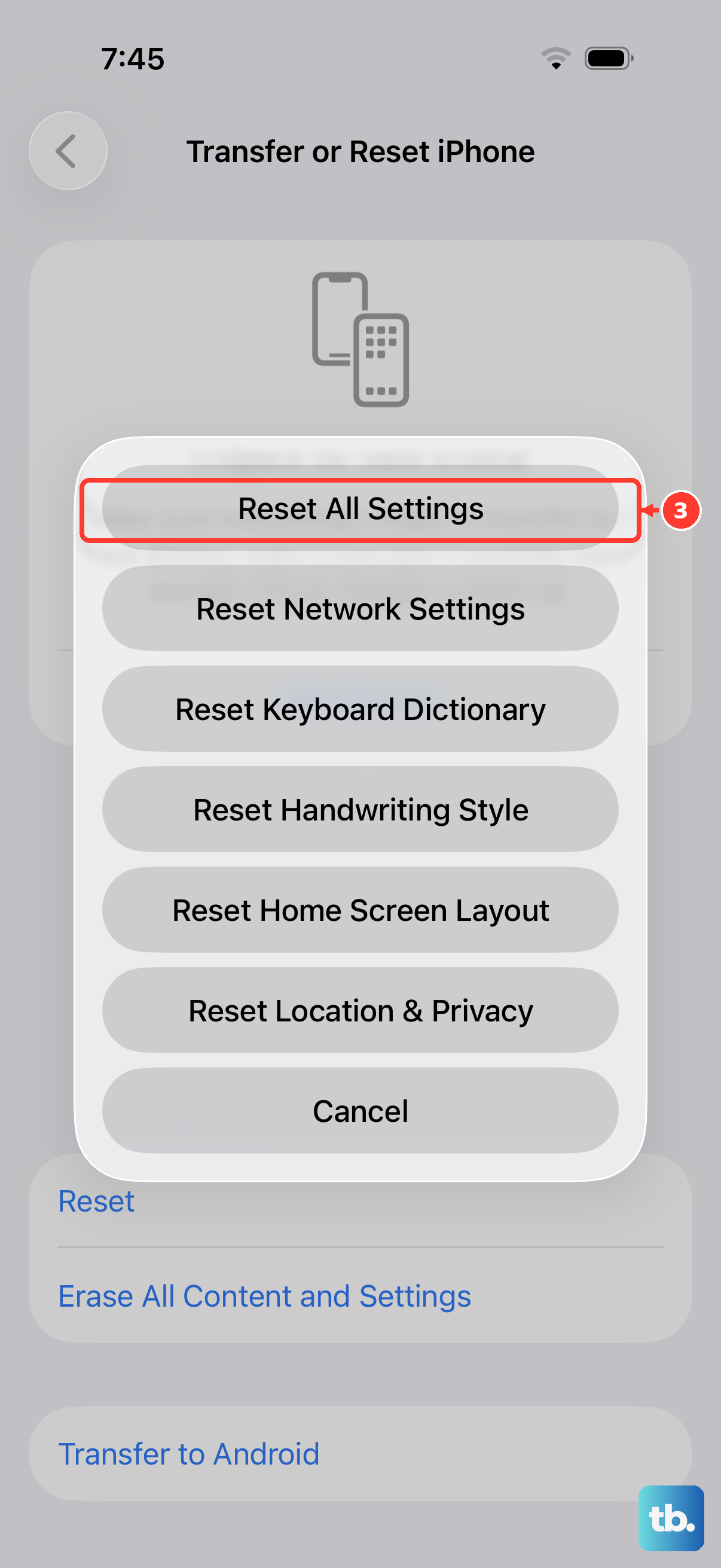
This is a stronger step if multiple apps are crashing. It resets preferences like Wi-Fi passwords, wallpaper, and privacy settings without erasing your personal data or media. It also removes Apple Pay cards, Bluetooth pairings, Apple Watch pairings, and Face ID settings.
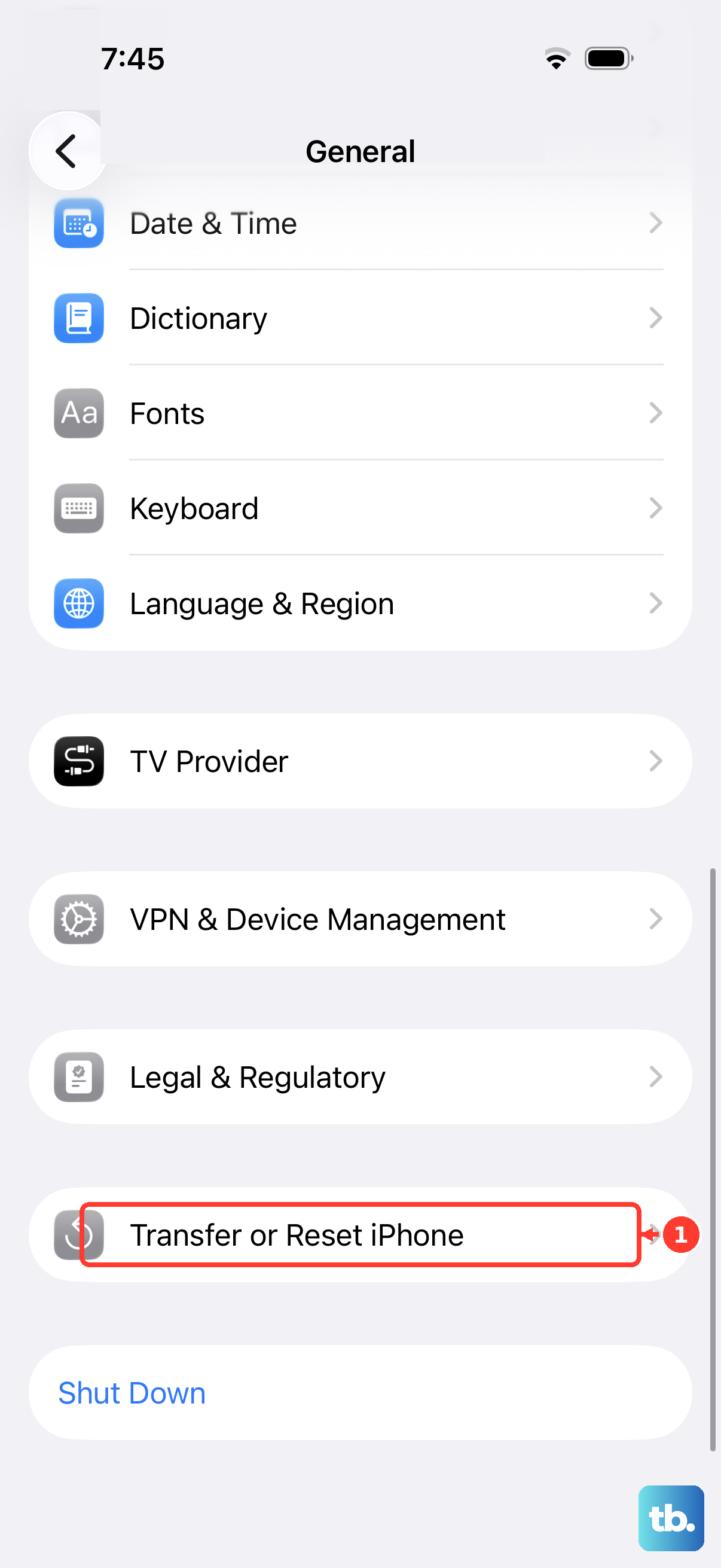
Go to Settings > General > Transfer or Reset iPhone. Tap "Reset" and then choose "Reset All Settings." You'll need to rejoin Wi-Fi, re-pair Bluetooth devices and your Apple Watch, and set up Face ID again before testing your apps.
Check for a Beta Version of iOS
If you've installed an iOS beta or a TestFlight beta app, that can sometimes introduce instability. To stop beta updates, go to Settings > General > Software Update > Beta Updates and choose Off.
This stops new betas from arriving but doesn't remove the beta you already have. You can stay on it until the next public release, or erase and restore your iPhone with a computer to go back to the public version now. If the app still crashes, delete it and redownload it from the App Store. You might lose data stored in the app when you delete it.
Perform a Full Restore
As an absolute last resort, you can restore your iPhone 16 Pro to factory settings. This erases everything, so it's vital to have a recent backup in iCloud or on your computer first. Connect your phone to a Mac or PC, open Finder on a current Mac or the Apple Devices app or iTunes on a Windows PC, select your device, and choose "Restore iPhone."
This installs a completely fresh copy of iOS. After it's done, you can set up the phone as new to see if the crashes stop, or restore from your backup. If the problem persists even on a fresh setup, it could indicate a rare hardware issue.