
When your iPhone 16 Pro's keyboard disappears or becomes unresponsive, it can really stop you in your tracks. This is usually a temporary software hiccup, and there are several straightforward ways to get it working again.
I'd start by simply closing and reopening the app you're typing in. Swipe up from the bottom of the screen and hold to enter the app switcher, then swipe up on the app's preview to close it. Open it again and see if the keyboard pops up.
Force Restart Your iPhone 16 Pro
A force restart is often the quickest fix for a frozen or glitchy keyboard. It clears the phone's temporary memory without deleting any of your data.
On the iPhone 16 Pro, you press and quickly release the Volume Up button, then quickly press and release the Volume Down button. Finally, press and hold the Side button until you see the Apple logo appear on the screen.
Wait for your phone to reboot completely, then try using the keyboard in Messages or Notes.
Check Your Keyboard Settings
Sometimes a keyboard can be accidentally disabled or a third-party keyboard might be causing a conflict. Head to Settings > General > Keyboard > Keyboards.
Make sure the keyboards you want to use, like "English (US)," are listed here. If you see a third-party keyboard you no longer use, you can swipe left on it to delete it. Tap "Edit" in the top corner to reorder them.
Also, in the main Keyboard settings menu, ensure features like "Auto-Capitalization" and "Predictive" are toggled on if you want them.
Update iOS to the Latest Version
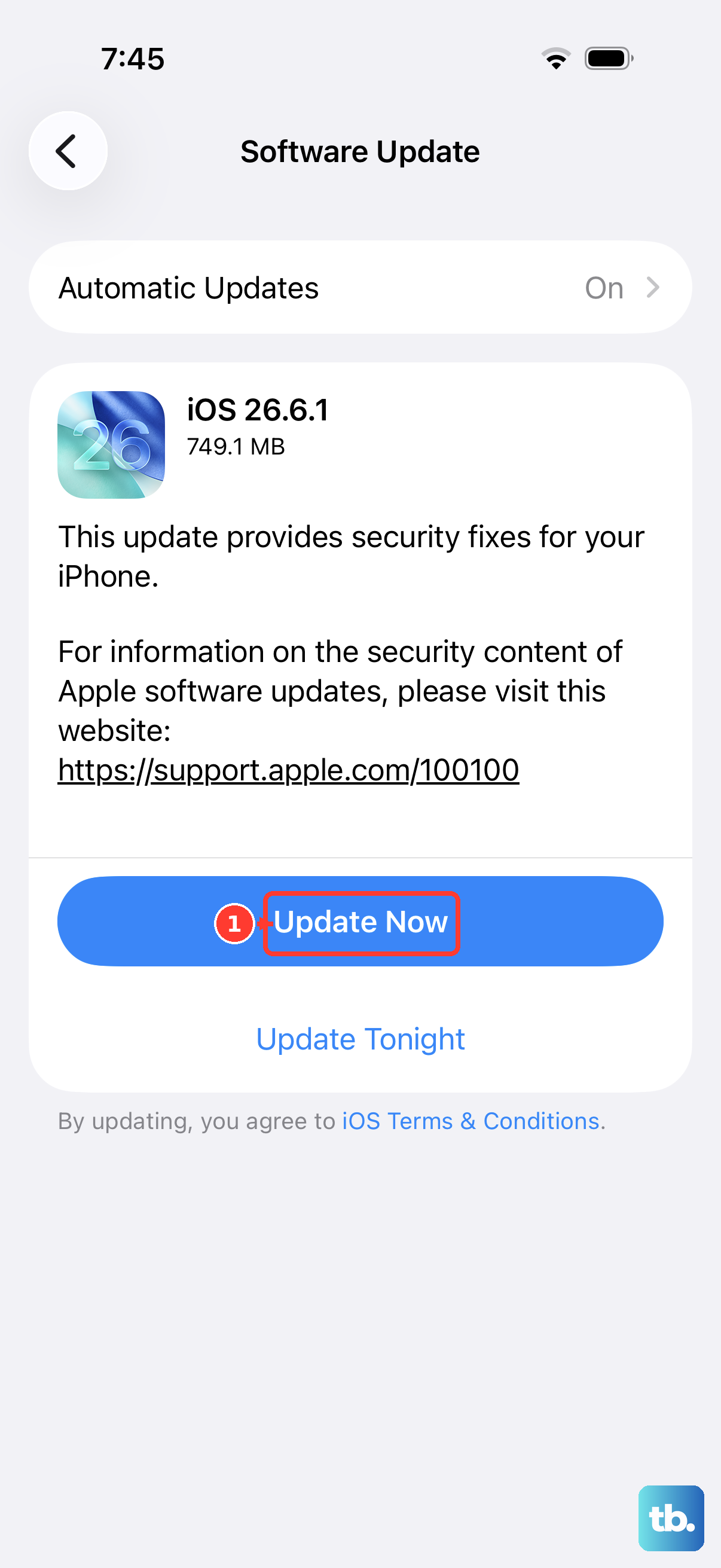
Keyboard bugs are often addressed in software updates. Since you're on iOS 26, make sure you have the latest point update installed.
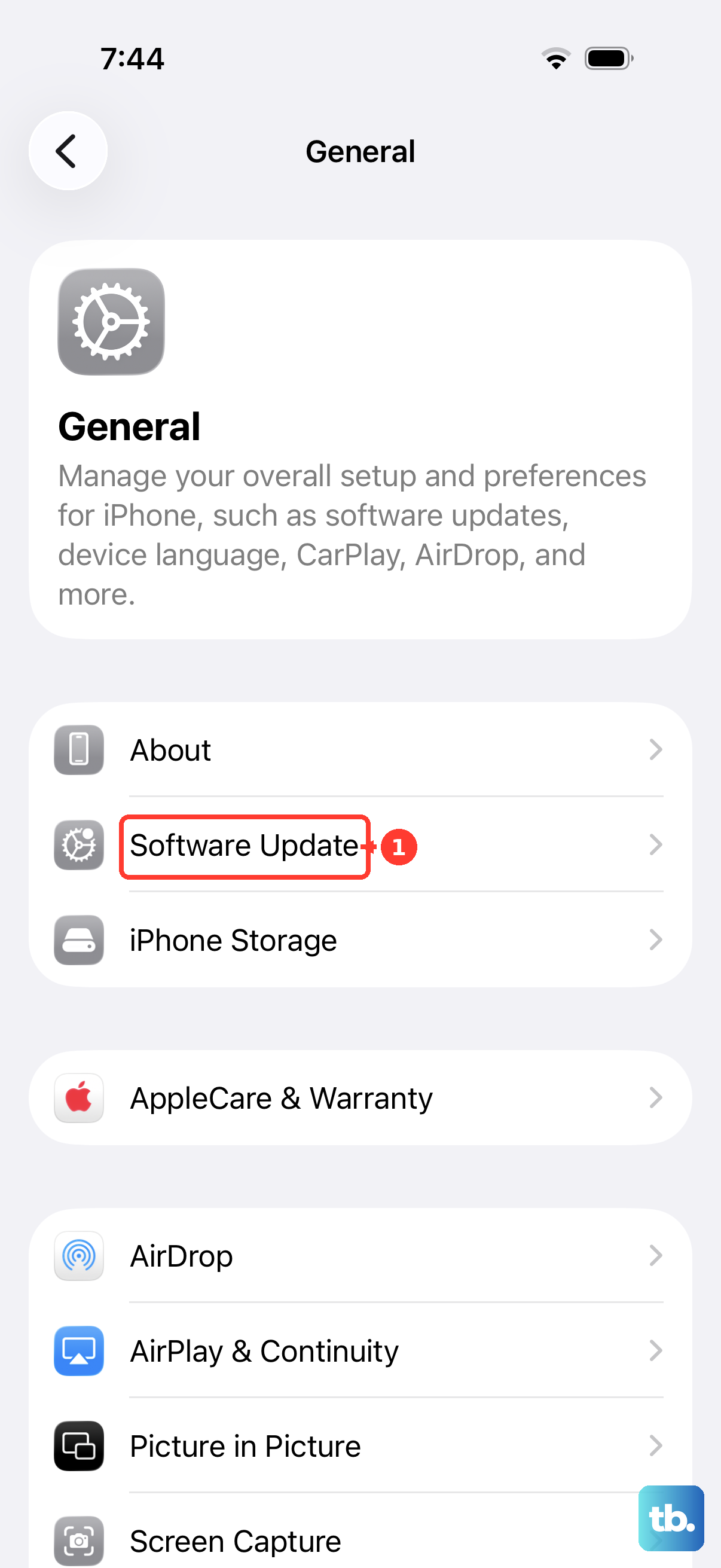
Go to Settings > General > Software Update. Your iPhone 16 Pro will check for any available updates. If one is there, tap "Download and Install." It's a good idea to plug your phone into power using a certified USB-C cable during this process.
Reset All Keyboard Dictionaries
If predictive text is acting strange or the keyboard seems to have learned odd behaviors, resetting the dictionary can help. This will erase any custom words you've added.
Navigate to Settings > General > Transfer or Reset iPhone. Tap on "Reset" at the bottom of the screen. From the list, choose "Reset Keyboard Dictionary." You'll need to enter your passcode to confirm.
After the reset, your keyboard will start fresh with its default word library.
Close All Background Apps
While iOS is generally good at managing memory, having too many apps open can occasionally cause issues with system components like the keyboard. It only takes a moment to clear them all.
Swipe up from the very bottom edge of your screen and pause in the middle. Swipe through the app previews and swipe up on each one to close it. After closing them all, restart the app where you need the keyboard.
Check for App-Specific Issues
If the keyboard only fails in one app, like Instagram or Facebook, the problem is likely with that app and not your iPhone's system. Try typing in a different app, like Notes or Messages.
If it works elsewhere, try updating the problematic app from the App Store. If an update isn't available, you can try deleting the app and reinstalling it. Just remember you may need to log back in.
Reset All Settings
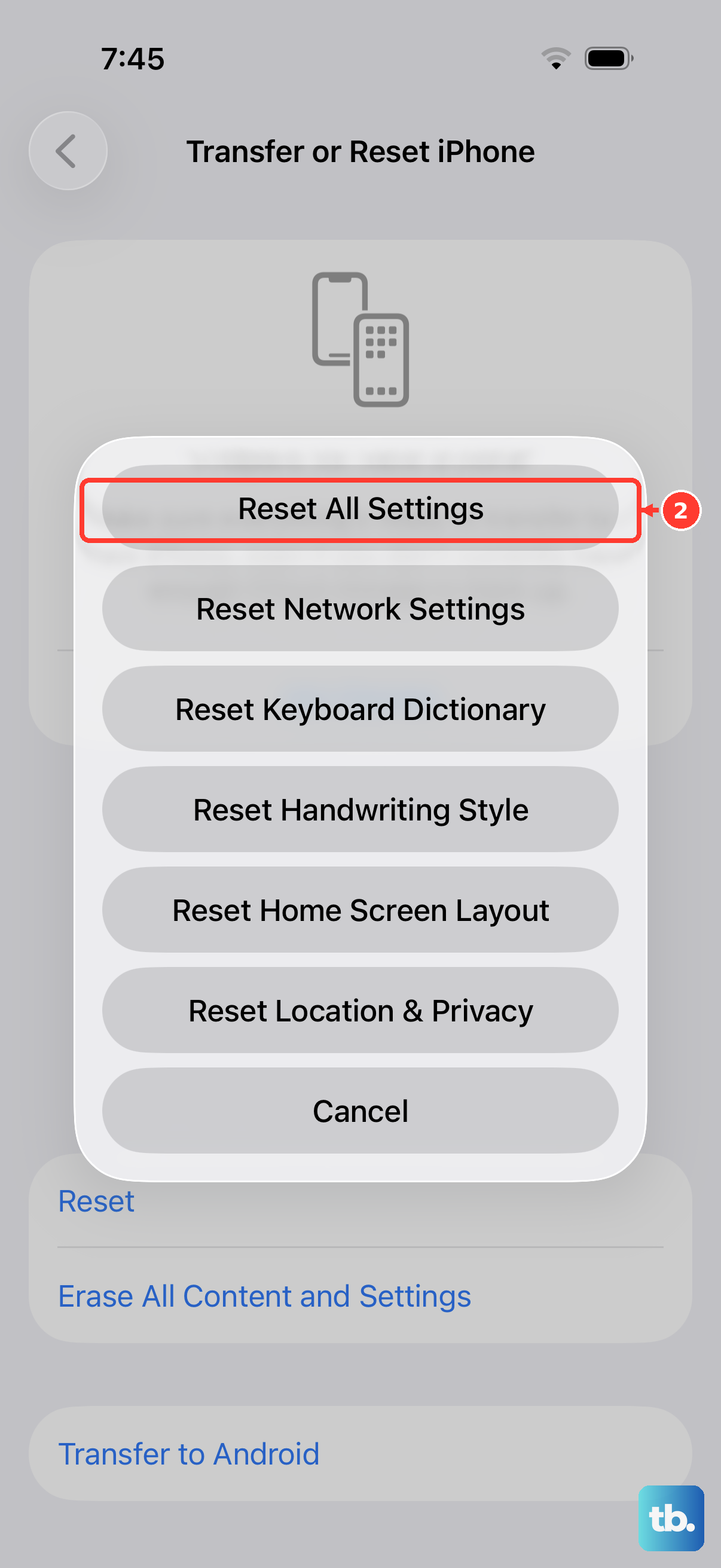
This is a more thorough step that will return all your system settings to their defaults. You won't lose any photos, messages, or apps, but you will need to reconfigure things like Wi-Fi passwords, wallpaper, and privacy permissions.
To do this, go to Settings > General > Transfer or Reset iPhone. Tap "Reset" and then select "Reset All Settings." Enter your passcode when prompted and confirm.
Your iPhone 16 Pro will restart. After it boots up, test the keyboard immediately in the Notes app.
Check Your Accessibility Settings
Certain accessibility features, particularly those related to touch and interaction, can sometimes interfere with the keyboard. It's worth a quick look to make sure nothing is misconfigured.
Go to Settings > Accessibility. Look at the "Touch" and "Keyboards" sections. If you have any features like "Sticky Keys" or "Slow Keys" enabled, try turning them off temporarily to see if it resolves the keyboard problem.