
If your iPhone 16 Pro is completely black and won't respond, the first thing to try is a force restart. This can clear a temporary software glitch that's preventing it from booting. Press and quickly release the Volume Up button, then quickly press and release the Volume Down button, and finally press and hold the Side button until you see the Apple logo appear on the screen.
Check Your Charger and Cable
Your phone might simply have a dead battery. Connect it to a power source using a USB-C charging cable and a 20W or higher power adapter for fast charging. Let it charge for one hour, then try the force restart again.
If you don't see the charging indicator after a few minutes, try a different cable and power adapter. Check the cable and adapter for damage, and don't use damaged accessories. You can also try placing it on a MagSafe or Qi2 wireless charger to check whether it charges wirelessly. MagSafe supports up to 25W with a 30W or higher adapter, while Qi2 supports up to 15W.
Examine the Physical Condition
Take a close look at your iPhone. If it has suffered a recent drop or liquid exposure, there could be internal hardware damage preventing it from powering on. Check the USB-C port for any packed-in lint, debris, or signs of corrosion, as this can block the charging connection.
Gently clean the port with a dry, soft-bristled brush, like a clean toothbrush. Avoid using metal objects that could damage the sensitive pins inside. Also, remove any case or accessory, especially thick or metal ones, as they can sometimes interfere with the charging process, both wired and wireless.
Connect to a Computer
Plug your iPhone 16 Pro into a Mac or a Windows PC using a USB-C cable that supports both data and charging. A completely unresponsive phone might still be recognized by a computer in recovery mode. Open the Finder on your Mac or the Apple Devices app on Windows to check whether it detects the phone.
If your computer recognizes it, you may get a prompt to update or restore the device. Choose "Update" first if you haven't already tried it, to attempt to reinstall iOS without erasing your data. A restore is a last resort, as it will wipe your phone completely.
Consider a Software Issue
If the force restart didn't work and the phone shows any sign of life (like a frozen Apple logo or a recovery mode screen), the core operating system may be corrupted. This can sometimes happen after a failed or interrupted iOS update. If it remains stuck on the Apple logo for several minutes with no progress bar, or shows the recovery mode screen, try recovery mode with a computer.
Put the phone into recovery mode manually. Connect it to your computer, then open the Finder on a Mac or the Apple Devices app on Windows. Press and quickly release Volume Up, press and quickly release Volume Down, then hold the Side button until the "Connect to computer" screen appears.
Choose "Update" first if you haven't tried it; "Restore" reinstalls iOS and erases your data. If the download takes more than 15 minutes and the phone leaves recovery mode, let it finish, then repeat the button steps. If the phone still won't turn on after these steps, it may need service.
Look for Environmental Factors
Extreme temperatures can cause an iPhone to shut down and refuse to turn on until it's back in a normal operating range. If your phone was left in a very hot car or out in the cold, bring it to room temperature and let it sit for a while before trying to charge or restart it again.
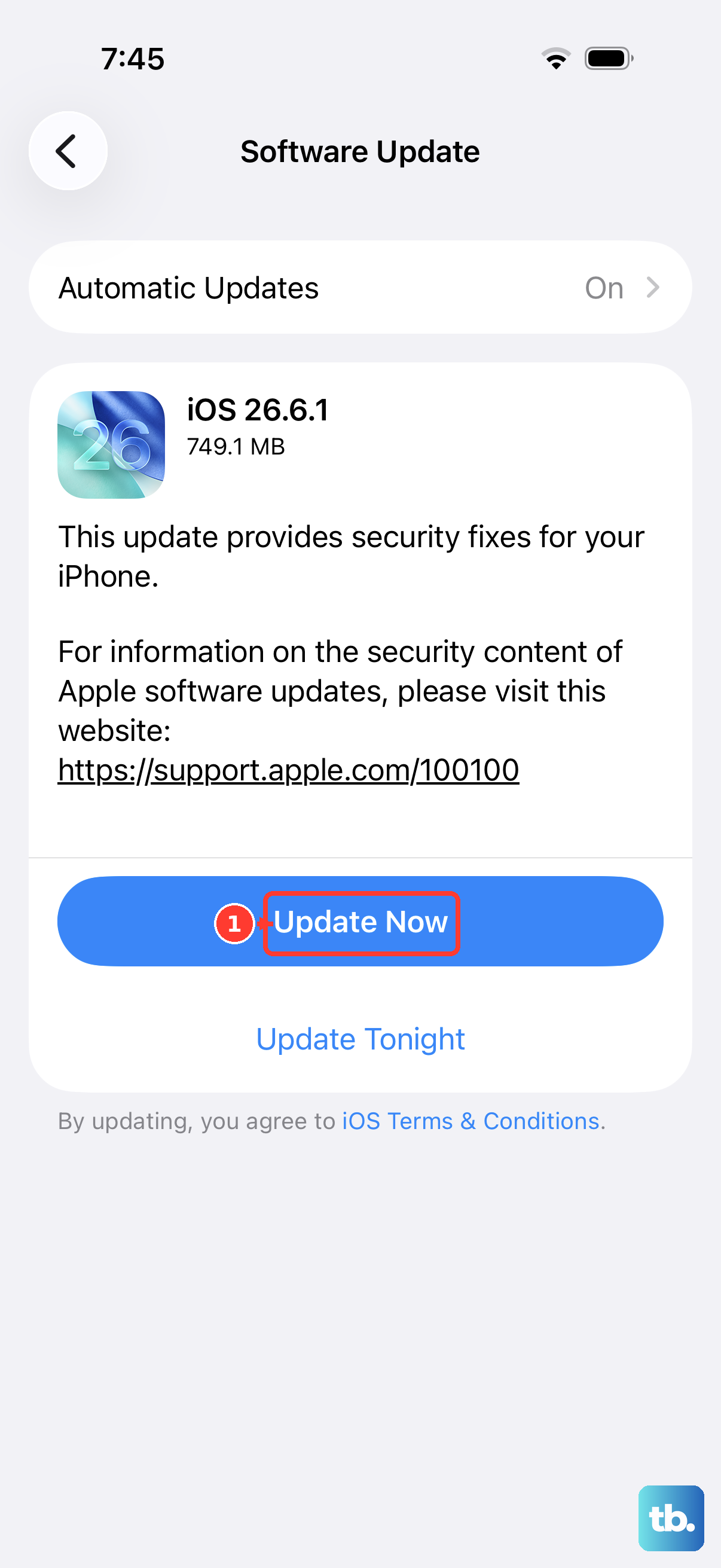
It's also worth checking if you have any pending software updates once the phone turns on. Go to Settings > General > Software Update and tap Download and Install if an update is available, while connected to power and Wi-Fi. Before attempting recovery, update your Mac or get the latest Apple Devices app on Windows. Keeping your phone and computer updated is a good habit.