
If your iPhone 17 Pro Max camera won't open or is stuck on a black screen, start with a force restart. Press and quickly release the Volume Up button, then quickly press and release the Volume Down button. Finally, press and hold the Side button until you see the Apple logo appear. I've found this clears most temporary software glitches that freeze the camera app.
Give the phone a moment to reboot completely, then try opening the Camera app again from your Home Screen or Lock Screen. If it's still not working, don't worry, there are several other things to check.
Close and Reopen the Camera App
First, make sure the app isn't just stuck in the background. Swipe up from the bottom of the screen and pause in the middle to enter the App Switcher. Find the Camera app preview and swipe it up and off the top of the screen to close it completely.
Wait a few seconds, then tap the Camera icon again. This simple step can resolve a lot of minor app freezes, especially if you've been switching between camera modes like Photo, Video, and Portrait quickly.
Check for iOS and App Updates
Outdated software is a common culprit for camera problems. Head to Settings > General > Software Update to see if there's a newer version of iOS 26 available. Apple frequently releases updates that fix bugs affecting system apps like the Camera.
While you're there, check for any pending Camera app updates. Open the App Store, tap your profile icon in the top right, and scroll down to see if the Camera app has an update waiting. Installing the latest versions ensures you have all the current stability fixes.
Free Up Storage Space on Your iPhone
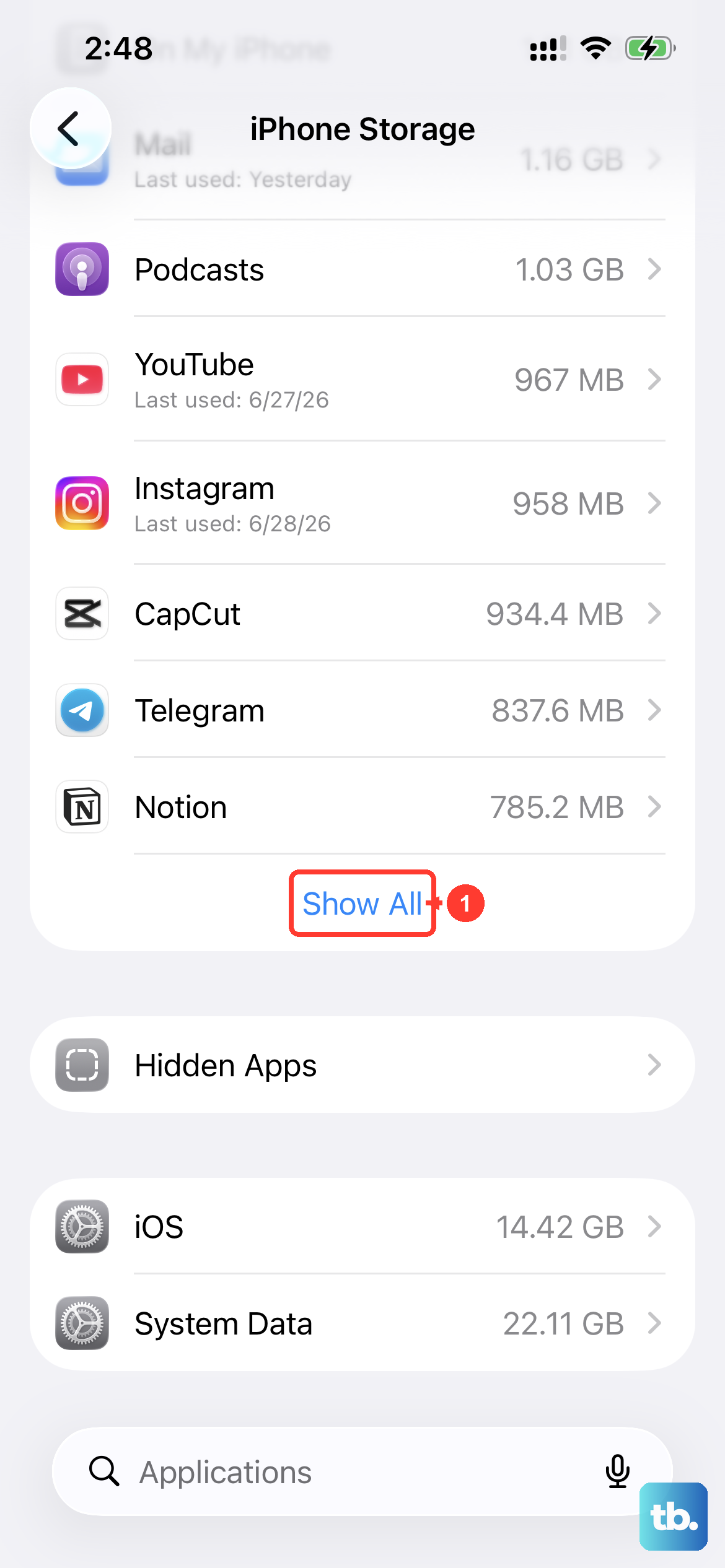
The iPhone 17 Pro Max's advanced camera system, especially when shooting ProRAW photos or 4K video, needs a lot of free space to function properly. If your storage is critically full, the camera app may fail to open or crash immediately.
Go to Settings > General > iPhone Storage to see how much space you have left. If you're below 1GB, you'll need to delete some photos, videos, or apps. I'd start by offloading large videos or using iCloud Photos to free up local storage quickly.
Reset All Settings
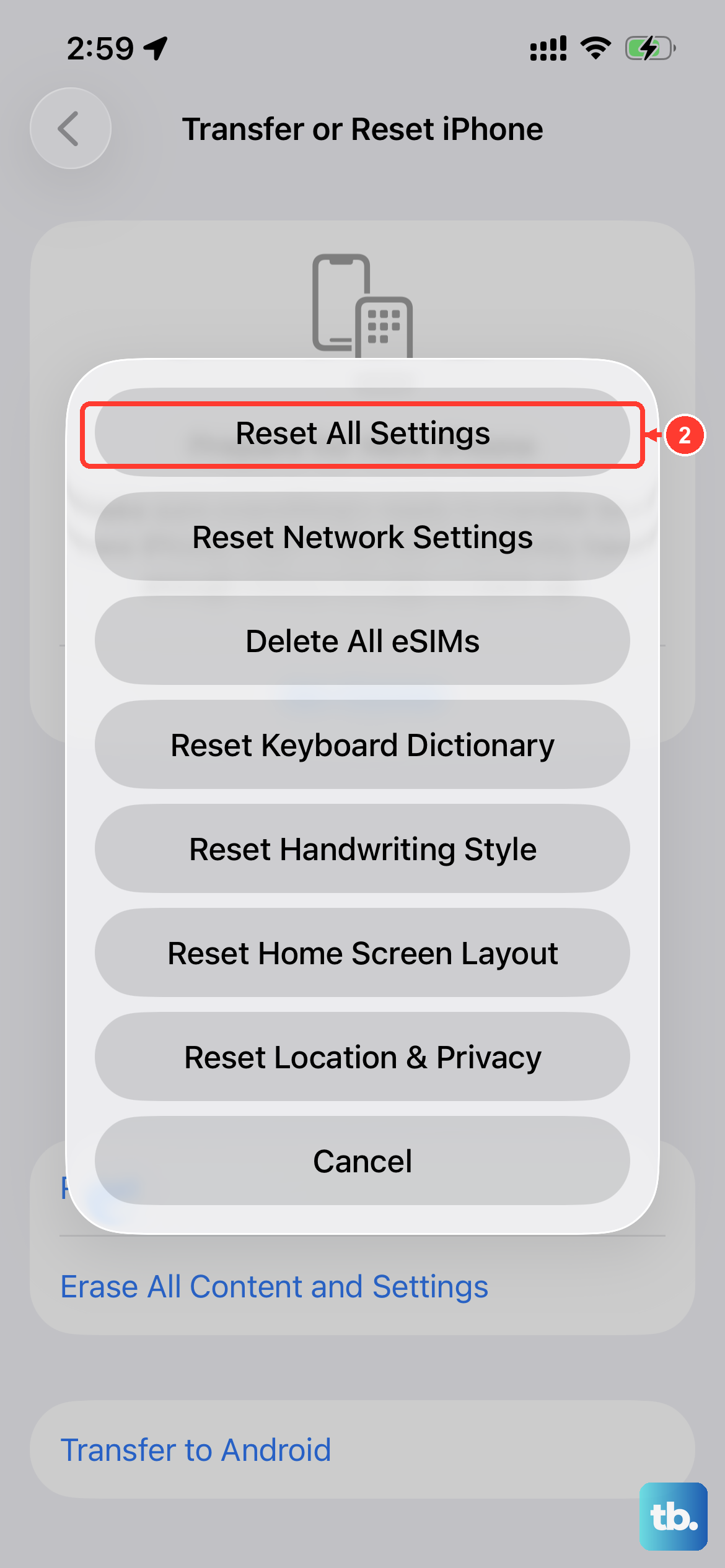
This won't delete your personal data like photos or messages, but it will reset all your system preferences to their defaults. Sometimes, a misconfigured setting related to privacy or camera permissions can prevent the app from launching.
You can do this by going to Settings > General > Transfer or Reset iPhone > Reset > Reset All Settings. You'll need to enter your passcode. After the phone restarts, you'll have to reconfigure things like Wi-Fi passwords and wallpaper, but it often resolves persistent app issues.
Check Camera Permissions and Restrictions
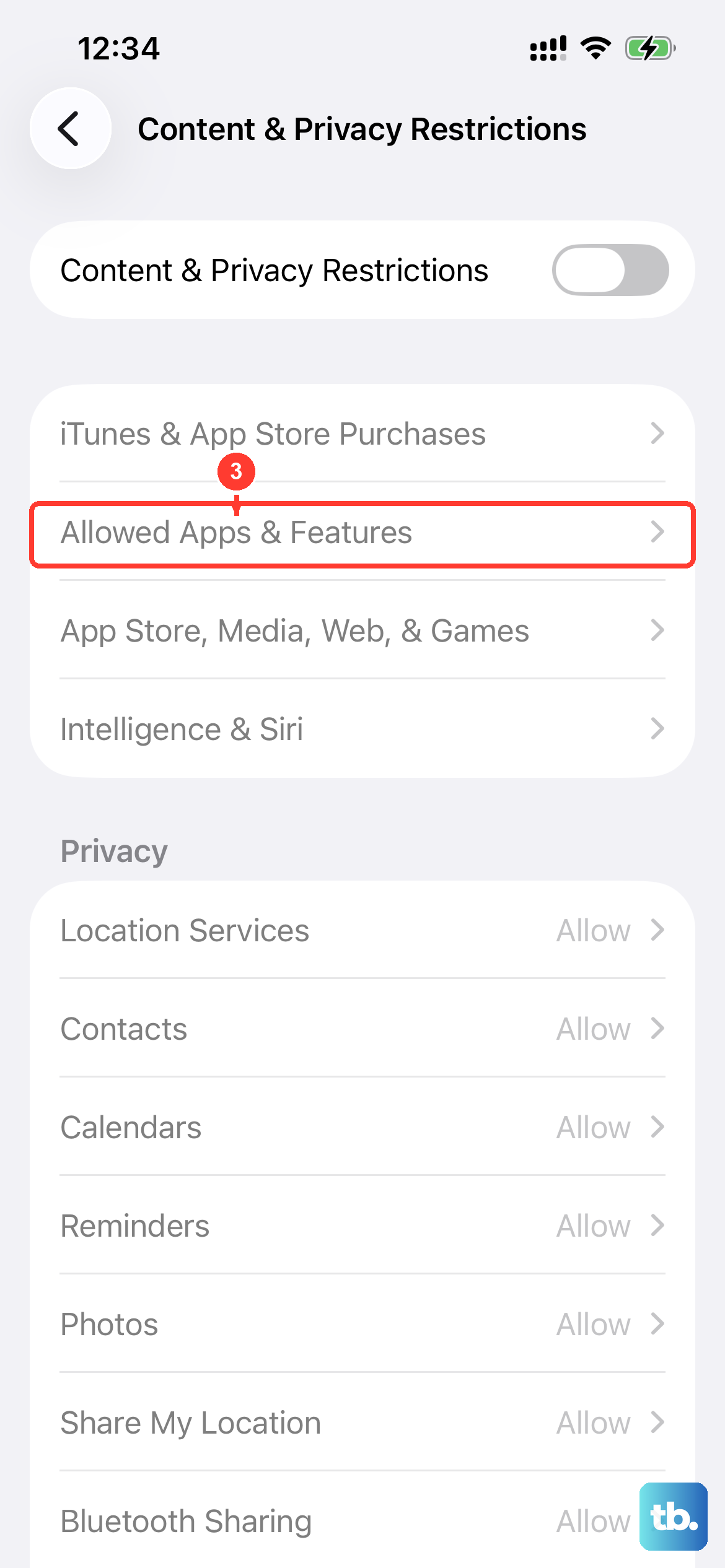
It's worth verifying that the Camera app still has permission to run. Go to Settings > Privacy & Security > Camera. Make sure the toggle for the Camera app itself is switched on (green).
Also, check for any Screen Time restrictions that might be blocking the camera. Navigate to Settings > Screen Time > Content & Privacy Restrictions. If restrictions are enabled, tap Allowed Apps and ensure Camera is permitted.
Disable Any Camera-Related Accessibility Settings
Certain accessibility features, while helpful, can sometimes interfere with the camera interface. If you use features like VoiceOver or AssistiveTouch, try temporarily turning them off to test the camera.
You can find these in Settings > Accessibility. Turn off any active features like VoiceOver, Zoom, or AssistiveTouch, then attempt to open your camera. If it works, you can try re-enabling the features one by one to identify the conflict.
Test the Camera in Another App
Open an app like Instagram, Snapchat, or FaceTime that also uses the camera. Try to access the camera within that third-party app. If the camera works fine there, the problem is isolated to the native Camera app itself.
This points to a software issue with the app's data. If the camera also fails to work in every other app, it could indicate a broader system or, less commonly, a hardware problem.
Check for Physical Obstructions or Damage
Take a close look at all the camera lenses on the back of your iPhone 17 Pro Max. Make sure there's no protective film, case, or sticker accidentally covering any of the lenses. Even a smudge directly over a sensor can sometimes cause the app to behave oddly.
Inspect the lenses for any cracks or significant damage. While a small scratch might not stop it from working, significant damage to the main camera array could prevent the system from initializing properly.
Perform a Full Restore via a Computer
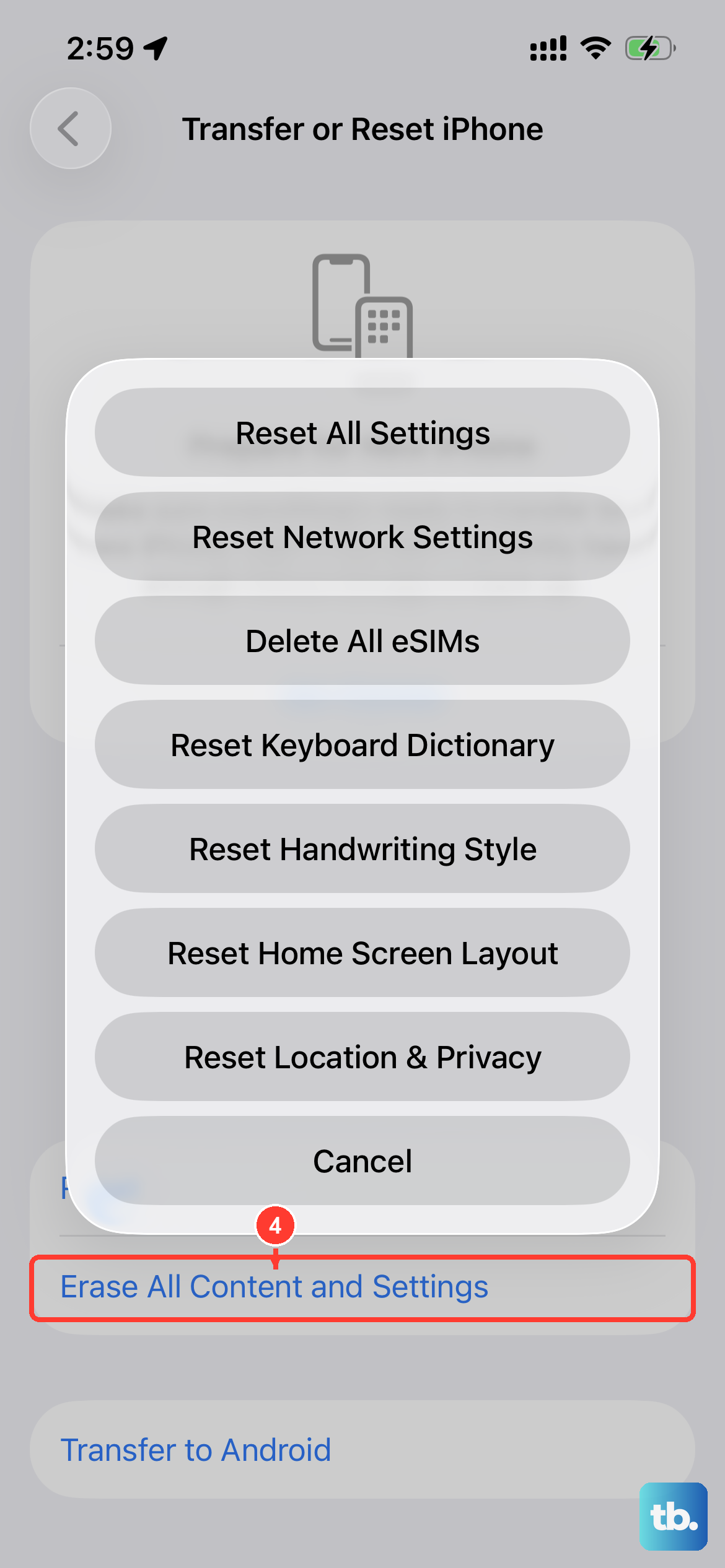
If none of the above software fixes work, a full restore using a Mac or PC is the next step. This will erase all content and settings, so make sure you have a recent iCloud or computer backup first.
Connect your iPhone to your computer, open Finder (on Mac) or iTunes (on PC), select your device, and choose "Restore iPhone." This installs a completely fresh, clean copy of iOS 26. After it's done, you can set up the phone as new to test the camera, or restore from your backup.











