
If your iPhone 17e is refusing to connect to your AirPods, car, or other Bluetooth accessories, it can be incredibly annoying. This is a brand new model, and while the C1X cellular modem is great, early software bugs can sometimes affect connectivity. The good news is that most Bluetooth issues are temporary and can be resolved with a few specific steps.
I'd start with the simplest fix first, as it works more often than you'd think. Pull down from the top-right corner of your screen to open Control Center. Tap the Bluetooth icon so it turns from blue to gray, wait about ten seconds, then tap it again to turn it back on. Now try pairing your device again.
Forget and Re-Pair the Problem Device
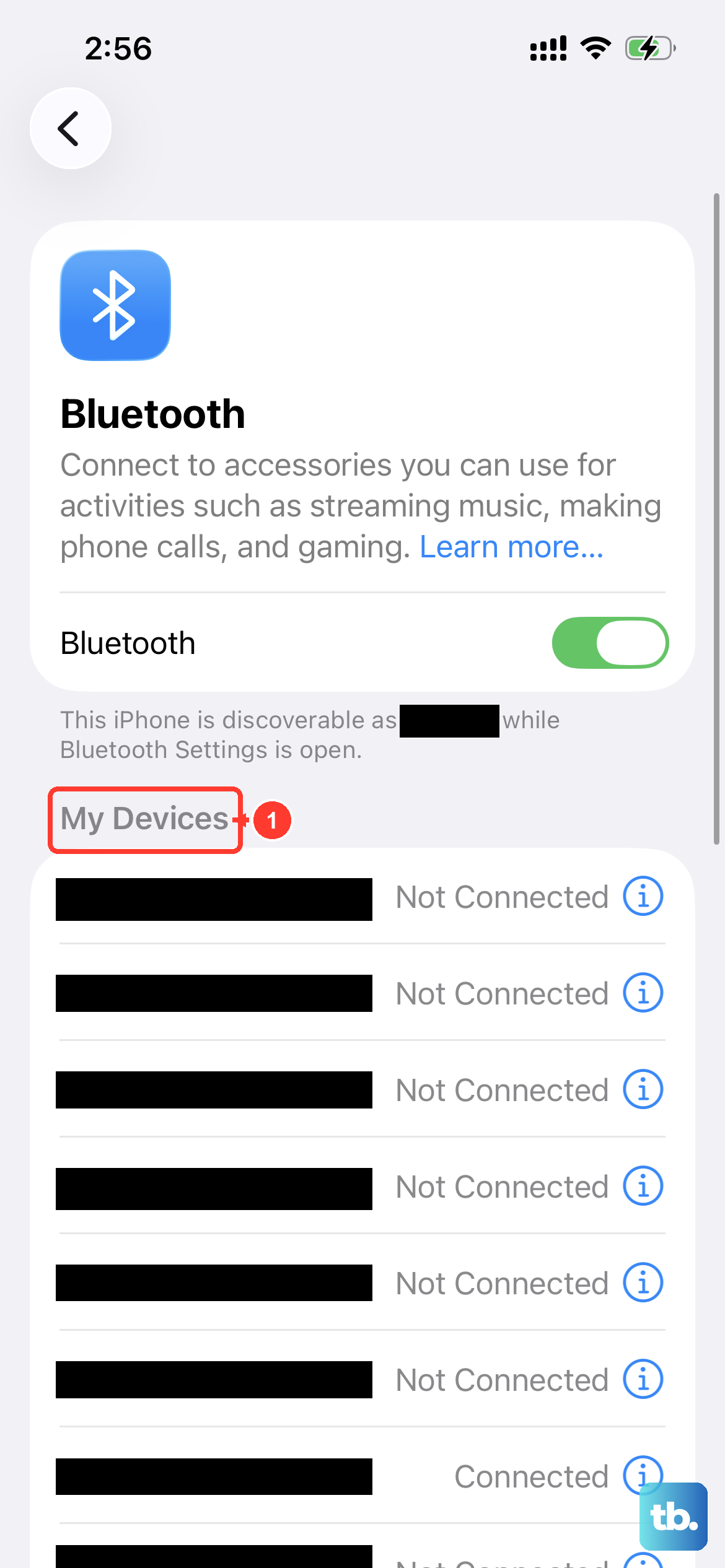
If toggling Bluetooth didn't work, the next step is to remove the device from your phone's memory and start fresh. Go to Settings > Bluetooth. Find the device that's giving you trouble in the "My Devices" list and tap the blue information icon (i) next to it. On the next screen, tap Forget This Device and confirm.
Now, put the accessory you're trying to connect back into pairing mode. This process is different for every device, so you might need to consult its manual. With your iPhone 17e's Bluetooth still on, the device should appear in the "Other Devices" list. Tap its name to pair.
Restart Your iPhone 17e and the Accessory
A full restart clears out temporary software glitches that can block connections. For the iPhone 17e, press and quickly release the Volume Up button, press and quickly release the Volume Down button, then press and hold the Side button until you see the Apple logo appear. Don't worry, this won't erase any data.
It's just as important to restart the Bluetooth device you're trying to connect to. Turn it off completely, wait a moment, and turn it back on. Once both devices are back up, attempt the pairing process again from scratch.
Check for a Software Update
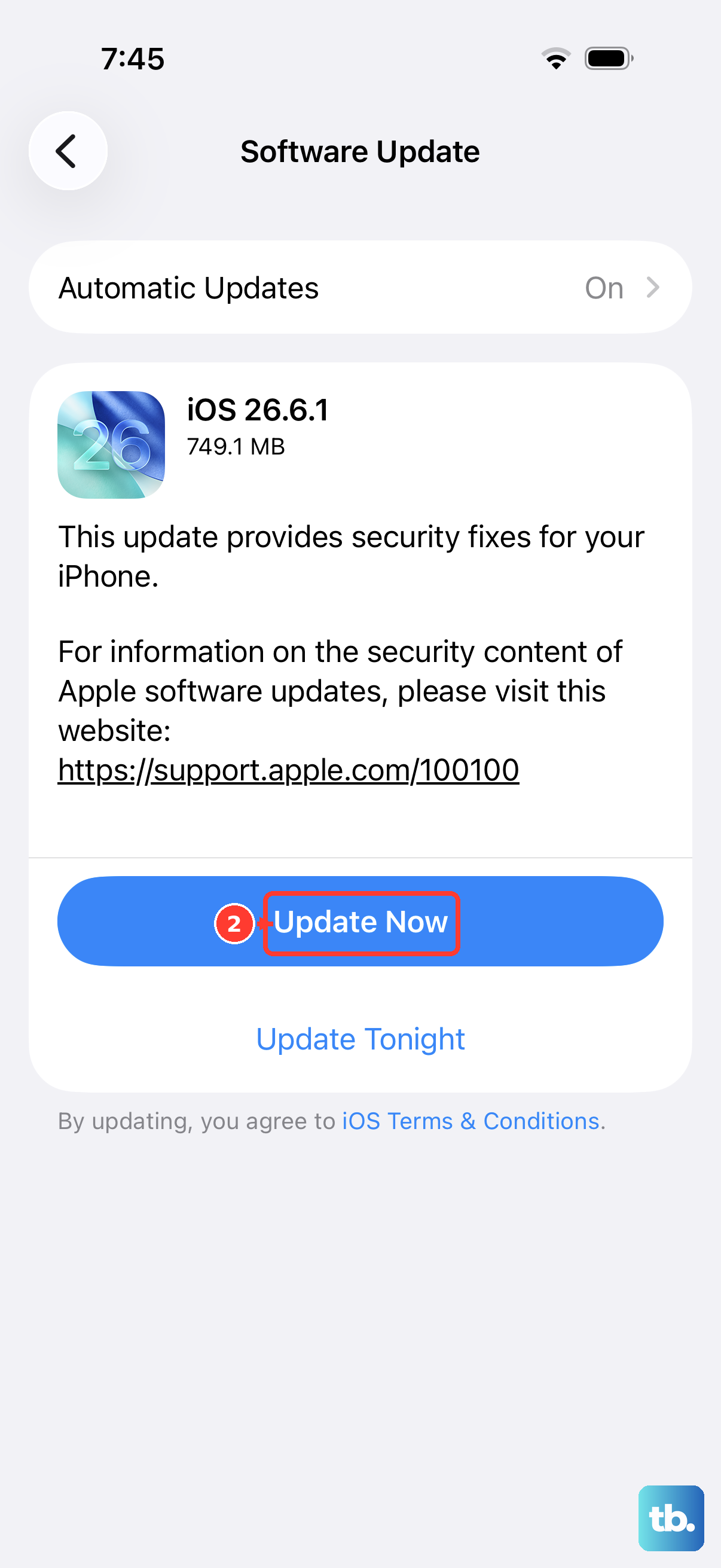
The iPhone 17e launched with iOS 26, and Apple is quick to release patches for early-adopter bugs. An update could contain a fix specifically for Bluetooth stability. Go to Settings > General > Software Update. If an update is available, tap Download and Install. Make sure your phone is connected to Wi-Fi and has sufficient battery, or plug it into its 20W USB-C charger first.
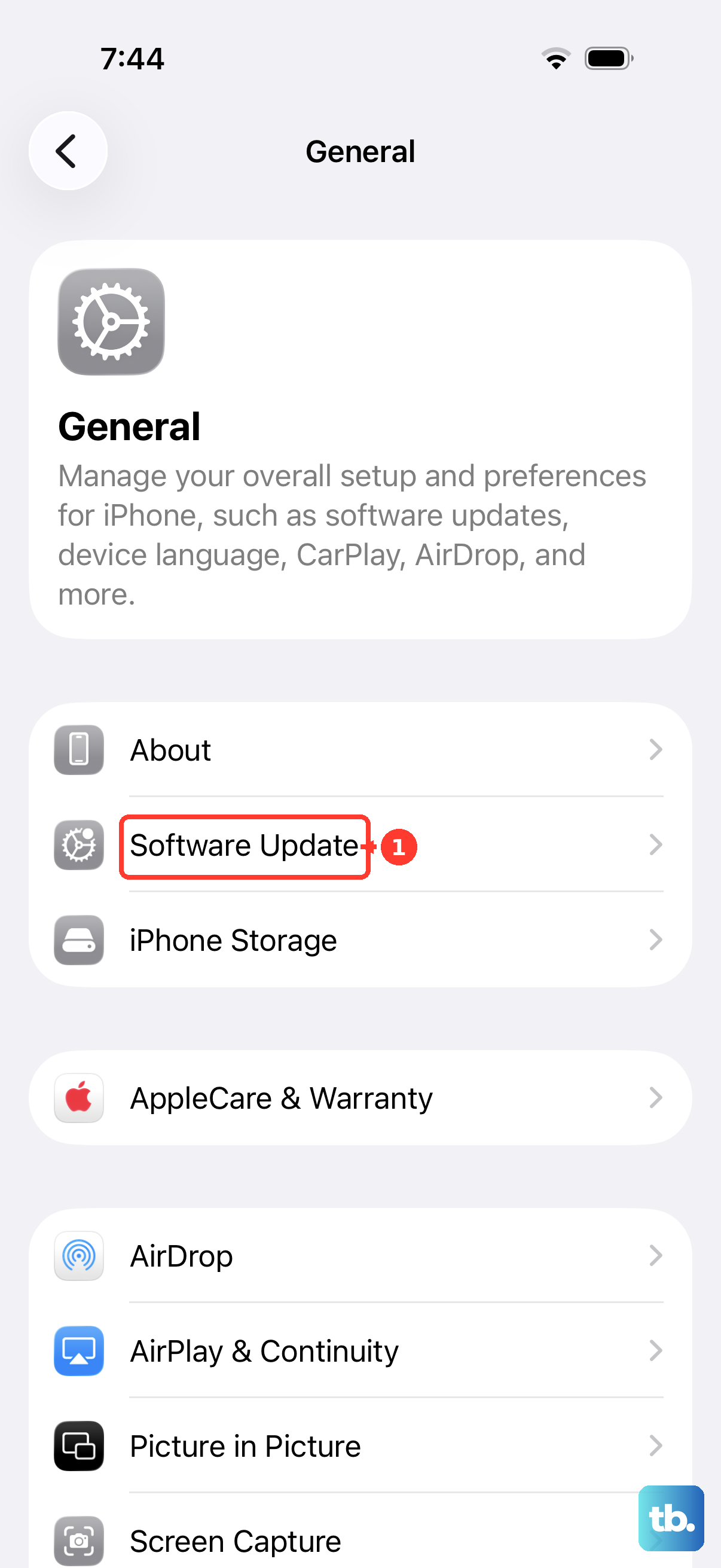
Also, check if the Bluetooth accessory itself has a firmware update. For things like AirPods, you can check their firmware version in Settings > Bluetooth by tapping the info icon next to them. Updates often happen automatically when the buds are charging near your iPhone.
Reset All Network Settings
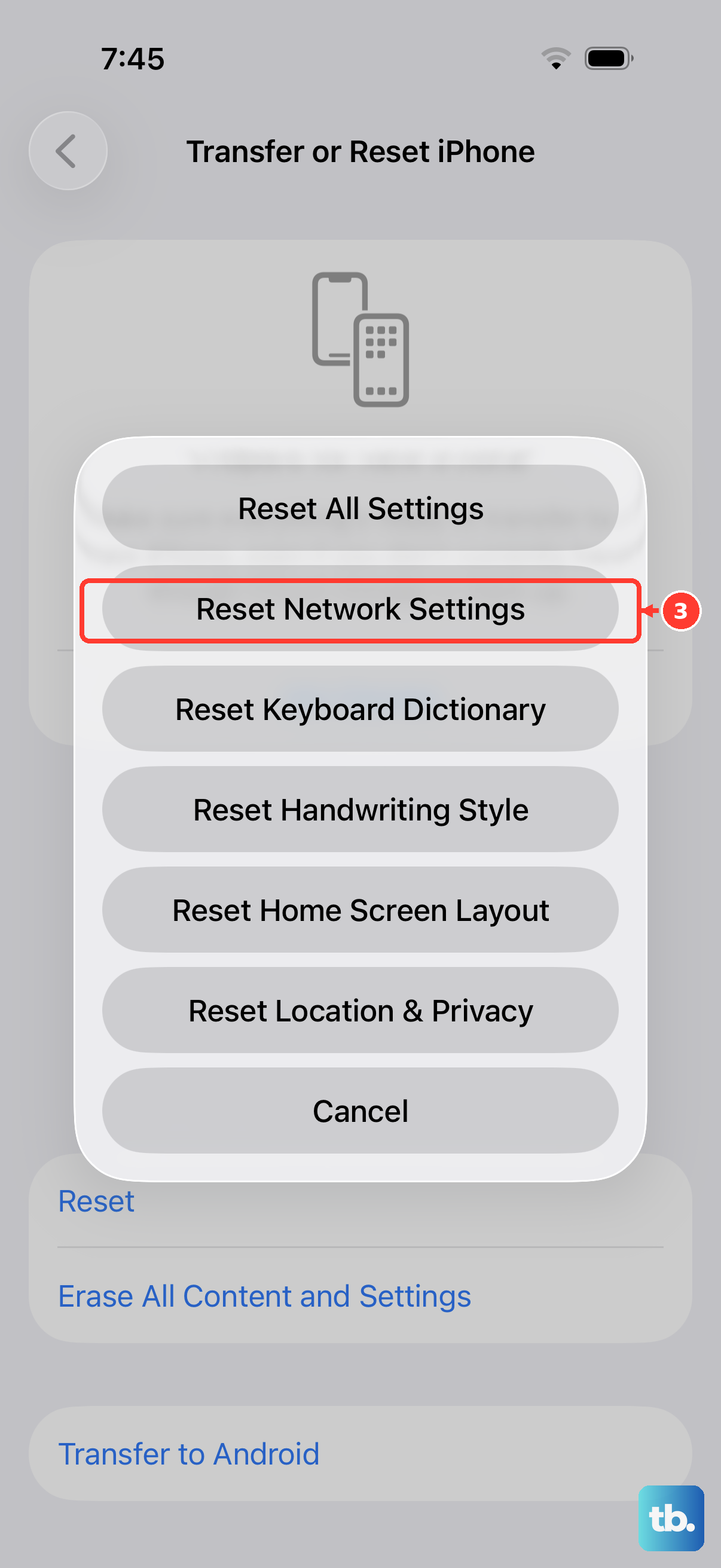
This is a more thorough step that resets Wi-Fi networks and passwords, cellular settings, and VPN configurations back to their defaults. Crucially, it also resets Bluetooth connections. You'll need to re-pair all your accessories afterward, but it fixes a wide range of wireless issues.
To do this, open Settings and go to General > Transfer or Reset iPhone. Tap Reset and then select Reset Network Settings. You'll be asked to enter your passcode to confirm. Your iPhone 17e will restart, and you can then try pairing your Bluetooth device as if it were brand new.
Check for Physical Interference and Device Limits
Bluetooth uses the 2.4 GHz radio band, which is crowded. Other Wi-Fi networks, microwave ovens, baby monitors, and even USB 3.0 cables can cause interference. Try moving to a different room or turning off other wireless devices temporarily to see if the connection improves.
Also, remember that your iPhone can only be actively connected to a certain number of Bluetooth devices at once. If you're trying to connect to a new speaker while your AirPods, Apple Watch, and car are all in range, try disconnecting from one of them first. Note that the iPhone 17e uses Bluetooth 5.3 and, unlike the Pro models that have Apple's N1 chip with Bluetooth 6, it doesn't include the N1 chip, though this hardware is still reliable and rarely the cause of a pairing problem.
If the Problem is Specific to Your Car
Car Bluetooth systems are notoriously finicky. After using the "Forget This Device" step on both your iPhone and your car's stereo, try a full reset of the car's infotainment system. The method for this varies by manufacturer, so you might need to check your vehicle's manual.
Sometimes, the order matters. Start the pairing process from your car's menu first, putting it into discovery mode, and then look for it on your iPhone's Bluetooth list. If your car has the option, deleting all previously paired phones from its memory can also clear out conflicts.
Consider a Software Glitch from a Recent App
While less common on iOS than other platforms, a recently installed app could be causing system-level conflicts. Think about any apps you installed around the time the Bluetooth problems started. You can try uninstalling them temporarily to test.
If you're unsure or the problem is severe, you can back up your iPhone 17e and then restore it via a computer. This installs a fresh copy of iOS 26. You can then restore your data from the backup. This is a last-resort software fix before considering anything else.
Since the iPhone 17e is so new, widespread hardware faults with Bluetooth are statistically unlikely. Persistent failure to connect to *any* device, even after a full software restore, would point toward a physical issue. In that case, contacting Apple Support while the device is under warranty is your best path forward.