
If your iPhone 17 Pro's Bluetooth keeps dropping connection to your AirPods, car, or speaker, it's an annoying problem. Start by unpairing the accessory and connecting it again. Make sure the accessory is nearby, turned on, and fully charged or connected to power before trying again.
First, go to Settings > Bluetooth. Find the problematic device in your list and tap the blue info icon (i) next to it. On the next screen, tap Forget This Device and confirm. This removes the accessory from your available Bluetooth devices and unpairs it on other devices signed in to your Apple Account. Then, put your accessory back into pairing mode and reconnect it fresh from the Bluetooth menu.
Restart Your iPhone and the Accessory
Sometimes, a simple restart is all you need. For your iPhone 17 Pro, press and quickly release the Volume Up button, press and quickly release the Volume Down button, then press and hold the Side button until you see the Apple logo appear. Don't worry, this won't erase any data.
You should also power cycle the Bluetooth device you're having trouble with. Turn it off completely and then turn it back on. Once both devices are back on, try reconnecting. Make sure the accessory is close to your iPhone and has enough charge.
Check for iOS and Accessory Updates
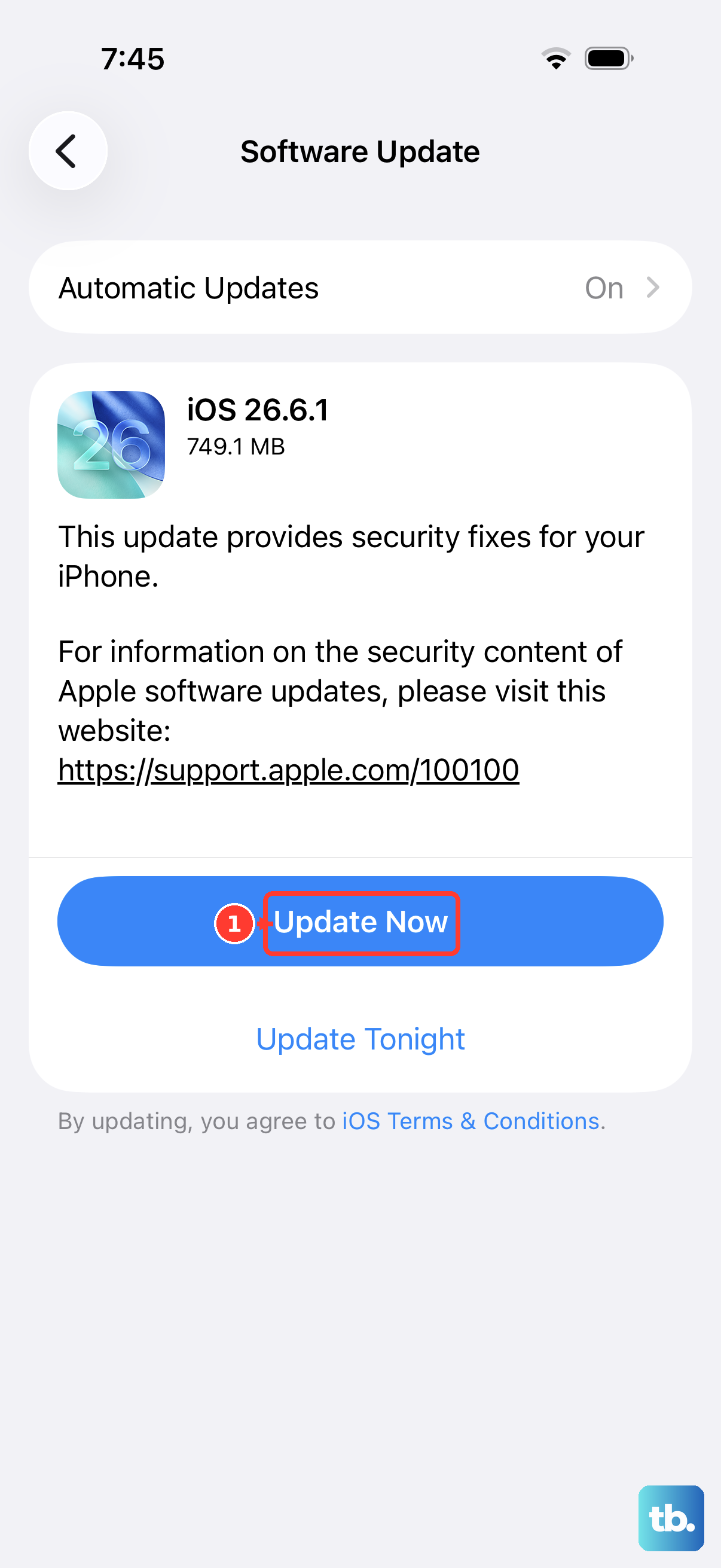
Updating outdated software can help with connection problems. Head to Settings > General > Software Update to see if there's a newer version of iOS available. Apple frequently releases updates that include fixes for connectivity bugs.
Also, check if the accessory itself needs a firmware update. For Apple devices like AirPods, connect them and look in Settings > Bluetooth > [Your AirPods]. For other brands, you might need to use their dedicated app from the App Store to check for updates.
Reset Your iPhone's Network Settings
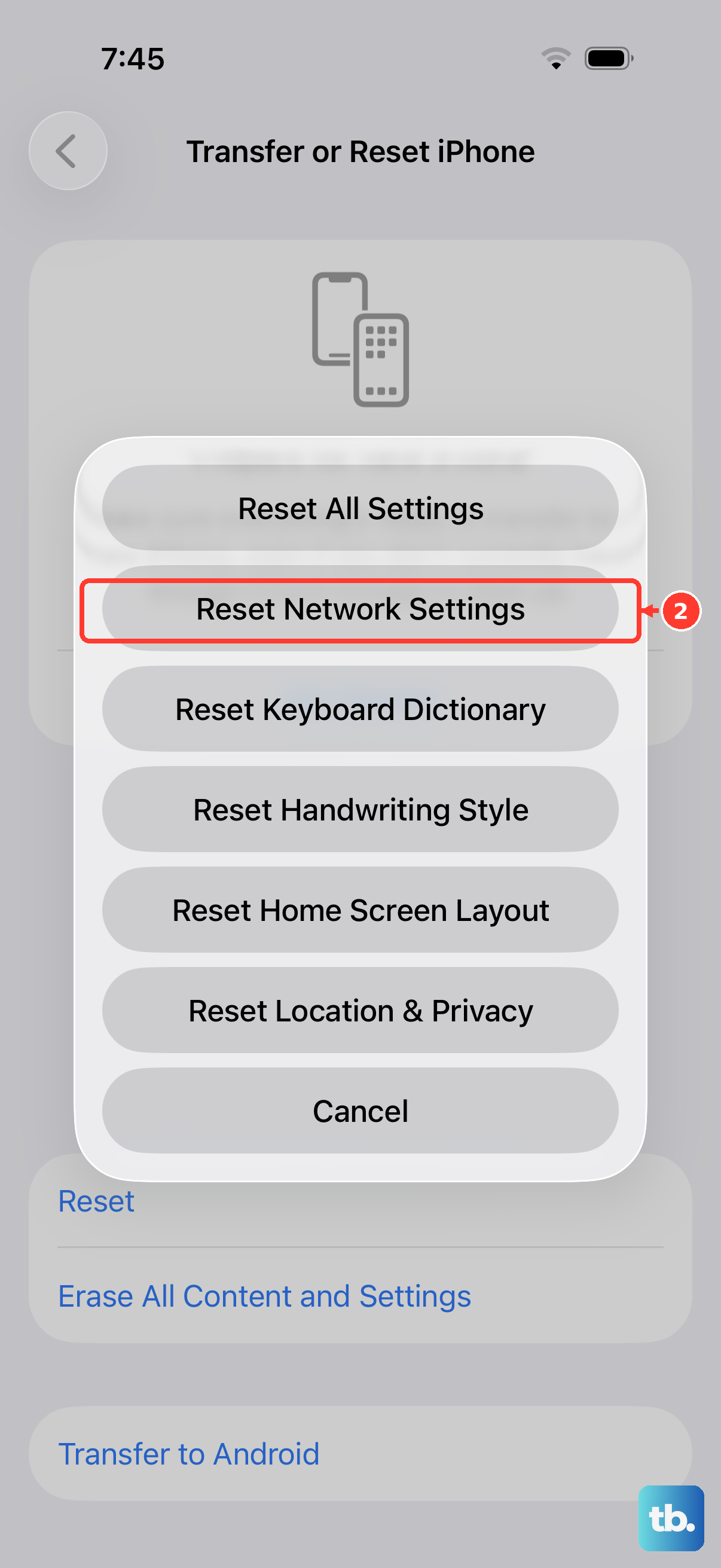
Use this step only if other fixes fail: it erases saved Wi-Fi networks and passwords, cellular settings, and VPN and APN settings. It won't delete your personal data like photos or messages, but you will need to re-enter Wi-Fi passwords.
To do this, open Settings, go to General, then scroll down and tap Transfer or Reset iPhone. Tap Reset and then choose Reset Network Settings. Enter your passcode if prompted and confirm. Your phone will restart, and you can try pairing your Bluetooth devices again.
Disable Bluetooth-Related Automation and Check App Permissions
If you have a Shortcuts automation that turns Bluetooth off, it might be cutting your connection. Go to the Shortcuts app and check your Automations tab. Disable any automation that turns Bluetooth off while you're using the accessory, then try connecting again.
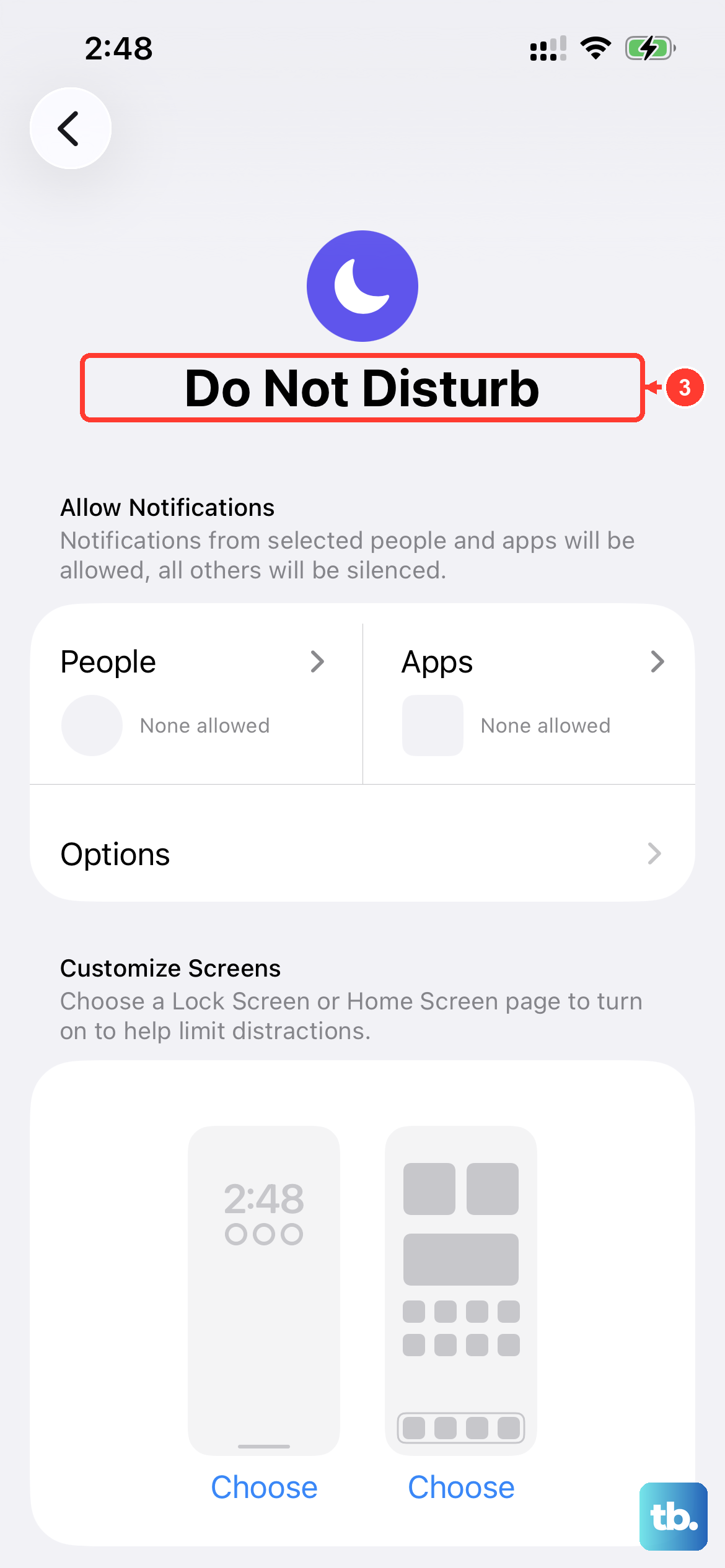
If you use an app with your Bluetooth accessory, open Settings > Privacy & Security > Bluetooth. Make sure Bluetooth access is turned on for that app. Then open the app and try connecting to the accessory again. If calls or alerts are silent while the accessory is connected, open Settings > Focus and make sure Do Not Disturb or another Focus is not silencing them.
Check for Wireless Interference
Bluetooth uses the 2.4 GHz radio band, which is crowded. Other devices like Wi-Fi routers, microwaves, baby monitors, and even USB 3.0 cables can cause interference. If the disconnection happens in a specific spot, like your kitchen or near your computer, try moving to a different room.
You can also try turning off Wi-Fi on your iPhone 17 Pro temporarily to see if that stabilizes the Bluetooth connection. If it does, you may need to adjust your router's channel settings or keep your phone and accessory away from other electronics.
Review Battery and Performance Settings
While less common on newer iPhones, power-saving features can sometimes affect background processes for accessories. Make sure your iPhone 17 Pro isn't in Low Power Mode, which you can check in Settings > Battery > Power Mode.
Also, check the accessory's battery before testing the connection again. Make sure it is fully charged or connected to power. If it uses replaceable batteries, check whether they need replacing. Turn the accessory off and back on, then try reconnecting it to your iPhone.
Forget the Accessory and Pair Again
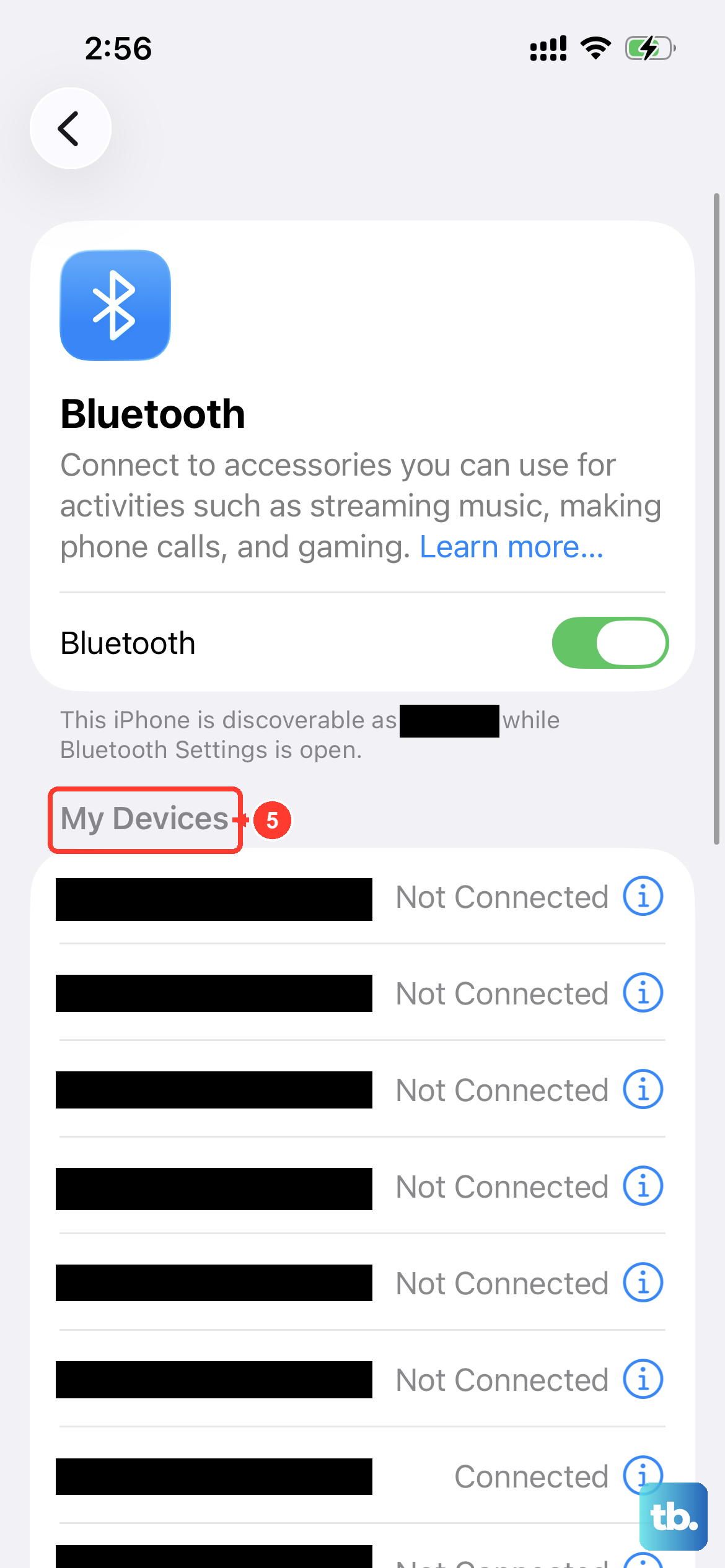
If forgetting the accessory on your iPhone didn't work, check whether it pairs with another phone or tablet. Unpair the accessory from those other devices, then put it back in discovery mode. Check its instructions if you're unsure how to make it discoverable.
Go back to Settings > Bluetooth and tap the accessory's name when it appears. Enter a PIN or passcode if prompted. If it still won't connect, contact the accessory manufacturer to check compatibility with your iPhone.
Check for Physical Case Interference
If you're using a very thick or metal case, try testing the connection without it.
Try removing the case and see if the Bluetooth connection holds more steadily. If it does, you might need a different case. Keep the accessory close to your iPhone during the test, and try connecting again with both devices turned on.
Consider a Software Restoration
If you've tried everything else and the disconnections are persistent across multiple accessories, a deeper software refresh might be needed. First, ensure you have a recent backup via iCloud or your computer.
Then, you can use a computer to update or restore your iPhone. Use Finder on a Mac, or the Apple Devices app or iTunes on a Windows PC, to update your iPhone if the update won't install on the phone. A "Restore" is the last resort and will wipe the phone completely, requiring you to set it up from your backup.