
If your iPhone 16 screen is locked in portrait mode and won't rotate to landscape, the quickest thing to check is the Rotation Lock. Swipe down from the top-right corner of the screen to open Control Center and look for the lock icon with a circular arrow around it. If it's highlighted in orange, tap it to turn Rotation Lock off. That single toggle fixes the issue for most people.
Your iPhone 16 uses its accelerometer and gyroscope to detect orientation. When rotation stops working, it's usually a software setting or a temporary glitch in iOS 26, not a broken sensor. I'd start with the simple software checks before worrying about anything more serious.
Turn Off Rotation Lock in Control Center
Rotation Lock is the most common culprit. It's easy to toggle on by accident, especially when pulling your phone out of a pocket or bag. When it's active, you'll see a small lock icon in your status bar next to the battery indicator.
To disable it, open Control Center by swiping down from the top-right edge of your screen. Find the icon that looks like a lock with a circular arrow. If it's orange, tap it. The icon should turn gray, and your screen should rotate normally again when you turn the phone sideways.
Force Restart Your iPhone 16
A force restart clears out any temporary software bugs that might be freezing the rotation sensors. It's different from a normal restart and doesn't delete any of your data or settings. For the iPhone 16, the process is quick.
Press and quickly release the Volume Up button. Then, press and quickly release the Volume Down button. Finally, press and hold the Side button. Keep holding it until you see the Apple logo appear, then let go. This takes about 10-15 seconds. Once your phone boots back up, test the rotation in an app like Safari or Photos.
Check for an iOS 26 Update
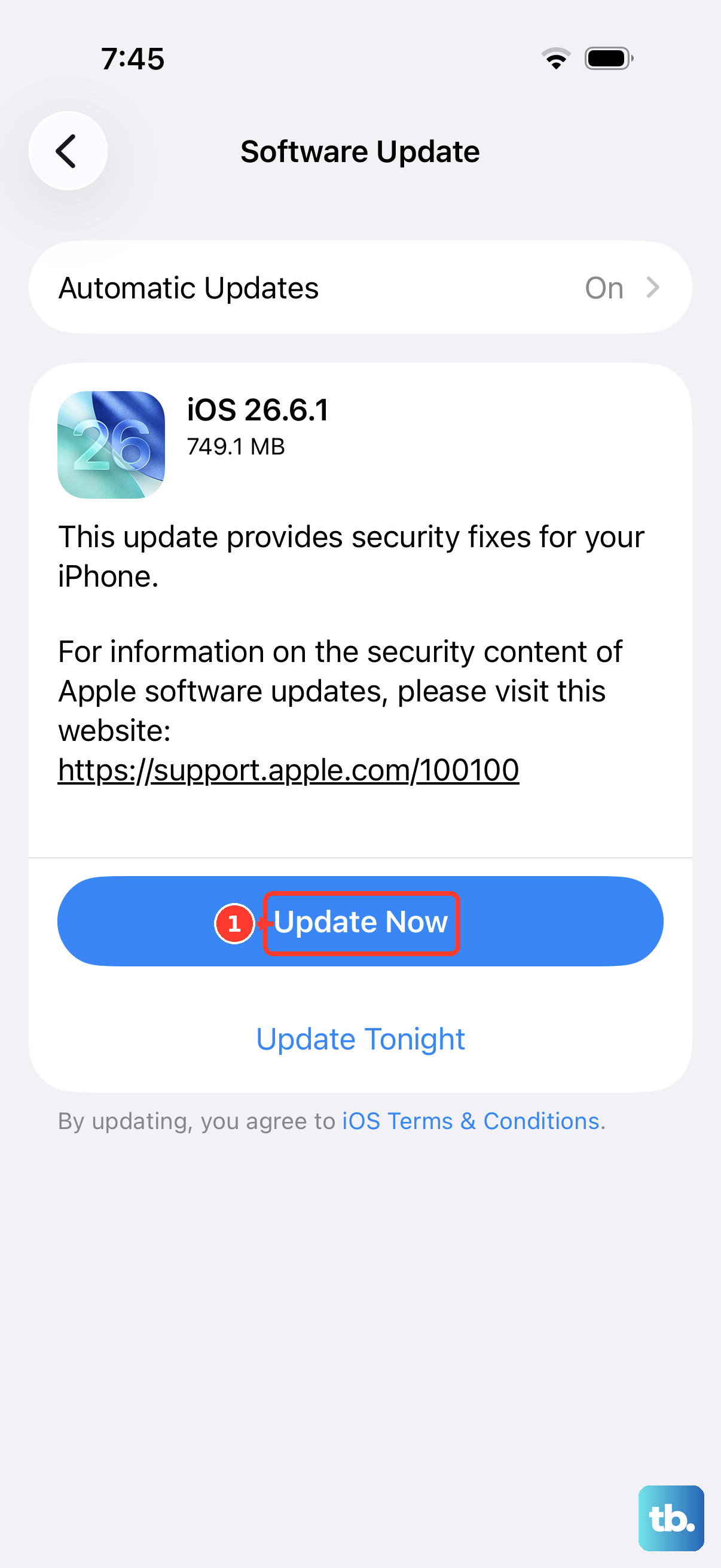
Apple frequently releases updates that fix bugs, including ones related to screen rotation and sensor performance. It's worth making sure your iPhone 16 is running the latest version of iOS 26.
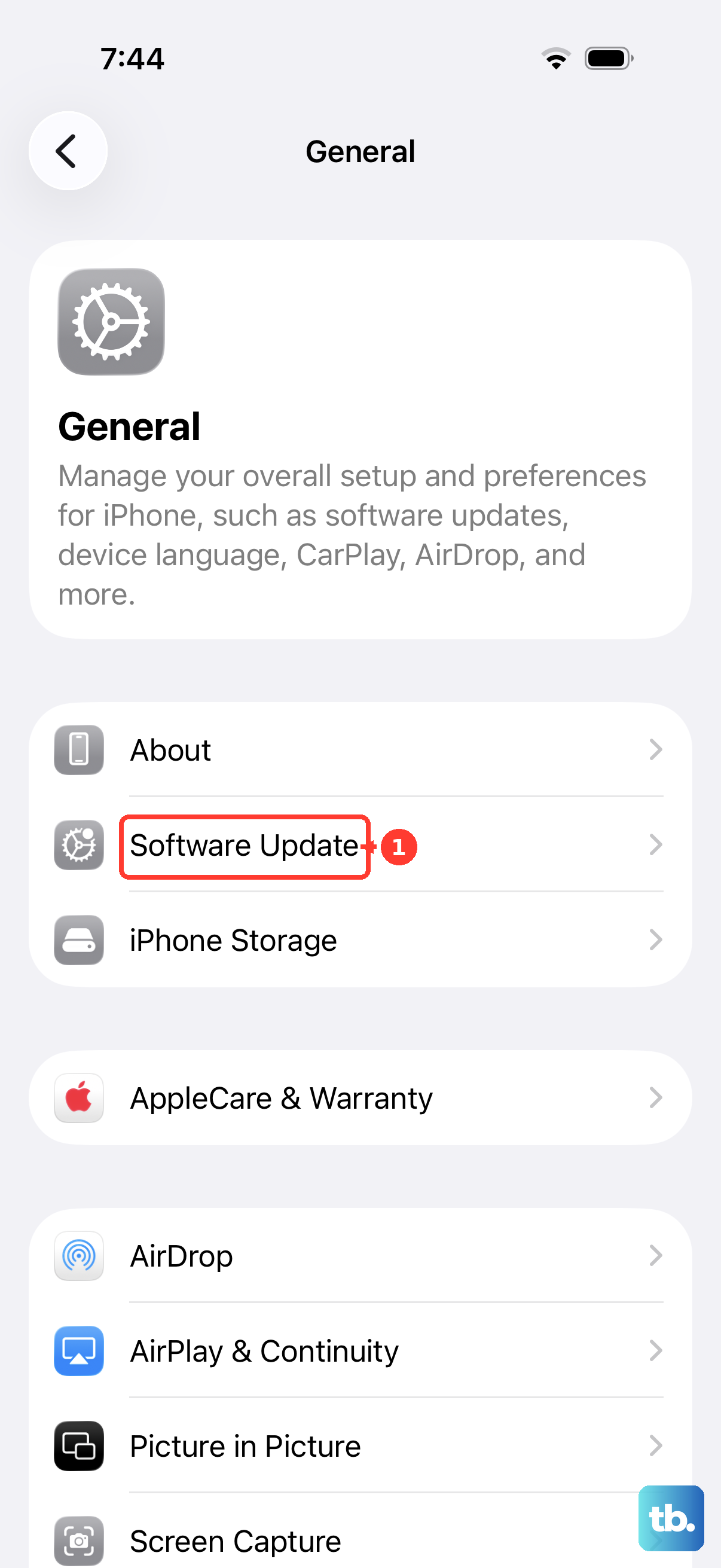
Go to Settings > General > Software Update. Your phone will check for any available updates. If one is listed, tap Download and Install. I've seen minor point updates resolve rotation issues that appeared after a major iOS update.
Test Rotation in Different Apps
Some apps don't support landscape mode at all, while others might have their own internal rotation lock. If your screen rotates fine in the Camera app or Safari but stays stuck in portrait in another app like Messages, the problem is app-specific.
Try opening a few different apps to see where the issue occurs. If it's just one app, check that app's settings for a rotation lock option. You can also try closing the app completely by swiping it away from the App Switcher and reopening it.
Reset All Settings
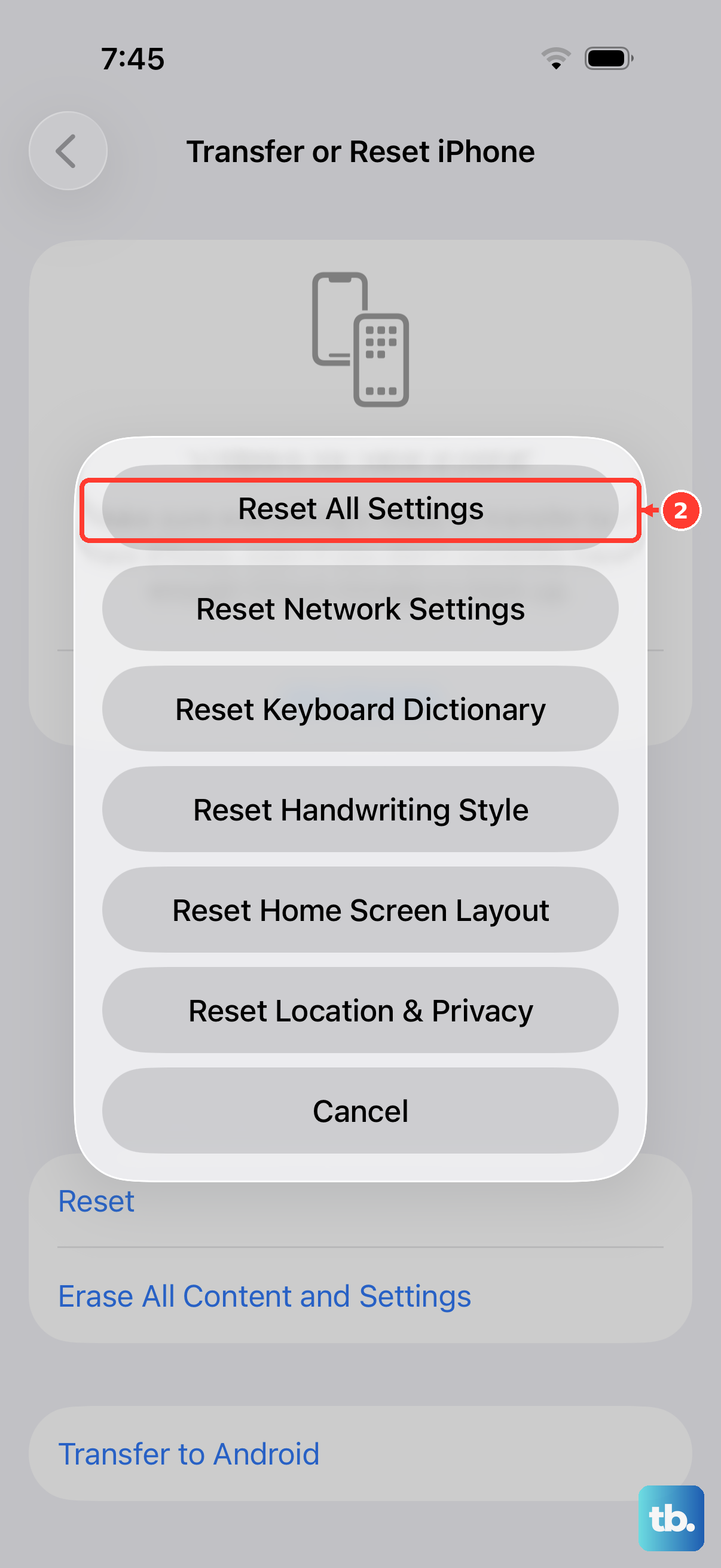
This is a more thorough step that resets every system setting on your iPhone 16 back to factory defaults. It won't erase your photos, messages, or apps, but you will need to reconfigure things like Wi-Fi passwords, wallpaper, and privacy permissions.
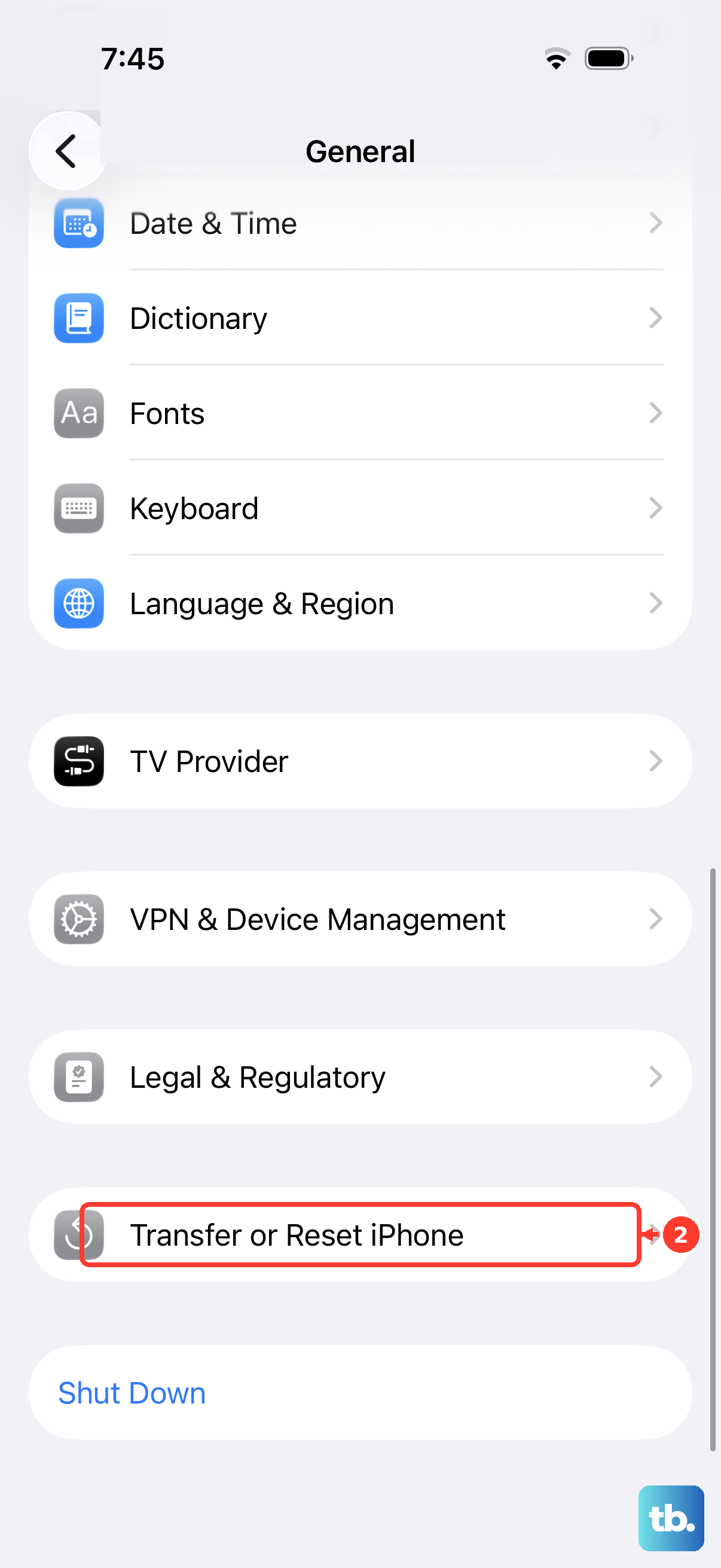
Because of that, I'd save this for after trying the simpler fixes. Go to Settings > General > Transfer or Reset iPhone. Tap Reset and then choose Reset All Settings. Enter your passcode when prompted. After your phone restarts, test the rotation immediately.
Check for Physical Obstructions
This sounds simple, but it's worth considering. A very thick or poorly designed case can sometimes press against the screen edges or frame in a way that interferes with the phone's ability to sense its orientation. Magnets from certain cases or accessories can also potentially confuse the sensors.
Try removing your iPhone 16 from its case and see if the rotation starts working. If it does, the case is likely the issue. Try using it without a case for a bit, or look for a case that's certified as "MagSafe Compatible" to ensure it doesn't interfere.
Test the Sensors with a Diagnostic
You can use a simple online tool to check if your iPhone's accelerometer and gyroscope are functioning. Open Safari and search for "iOS gyroscope test" or visit a site that has HTML5 sensor tests. These web pages will show real-time data from your phone's sensors.
Tilt and rotate your iPhone 16. If the numbers on the screen change responsively, your hardware is working fine and the problem is purely software or settings-based. If the sensors show no movement at all, it could indicate a deeper issue.
Consider a Software Restore
If you've tried everything else and the screen is still stuck, a full restore via a computer is the final software step. This erases everything on your phone and installs a fresh copy of iOS. You must have a recent backup in iCloud or on your computer before you begin.
Connect your iPhone 16 to a Mac or PC, open Finder or iTunes, select your device, and choose "Restore iPhone." This process can take a while. After it's complete, you can set up the phone as new to test rotation, or restore from your backup. If the problem persists even on a fresh iOS install, it may be time to contact Apple Support for a hardware evaluation.