
So your iPhone 17 Pro won't charge. You've plugged it in, maybe swapped to a MagSafe puck, and watched the battery percentage stubbornly refuse to budge. It's a frustrating spot to be in, but simple troubleshooting can help before you take the phone in for service.
Whether you're dealing with a finicky USB-C port, a MagSafe charger that won't snap into action, or a phone that just sits there looking dead, start with the basic checks below. Try charging again after each step before moving on.
Force Restart Your iPhone 17 Pro
First, check that your cable and adapter aren't damaged and that their connections to the phone and wall outlet are firm. Let the phone charge for half an hour. If it still won't power on or only shows a battery icon, try a force restart.
For the iPhone 17 Pro, the process is straightforward. Press and quickly release the Volume Up button, then press and quickly release the Volume Down button. Finally, press and hold the Side button until you see the Apple logo appear on the screen.
After the force restart, let it charge for another half hour. If it still won't power on or charge, it might need service.
Inspect and Clean the USB-C Port
Debris in the port can interfere with charging. The USB-C port on your iPhone 17 Pro is a magnet for pocket lint, dust, and debris. Over time, that gunk can pack in so tightly that your cable can't make a proper connection.
Grab a flashlight and take a close look inside the port. If you see any dark material clogging it up, you'll need to clean it out. First, power off your phone for safety. Then, use a soft, dry brush to gently remove loose lint without scraping inside the port.
Avoid using anything metal, as you could damage the delicate gold contacts. Don't use compressed air or get moisture in the opening. After cleaning, try plugging your cable back in. It should click in firmly without any wobble.
Test Your Cable, Adapter, and Power Source
You need to figure out which part of the chain is broken. The best way is to swap each component one by one. Start by trying a different USB-C cable that complies with the USB-C standard, and don't use a cable with visible damage.
Next, test with a different wall adapter. If you're using Apple's 40W Dynamic Power Adapter, try a standard USB-C PD charger. For up to 50% charge in 20 minutes on the 17 Pro, use a 40W or higher adapter and a USB-C charging cable; it doesn't have to be that Apple adapter.
Don't forget to try a different wall outlet, too. Sometimes the problem is as simple as a faulty power strip. Also, take your phone out of its case, especially if it's a thick or poorly aligned third-party case that might be blocking the port.
Check Your Battery and Charging Settings
Your iPhone 17 Pro has intelligent features designed to extend your battery's lifespan, and they can sometimes be mistaken for a charging problem. Head to Settings > Battery > Charging.
Here, you'll find the Charge Limit setting. You can choose a limit from 80% to 100% in 5% steps to help preserve long-term health. If your phone stops at the selected limit, check this setting. You can adjust it to 100% for a full charge anytime.
When the limit is set to 100%, you'll also see Optimized Battery Charging, which learns your routine and delays charging past 80% until you need it. Keeping this on can help reduce the time your battery spends fully charged.
Be Patient with a Fully Drained Battery
If your iPhone 17 Pro's battery is fully drained, it may not show signs of life immediately when you plug it in. Check that the cable and adapter are firmly connected, then leave it connected to a wall charger for at least 30 minutes.
You should eventually see a red battery icon or the charging indicator. If the screen stays black after a half hour, try a force restart while it's still plugged in to jump-start the process.
Try MagSafe or Qi2 Wireless Charging
If the USB-C port isn't cooperating, wireless charging is a great diagnostic tool. The iPhone 17 Pro supports both MagSafe and the newer Qi2 standard. If your phone charges wirelessly but not via cable, check the cable, adapter, power source, and USB-C port.
When using MagSafe, make sure the charger snaps into place with its magnets. Alignment is key. Also, the phone can get warm while charging, and charging may slow down or pause if it gets too hot. Move the phone and charger to a cooler place, away from direct sunlight.
Update to the Latest Version of iOS
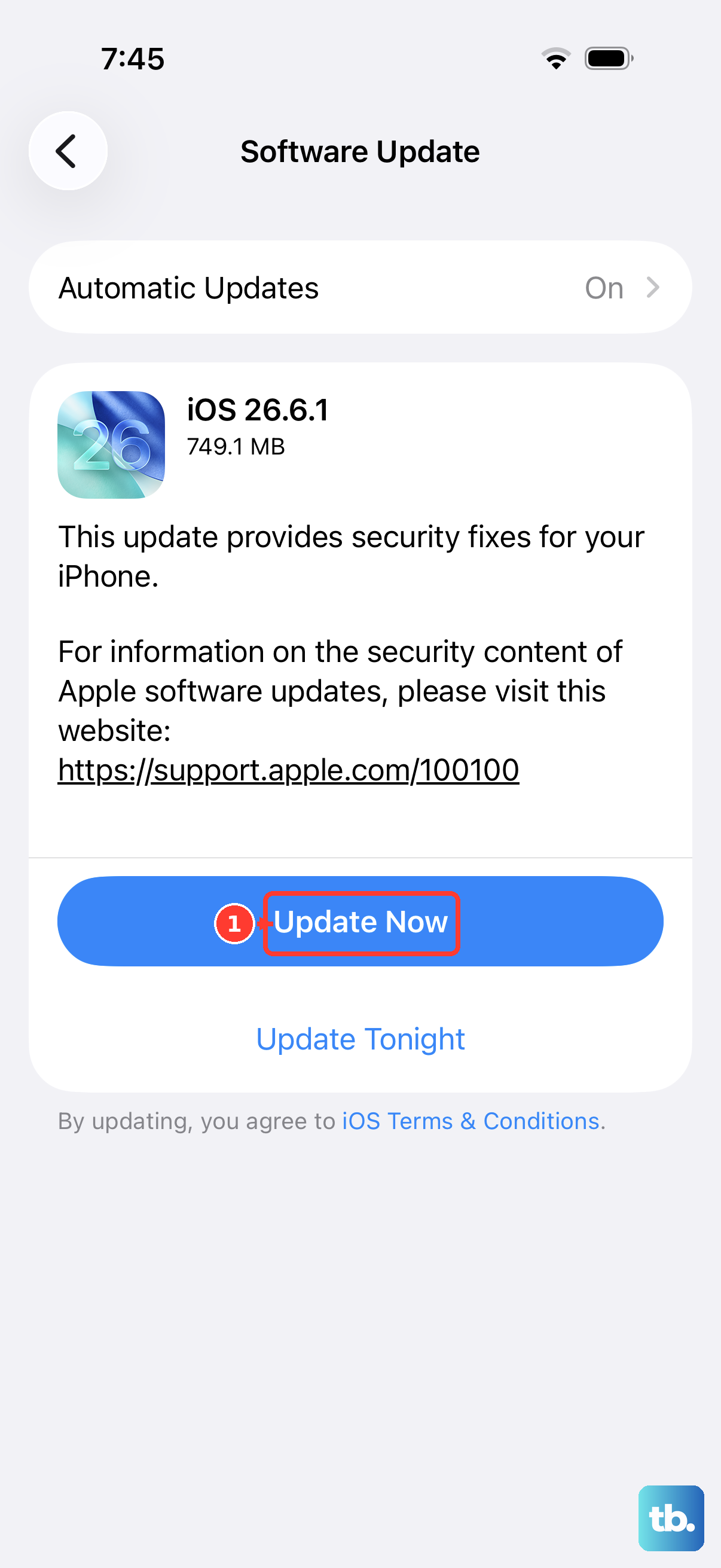
Software updates include bug fixes. If you're running an older version of iOS, check for an update, especially if you see an alert that your charging accessory isn't supported or certified.
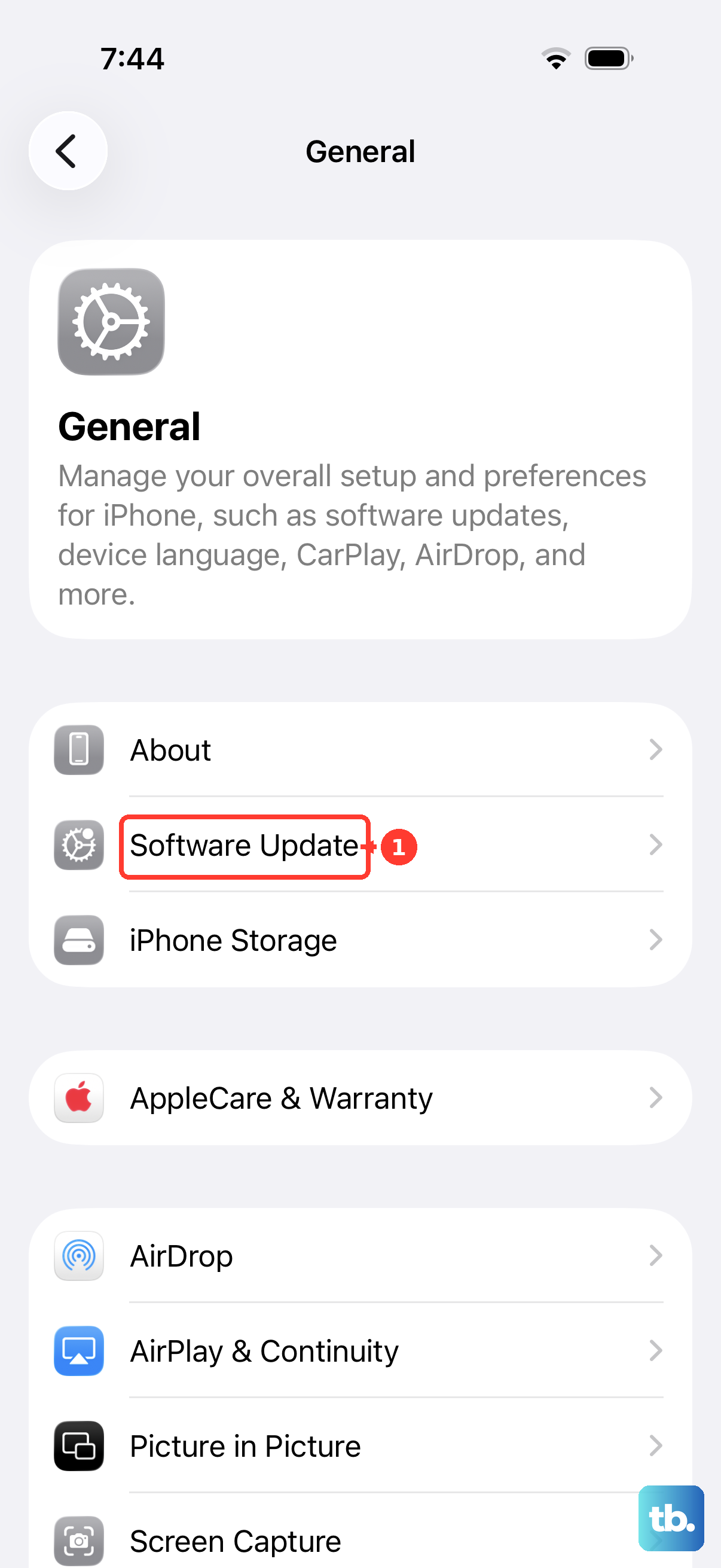
Go to Settings > General > Software Update and download any available update. If your phone turns on but the update won't install, you can update via a computer. Connect it to a Mac (open Finder) or a PC (open the Apple Devices app or iTunes) and follow the prompts to update.
Charge with the Phone Powered Off
Heavy app use can reduce charging speed. Try turning your iPhone 17 Pro completely off, then plugging it in. If it starts charging normally, check whether charging slows again when you're using demanding apps, games, or the camera.
If you keep the phone on, limit demanding apps and high-quality video while charging. If it gets too hot, move it and the charger to a cooler place and lock the screen while it cools.
Restore Your iPhone via Recovery Mode
If charging checks haven't helped, your phone may need service. Recovery mode is an option if it stays on the Apple logo for several minutes without a progress bar, isn't recognized by your computer, or shows the 'Connect to computer' screen. A restore erases all content and settings, so be sure you have a recent backup in iCloud or on your computer.
To enter Recovery Mode on the iPhone 17 Pro, first update your Mac or the Apple Devices app on your PC. Connect the phone with a USB-C cable and open Finder on the Mac or the Apple Devices app on the PC.
Press and quickly release the Volume Up button, press and quickly release the Volume Down button, then press and hold the Side button until the 'Connect to computer' screen appears (keep holding even after the Apple logo appears). Choose Update first if you haven't tried it; Restore reinstalls iOS and erases your data.
After the restore is complete, set the phone up as new (just for testing) and see if it charges. If it still won't charge, arrange service.