
That spinning wheel next to your Wi-Fi icon on the iPad Pro (M4) is incredibly frustrating, especially when you just want to get online. I've seen this happen on iPadOS 26, and it's almost always a software hiccup you can fix yourself. Let's get your connection back.
Toggle Wi-Fi and Restart Your iPad
Start with the simplest fix. Swipe down from the top-right corner to open Control Center and tap the Wi-Fi icon to turn it off. Wait a few seconds, then tap it again to turn it back on. This forces your iPad to drop and reacquire the network, which often does the trick.
If that doesn't work, restart the iPad. Press and quickly release the Volume Up button, then quickly press and release the Volume Down button. Finally, press and hold the Power button until you see the Apple logo appear. This force restart sequence clears out any temporary glitches in iPadOS 26 that might be blocking the connection.
Forget the Wi-Fi Network and Rejoin
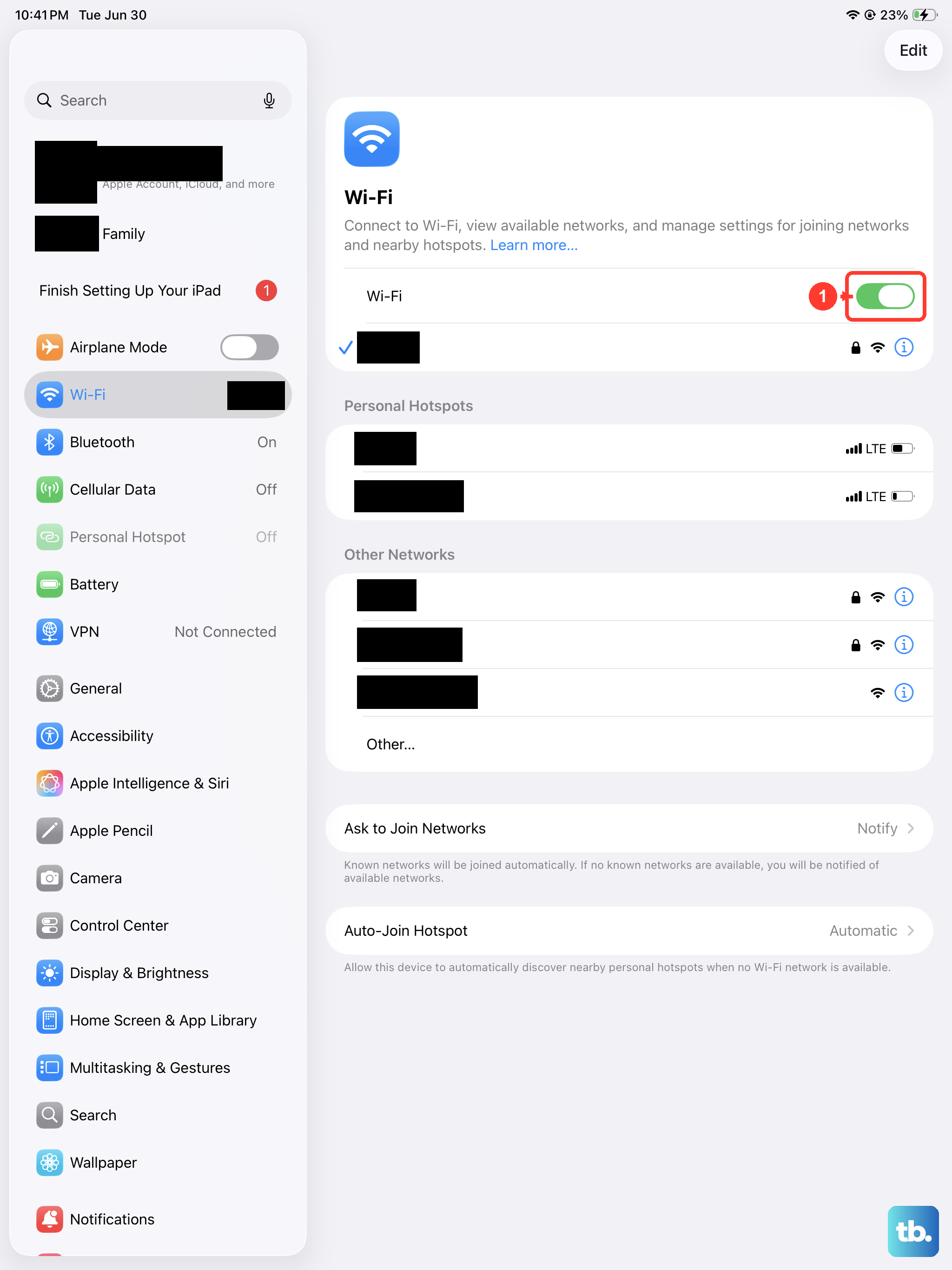
Your iPad might be holding onto corrupted login details for your network. Go to Settings > Wi-Fi and tap the info icon (the "i" in a circle) next to your network's name. Tap Forget This Network and confirm.
Now, go back to the list of available networks, select yours again, and re-enter the password. This is a crucial step if you've recently changed your Wi-Fi password or gotten a new router, as your iPad will be trying the old credentials.
Check for Router Issues
Sometimes the problem isn't your iPad at all. Unplug your router and modem from power for a full minute. Plug the modem back in first, wait for all its lights to stabilize, then plug the router back in.
While you're thinking about the router, check if other devices in your home can connect to Wi-Fi. If they can't, the issue is definitely with your network hardware. Also, if you're using a VPN on your router or have recently changed any advanced settings, that could be the culprit.
Disable Bluetooth Temporarily
Bluetooth and Wi-Fi can sometimes interfere with each other on the 2.4GHz band. Open Control Center and tap the Bluetooth icon to turn it off. See if your Wi-Fi connection stabilizes. If it does, you've found a simple workaround for when you need a reliable internet connection.
Turn Off Low Data Mode
Low Data Mode on iPadOS is designed to reduce background network activity. In some cases, it can be overly aggressive and disrupt a normal connection. Go to Settings > Wi-Fi, tap the info icon next to your network, and make sure Low Data Mode is switched off.
Update iPadOS Software
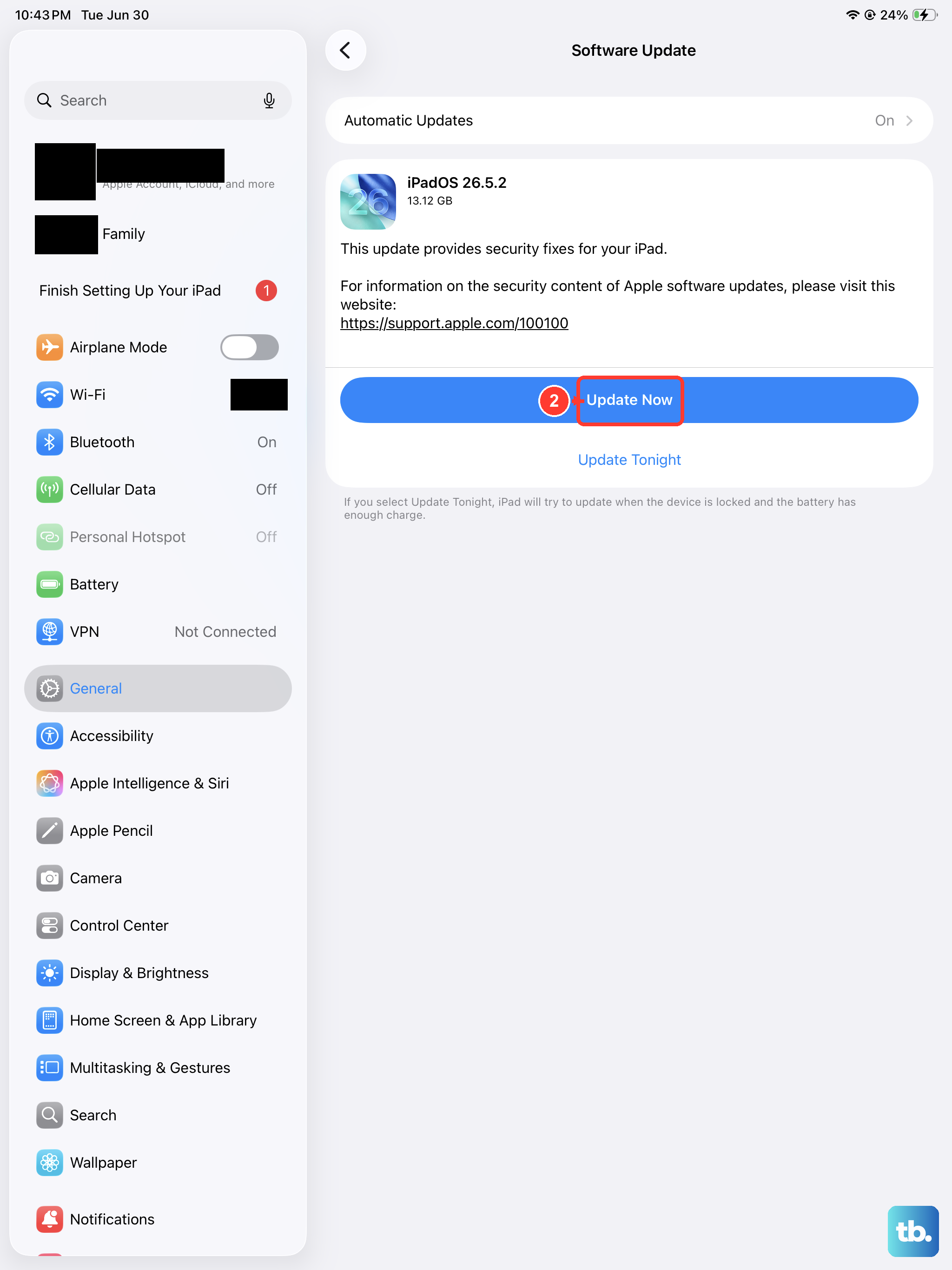
Apple regularly releases updates that fix connectivity bugs. Go to Settings > General > Software Update. If an update is available, install it. These updates often include important patches for Wi-Fi drivers and stability.
Make sure your iPad is connected to power during the update, as a restart during installation can cause bigger problems. It's a good habit to keep automatic updates turned on for your iPad Pro.
Check Your Date and Time Settings
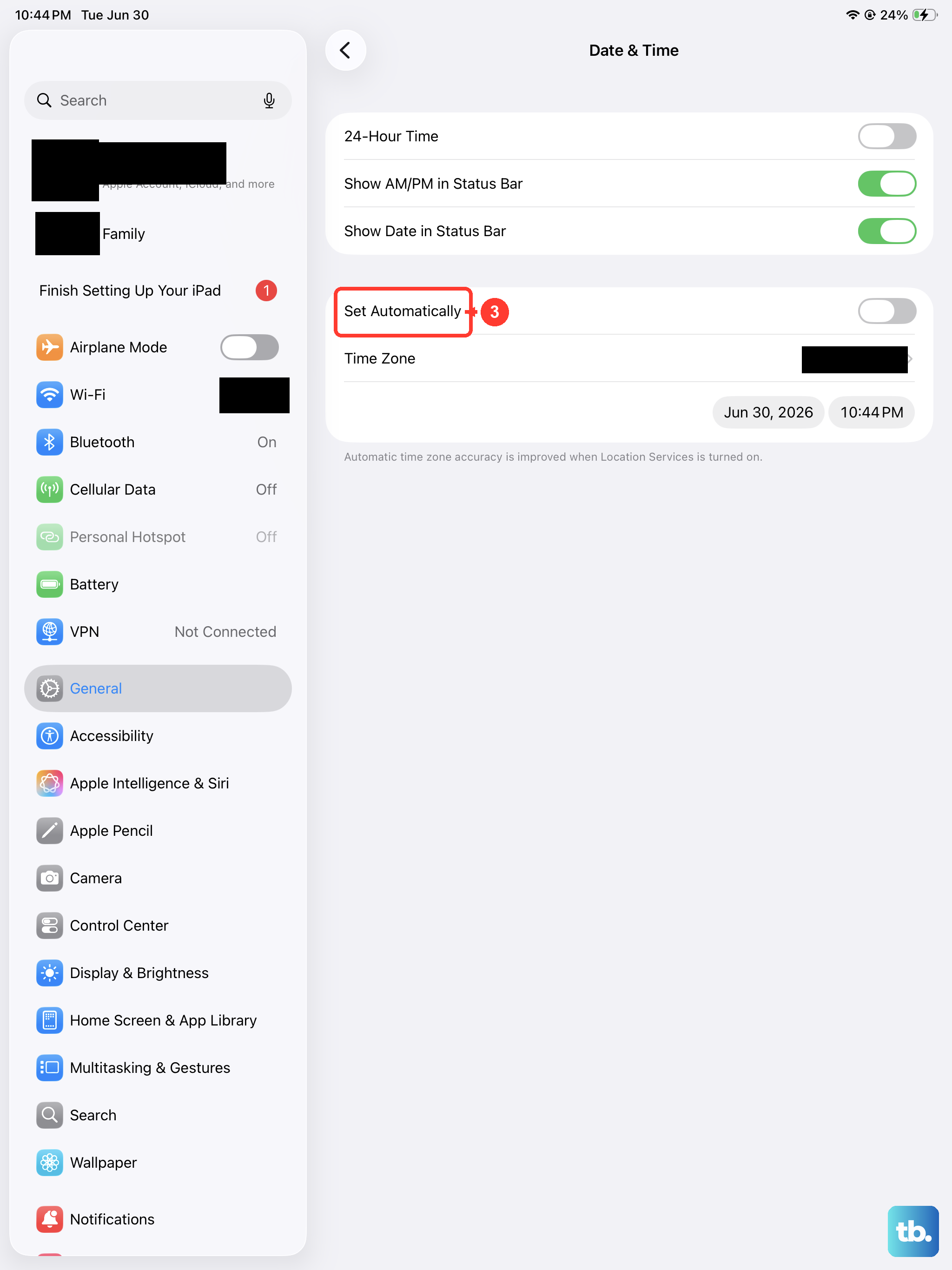
An incorrect date or time can break Wi-Fi authentication because security certificates won't validate. Go to Settings > General > Date & Time. Ensure that Set Automatically is turned on. This allows your iPad to sync with Apple's time servers.
Reset All Network Settings
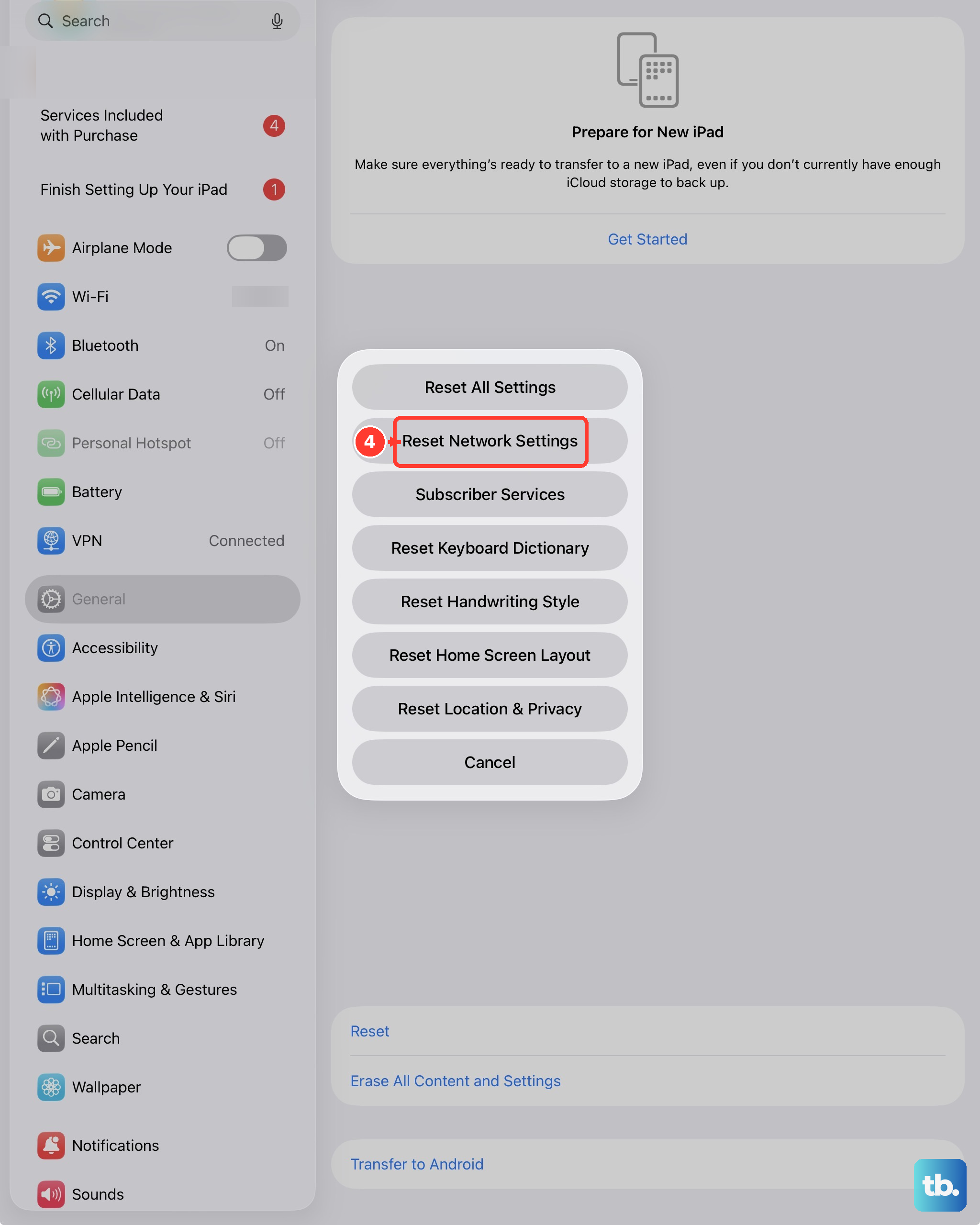
This is a more thorough step that resets Wi-Fi networks, cellular settings, and VPN configurations back to default. Go to Settings > General > Transfer or Reset iPad > Reset. Tap Reset Network Settings.
You'll need to re-enter all your Wi-Fi passwords afterward, but it clears out any deep-seated configuration errors. I'd try this before considering anything more drastic.
Try a Different Wi-Fi Network
To rule out a hardware problem with your iPad's antenna, try connecting to a different Wi-Fi source. Use a personal hotspot from your phone or a public network at a cafe. If your iPad Pro connects without issue to other networks, the problem is isolated to your home router or its settings.
Review Router Band and Security
Newer routers often broadcast separate networks for 2.4GHz and 5GHz bands. Your iPad Pro (M4) supports both, but sometimes one band can have issues. Try connecting to the other band to see if it's more stable.
Also, check your router's security protocol. WPA3 is the current standard and offers the best security. If your router is set to an older, deprecated protocol like WEP, your iPad may refuse to connect or drop frequently.