
So your iPad Pro (M4) won't charge. You've plugged it in, maybe swapped cables, and the screen stays stubbornly dark. It's a frustrating spot to be in, but I've found this is almost always something you can fix yourself without a trip to the store.
Whether you're dealing with a USB-C port that won't cooperate, a MagSafe charger that stopped working, or a tablet that just sits there showing zero signs of life, we'll run through the fixes from quickest to most involved.
Force Restart Your iPad Pro
This is always my first step. A force restart clears out temporary software bugs that might be blocking the charging connection. It takes about 30 seconds and fixes the problem more often than you'd think.
For the iPad Pro (M4), the sequence is straightforward. Press and quickly release the Volume Up button, then press and quickly release the Volume Down button. Finally, press and hold the Power button until you see the Apple logo appear on the screen.
Once it boots back up, plug it in and see if the charging indicator appears. If it does, you've just solved a simple software hiccup.
Clean the USB-C Charging Port
This is the single most common fix for any iPad with a USB-C port. Over time, lint, dust, and pocket debris pack into that port every time you slide it into a bag or case. Eventually, there's so much gunk that the cable can't make a proper connection.
Grab a flashlight and take a close look inside the port. If you see any debris, turn off your iPad first for safety. Use a wooden or plastic toothpick to gently scrape out the lint. Don't use metal tools, as they can damage the delicate gold contacts inside.
You can also try tapping the iPad gently with the port facing down to shake anything loose. If the port looks damaged or the cable still feels loose after cleaning, that points to a hardware issue.
Try a Different Cable and Power Source
You need to figure out whether the problem is your cable, your wall adapter, or the outlet itself. The easiest way is to swap each component one at a time.
Start with a different USB-C cable, ideally one that's Apple-certified for optimal performance. Then, test with a different wall adapter. I'd recommend using a 30W or higher USB-C Power Delivery (PD) charger to match the iPad Pro's 45W capability.
Also, try a different wall outlet entirely. Sometimes the issue is as simple as a faulty power strip. Remove your iPad case, especially thick or magnetic ones that might interfere with the port connection.
Check for Software Updates
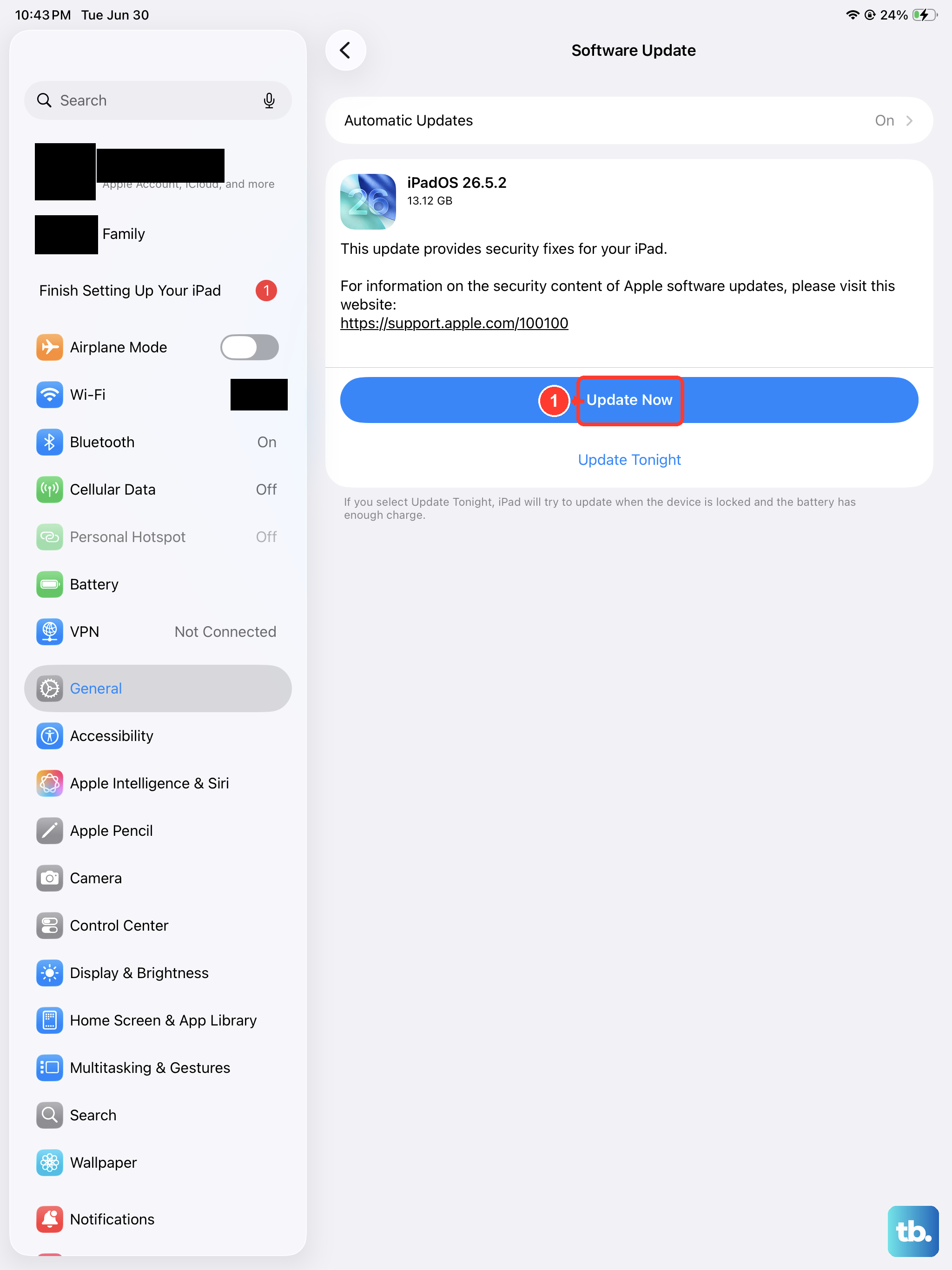
Apple regularly patches bugs in iPadOS updates, including ones that can affect charging. If you're running an older version of iPadOS 26, updating could resolve the issue.
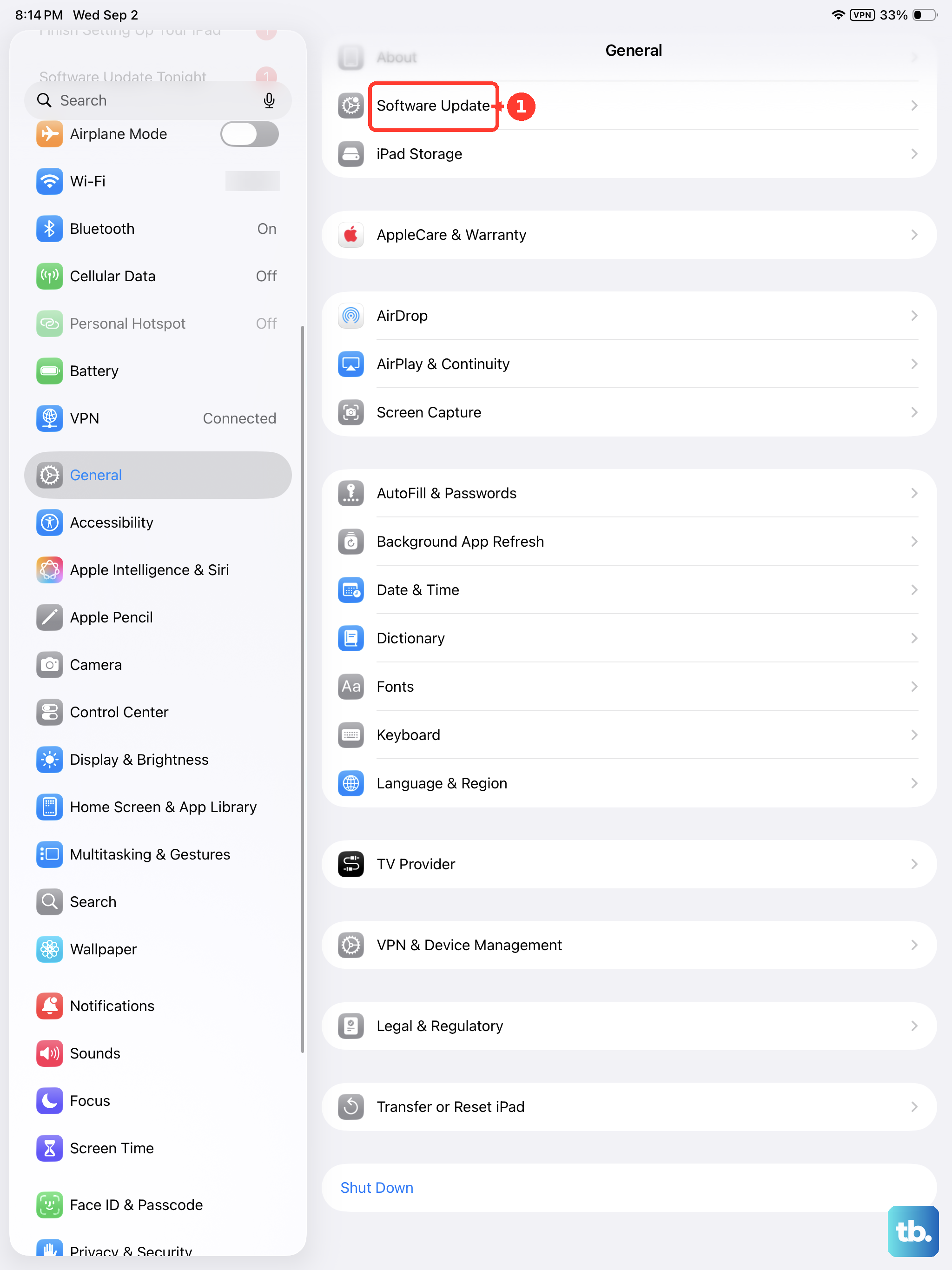
Go to Settings > General > Software Update and download and install any available update. If your iPad won't turn on at all to check for updates, you can try updating it through a computer.
Connect it to a Mac (using Finder) or a PC (using the Apple Devices app), and look for a restore or update option there.
Test with MagSafe Wireless Charging
If wired charging isn't working, trying the MagSafe charger can help you diagnose the problem. If wireless charging works but USB-C doesn't, your port likely needs attention.
Keep in mind that MagSafe on the iPad Pro is estimated at 15W, which is slower than the 45W wired charging. For the best results, make sure the MagSafe charger is properly aligned, the magnets should snap it into place.
Remove any thick cases, and be aware that the iPad may get warm during wireless charging, which can cause it to slow down or pause temporarily. This is a normal temperature protection feature.
Wait If the Battery Is Completely Dead
If your iPad's battery hit absolute zero, it won't show any signs of life right away when you plug it in. This is normal behavior for lithium-ion batteries.
Leave it connected to a powerful wall charger (not a low-power computer USB port) for at least 30 minutes. You should eventually see a battery icon or the charging indicator on the screen.
If nothing shows up after a half hour, try a force restart while it's still plugged in. Sometimes this can jump-start the process.
Charge with the iPad Turned Off
Sometimes a background process or a misbehaving app can interfere with the charging system. Turning your iPad Pro completely off, then plugging it in, can bypass this.
If it starts charging normally while powered off, you know the issue is software-related. This method is also the fastest way to charge your iPad, as no power is being used by the screen or apps.
Inspect Your Charging Settings
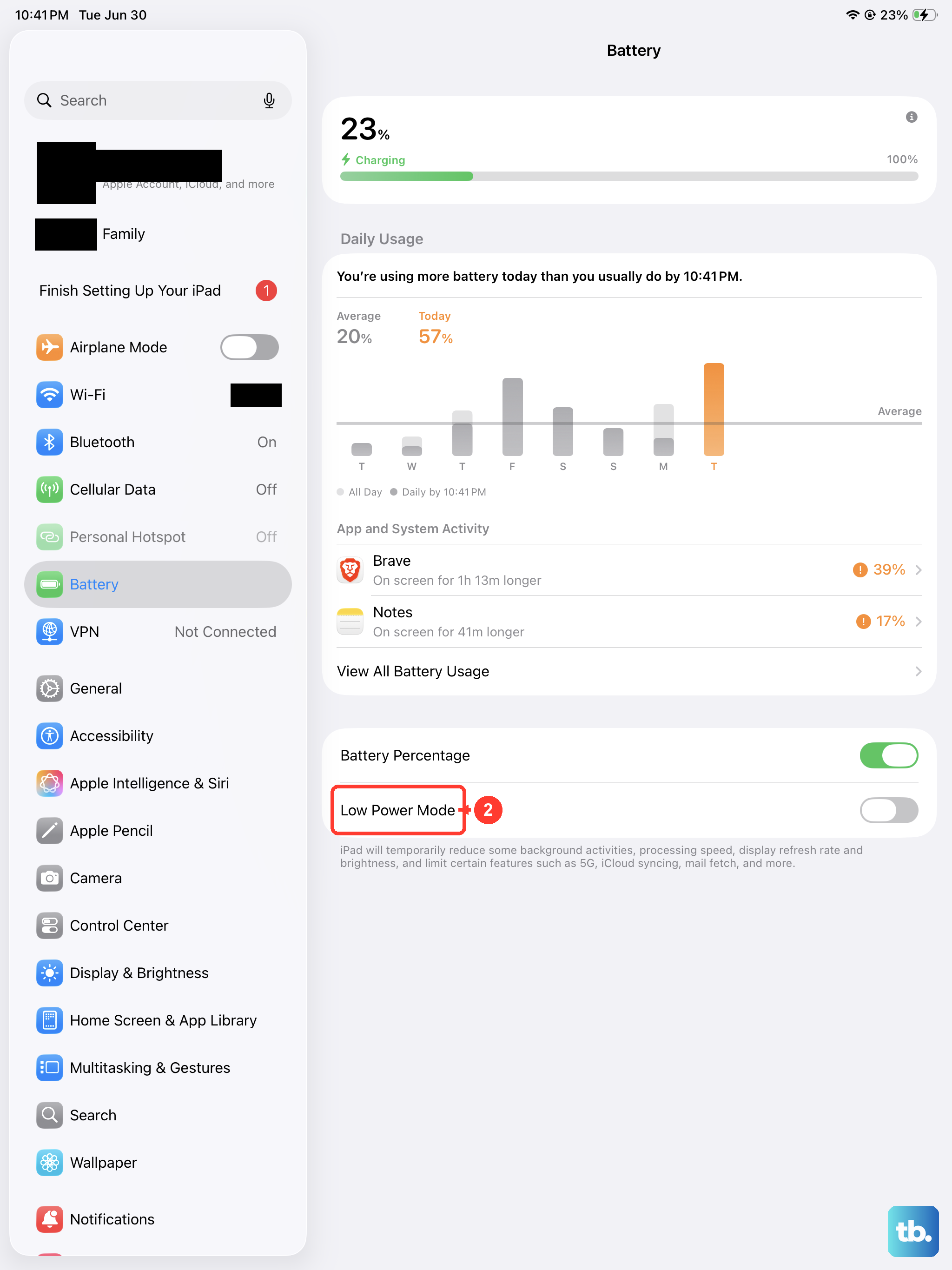
While the iPad Pro (M4) is a future model, it's likely to include battery health features similar to recent iPhones. Check your settings to make sure a feature isn't intentionally limiting your charge.
Go to Settings > Battery and look for any charging optimization or limit settings. Features like "Optimized Battery Charging" learn your routine and may delay charging past 80% until you need it, which can be mistaken for a problem.
Also, check if there's a low power mode or similar setting that might be enabled, as this can sometimes affect charging behavior.
Consider the Environment
Your iPad Pro has built-in temperature protection. If it's too hot or too cold, it will refuse to charge to protect the battery. This happens more often than people realize, especially if the iPad is left in a sunny spot or on a warm MagSafe charger.
If the device feels unusually warm, move it to a cooler location and let it sit for 15-20 minutes before trying to charge again. The ideal temperature range for charging is between 32° and 95° F (0° and 35° C).
Restore Your iPad (Last Resort)
If you've tried everything else and your iPad still won't charge properly, a full restore can wipe out deep-seated software issues. Be sure to back up your data first, as this will erase everything on the device.
You can initiate a restore by putting the iPad into Recovery Mode and connecting it to a computer. The exact button sequence for Recovery Mode on this model may vary, but it typically involves holding specific buttons while connecting to a Mac or PC.
Use Finder on a Mac or the Apple Devices app on a PC to restore the iPadOS software. After the restore is complete, set it up as new initially to test if charging works. If it still doesn't, the issue is almost certainly hardware-related.