
If your iPad Pro 2026 (M4) is refusing to connect to your AirPods, keyboard, or car, it can really throw off your workflow. Bluetooth issues on iPadOS 26 are usually software hiccups that you can resolve yourself with a few targeted steps. Let's get your wireless connections working again.
Check the Simple Stuff First
Before we get into deeper fixes, run through this quick checklist. It sounds basic, but I've seen these simple oversights cause most connection problems. Make sure Bluetooth is actually enabled on your iPad by checking for the blue icon in the Control Center.
Ensure the accessory you're trying to connect to is in pairing mode and has sufficient battery. Keep them within a few feet of each other during the initial pairing process. It's also a good idea to test your iPad with a different Bluetooth device to see if the problem is with the iPad or that specific accessory.
Toggle Bluetooth and Restart
The digital equivalent of "turn it off and on again" works surprisingly often. Swipe down from the top-right corner to open Control Center and tap the Bluetooth icon to turn it off. Wait about ten seconds, then tap it again to turn it back on. Try your connection again.
If that doesn't do it, a full restart of both devices is the logical next step. For your iPad Pro, use the standard shutdown via Settings > General > Shut Down. Power it back on after a minute. Don't forget to also power cycle the Bluetooth accessory you're trying to connect to.
Forget the Device and Re-pair
Sometimes the pairing data gets corrupted. The fix is to remove the device from your iPad's memory and start fresh. Open Settings on your iPad, then go to Bluetooth. Find the troublesome device in your list of "My Devices" and tap the info (i) icon next to it.
Tap Forget This Device and confirm. Now, put your accessory back into pairing mode and select it from the "Other Devices" list on your iPad to create a new, clean connection. This resolves most one-off pairing failures.
Reset Your iPad's Network Settings
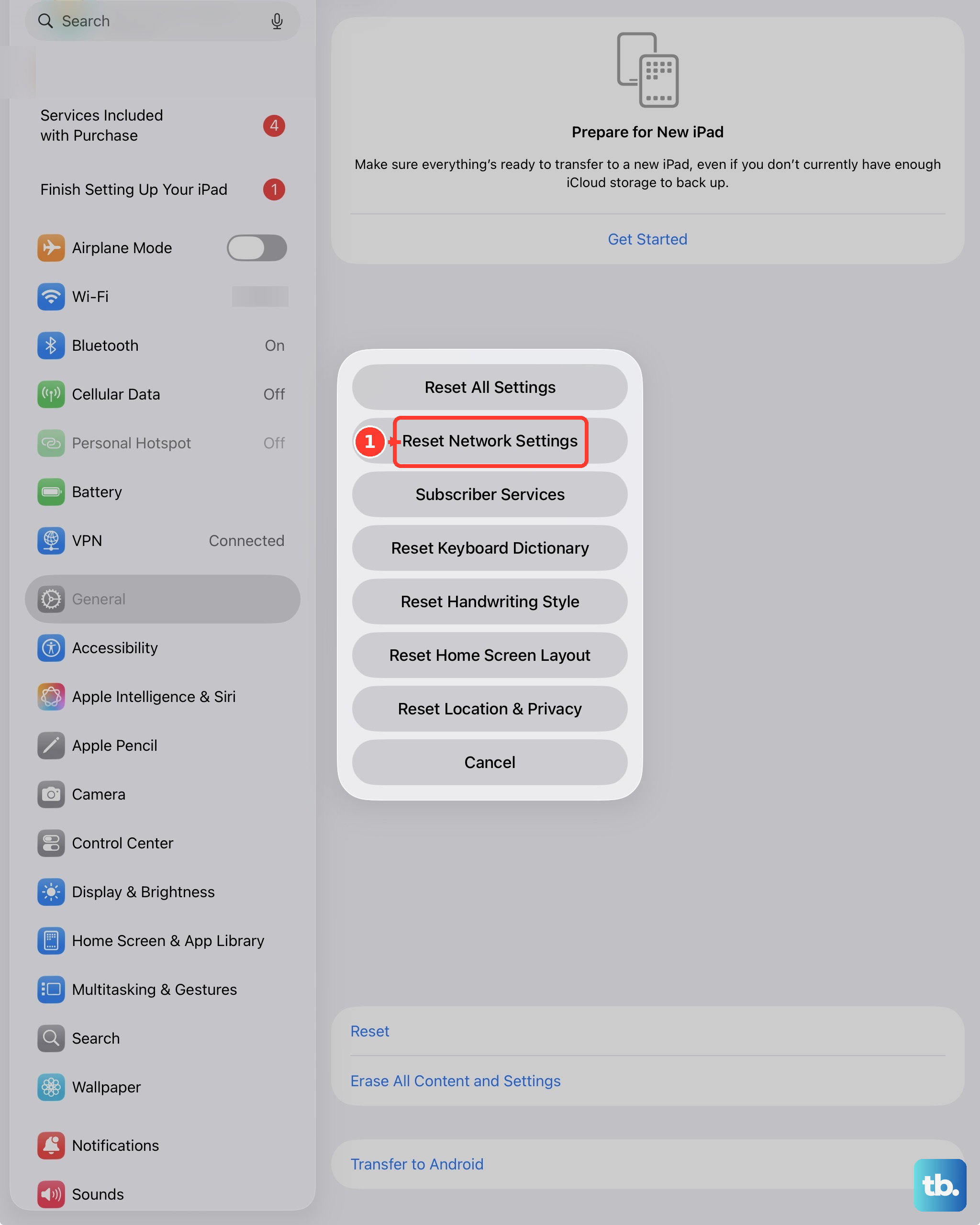
This is a more comprehensive step that resets all network-related configurations, including Wi-Fi passwords, VPN settings, and of course, Bluetooth pairings. It won't delete your personal data like photos or apps.
Go to Settings > General > Transfer or Reset iPad. Tap Reset at the bottom, then choose Reset Network Settings. You'll need to enter your passcode and confirm. Your iPad will restart, and you'll have to re-pair all your Bluetooth devices and re-join Wi-Fi networks afterward.
Update iPadOS and Accessory Firmware
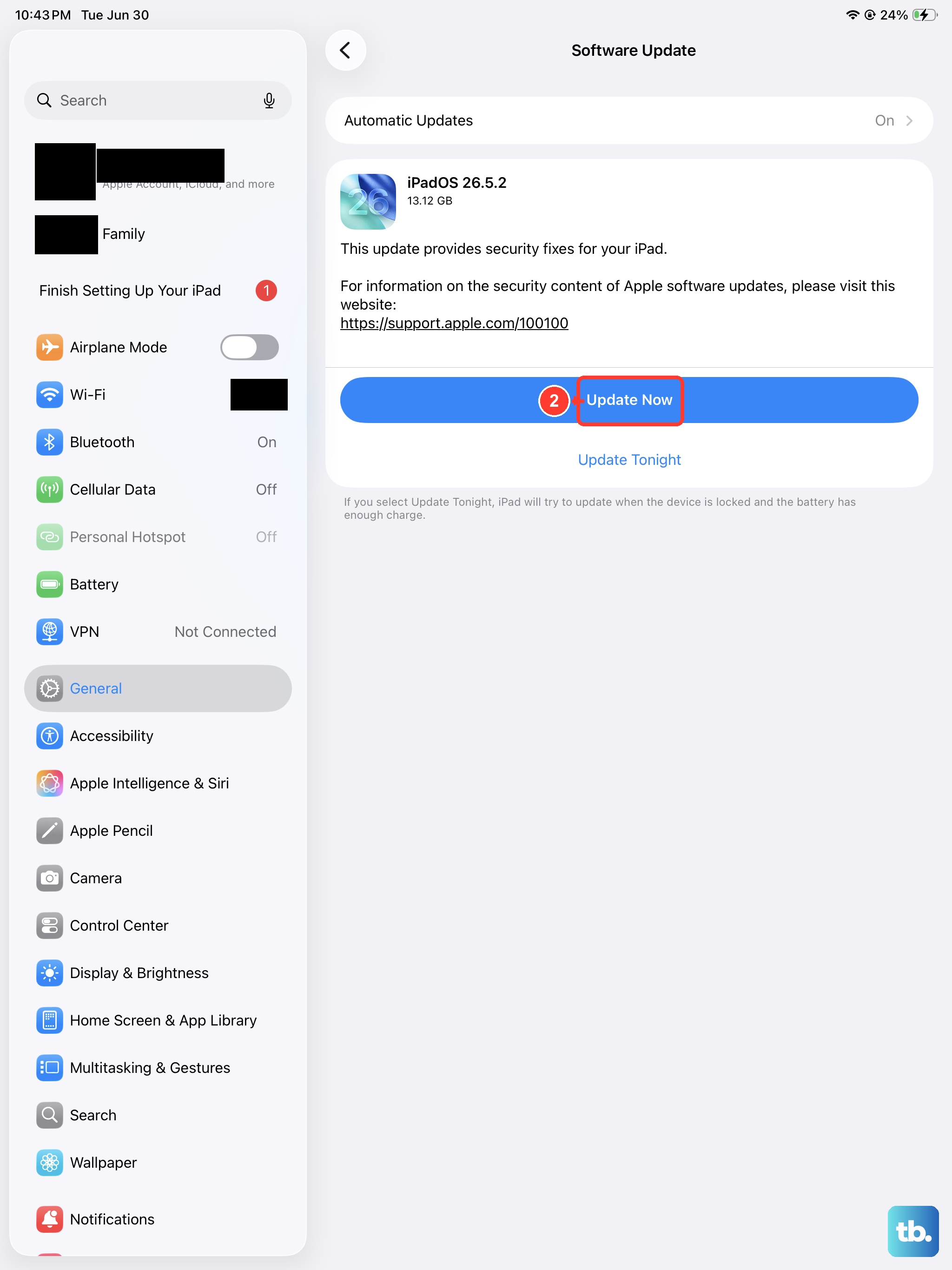
Software bugs are a common cause of Bluetooth instability. Apple frequently addresses these in updates. Check for an iPadOS update by going to Settings > General > Software Update. If an update is available, install it.
Also check if your Bluetooth accessory has a firmware update. For Apple devices like AirPods or Magic Keyboard, you can often check this by connecting them to an iPhone and looking in the Bluetooth settings. For third-party accessories, you might need to use the manufacturer's companion app.
Perform a Force Restart
A force restart is different from a normal shutdown and can clear more persistent glitches. On the iPad Pro 2026 (M4), you do this by quickly pressing and releasing the Volume Up button, then quickly pressing and releasing the Volume Down button.
Immediately after, press and hold the Power button. Keep holding it until you see the Apple logo appear on the screen, then release. This doesn't erase any data, it just gives the system a hard refresh.
Check for Interference and Reset All Settings
Wireless interference from other electronics, crowded Wi-Fi channels, or even USB 3 devices can sometimes disrupt Bluetooth. Try moving to a different room or temporarily turning off other wireless gadgets near your iPad.
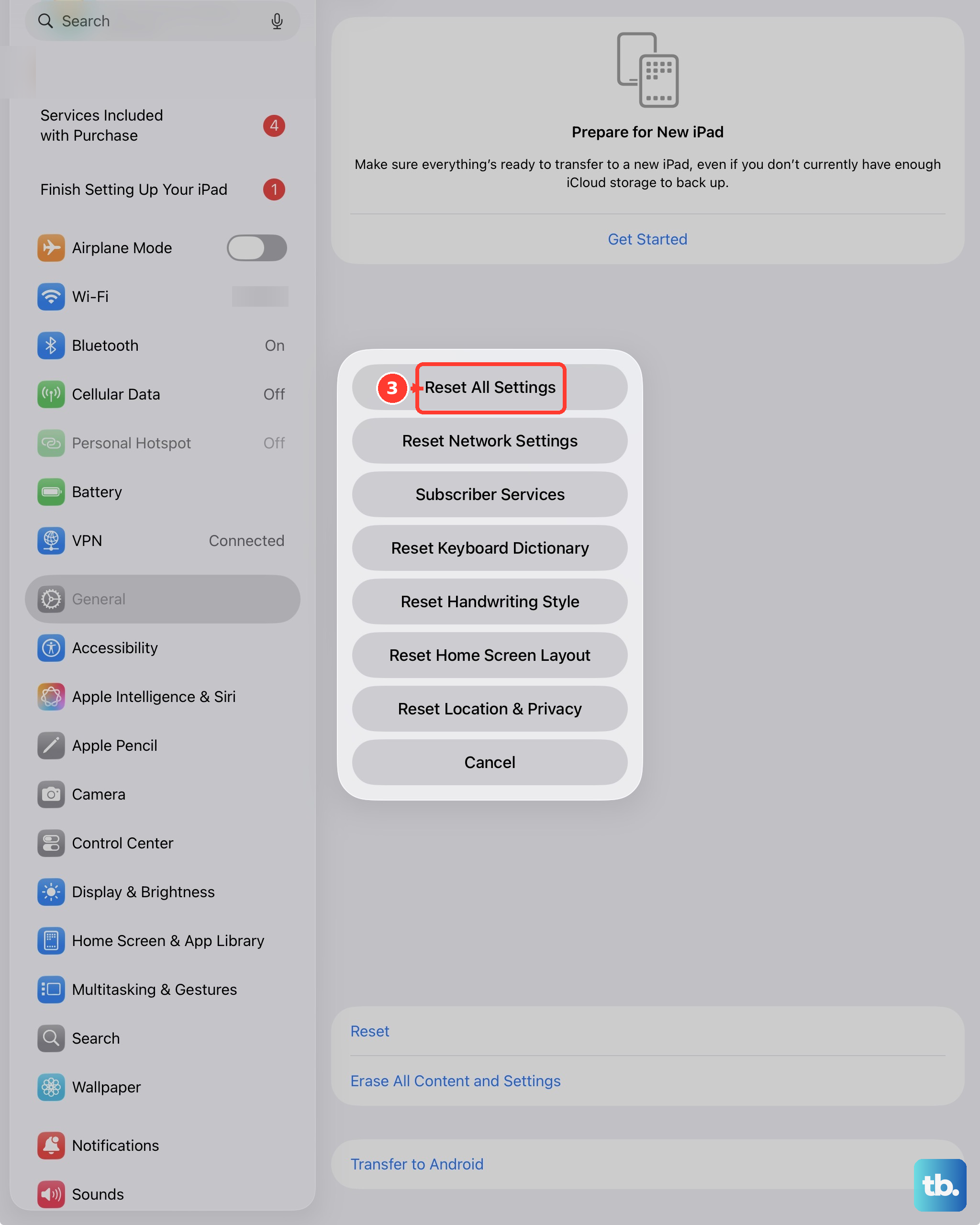
If you're still stuck, you can try resetting all settings. This is more drastic than resetting just network settings, as it will revert all preferences (like display brightness, sounds, and privacy permissions) back to default, but your data remains safe. Go to Settings > General > Transfer or Reset iPad > Reset > Reset All Settings.











