
If your iPad Pro (M4) camera app is black, frozen, or crashes when you open it, start with a force restart. Press and quickly release the Volume Up button, then quickly press and release the Volume Down button. Immediately press and hold the Power button until you see the Apple logo appear, then let go. This clears the device's memory and can fix temporary software glitches that lock up the camera.
It takes seconds to confirm the camera works with an online webcam test. If the preview stays black there too, keep reading, because the steps below target exactly that.
Key Points
- Force Restart Your iPad: This is the most effective first step for a completely unresponsive camera.
- Check for iPadOS Updates: Camera bugs are often fixed in subsequent software updates from Apple.
- Close and Reopen the Camera App: Swipe up from the bottom of the screen and swipe the camera app away to fully close it.
- Check App-Specific Permissions: Apps like Instagram or Zoom need explicit permission to use your camera.
- Reset All Settings: This returns all preferences to default without erasing your data.
- Check for Physical Obstructions: A case or screen protector might be blocking the lenses or sensors.
Give your iPad a moment to reboot completely, then try opening the Camera app again from your Home Screen.
If the camera works in some apps but not others, the issue is likely with the app's permissions, not your hardware. Open Settings > Privacy & Security > Camera. You'll see a list of every app that has requested camera access. Make sure the toggle is green for the app that's having trouble.
For example, if your camera works fine in the native Camera app but shows a black screen in FaceTime, check that FaceTime has permission here. Toggle it off and back on to refresh the connection.
Update iPadOS
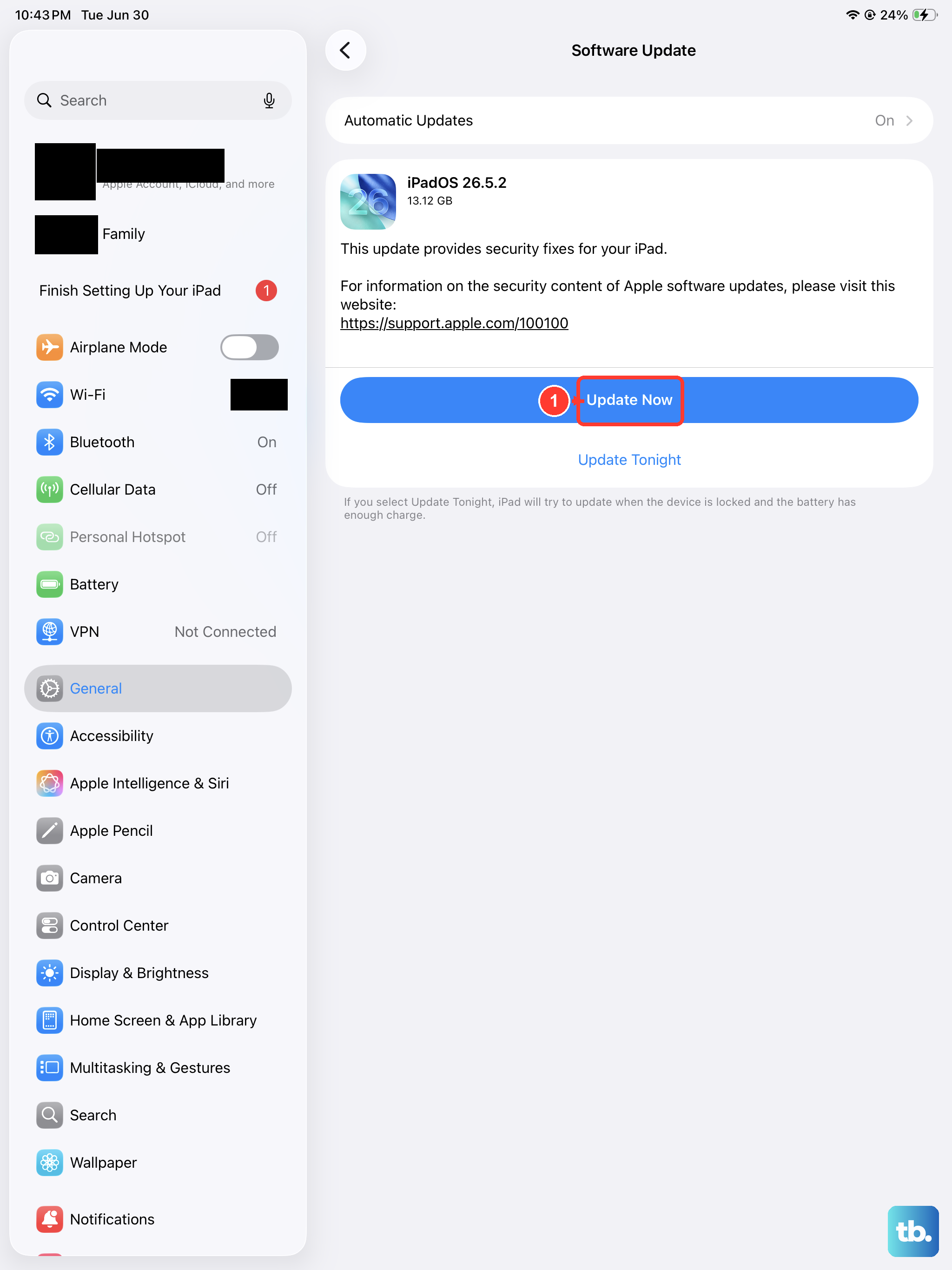
Apple frequently releases updates that fix bugs, including camera-related issues. If your camera stopped working after a recent update, there's a good chance a follow-up patch is already available. Go to Settings > General > Software Update.
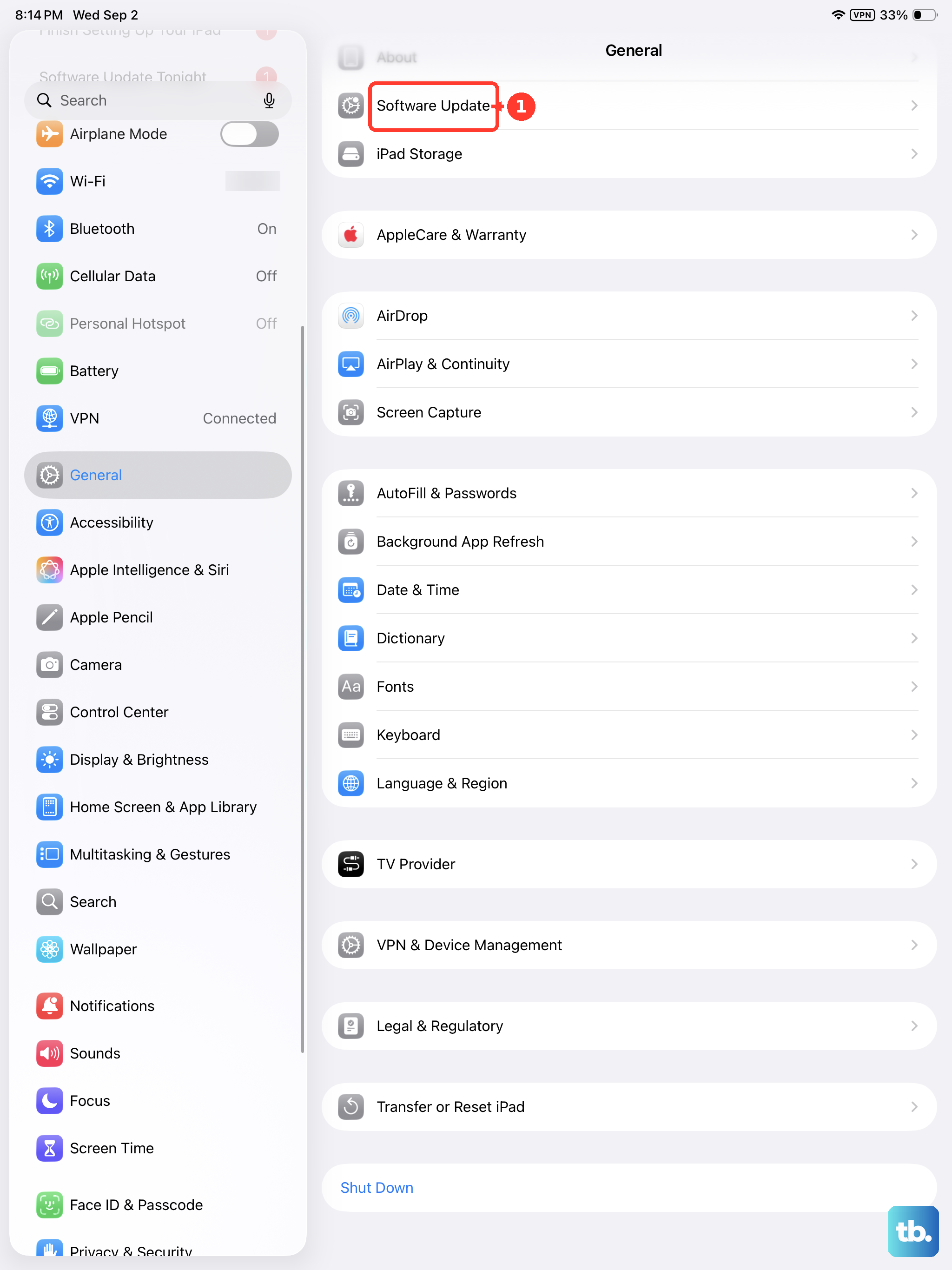
Your iPad will check for any available updates. If one is listed, tap Download and Install. Make sure your iPad is connected to Wi-Fi and has sufficient battery, or plug it into power using an Apple-certified USB-C cable and a 30W or higher charger. I'd start with this, as I've seen it resolve camera issues on past iPad Pro models more often than not.
Close Background Apps and Free Up Space
Sometimes, the camera app can freeze if the system is low on available memory or storage. Start by fully closing the Camera app. Swipe up from the bottom of the screen and pause in the middle to enter the app switcher. Find the Camera app preview and swipe it up and off the top of the screen to close it.
It's also a good idea to check your iPad's available storage. Go to Settings > General > iPad Storage. If you're critically low on space, the system may struggle to process photos and videos. Consider offloading unused apps or moving photos to iCloud to free up a few gigabytes.
Reset All Settings
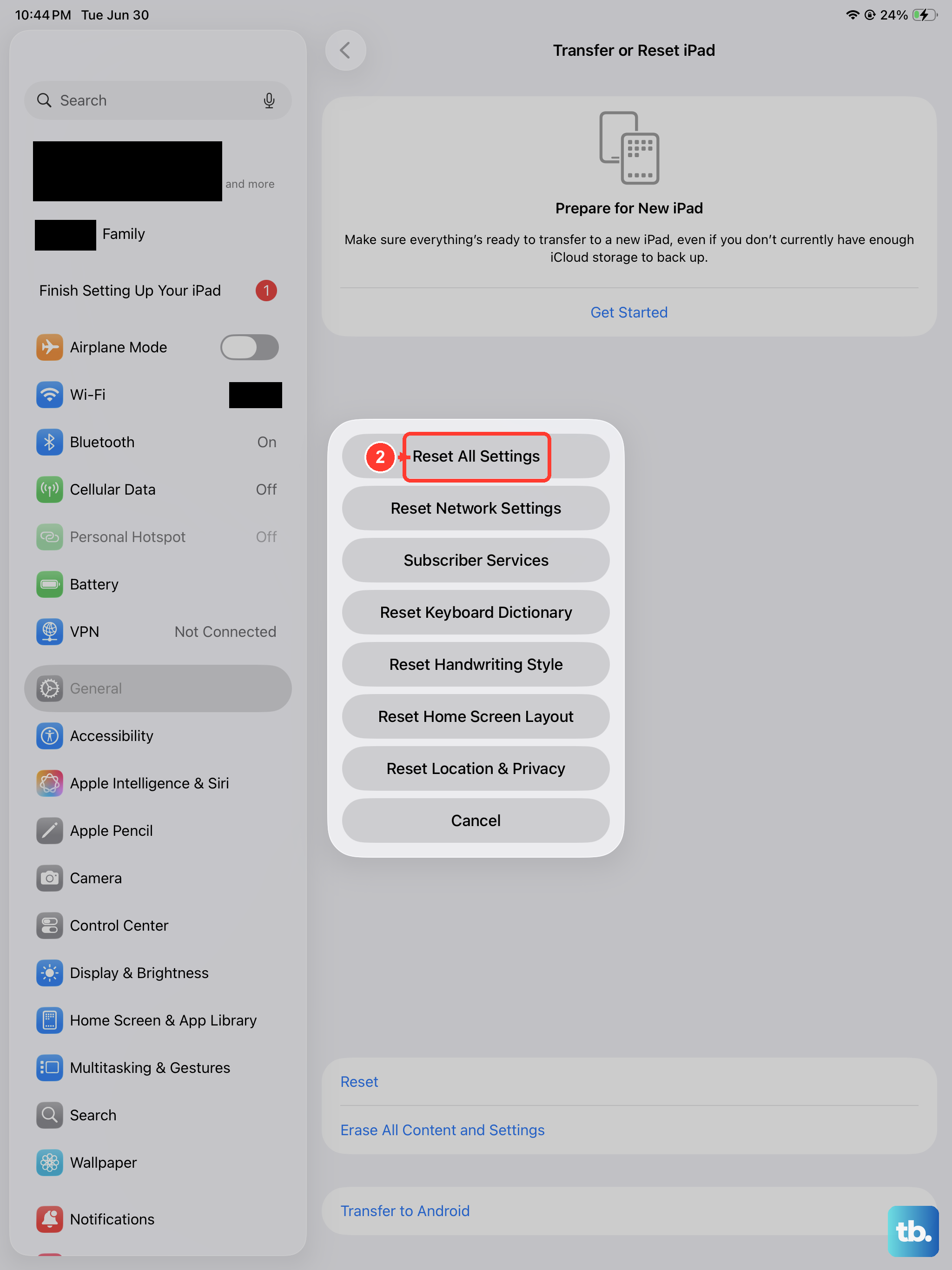
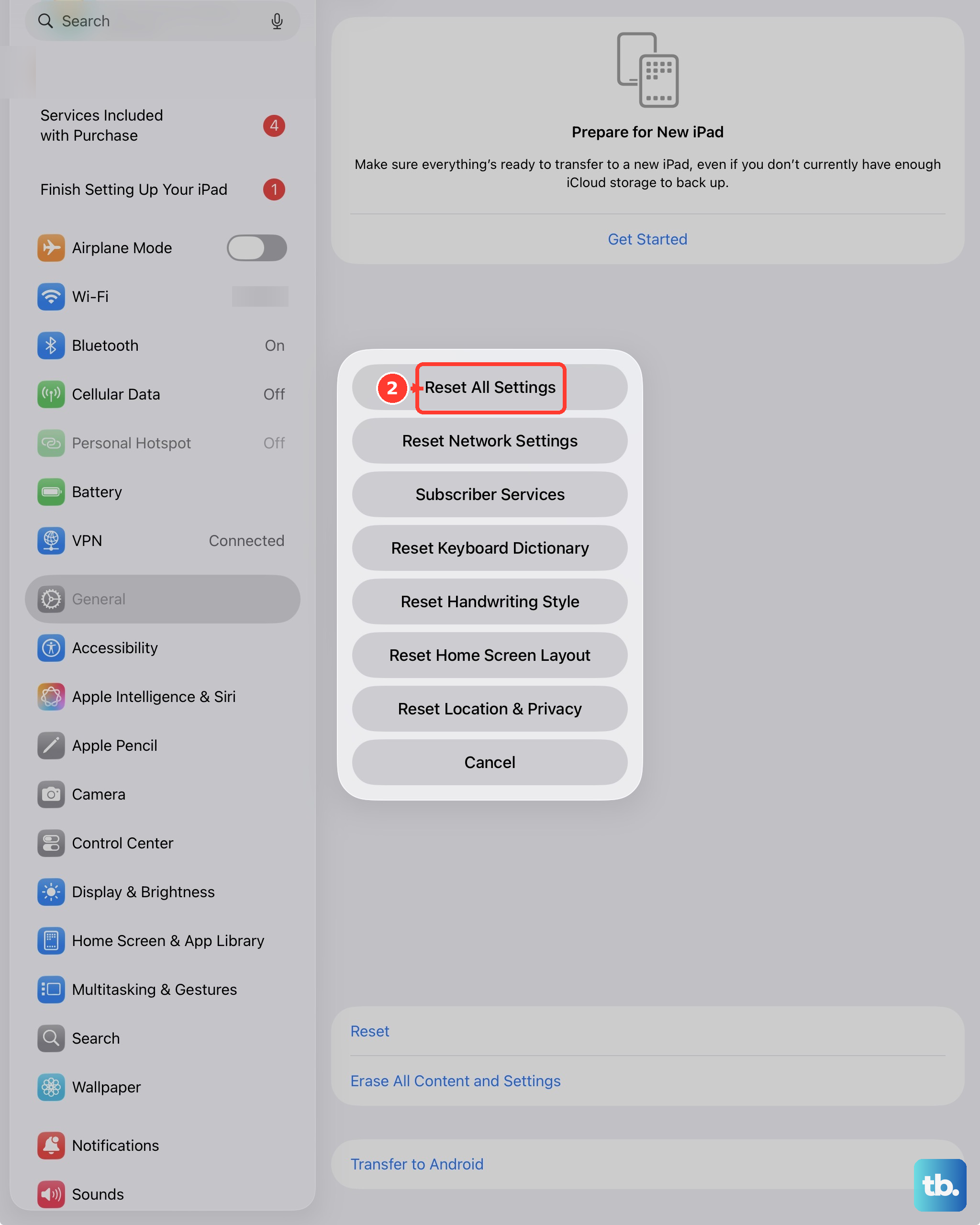
This is a more thorough step that resets every system setting on your iPad Pro back to factory defaults. It won't delete any of your personal data, photos, or apps, but you will need to reconfigure things like Wi-Fi passwords, wallpaper, and privacy permissions. It's very effective for clearing out corrupted preferences that might be affecting the camera.
To do this, open Settings > General > Transfer or Reset iPad. Tap Reset, then choose Reset All Settings. You'll need to enter your passcode to confirm. After the iPad restarts, test the camera immediately before changing any other settings.
Inspect for Physical Damage or Obstructions
Take a close look at the camera module on the back of your iPad Pro. With the multiple lenses and LiDAR scanner, ensure there's no dirt, smudges, or cracks on any of the glass covers. Gently clean the lenses with a soft, dry microfiber cloth.
Also, check if your iPad case or any magnetic accessory, like a MagSafe folio, is improperly aligned and physically covering a lens or the TrueDepth camera system on the front. Remove the case entirely and try using the camera to rule this out.
Check for Pending Background Tasks
The camera hardware can sometimes be held up by other system processes. A simple trick is to try recording a video. Open the Camera app, switch to Video mode, and press record for 10-15 seconds, then stop. This can reset the camera's internal state.
Another method is to use a different camera app entirely. Try opening FaceTime and making a video call to yourself, or use the camera within the Messages app. If the camera works in these other apps, the problem is isolated to the main Camera app, and deleting and reinstalling it might help.
Review Focus Modes and Camera Settings
Certain settings within the Camera app itself can cause confusion. Make sure you haven't accidentally activated a mode the camera can't support. For instance, if you have a macro subject very close to the lens, the system may switch cameras automatically, which can sometimes appear to stall.
Open the Camera app and ensure you're in a standard photo mode like Photo or Portrait. Tap the screen to ensure no focus box is stuck trying to lock on to something. Also, check that you haven't enabled any accessibility settings like AssistiveTouch that could be interfering with the camera controls.
Perform a DFU Restore
This is the deepest software restore you can do and should be your last resort before considering hardware service. A DFU (Device Firmware Update) mode restore completely reinstalls iPadOS from scratch. It will erase all data on your iPad, so you must have a recent backup in iCloud or on your computer.
To enter DFU mode on your iPad Pro (M4), connect it to a Mac or PC with a USB-C cable. Quickly press and release the Volume Up button, then quickly press and release the Volume Down button. Now, press and hold the Power button for about 10 seconds. Without letting go of the Power button, also press and hold the Volume Down button for 5 seconds. Then, release the Power button while continuing to hold the Volume Down button for another 10 seconds. If the screen stays black, your iPad is in DFU mode. You can then use Finder (on Mac) or iTunes (on PC) to restore it.