If your Pixel won't charge or keeps freezing, start with a simple restart. Hold the power button until the shutdown menu appears, then tap Restart. I've seen this fix work for most temporary glitches that cause unresponsive screens or app crashes.
Key Points
- Fix Charging and Battery Problems: First, check your charging cable and adapter.
- Resolve Screen and Display Issues: Clean the sensors along the top edge of your Pixel's display.
- Fix Connectivity and Network Problems: When Wi-Fi keeps dropping or won't connect, toggle it off and back on.
- Clear Google Play System Update Failures: Some Pixel users on Android 16 get "Failed to update" errors when trying to install Google Play system updates.
- Fix Camera and Audio Problems: Clean your camera lens with a microfiber cloth before taking photos.
- Address Fingerprint Sensor Failures: Clean the fingerprint sensor area thoroughly.
Give it about 30 seconds to fully reboot before testing your issue again.
Sometimes updates cause more problems than they solve. If your Pixel started acting up after a recent software update, check for a newer patch. Open Settings > System > Software update and tap Check for update.
The August 2025 update fixed widespread navigation bugs and dark mode issues for Pixel 7 and newer models. Install any available updates and restart your phone once they finish.
Fix Charging and Battery Problems
First, check your charging cable and adapter. Google recommends 30W chargers for newer Pixels, but anything in the 18W, 30W range should work. If your phone isn't charging at all, try a different cable and wall adapter.
Look for any debris in the charging port, a dry, soft-bristled brush or compressed air can clean out lint without damaging the contacts.
For fast battery drain, check which apps are using the most power. Go to Settings > Battery > Battery usage to see what's consuming power in the background.
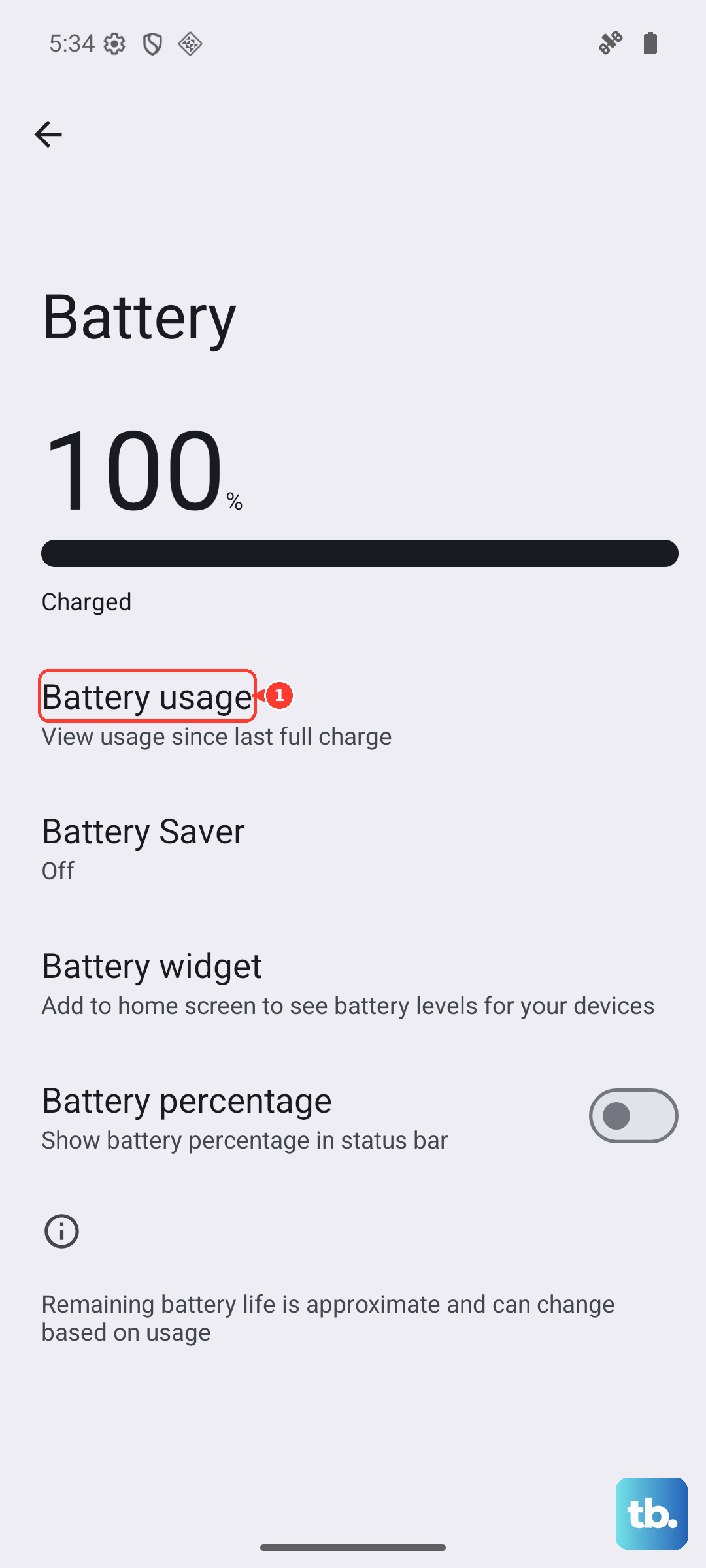
Turn off unnecessary background activity for apps you don't use often. If your Pixel gets hot during charging or use, remove the case and avoid using heavy apps while it's plugged in.
Resolve Screen and Display Issues
Clean the sensors along the top edge of your Pixel's display. These sensors detect light levels and proximity, and smudges can make your screen too dim or unresponsive. Use a damp microfiber cloth to wipe the entire screen, paying extra attention to the sensor area near the front camera.
For stubborn grime, a small amount of screen cleaner works well.
If your screen flickers or shows lines, try installing the latest software update first. Sometimes display problems are software-related rather than hardware failures.
Restart your device after updating to see if the issue clears up.
For persistent screen problems that don't respond to software fixes, you may need professional screen repair.
Fix Connectivity and Network Problems
When Wi-Fi keeps dropping or won't connect, toggle it off and back on. Swipe down from the top of your screen and tap the Wi-Fi icon twice, once to turn it off, wait a few seconds, then tap again to turn it back on. If that doesn't help, restart both your Pixel and your router.
Sometimes simply moving closer to your router improves weak signals.
For Bluetooth pairing issues, remove the problematic device and re-pair it. Go to Settings > Connected devices > Previously connected devices, tap the gear icon next to the device, then tap Forget.
Put your Bluetooth accessory in pairing mode and reconnect it fresh. This clears any corrupted pairing data that might be causing connection drops.
Clear Google Play System Update Failures
Some Pixel users on Android 16 get "Failed to update" errors when trying to install Google Play system updates. Google has acknowledged this bug and says a fix is coming through an upcoming update.
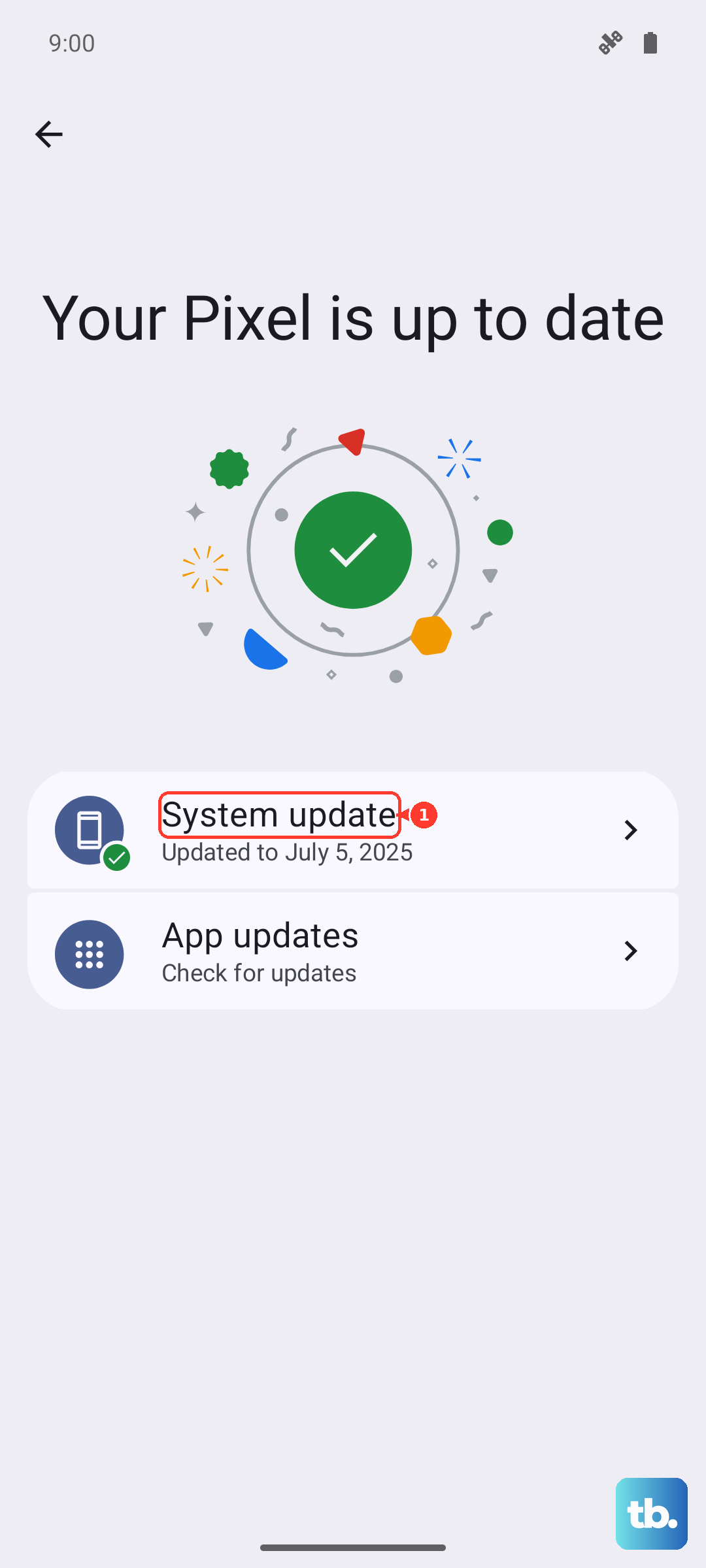
Don't factory reset your device, this won't help and could cause data loss. Instead, wait for Google to push the fix automatically to affected devices.
If you're stuck on an old Google Play system version, check your certification status. Go to Settings > Security & Privacy > System & updates to see your current version. Older Pixel 4 and 5 series devices that no longer receive security updates may fail integrity checks required for Google Wallet and other security-sensitive apps.
Fix Camera and Audio Problems
Clean your camera lens with a microfiber cloth before taking photos. Smudges and fingerprints cause blurry images even on Pixel's excellent cameras. If photos remain blurry after cleaning, check for camera app updates in the Play Store.
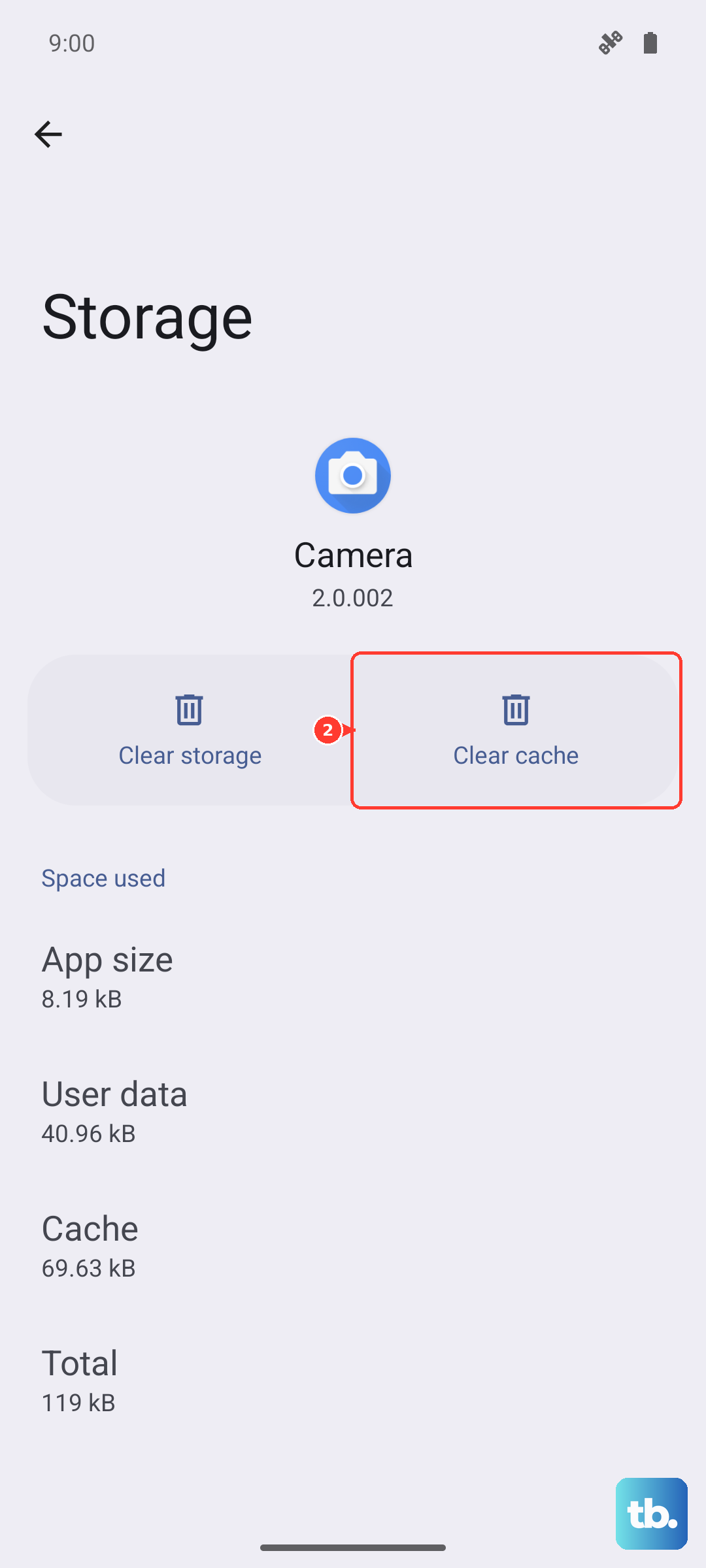
Sometimes clearing the camera app's cache helps, go to Settings > Apps > Camera > Storage & cache > Clear cache.
For microphone or speaker issues, check your audio settings first. Make sure nothing is covering the speaker grilles or microphone holes.
Restart your device to reset the audio system. If people can't hear you during calls, try switching between speakerphone and regular mode to see if one microphone works better than another.
Address Fingerprint Sensor Failures
Clean the fingerprint sensor area thoroughly. Moisture, oil, or dirt on your finger or the sensor can prevent recognition. Use a soft cloth to wipe the sensor, then try registering your fingerprint again.
Go to Settings > Security > Fingerprint Unlock and follow the prompts to add your fingerprint fresh.
If the sensor remains unresponsive, try recalibrating it. Tap the sensor five times in quick succession, then test it with a registered finger. Some users have reported success with this method when their sensor stops working after updates.
For persistent hardware issues, professional repair may be necessary to replace the sensor module.
Fix Random Reboots and Freezing
Boot your Pixel in Safe Mode to check if a third-party app is causing crashes. " Tap OK to confirm." If your phone runs smoothly in Safe Mode, a recently installed app is likely the culprit.
Uninstall apps one by one starting with the most recent additions. After removing an app, use your phone normally for a while to see if the crashes stop.
System updates can sometimes conflict with certain apps, so check the Play Store for app updates too. Developers often release compatibility fixes after major Android updates.