
If your iPad Air (2026) is completely black and won't respond when you press the top button, don't panic. A completely drained battery is the most common reason for this. Before you do anything else, plug it into a wall outlet using a USB-C PD charger and a known-good cable.
Let it charge undisturbed for at least an hour. The screen may stay black for several minutes even when connected to power if the battery was fully depleted. I'd use a charger rated for 30W or higher for the fastest recovery.
Perform a Force Restart
If charging for a while doesn't wake it up, the next step is to force restart the iPad. This is different from just turning it off and on. It clears the device's memory and can kick it out of a frozen state.
On the iPad Air (2026), you press and quickly release the Volume Up button, then press and quickly release the Volume Down button. Immediately after, press and hold the Top button. Keep holding it until you see the Apple logo appear, then you can let go.
This process doesn't delete any of your data or settings. It's the equivalent of pulling the plug on a desktop computer that's frozen, and it resolves a surprising number of startup issues.
Inspect Your Charging Setup
Sometimes the problem isn't the iPad, but how you're trying to charge it. The iPad Air uses a USB-C port, but not all USB-C cables and chargers are created equal. A cable that works for charging other devices might not provide enough power for the iPad.
Try a different USB-C cable and a different wall adapter, preferably one that supports USB-C Power Delivery (PD). Charging from a computer's USB port often doesn't provide enough wattage to wake a deeply drained battery. Look for any lint or debris in the iPad's USB-C port and gently clean it out with a dry, soft-bristled brush.
Since the 2026 model doesn't support wireless charging, your only option is a wired connection. Make sure the cable clicks firmly into the port.
Check for a Hardware or Display Issue
In rare cases, the iPad might actually be on, but the display has failed. After you've tried charging and a force restart, listen very closely to the iPad. Try connecting headphones to the audio jack or USB-C port if you have an adapter.
If you hear sounds, or if a connected computer makes a noise when you plug the iPad in, then the device is on but the screen isn't working. Also, press the volume buttons to see if you get haptic feedback or hear a volume change through headphones.
This kind of hardware failure isn't common, but it's worth checking before moving on to more involved software solutions. A damaged display or internal connector would need professional repair.
Put the iPad Into Recovery Mode
If the iPad is stuck during the startup process, perhaps on the Apple logo, you can try Recovery Mode. This lets you reinstall iPadOS without erasing your data first, which can fix corrupted software preventing a boot.
First, connect your iPad to a Mac or Windows PC with a USB-C cable. On a Mac with macOS Catalina or later, or a PC with iTunes, open the Finder or iTunes. Then, perform the force restart steps while it's connected: press and release Volume Up, press and release Volume Down, then hold the Top button.
Don't release the Top button when you see the Apple logo. Keep holding it until you see the recovery mode screen, which shows a cable pointing to a computer icon. At this point, the Finder or iTunes will give you the option to "Update" or "Restore." Choose "Update" first. This will try to reinstall the operating system while keeping your files intact.
Restore the iPad via a Computer
If the update process in recovery mode fails or doesn't solve the problem, you may need to restore the iPad. This is a last resort because it will completely erase all data and settings, returning the iPad to factory condition.
You must have a recent backup in iCloud or on your computer to recover your data afterward. To restore, put the iPad back into recovery mode as described above. This time, when the option appears in the Finder or iTunes, select "Restore."
The computer will download the latest version of iPadOS and install it on your iPad. After the process finishes, the iPad will restart. You can then set it up as new or restore from your backup during the setup assistant.
Consider an iPadOS Update Issue
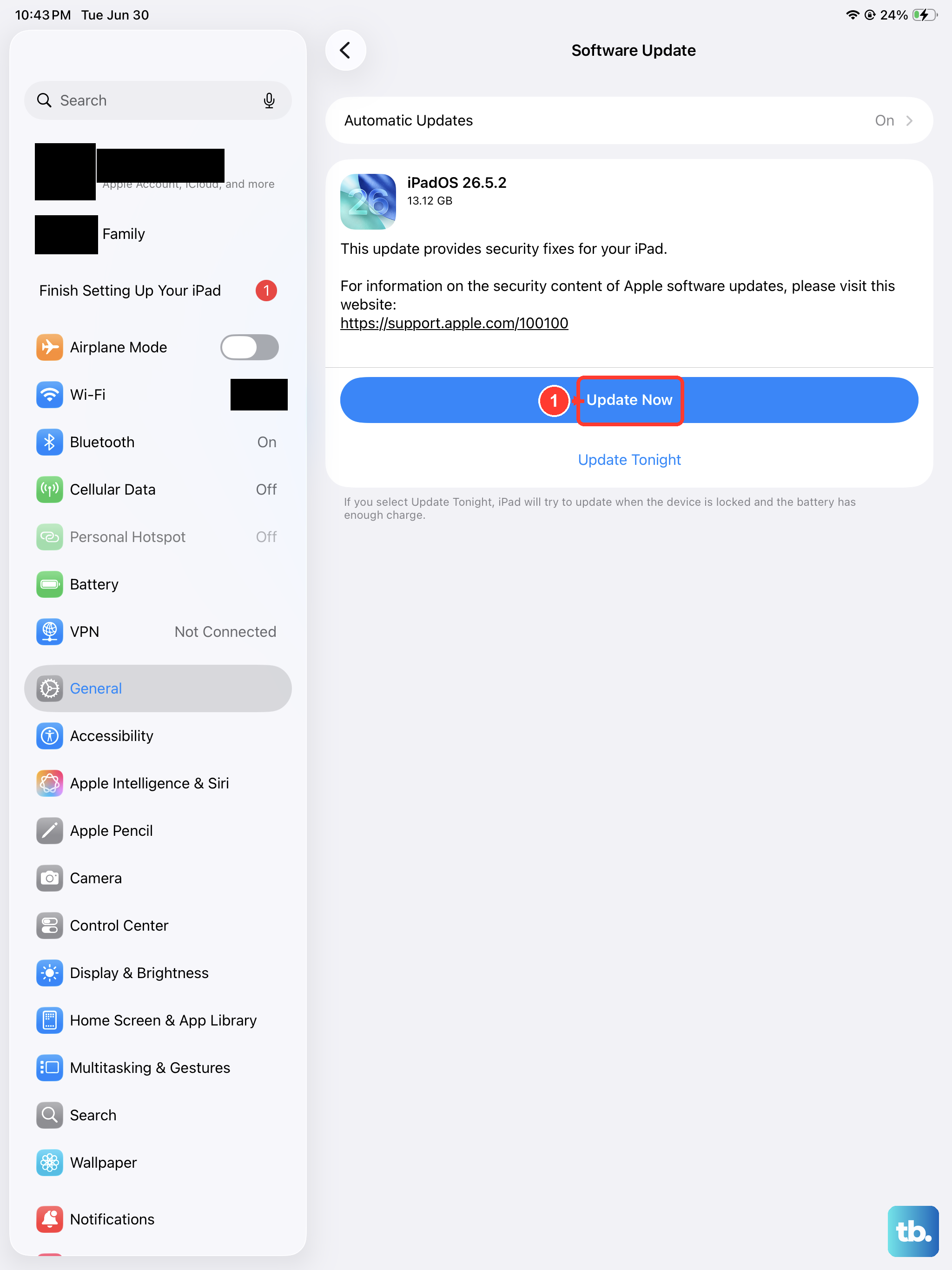
Problems can sometimes start after a software update. If your iPad Air (2026) stopped turning on shortly after you installed an iPadOS 26 update, the installation may have been interrupted or corrupted. The recovery mode update or restore processes mentioned above are the primary ways to fix this.
Apple does occasionally release rapid security updates or revised versions of an update if a widespread boot issue is discovered. Using recovery mode to restore will pull the very latest, most stable version of the software from Apple's servers.
Once you get your iPad working again, it's a good habit to install future updates when your device is plugged in and has a strong Wi-Fi connection to prevent interruptions.
Look for Environmental Factors
Extreme temperatures can cause an iPad to shut down and refuse to turn on as a safety measure. If the iPad has been in a very hot car or left out in the cold, bring it to room temperature and let it sit for a few hours before trying to charge or turn it on again.
Also, while the iPad Air is a robust device, physical damage from a drop or liquid exposure can cause internal failures that prevent it from powering on. If you suspect this is the case, the internal diagnostics would need to be run by a technician.