
Press and quickly release the Volume Up button, then press and quickly release the Volume Down button. Immediately press and hold the Power button until you see the Apple logo appear. This force restart is the most reliable way to break a frozen touchscreen on the iPad Pro (M4), especially if it happened after an iPadOS update or a new app installation.
A browser based online touch test paints the screen as you touch it, which makes dead zones and ghost touches easy to see and document.
I'd start with this one every time. It doesn't delete any of your data or settings, and it often resolves temporary software glitches that cause the screen to become unresponsive. The tablet should power back on normally once you release the button.
Charge Your iPad Pro
Plug your iPad into its original 45W USB-C power adapter and a certified cable, then let it charge for at least an hour. An extremely low battery can cause the system to become sluggish or unresponsive, making the touchscreen seem frozen.
If you're using MagSafe wireless charging, be aware it maxes out at around 15W. For a faster charge that might resolve the issue quicker, I'd switch to a wired connection with a 30W or higher USB-C PD charger. Sometimes the tablet just needs a solid power boost to reset its touch controller.
Check for a Software Update
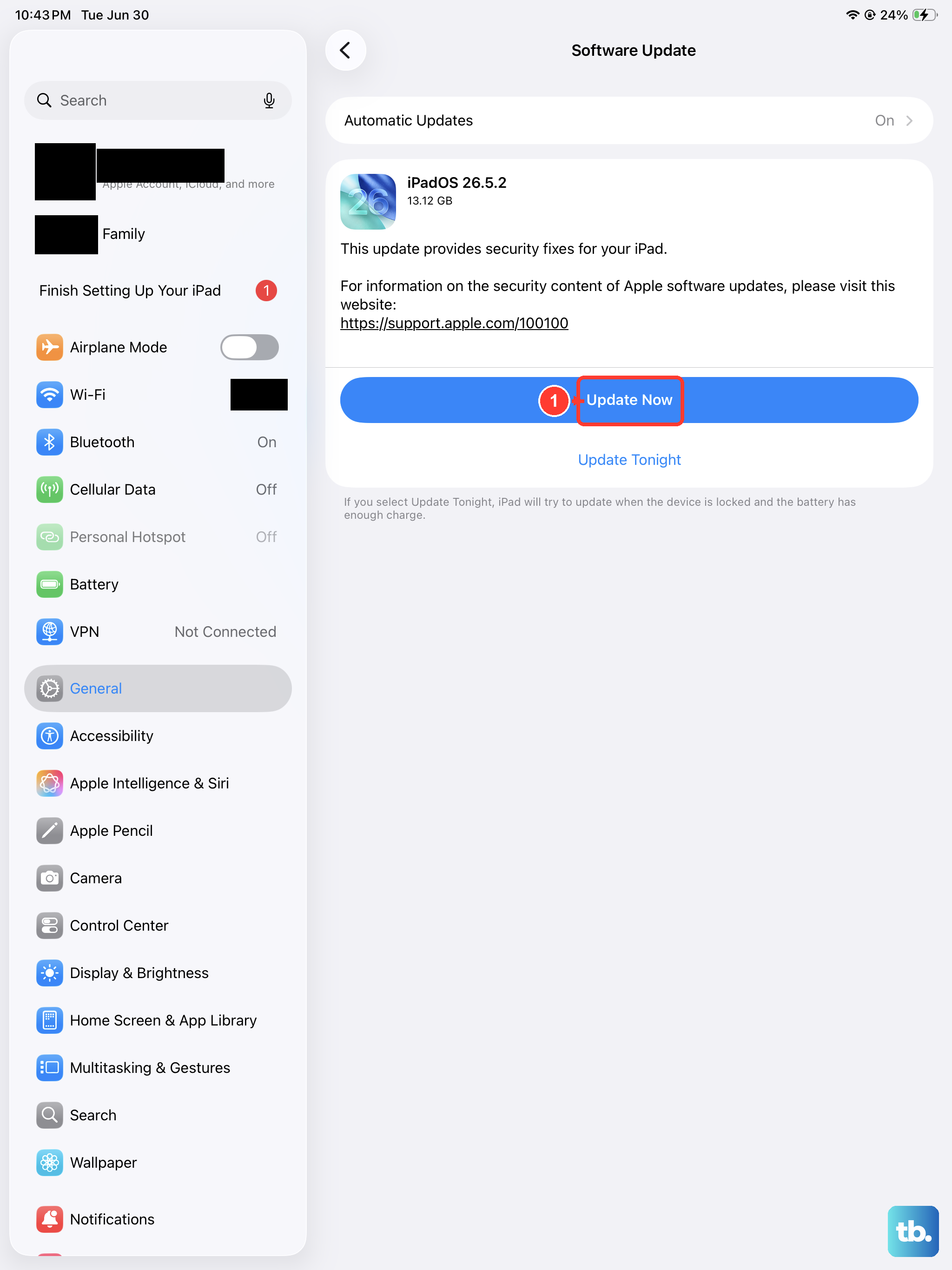
If you can briefly get the screen to respond, or if you use a connected mouse or trackpad, navigate to Settings > General > Software Update. Apple frequently releases iPadOS updates that include bug fixes for touchscreen responsiveness.
Make sure your iPad is connected to Wi-Fi and has sufficient battery life, preferably above 50%, before starting an update. Installing the latest version of iPadOS can resolve underlying software conflicts that are causing the freeze.
If You Can't Access Settings
Connect your iPad to a Mac or a Windows PC with iTunes/Finder. A computer can often recognize the device even when the screen is frozen. From there, you might be prompted to update or restore the iPad software, which can fix the issue without needing to use the touchscreen directly.
Close All Apps and Restart Normally
If the screen is partially responsive, try closing your recent apps. On an iPad Pro with iPadOS 26, you would swipe up from the bottom of the screen and hold, then swipe up on each app preview to close it. After that, go to Settings > General > Shut Down and power the device off completely.
Wait about 30 seconds, then press the Power button again to turn it back on. A clean restart like this can clear out RAM and stop any misbehaving app from hogging the touch input system.
Check Your Screen Protector and Case
Remove any third-party screen protector or case, especially thick or magnetic ones. A poorly fitted screen protector can interfere with the iPad Pro's touch sensitivity, and certain MagSafe-compatible cases from the iPhone 15/16 series might not align perfectly with the iPad's larger charging coil, potentially causing interference.
With everything removed, try using the iPad's bare screen. If the touchscreen works normally again, you've found the culprit. Look for accessories specifically designed for the iPad Pro (M4)'s dimensions.
Reset All Settings
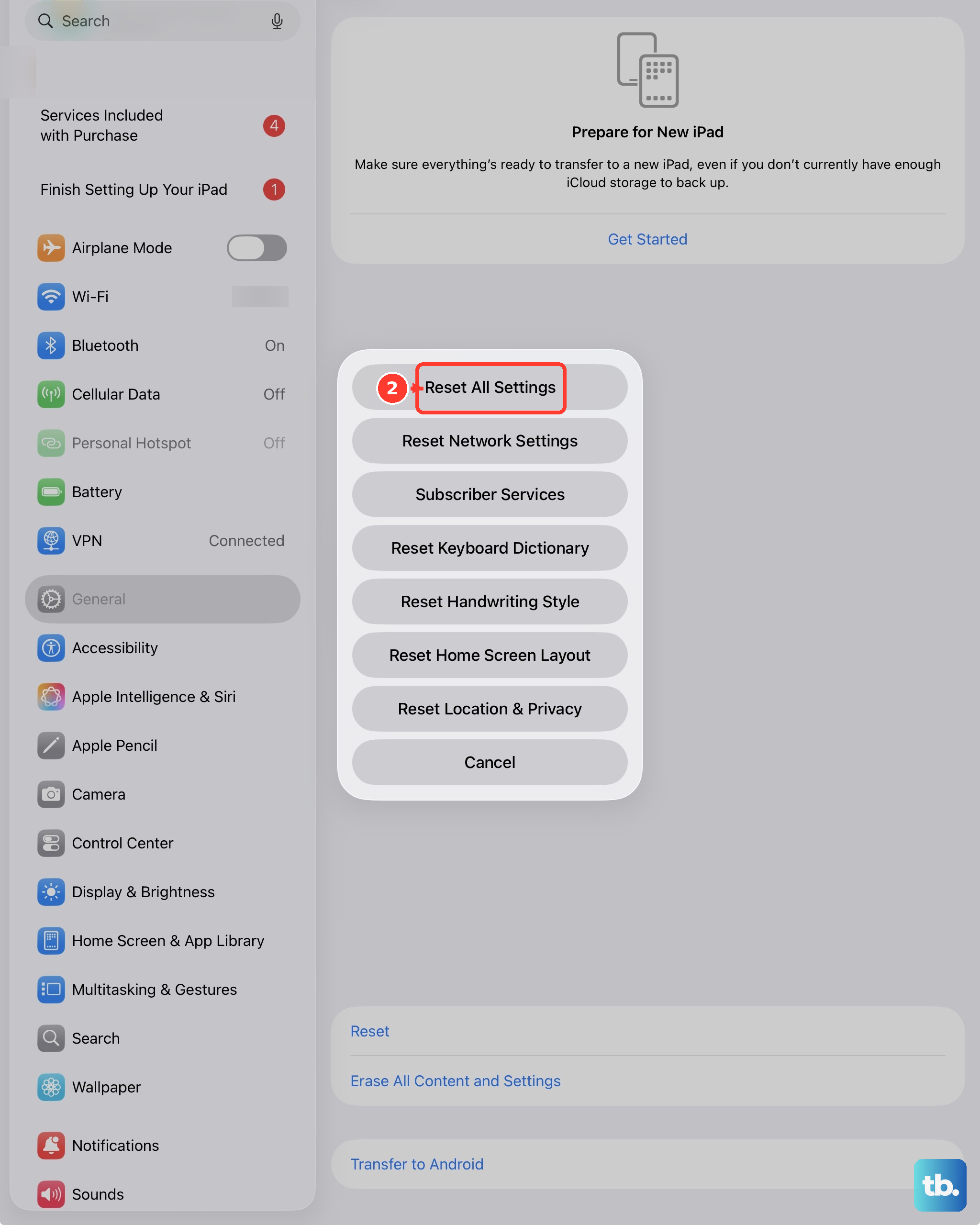
This resets things like your wallpaper, network settings, and privacy permissions back to default, but it won't delete your personal files or media. If you can navigate using an external mouse or brief moments of responsiveness, go to Settings > General > Transfer or Reset iPad > Reset > Reset All Settings.
You'll need to enter your passcode. This can fix problems caused by a corrupted system setting that's affecting the display driver. It's a good middle step before considering a full erase.
Put the iPad in Recovery Mode and Restore
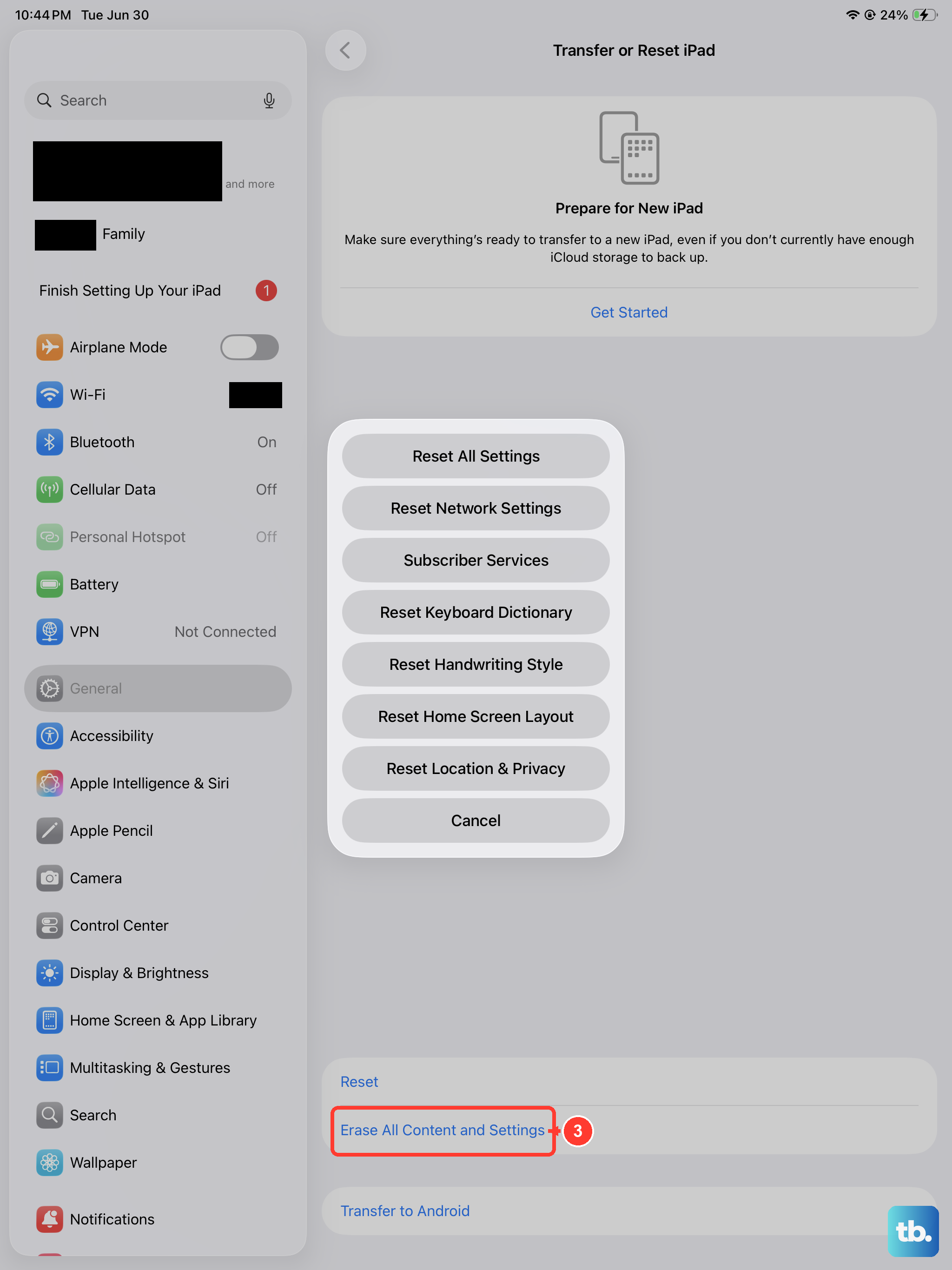
This is a more definitive fix for software corruption. First, connect your iPad to a computer and open Finder (on Mac) or iTunes (on Windows). Perform the force restart sequence, but keep holding the Power button even after you see the Apple logo until the recovery mode screen appears.
On your computer, you'll see an option to Update or Restore. Choose Update first. The computer will try to reinstall iPadOS without erasing your data. If that fails, you can then choose Restore, which will install a fresh copy of iPadOS but will erase all content and settings.
Check for Physical Damage or Moisture
Inspect the screen carefully for any new cracks, even small ones, or areas that look discolored. Physical damage to the display assembly can directly cause touch failure. Also, check the USB-C port for any lint, debris, or signs of corrosion.
If the iPad has been exposed to moisture, even high humidity, it could cause temporary touchscreen issues. Power it down completely and leave it in a dry, warm place with good airflow for at least 24 hours before trying to use it again. For any physical damage, the display or logic board would likely need professional service.