
If your iPad mini (7th generation) is getting uncomfortably warm, it's usually a sign that something is making it work harder than it should. I'd start by checking what you're running and how you're charging it, as those are the most common culprits.
First, try a force restart. This clears out any temporary software glitches that might be causing a process to run wild. Press and quickly release the Volume Up button, then press and quickly release the Volume Down button. Finally, press and hold the Top button until you see the Apple logo appear. This takes about 10 seconds and won't delete any of your data.
Check Your Apps and iPadOS Version
After the restart, pay attention to which apps you're using when the iPad gets hot. Demanding games, video editing software, or apps using augmented reality can push the processor hard, especially if you're running several at once. Try closing apps you're not using by swiping up from the bottom of the screen and pausing in the middle, then swipe up on the app windows.
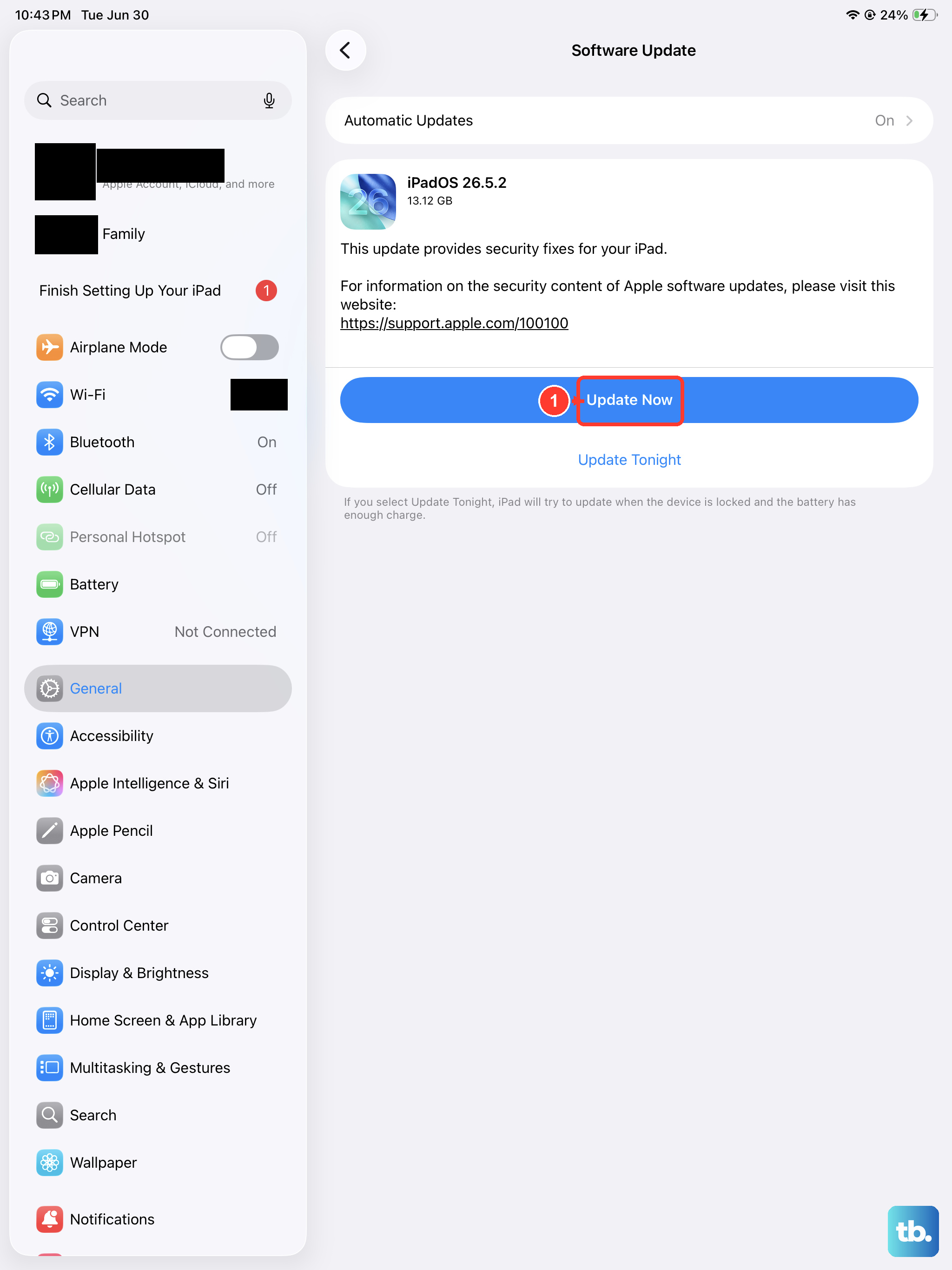
Next, make sure you're on the latest version of iPadOS. Go to Settings > General > Software Update. Apple frequently releases updates that include performance optimizations and bug fixes that can improve thermal management. An outdated OS can sometimes cause inefficient power use, leading to extra heat.
Evaluate Your Charging Setup
How and what you use to charge your iPad mini can have a big impact on its temperature. This model uses a USB-C port and supports up to 30W wired charging. Always use an official Apple 20W or higher USB-C power adapter and a high-quality USB-C to USB-C cable. Third-party or low-quality chargers that don't properly manage power delivery can cause the iPad to heat up excessively during charging.
Also, be mindful of where you place the iPad while it's plugged in. Charging it on a soft surface like a bed, couch, or pillow can trap heat. Always charge it on a hard, flat, and well-ventilated surface. If you're using it intensively while it's charging, like gaming or video calling, that combined load is a surefire way to generate heat. Try to use it lightly while it's topping up, or let it charge first.
Keep the iPad and Its Port Clean
While the iPad mini doesn't have internal fans to clog, physical blockages can still cause issues. Over time, pocket lint and debris can get packed into the USB-C charging port. This can prevent the charging cable from seating properly, which leads to a poor connection. A poor connection can cause electrical resistance and heat.
Power off your iPad and take a look inside the port with a flashlight. If you see debris, gently try to remove it with a dry, soft-bristled brush or a can of compressed air held upright. Don't use metal objects like paperclips, as you could damage the delicate pins inside. Keeping the port clean ensures efficient power and data transfer.
Manage Your Display and Connectivity
Several settings can contribute to processor and battery workload. High screen brightness is a major one. Consider using auto-brightness or manually lowering it when you're indoors. You can adjust this in Settings > Display & Brightness.
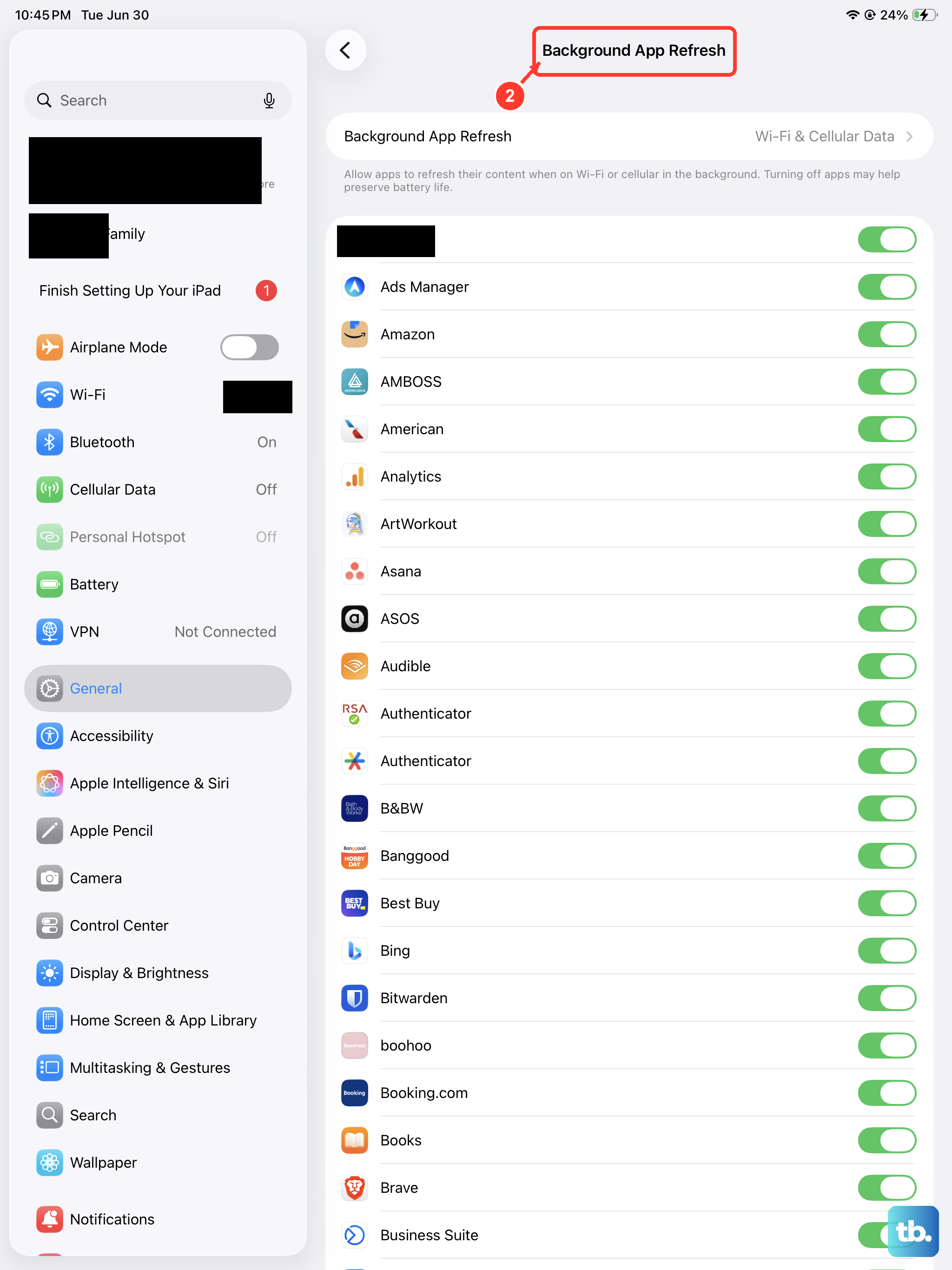
Also, check your connectivity. If you're in an area with a weak Wi-Fi or cellular signal, your iPad will work harder to maintain a connection, which uses more power. Turning off Wi-Fi or Cellular Data when you don't need them can help. Similarly, background app refresh allows apps to update content even when you're not using them. You can manage this globally or per-app in Settings > General > Background App Refresh.
Consider Your Case and Environment
The case you use matters more than you might think. A thick, insulating case, especially one not designed for the iPad mini, can trap heat against the device's aluminum body. If your iPad is consistently warm, try removing the case for a while, particularly during charging or heavy use, to see if temperatures improve.
Finally, be aware of your environment. Using your iPad in direct sunlight or a very hot room will naturally make it warmer. The internal sensors will detect this ambient heat and may throttle performance or dim the screen to protect the components. Always try to use it in a cool, shaded place for the best performance and comfort.