
If your iPad Air M3 keeps buffering on YouTube or pages take forever to load, it's not necessarily your internet plan that's the problem. A few settings tweaks can get things moving again.
I'll walk you through the fixes that work on iPadOS 18, starting with the quickest ones.
Start with a Force Restart
Before you dig into settings, give the iPad a proper restart. A force restart clears temporary glitches that can mess with WiFi and cellular performance.
Press and quickly release the Volume Up button, then the Volume Down button, then press and hold the Top button until the Apple logo appears. That takes about ten seconds. Once it boots back up, test your connection.
Toggle WiFi and Airplane Mode
Sometimes the iPad just needs to refresh its connection. Open Control Center and tap the WiFi icon to turn it off, wait five seconds, then tap it back on.
If that doesn't help, try Airplane Mode. Tap the Airplane Mode icon, wait ten seconds, then turn it off. This forces the iPad to re-establish all wireless connections, including mobile data if you have the cellular model.
Forget and Rejoin Your Network
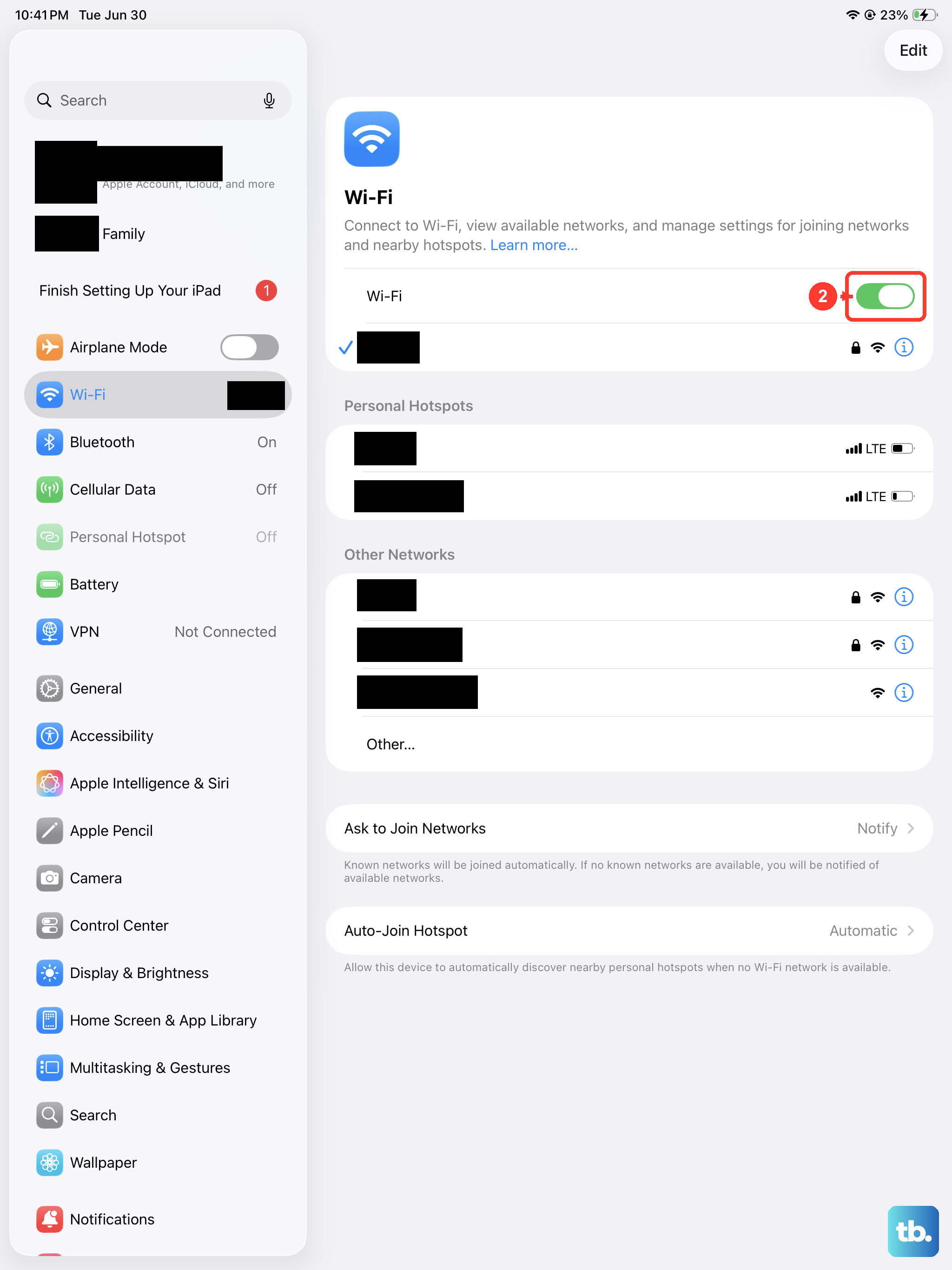
A corrupted network profile can cause slow speeds even when you're connected. Go to Settings > Wi-Fi and tap the blue information icon next to your network. Choose Forget This Network, then confirm.
Now reconnect by tapping the network name and entering your password. This gives the iPad a clean slate with that router.
Is Your Router the Problem?
Your iPad might be fine, but the router could be struggling. Unplug your router and modem, wait thirty seconds, then plug them back in. Give them two minutes to fully reboot.
While you're at it, check if other devices are slow on the same network. If they are, the issue is likely your internet service or router, not the iPad. If only the iPad is slow, keep reading.
Check the Date and Time
It sounds unrelated, but wrong date and time settings can break encrypted connections. Go to Settings > General > Date & Time and make sure Set Automatically is toggled on.
This also affects iCloud syncing and App Store connections, so it's worth confirming even if your WiFi seems fine otherwise.
Turn Off VPNs and Proxies
VPN services can dramatically slow down your connection, especially free ones. If you're using a VPN, try disconnecting it temporarily to see if speeds improve.
Also check for any proxy settings under Settings > Wi-Fi > your network's info icon. Make sure HTTP Proxy is set to Off unless you need it.
Clear Safari's Cache
A bloated browser cache can make web pages load painfully slow. Go to Settings > Apps > Safari and tap Clear History and Website Data. This won't wipe your bookmarks or passwords, just the stored page data.
If you use Chrome or another browser, head into that app's settings and look for a similar clear cache option.
Stop Apps from Refreshing in the Background
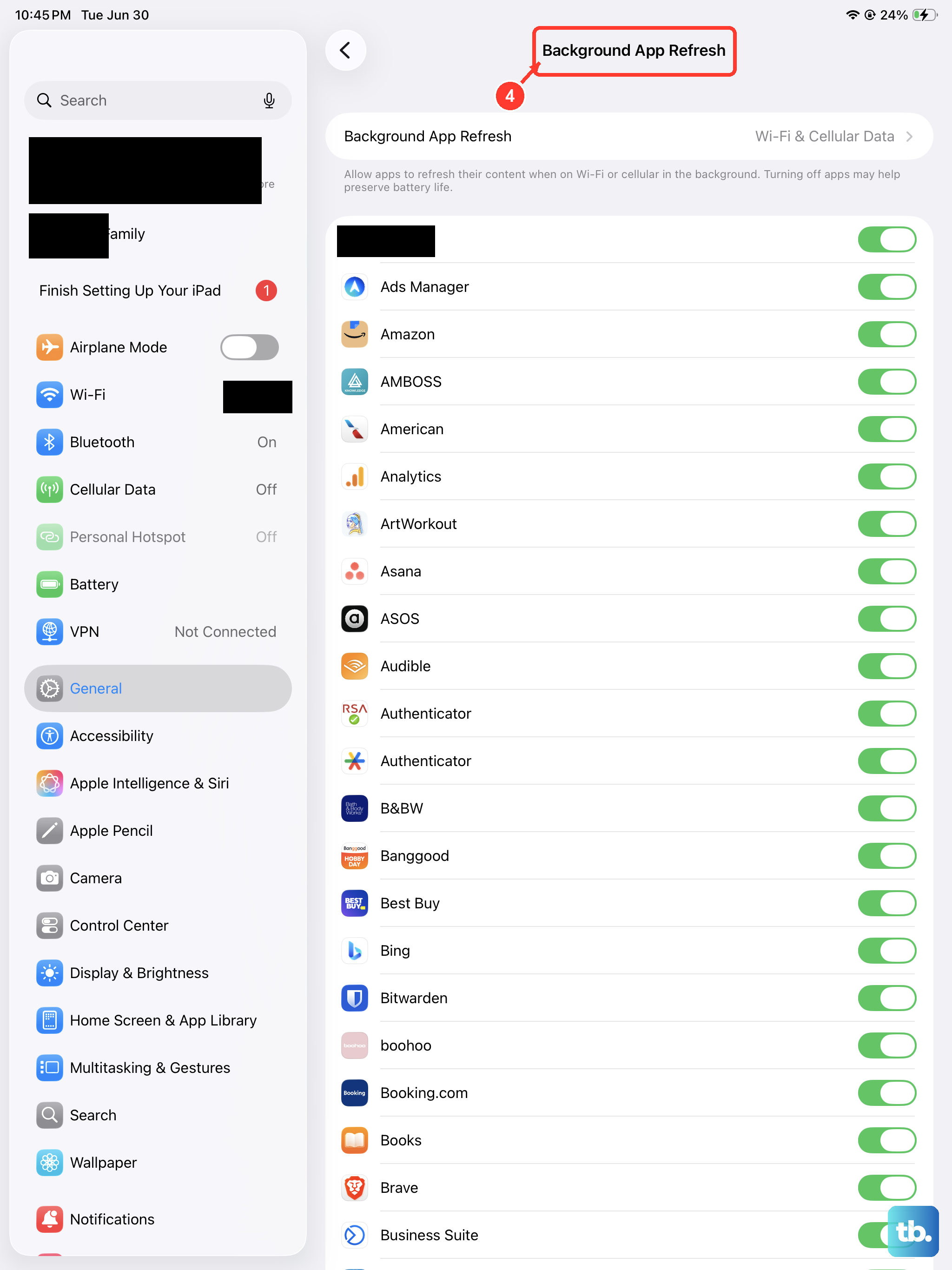
Background App Refresh lets apps update content even when you're not using them, which can eat up bandwidth. Go to Settings > General > Background App Refresh and set it to Off or choose only the essential apps.
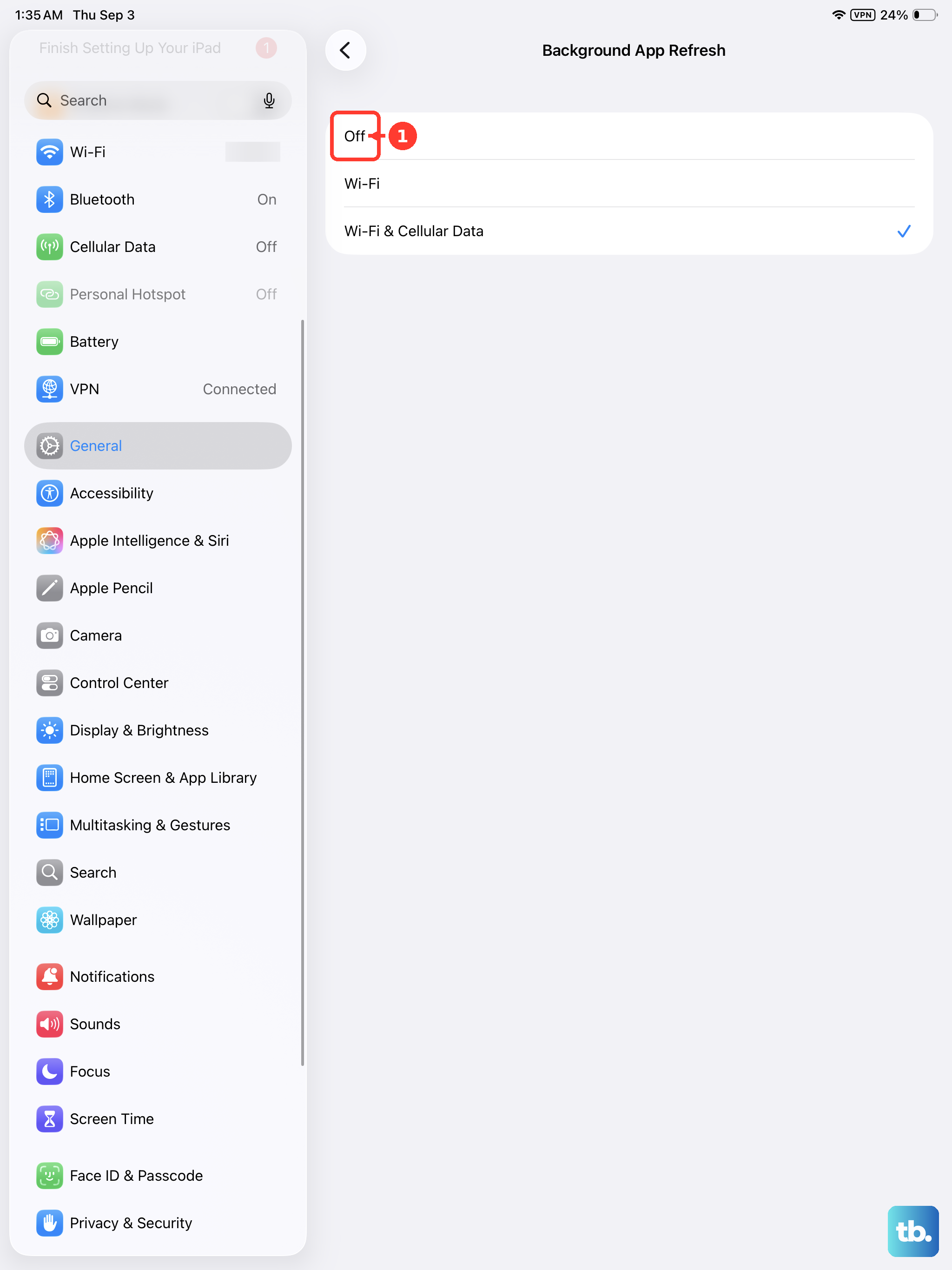
This is especially helpful if you have a limited data plan or are using a hotspot.
Reset Network Settings as a Last Resort
If nothing else has worked, resetting the network settings will wipe all saved WiFi passwords, Bluetooth pairings, and VPN configurations, but it often fixes stubborn connection issues.
Go to Settings > General > Transfer or Reset iPad > Reset > Reset Network Settings. The iPad will restart, and you'll need to reconnect to your WiFi networks.
Install the Latest iPadOS Update
Apple regularly releases updates that include WiFi and cellular performance fixes. Go to Settings > General > Software Update and install any available update.
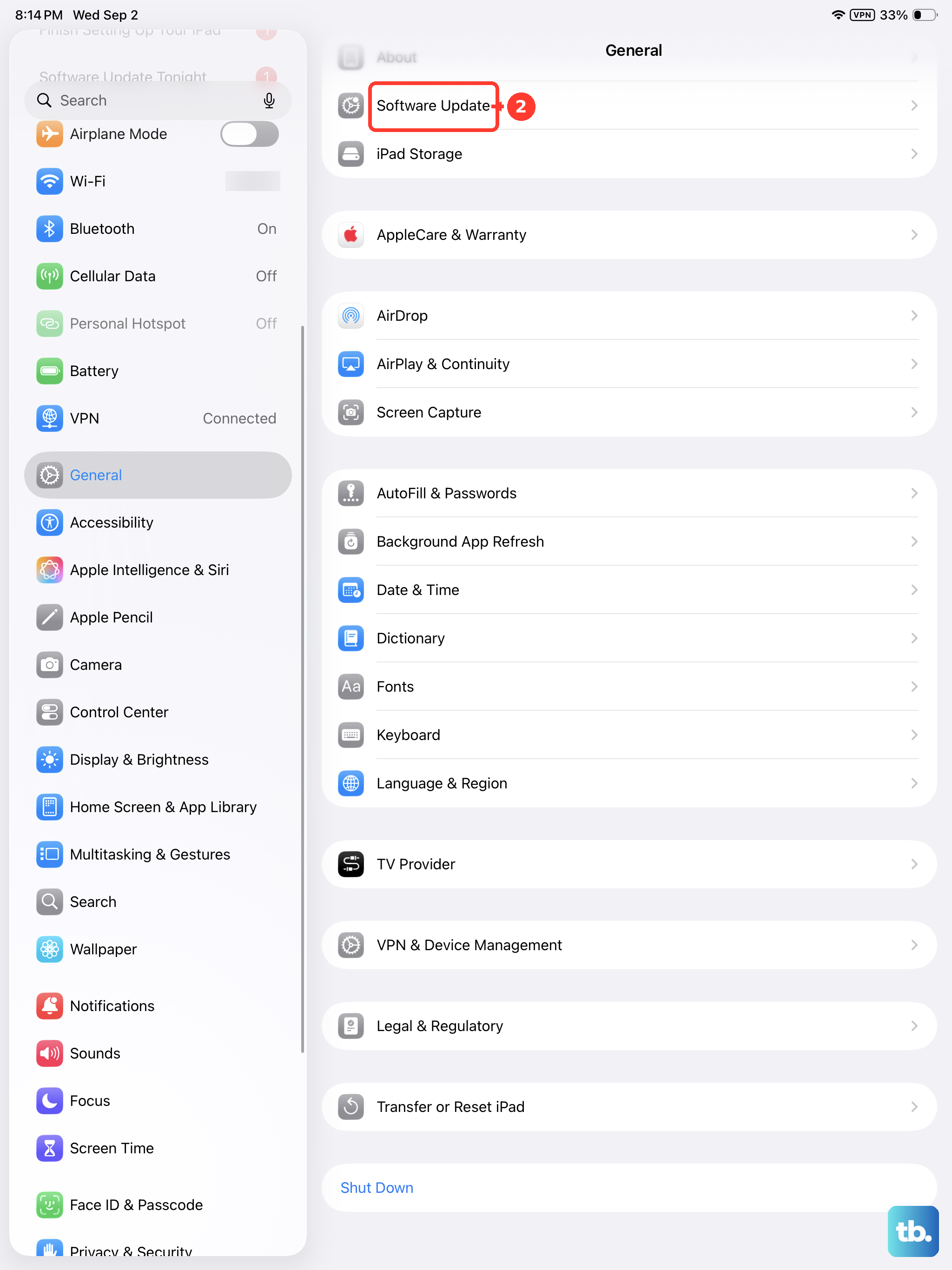
Make sure your iPad is plugged in and connected to WiFi during the update. After it finishes, test your speeds again.
If slow WiFi persists, try switching to the 5GHz band on your router settings or changing the DNS on your iPad to Google's (8.8.8.8) or Cloudflare's (1.1.1.1). You can do that under Settings > Wi-Fi > your network's info icon > Configure DNS.