
Start with a force restart when your iPad Air M3 camera shows a black screen. This clears out temporary software glitches without losing any data. Press and quickly release the Volume Up button, then the Volume Down button, then press and hold the Top button until the Apple logo appears. Give it about 30 seconds to fully boot up before opening the Camera app again.
I've seen this fix work for most sudden camera failures, especially if the camera was working fine earlier and just stopped mid-use. It takes about ten seconds total and costs you nothing.
Key Points
- Force restart first: Press Volume Up, Volume Down, then hold the Top button until the Apple logo appears.
- Check for app conflicts: Close the Camera app completely and reopen it.
- Verify camera permissions: Go to Settings > Privacy & Security > Camera and make sure Camera is enabled.
- Update iPadOS 18: Apple has patched several camera bugs in recent updates.
- Clean the lens area: Smudges or debris around the rear camera can trigger the black screen.
- Test in another app: Open FaceTime or a document scanner to see if the camera works elsewhere.
- Reset all settings: This clears camera configuration without erasing your data.
- Check for hardware obstruction: Cases or screen protectors can block the camera module.
- Restore as a last resort: Use a Mac or PC to reinstall iPadOS if nothing else works.
Close and Reopen the Camera App
Swiping up to force-close the Camera app often resolves a black screen that appeared after switching between apps or using the camera in a third-party app. Swipe up from the bottom of the screen and pause to open the App Switcher, then swipe up on the Camera preview to close it completely.
Wait a couple seconds, then tap the Camera icon again. If the viewfinder shows the scene instead of black, you're good to go.
This works well when the camera was working earlier in the same session and stopped after you used a photo editing app or a messaging app that accessed the camera.
Check Camera Permissions in iPadOS 18
If you recently updated to iPadOS 18 or changed privacy settings, the Camera app might have lost permission to use the rear camera. Head to Settings > Privacy & Security > Camera and make sure the toggle next to Camera is green.
If it's already enabled, toggle it off, wait five seconds, then toggle it back on. This refreshes the permission grant and can kick a stuck camera module back to life.
Also check third-party apps that use the camera, like FaceTime, Zoom, or a document scanner. If those apps also show black, the issue is system-wide. If only the Camera app is affected, try clearing its data next.
Check for iPadOS 18 Updates
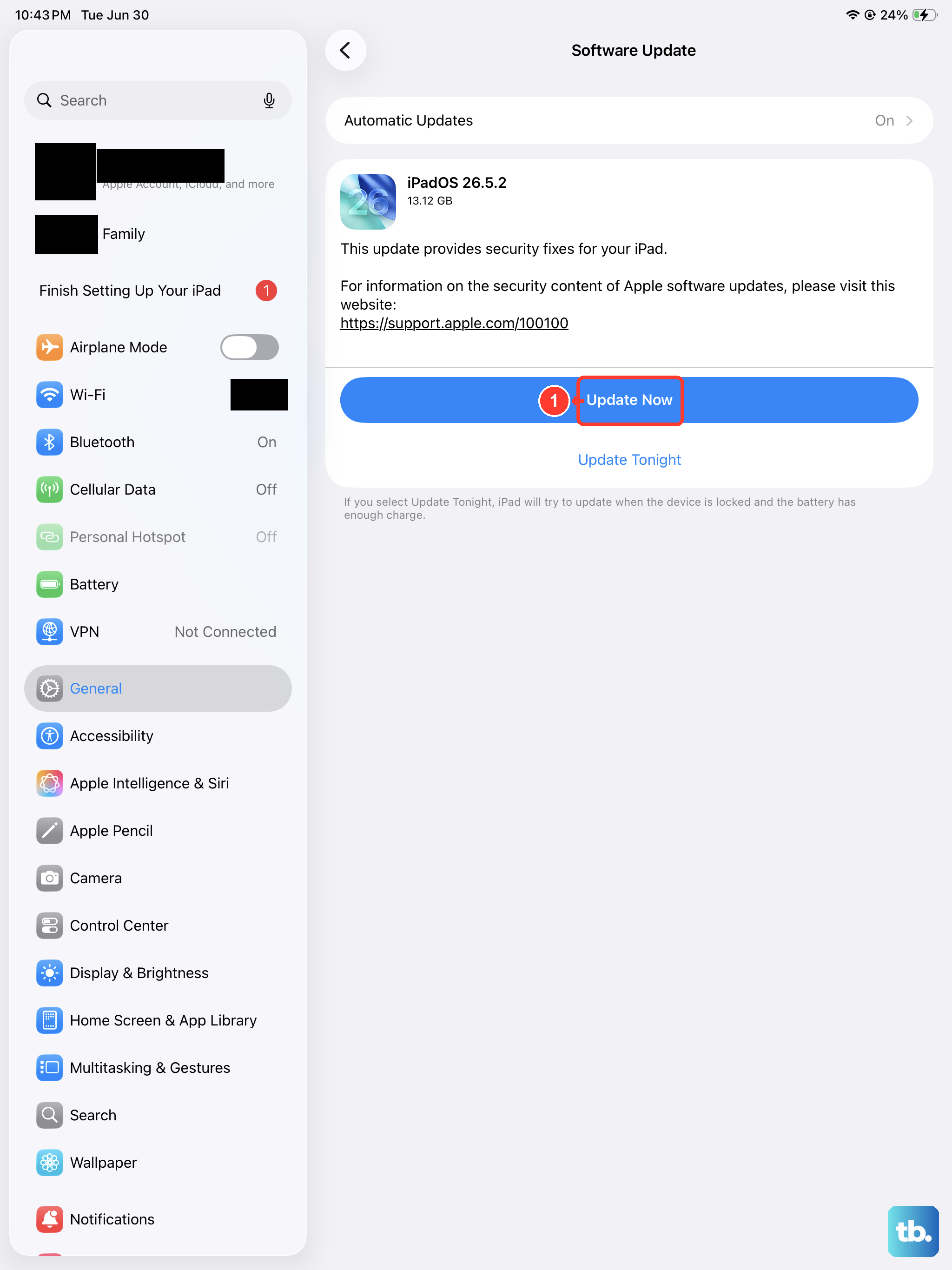
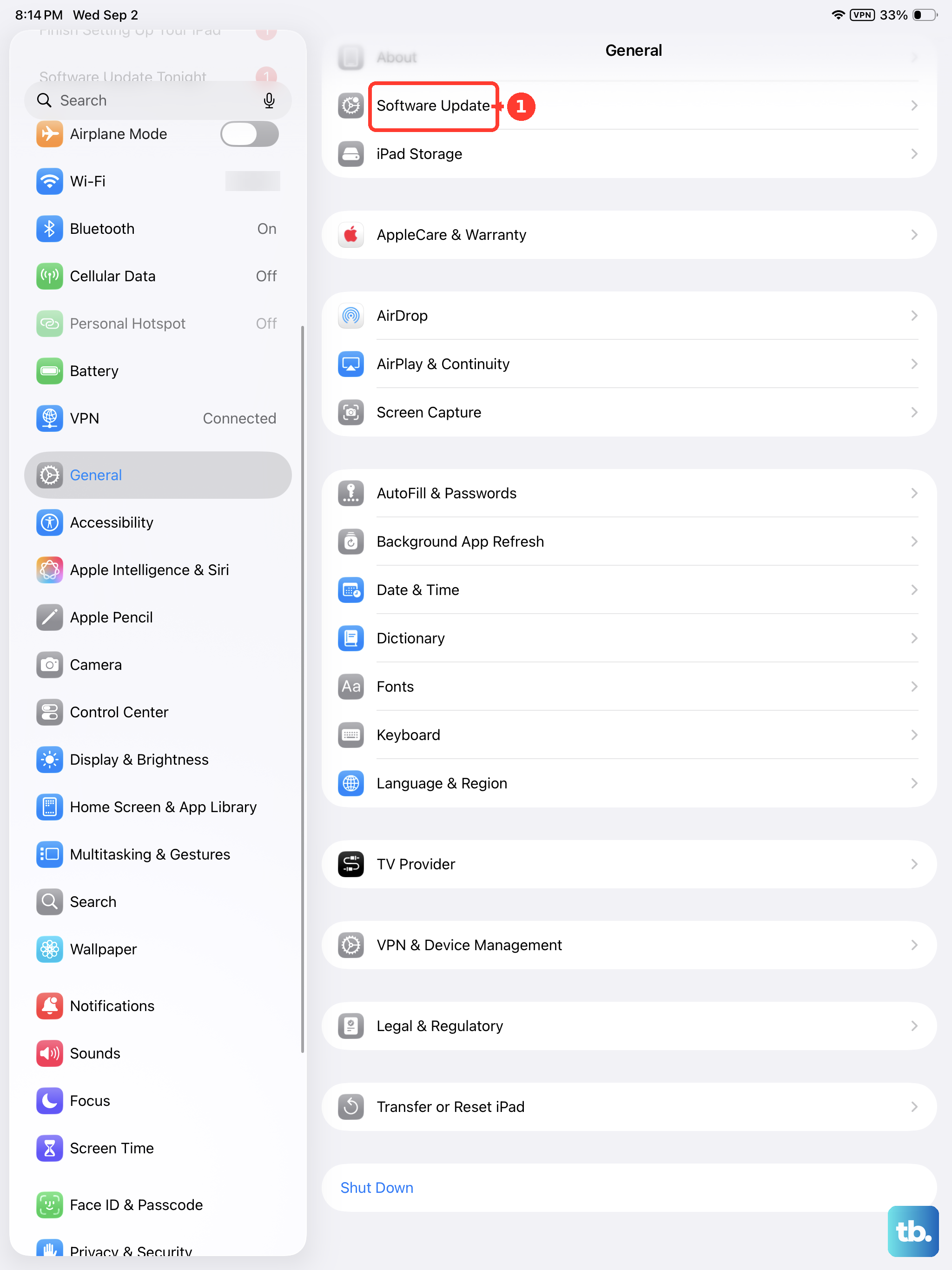
Apple has released several patches for iPadOS 18 that address camera stability and black screen issues. Go to Settings > General > Software Update and tap Update Now if anything is available.
The iPad Air M3 launched with iPadOS 18, and early versions had known bugs where the camera feed would appear black after waking the device from sleep. Later updates fixed this for most users.
Install any pending updates and force restart your iPad afterward. Don't skip the restart, some camera changes only apply after a full reboot.
Test the Camera in Another App
Open FaceTime and see if your camera shows a live preview there. Or open the Notes app, start a new note, and tap the camera icon to scan a document. If the camera works in these apps but not in the Camera app, the problem is software-specific rather than hardware.
If the camera works everywhere except the Camera app, you might need to clear the Camera app's saved configuration. Go to Settings > Apps > Camera and look for any storage or cache options. iPadOS doesn't offer a direct cache clear for system apps, so your best bet is to reset all settings or restore the device.
If the camera shows black in every app, the issue is likely at the system level or hardware level. Move on to the reset options below.
Clean the Camera Lens Area
Smudges, dust, or a thin plastic film on the rear camera can trick the sensor into showing a black screen. Grab a soft, lint-free microfiber cloth and gently wipe the camera lenses on the back of your iPad Air M3.
Check for any protective film or sticker left over from a screen protector installation. I've seen people panic over a black camera only to realize a bit of plastic was covering the lens. The iPad Air M3 has its camera module on the rear corner, so inspect that area carefully for any obstruction.
Also check the front camera at the top of the display. If both cameras show black, the issue is software or hardware, not a simple lens cover.
Check for Accessory Interference
Some iPad cases, especially those with magnetic backs or built-in stands, can partially block the camera module. Remove your iPad from its case completely and test the camera again. If it works without the case, the case is pressing against the camera housing or covering the sensor.
The iPad Air M3 works with Apple's Magic Keyboard and Smart Folio cases, but third-party cases with tight fits or raised edges around the camera bump can cause problems. Try the camera with no accessories attached at all.
Reset All Settings
This step clears all your customized settings, including Wi-Fi passwords, Bluetooth pairings, and display preferences, without deleting your photos, apps, or documents. Go to Settings > General > Transfer or Reset iPad > Reset > Reset All Settings.
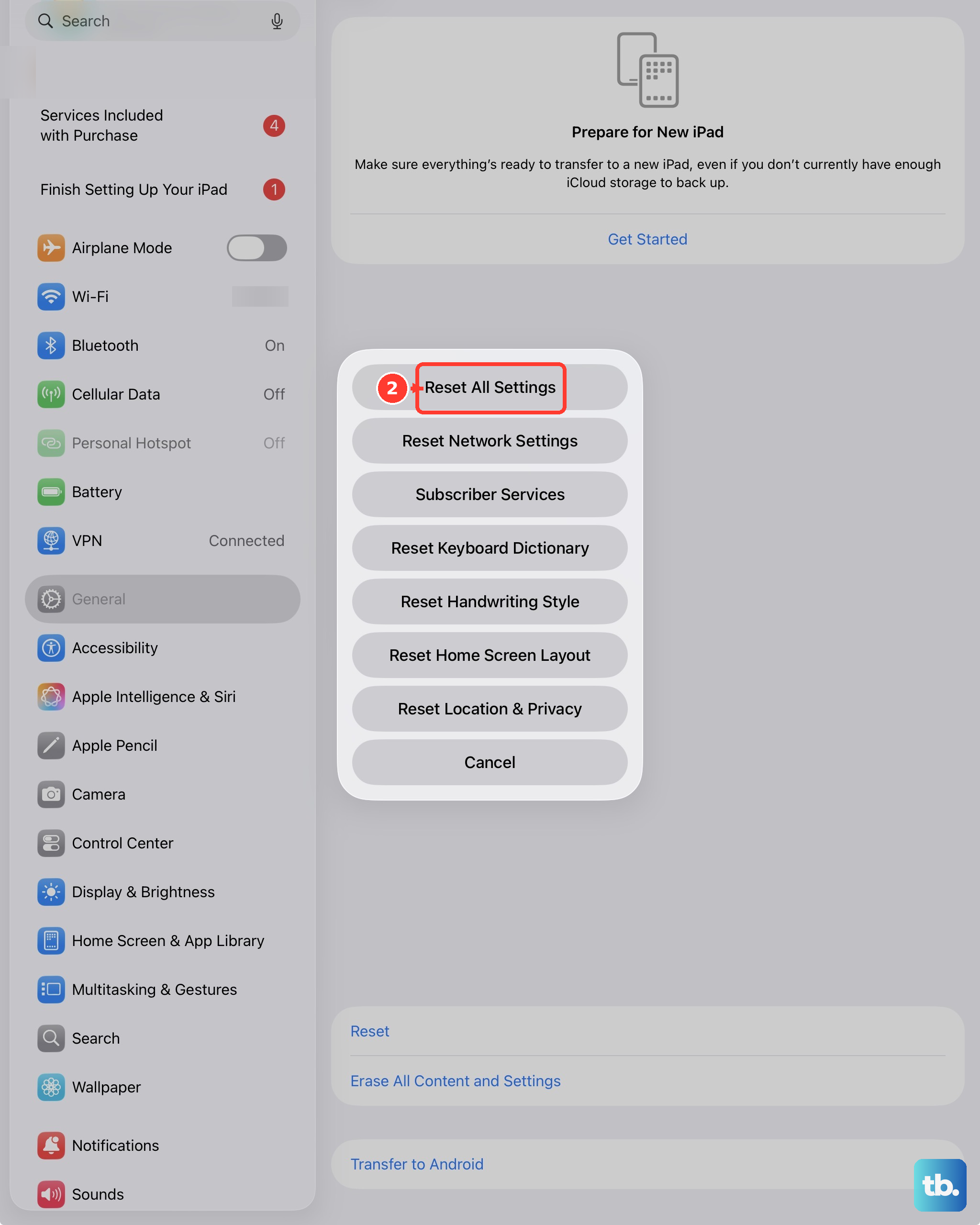
Your iPad will restart and you'll need to reconnect to Wi-Fi and re-pair Bluetooth devices. Test the camera immediately after the restart, before changing any other settings. If the black screen is gone, a corrupted settings file was the cause.
This fix works well when the camera stopped working after you changed a privacy, display, or accessibility setting in iPadOS 18.
Force Restart Again With a Different Method
If the standard force restart didn't work, try it while your iPad is connected to power. Plug your iPad Air M3 into a 20W or higher USB-C power adapter using an Apple-certified cable, then perform the force restart sequence again. Press and quickly release the volume button closest to the Top button, then the one farthest from it, then press and hold the Top button until the Apple logo appears.
Power cycling while connected to a charger can resolve deeper system-level camera initialization failures. Leave it plugged in for five minutes after the restart and then test the camera.
Restore iPadOS Using a Computer
If none of the above steps work, you'll need to restore the iPad's software using a Mac or PC. This erases all your data, so make sure you have a recent backup first. On a Mac running macOS Catalina or later, open Finder. On a PC or older Mac, open iTunes.
Connect your iPad Air M3 using a USB-C cable. Put the iPad into recovery mode by following the force restart sequence but continuing to hold the Top button when the Apple logo appears. You'll see a computer icon on the screen. In Finder or iTunes, click Restore and follow the prompts.
A restore reinstalls a fresh copy of iPadOS 18 and clears all user data. If the camera works after the restore, the issue was corrupted system files. If the camera still shows black after a restore, the hardware module likely needs service.
Most camera black screen issues on the iPad Air M3 are software-related and respond to the first few steps in this guide. Start with the force restart and work through the list, testing the camera after each fix.