
Screen flickering on your iPad Air is incredibly distracting, turning a simple task into a frustrating one. You might see the display flash, blink, or show faint horizontal lines that come and go. This can be triggered by a temporary software hiccup, a specific display setting, or, less commonly, a hardware concern. Let's walk through the fixes, starting with the simplest.
Force Restart Your iPad
This is the first thing I'd try. A force restart clears out temporary glitches in the system memory that can affect the display. On your iPad Air (2026), press and quickly release the Volume Up button, then quickly press and release the Volume Down button. Immediately after, press and hold the Top button until you see the Apple logo appear, then let go. This takes about 10 seconds and often resolves flickering that started out of the blue.
Turn Off Auto-Brightness
The ambient light sensor that controls auto-brightness can sometimes get confused, especially in rooms with fluctuating light. This confusion can manifest as screen flicker. To check, open Settings and go to Accessibility > Display & Text Size. Find the Auto-Brightness toggle and turn it off. After disabling it, manually adjust your screen brightness in Settings > Display & Brightness to a comfortable level and see if the flickering settles down.
Disable True Tone
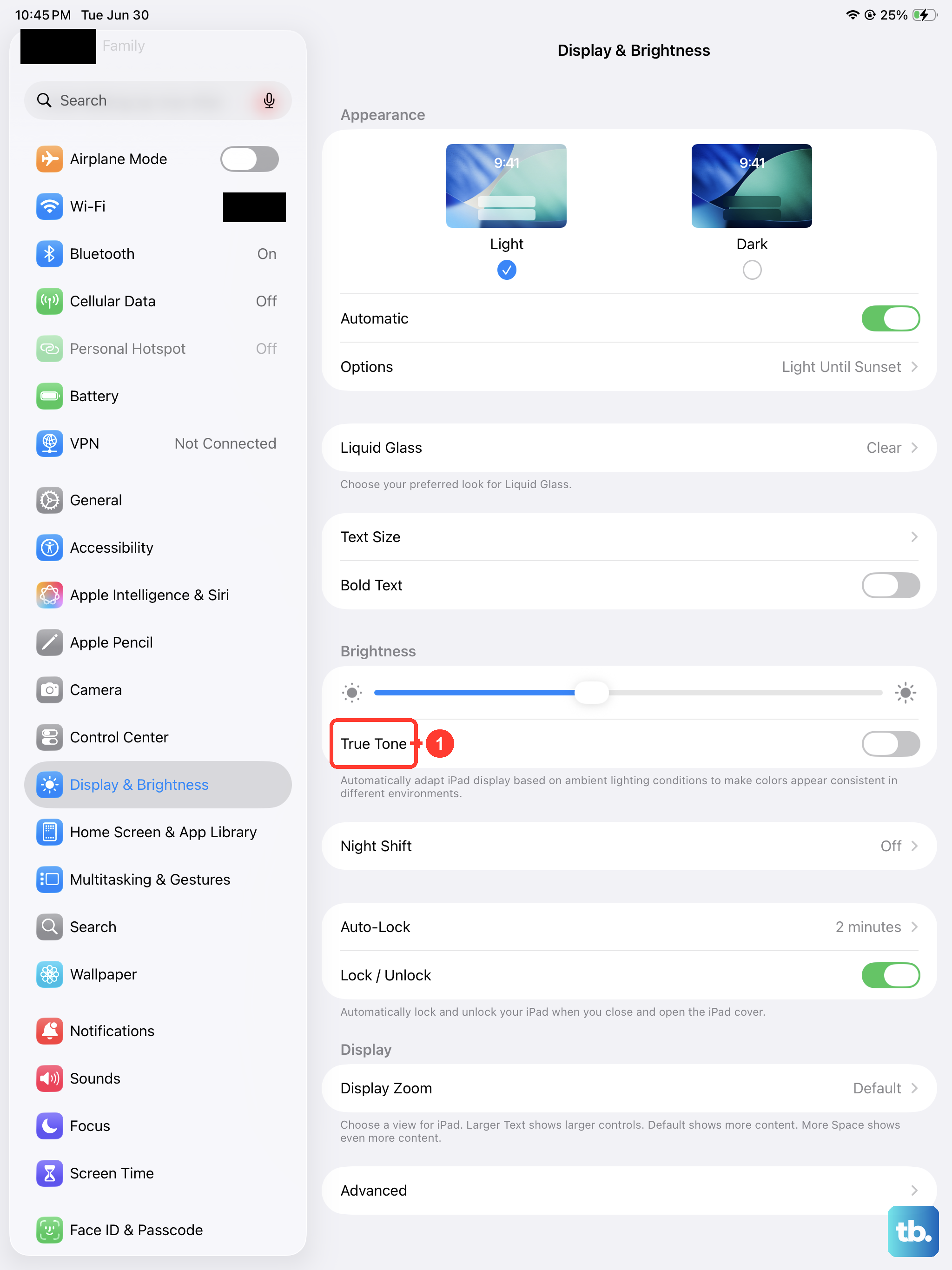
True Tone is a great feature that adjusts your screen's color temperature to match your environment. However, if the sensor responsible for it is having a momentary issue, it can cause subtle but noticeable flickering. You can test this by going to Settings > Display & Brightness and toggling off True Tone. Give it a moment and see if the display stabilizes.
Check for an iPadOS Update
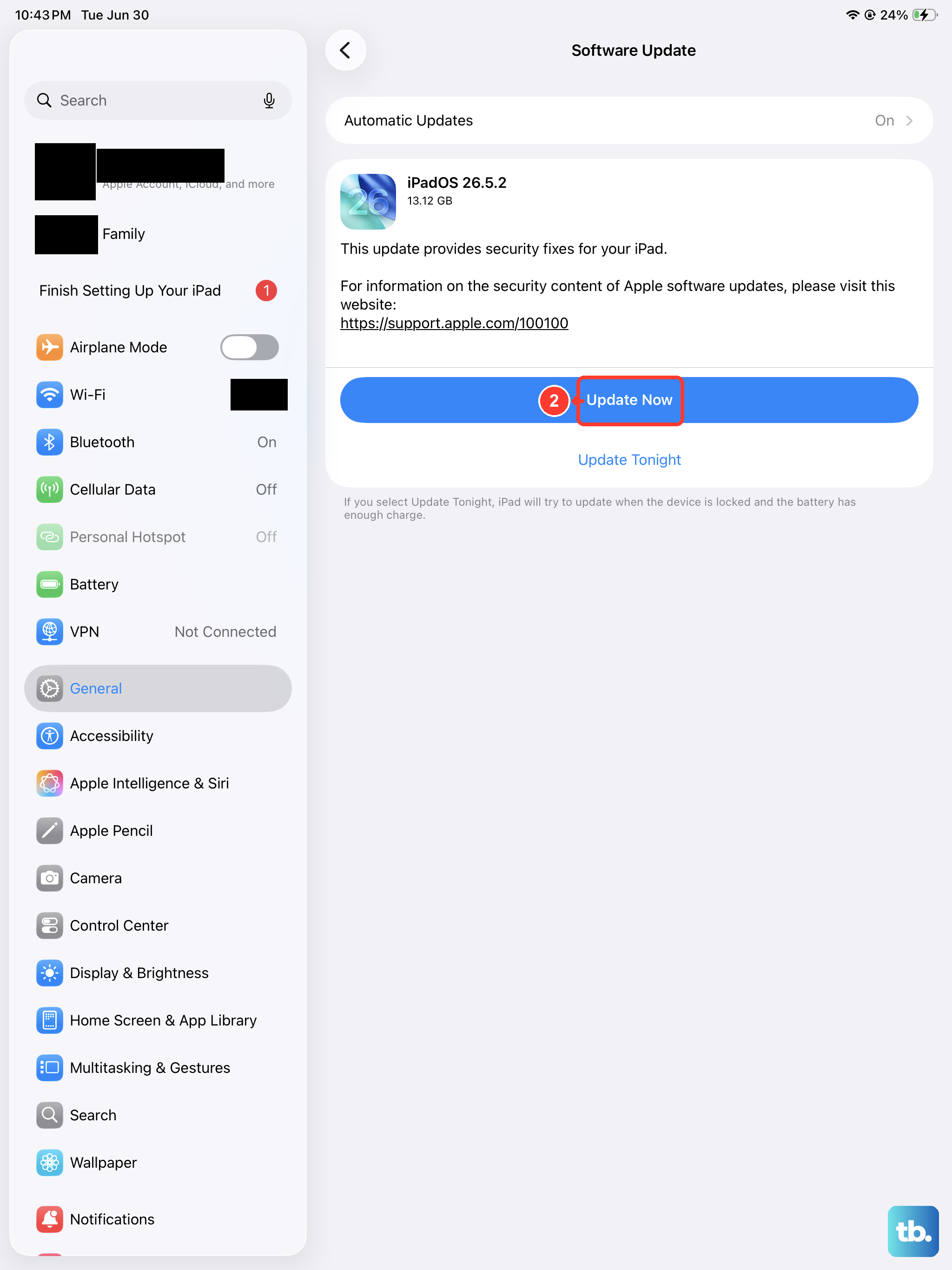
Apple frequently releases iPadOS updates that include bug fixes for display performance. It's a good habit to check for these regularly, not just for new features. Navigate to Settings > General > Software Update. If an update is available, install it. Past updates have specifically targeted display anomalies, so this is a solid step.
Close Background Apps
An app running in the background, perhaps one that uses graphics intensively, could be causing the problem. Swipe up from the bottom of the screen and pause in the middle to bring up the App Switcher. Swipe up on each app preview to close it. Once all apps are closed, observe your home screen. If the flickering stops, you can reopen your apps one by one to try and identify which one was the culprit.
Reset All Settings
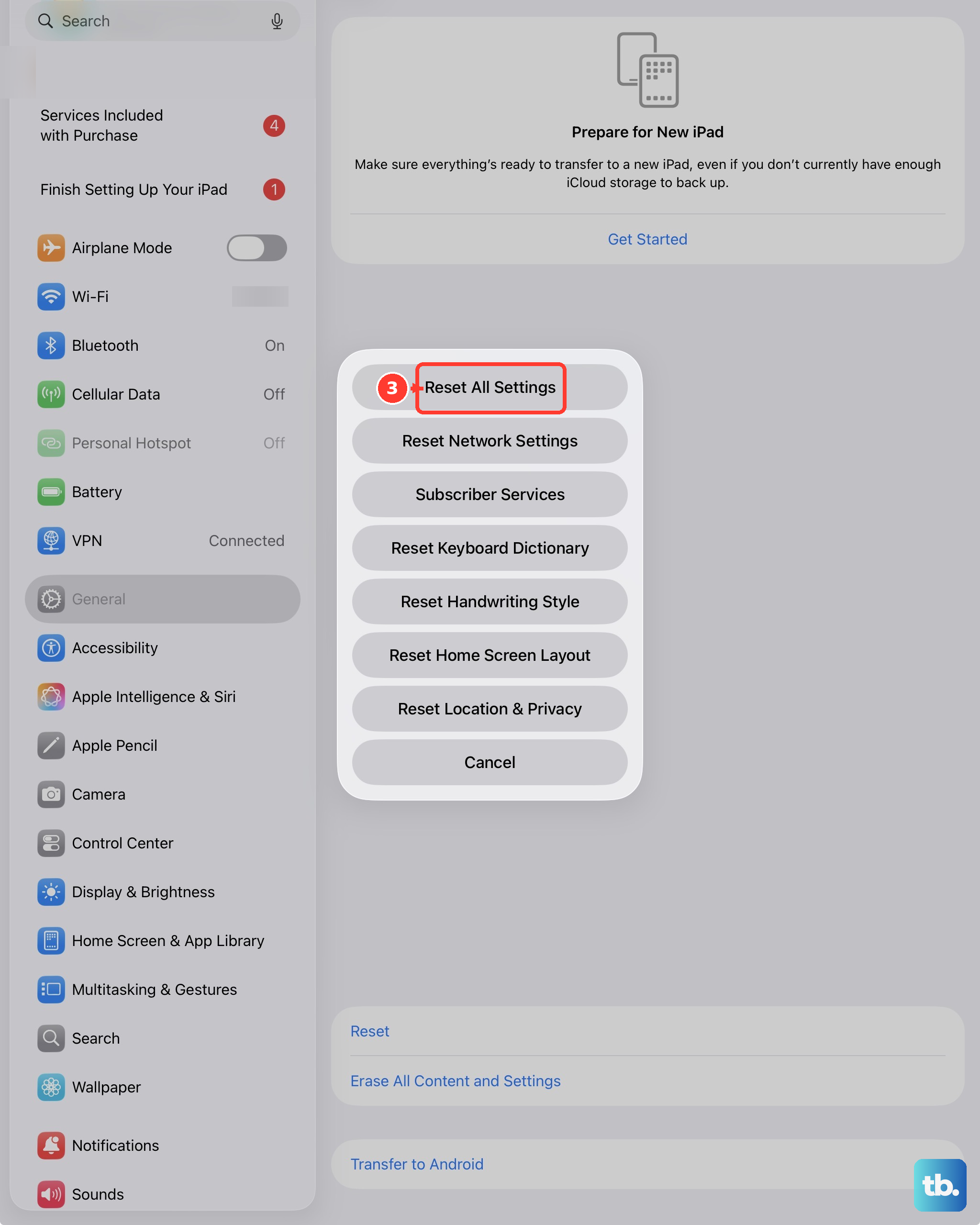
This step resets every system setting on your iPad Air back to its factory defaults. That includes your network settings, wallpaper, privacy permissions, and, importantly, all display and accessibility settings. It won't delete any of your personal data, photos, or apps. To do it, go to Settings > General > Transfer or Reset iPad, tap Reset, and then select Reset All Settings. You'll need to re-enter Wi-Fi passwords and reconfigure some preferences, but it can clear up deep-seated configuration issues.
Inspect for Physical Damage
If the flickering began after your iPad was dropped or suffered an impact, the issue could be physical. Carefully examine the screen for any new cracks, even hairline ones. Also look for areas that seem discolored or have unusual pressure marks. Internal damage, like a slightly loose display connector, can cause intermittent flickering and requires professional repair.
Restore Your iPad via a Computer
If the flickering persists through all the steps above, a full restore is the definitive software fix. First, ensure you have a recent backup in iCloud or on your computer. Then, connect your iPad Air to a Mac or PC using a USB-C cable. On a Mac with macOS Catalina or later, open Finder. On a PC or older Mac, open iTunes. Select your iPad and choose the option to Restore iPad. This will erase the device and install a fresh copy of iPadOS. If the flickering is gone after the restore, it was a software problem. If it returns on the clean install, the issue is almost certainly hardware-related.