
When your iPad Air M3's microphone stops working, it affects video calls, voice memos, Siri, and recording in apps like FaceTime or Zoom. The good news is that this is often a software glitch or a simple blockage, not a hardware failure. Let's walk through the fixes step by step.
If you are not sure whether the mic is dead or just misconfigured, open a quick mic test first. A moving level meter means the hardware is healthy, which rules out the worst case before you touch any settings.
Test Your iPad Air M3's Microphone
Before you start troubleshooting, confirm which microphone is acting up. Your iPad Air M3 has multiple microphones, one near the top center, one at the bottom next to the USB-C port, and one on the back near the camera lenses. Open the Voice Memos app and tap the red record button. Speak normally, then play back the recording. If the audio is muffled or absent, you've got a mic issue.
Try Siri
Press and hold the Top button to activate Siri. Ask something simple like "What time is it?" If Siri doesn't respond or gets the question wrong, the main microphone might be blocked or faulty. You can also record a short video in the Camera app (switch to Video mode) and play it back to check audio quality from the rear microphone.
Quick Fixes to Try First
Remove Any Case or Screen Protector
Some iPad cases cover the microphone openings near the bottom or top edge. Take off the case and test the mic again. Screen protectors rarely cause issues, but check the tiny cutouts near the top if you have one.
Force Restart Your iPad Air M3
A quick force restart clears temporary software hiccups without deleting your data. Press and quickly release Volume Up, then Volume Down, then press and hold the Top button until the Apple logo appears. This is safe to do and often fixes minor audio glitches.
Disconnect Bluetooth Devices
If you're connected to AirPods, headphones, or a Bluetooth speaker, your iPad may route audio to them instead of the built-in microphone. Open Control Center, tap the Bluetooth icon to turn it off, or go to Settings > Bluetooth and forget any paired devices. Test the microphone again.
Check for Physical Blockages
Dust and lint can collect in the microphone openings. Inspect the tiny holes near the USB-C port, the top edge, and around the rear camera. Use a soft, dry toothbrush or a toothpick (very gently) to dislodge any debris. Avoid metal objects or compressed air that could damage the mesh.
Software and Settings Solutions
Force Close and Reopen Problematic Apps
If the microphone only fails in specific apps like FaceTime, Zoom, or WhatsApp, force close the app. Swipe up from the bottom and pause to open the App Switcher, then swipe the app card up and off the screen. Reopen the app and see if the mic works now.
Check Microphone Permissions
Apps need your permission to access the microphone. Go to Settings > Privacy & Security > Microphone. Make sure the toggles are on for the apps you're using. If an app is grayed out, you may need to reinstall it or check its own settings.
Update iPadOS
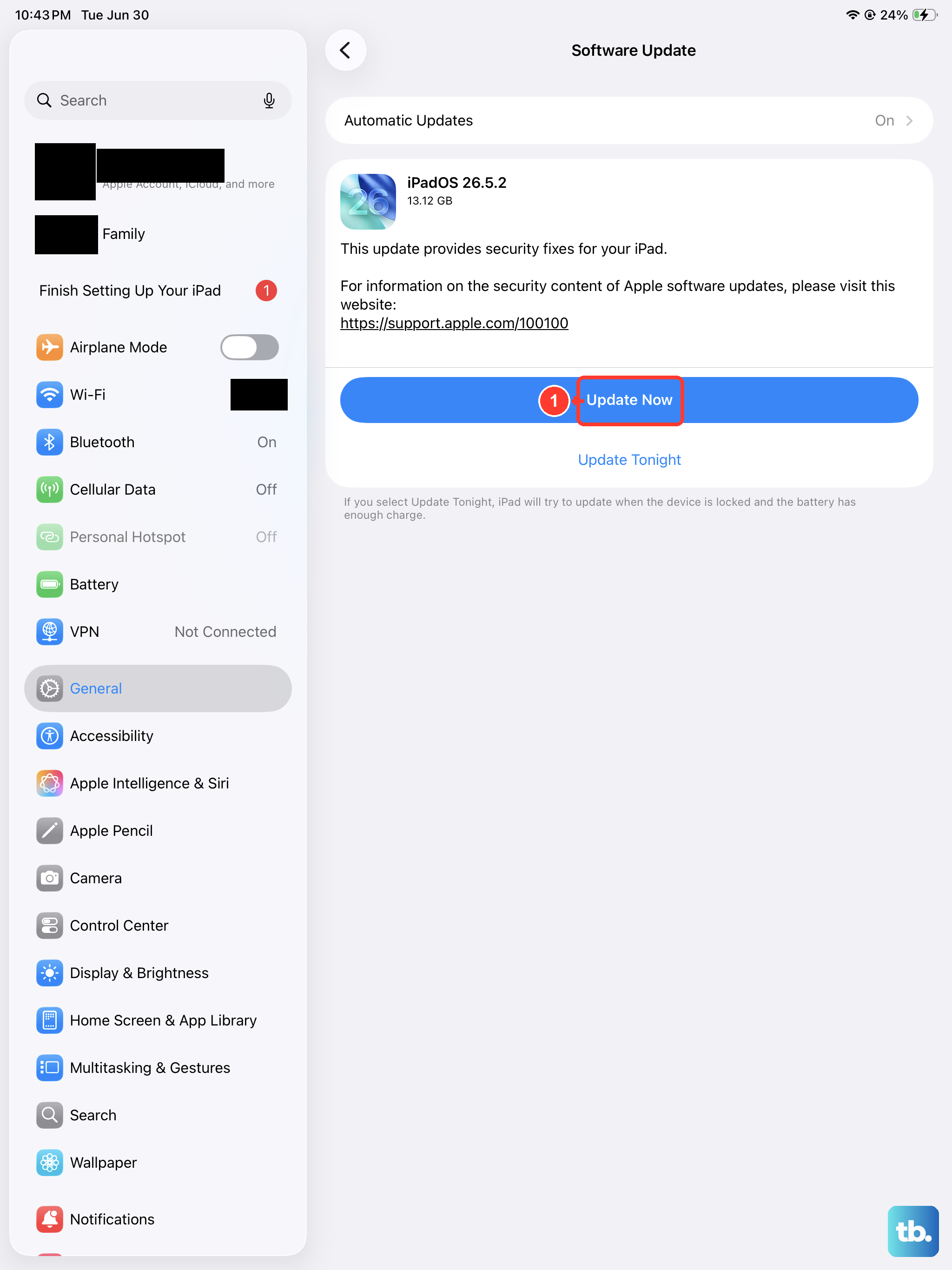
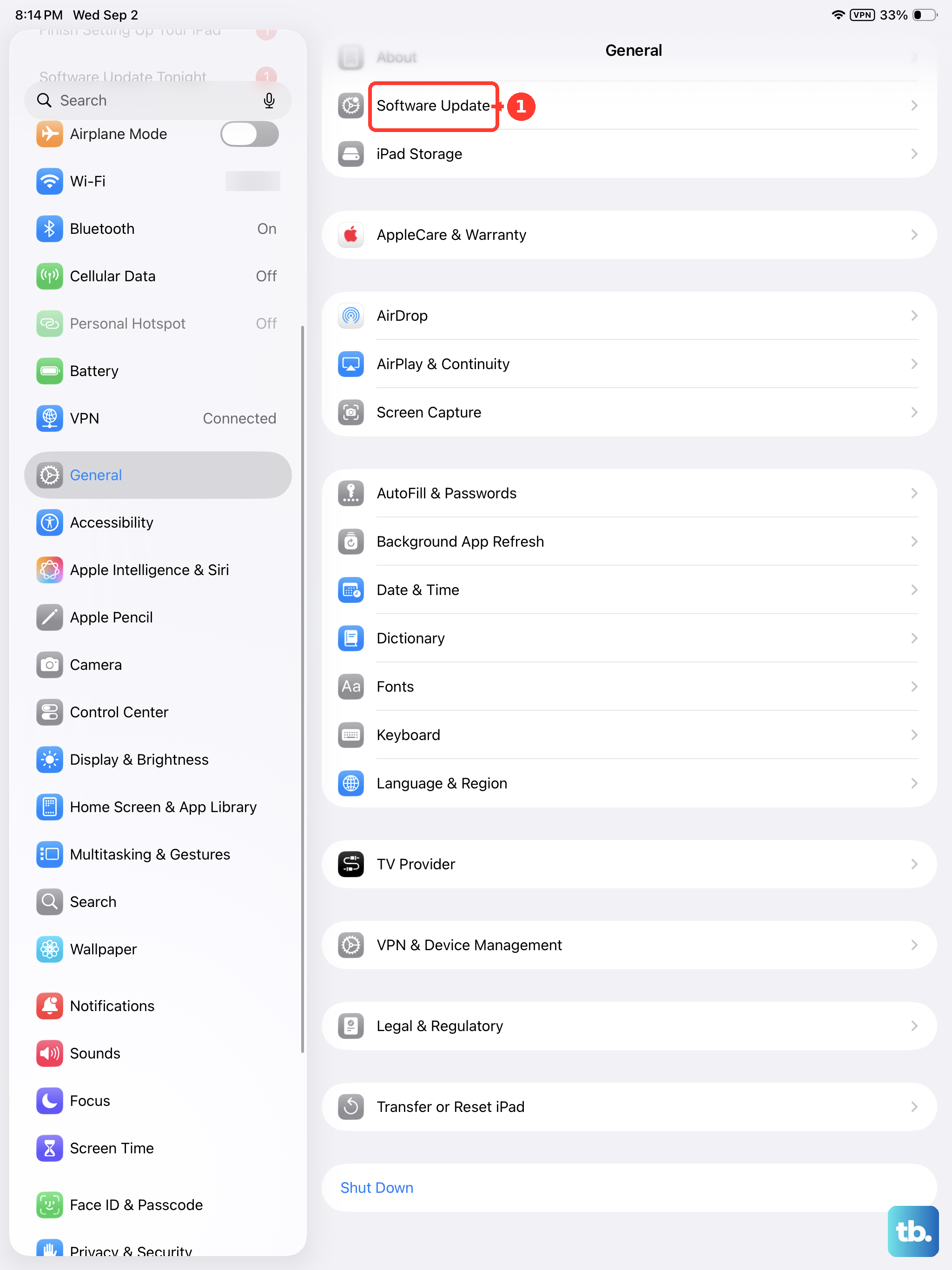
Bug fixes for audio issues often come with software updates. Go to Settings > General > Software Update and install any available version. Your iPad Air M3 runs iPadOS 18, and Apple regularly releases updates that address microphone problems.
Reset All Settings
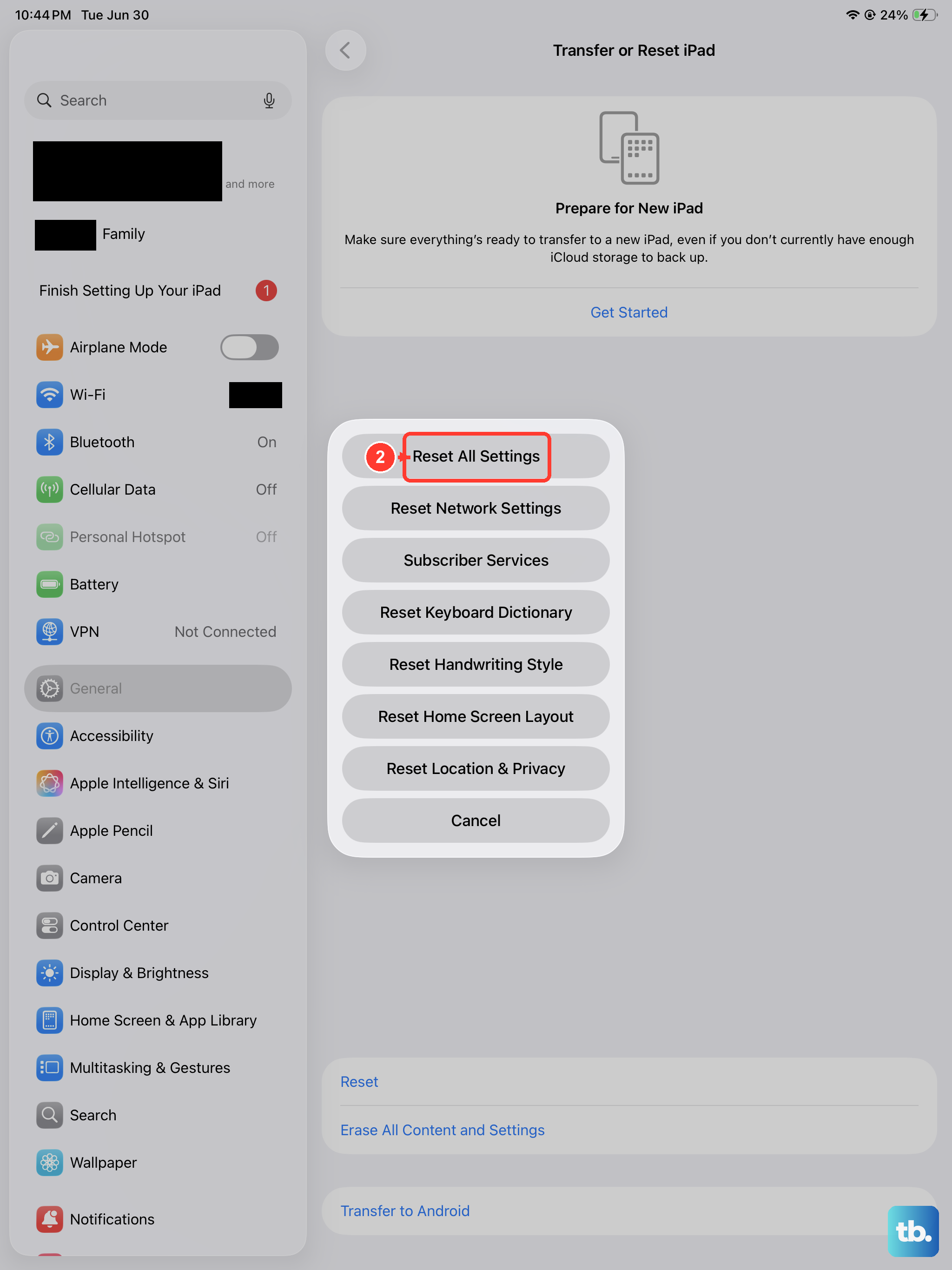
This option resets system settings like Wi-Fi passwords and display preferences, but it won't delete your apps or data. Go to Settings > General > Transfer or Reset iPad > Reset > Reset All Settings. After the reset, you'll need to reconnect to Wi-Fi and adjust a few preferences, but it can fix stubborn microphone issues.
Factory Reset (Erase All Content and Settings)
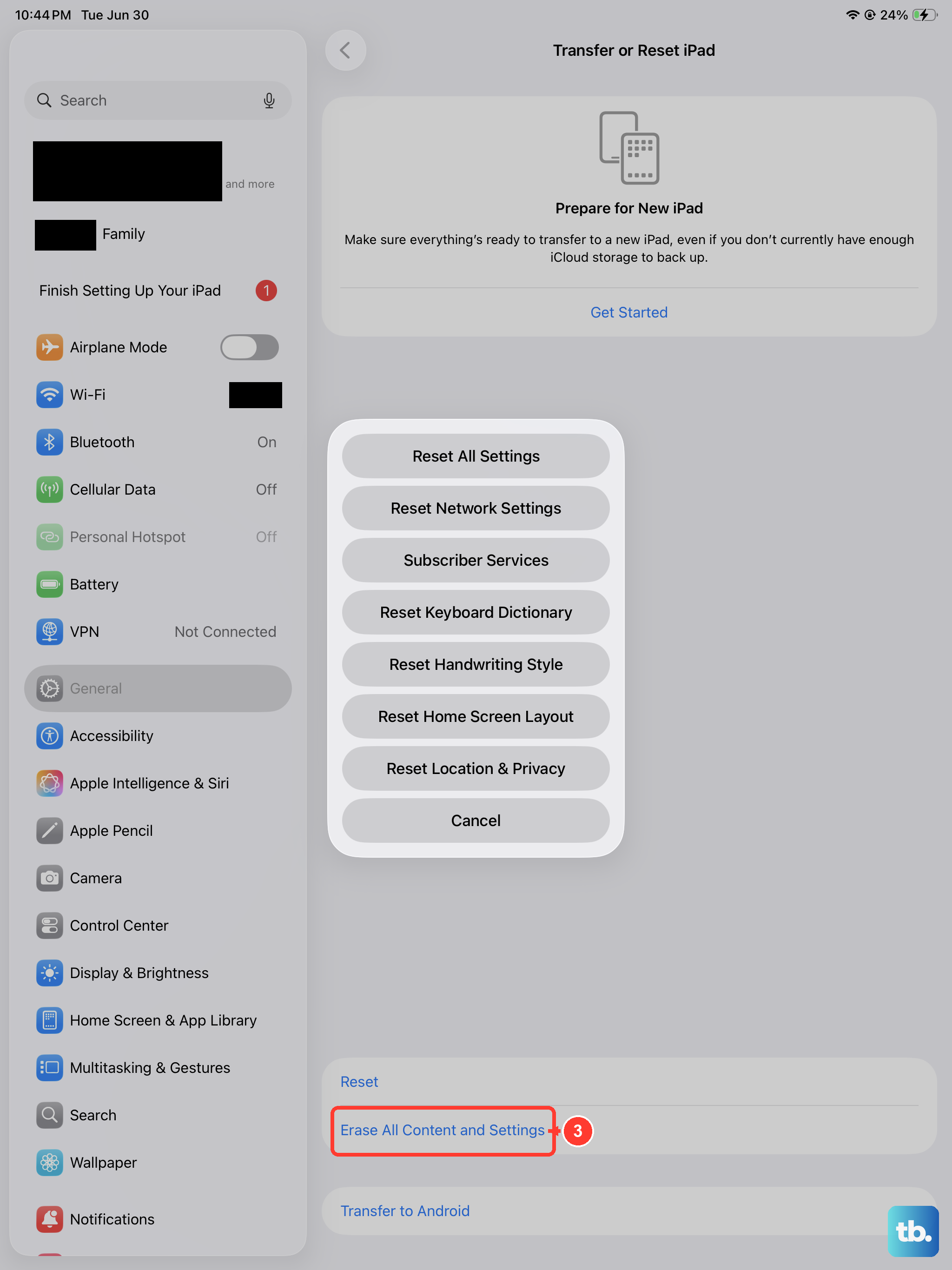
If nothing else works, a full factory reset might be necessary. Back up your iPad first, use iCloud or a computer. Then go to Settings > General > Transfer or Reset iPad > Erase All Content and Settings. This wipes everything and restores the iPad to its factory state. After the reset, set up as new and test the microphone before restoring your backup. If the mic still doesn't work after a factory reset, it's likely a hardware problem that needs service.