
An iPad that keeps restarting on its own can make it nearly impossible to get anything done. The iPad Air M3 is a solid machine, but software glitches, problem apps, or even charging accessories can sometimes trigger this behavior.
Before you try anything else, back up your iPad to iCloud or a computer. A few of these steps will wipe your data, so you want a safety net in place first.
Force Restart Your iPad Air M3
A force restart clears out temporary system glitches without erasing any of your stuff. This is usually the fastest way to stop a restart loop on the iPad Air M3.
Press and quickly release the Volume Up button, then press and quickly release the Volume Down button. After that, press and hold the Top button until you see the Apple logo on screen. Let go and let the iPad boot up normally.
This method works on all iPads without a Home button, including the M3 model running iPadOS 18. It takes about 15 seconds total and won't affect any of your data.
Check for Problematic Apps
A misbehaving app running in the background can sometimes crash the system, causing a restart. Start by closing everything out.
Swipe up from the bottom of the screen and pause in the middle to open the App Switcher. Swipe up on each app preview to close it. Do this for all your recently used apps and then use the iPad normally for a while to see if the restarting stops.
If it does, you can narrow it down by opening apps one at a time. When the restart happens again, that last app is likely the culprit. Delete it and check whether the problem clears up.
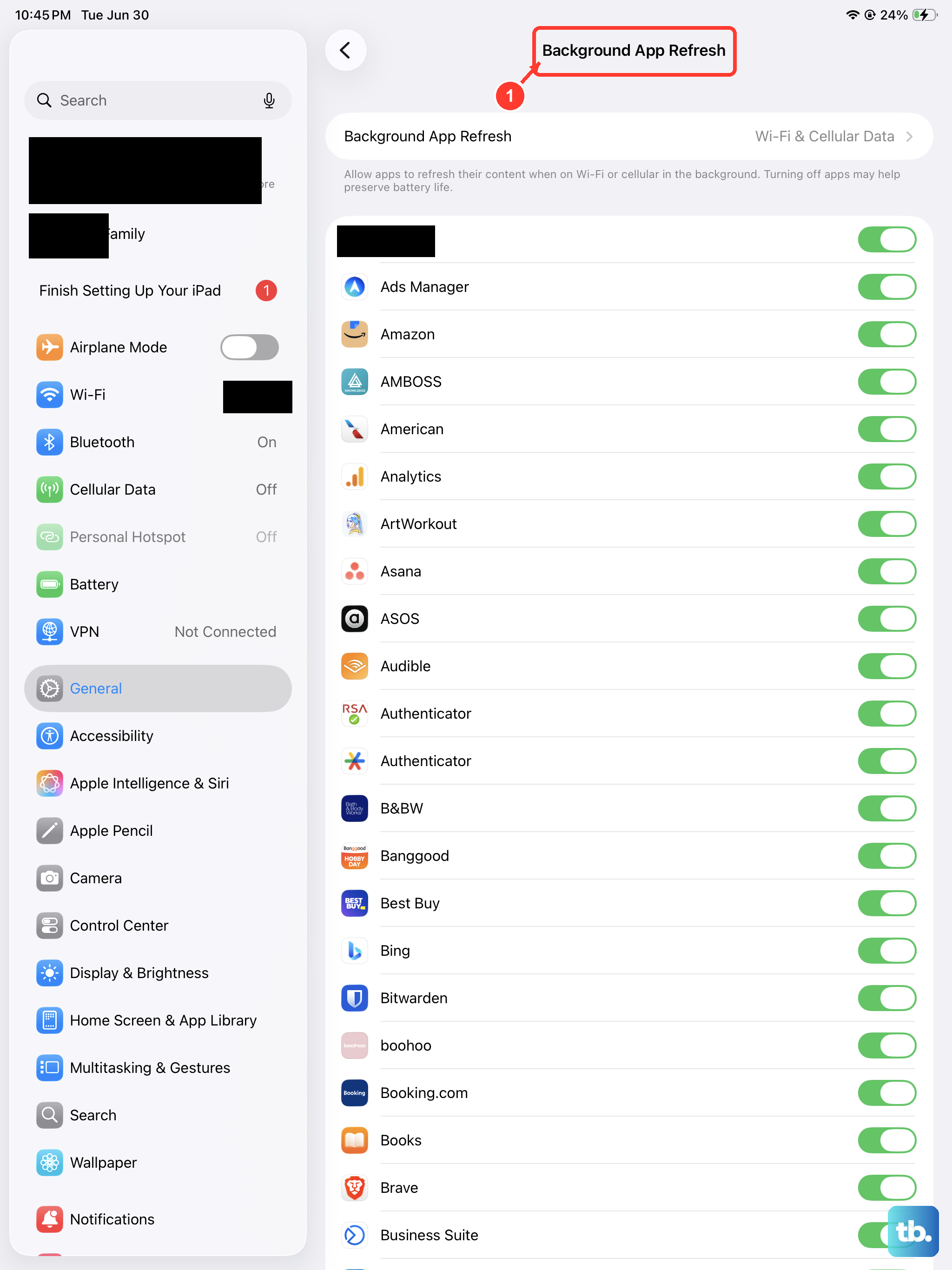
You can also disable Background App Refresh to stop apps from running tasks when you aren't using them. Head to Settings > General > Background App Refresh and toggle it off or pick specific apps to restrict.
Update iPadOS 18 and Your Apps
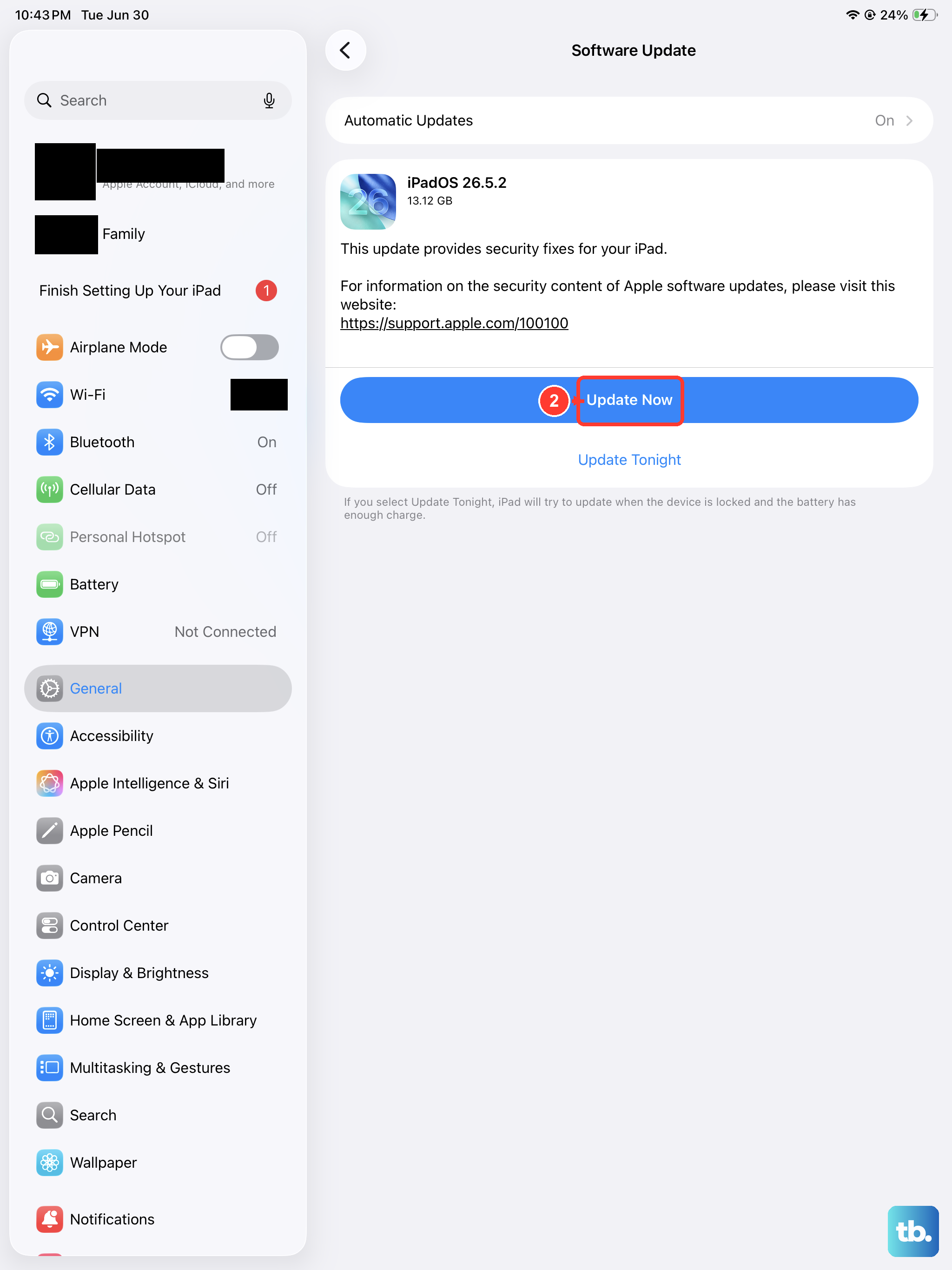
Outdated software can cause all kinds of instability, including random restarts. Apple regularly pushes fixes for known bugs with iPadOS updates.
Go to Settings > General > Software Update. If there's an update waiting, download and install it. Make sure your iPad is plugged in and connected to Wi-Fi during the process.
While you're at it, open the App Store and tap your profile picture in the top right corner. Scroll down and tap Update All to refresh every app. Developers often release compatibility patches that can resolve conflicts with the latest iPadOS version.
Review the Crash Logs
Your iPad tracks every system crash and app failure in a hidden log. Looking through these reports can help you identify what's causing the restarts.
Go to Settings > Privacy & Security > Analytics & Improvements > Analytics Data. You'll see a long list of files. Look for entries starting with "panic-full" which indicate a system-level kernel panic. Those are the ones tied to full-device restarts.
You can also look for the name of a specific app followed by a date. If you see the same app appearing in multiple crash reports, that's a strong sign it's the problem. Delete that app and see if the restarts stop.
Free Up Storage Space
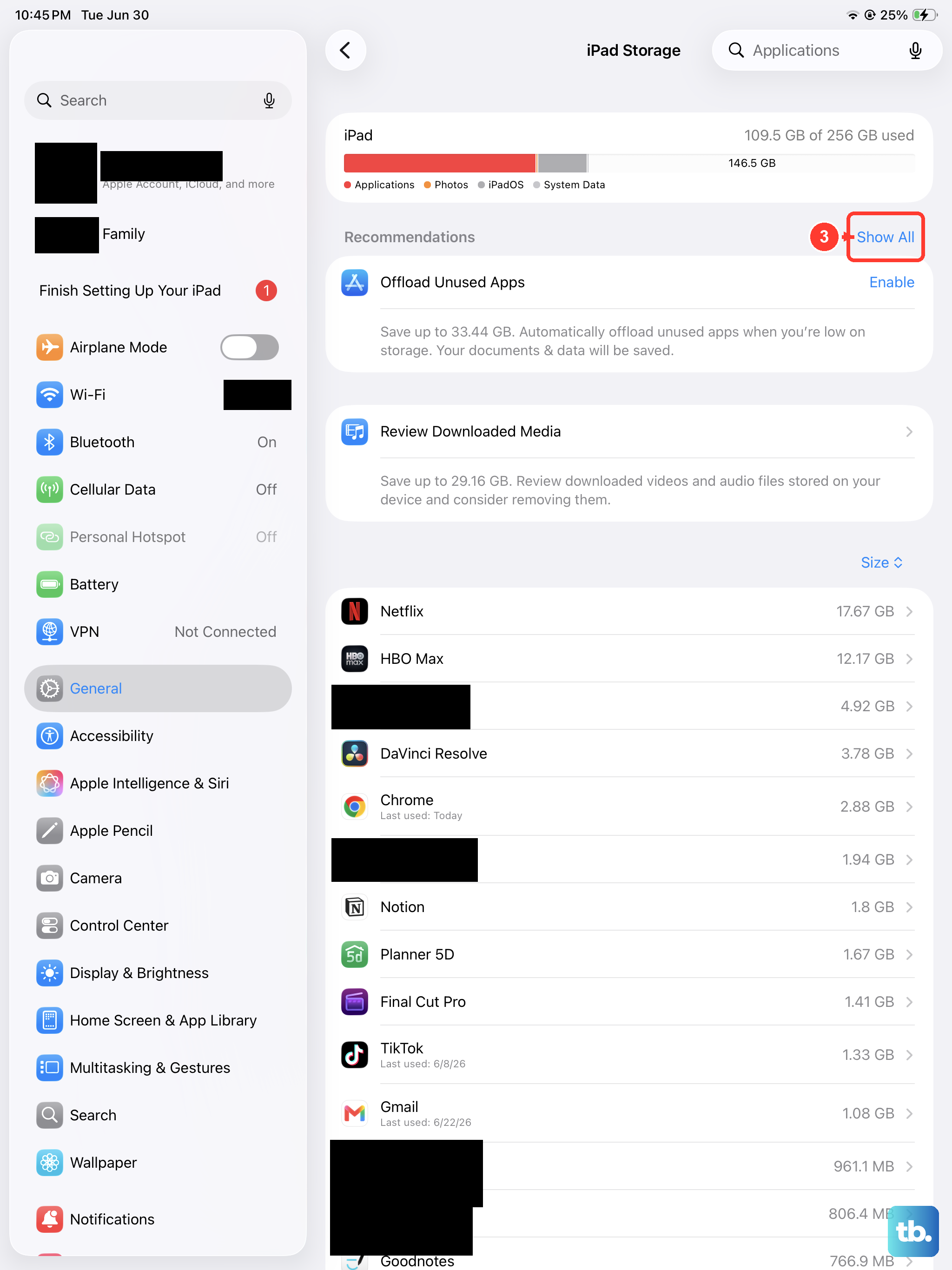
When your iPad's storage is nearly full, the system can become unstable and trigger random restarts. iPadOS needs breathing room to manage memory and background processes.
Check your available space at Settings > General > iPad Storage. If you're down to a couple gigabytes or less, it's worth clearing things out. Offload unused apps, delete old photos and videos, or move files to iCloud.
Pay special attention to large apps you haven't opened in months. The iPad Storage screen shows you exactly what's taking up space and offers recommendations for freeing it up.
Reset All Settings
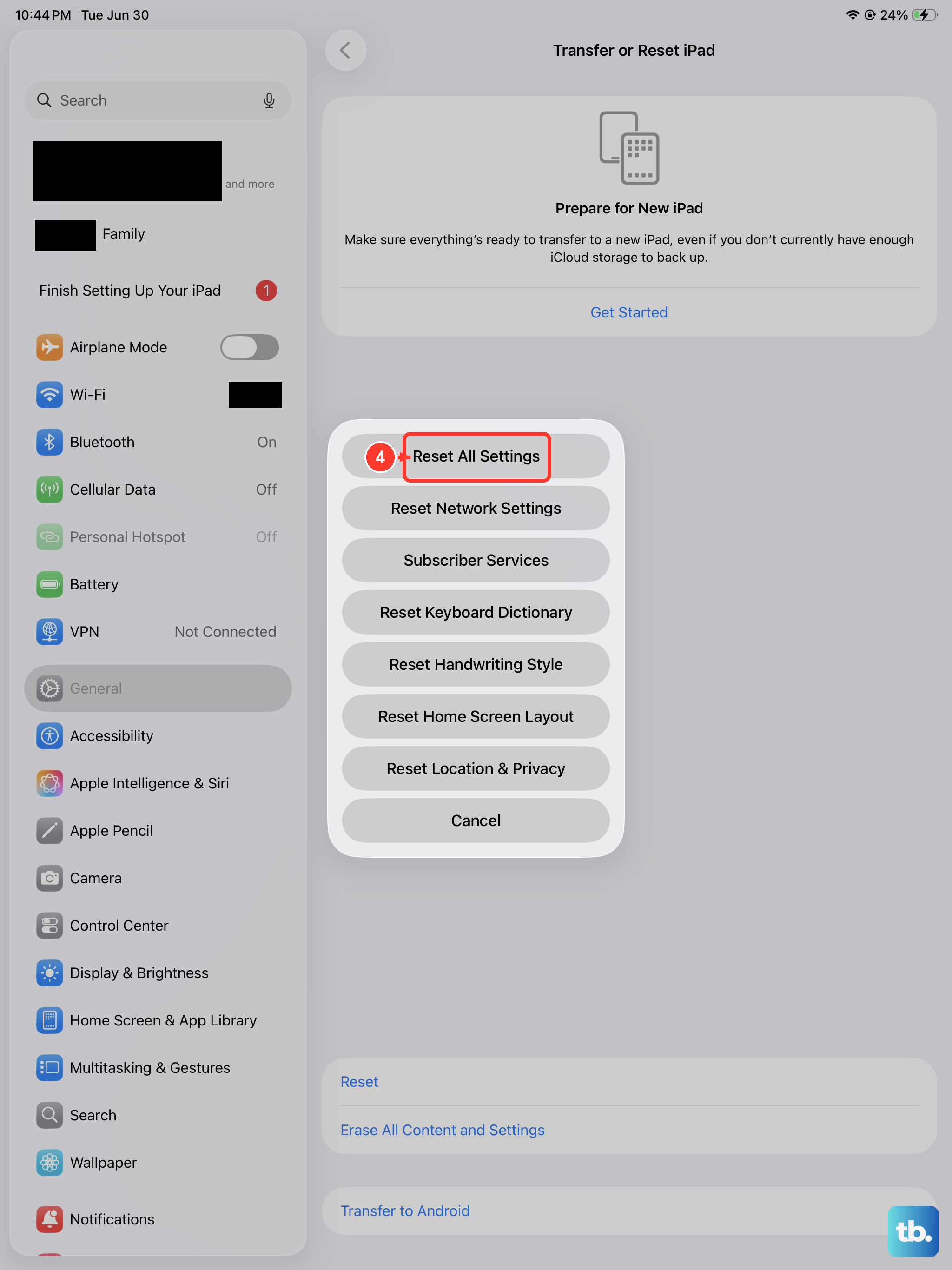
If the restarting continues, you can reset your iPad's settings without wiping your personal data. This is a good middle ground before going for a full factory reset.
Go to Settings > General > Transfer or Reset iPad > Reset > Reset All Settings. Enter your passcode to confirm. The iPad will restart and you'll need to reconfigure things like Wi-Fi networks, wallpapers, and notification preferences.
Your photos, messages, apps, and other data remain untouched. This fix often resolves deeper software conflicts that can cause repeated restarts.
Check Your Charging Setup
The iPad Air M3 has a couple of known quirks related to charging that can actually cause system instability. Using a low-power adapter or a cheap cable might trigger unexpected behavior.
Make sure you're using a USB-C Power Delivery adapter rated at 20W or higher. The iPad Air M3 supports up to 30W wired charging, so a low-wattage phone charger might not provide enough juice to keep the system stable. If you see a "Not Charging" message on the lock screen, swap the cable and adapter for certified ones.
Avoid bargain-bin third-party accessories. Non-certified cables can cause intermittent power delivery that may confuse the system and contribute to restarts. Stick with Apple's USB-C cable or a reputable MFi-certified alternative.
Factory Reset the iPad
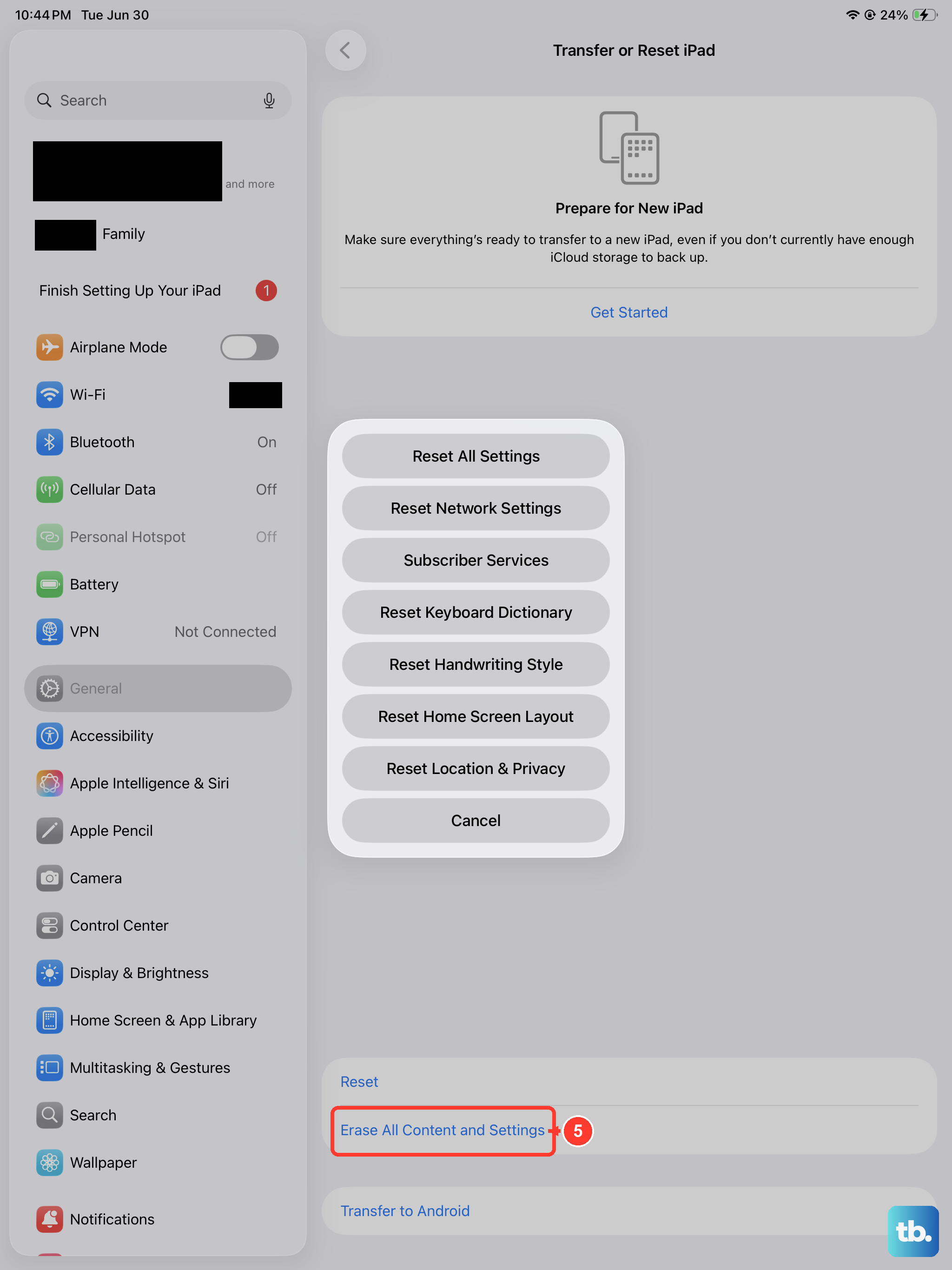
When none of the above steps have worked, a full factory reset is the next logical step. This erases everything and gives you a clean slate.
Go to Settings > General > Transfer or Reset iPad > Erase All Content and Settings. Enter your passcode and Apple ID password when prompted. The iPad will wipe itself and restart fresh, like it just came out of the box.
Set it up as a new device at first to test whether the restarting is gone. If it is, you can restore from your backup. If the problem was a corrupted backup file, setting up as new and manually reinstalling your apps will keep things stable.
Recovery Mode Restore
If your iPad Air M3 is stuck in a continuous restart loop and won't boot normally, recovery mode gives you a way to reinstall iPadOS from a computer.
Connect the iPad to a Mac or PC with a USB-C cable. Open Finder on a Mac running macOS Catalina or later, or open iTunes on a Windows PC or older macOS. Press and quickly release the Volume Up button, then Volume Down, then press and hold the Top button. Keep holding until you see the recovery mode screen with a cable pointing to a computer icon.
Your computer will pop up with an option to Update or Restore. Try Update first, it reinstalls iPadOS without deleting your data. If that doesn't work or if it fails, choose Restore to do a clean install. This will wipe everything, but it's often the only way to break a stubborn restart loop.