
You open your iPad Air M3 expecting a quiet morning, and there it is a notification badge showing 47 unread messages. You tap Messages, and everything's been read. Those phantom notification counts are annoying, but they're usually fixable without much hassle.
Start With a Proper Restart
Before diving into settings, give your iPad a fresh start. iPadOS 18 can sometimes get stuck holding onto old notification data, and a simple restart clears that up.
Press and quickly release Volume Up, then Volume Down, then press and hold the Top button until the Apple logo appears. Let the iPad boot up fully, then check if those false notification counts are gone. This is the quickest fix and works more often than you'd think.
Check Notification Settings for Messages
Sometimes individual app notification settings get out of sync. Open Settings and tap Notifications, then scroll down to Messages. Make sure Allow Notifications is toggled on. Tap into the Messages notification settings and check that Badges are enabled.
If badges are already on, try toggling them off, waiting a few seconds, then turning them back on. This forces the system to refresh the badge count. I've seen this clear up phantom badge numbers on several iPadOS versions.
Turn Off Focus Mode
Focus modes in iPadOS 18 can mess with notification delivery in unexpected ways. If you have a Focus mode scheduled or manually enabled, it might be holding notifications in a weird state where the badge count shows but the messages aren't visible.
Swipe down from the top-right corner to open Control Center. Tap the Focus button and make sure it shows Off. If you use custom Focus modes, check their notification settings to see if Messages is being filtered in a way that creates false badge counts.
Disable Notification Summaries Temporarily
iPadOS 18's Notification Summary feature collects notifications and delivers them in batches. This can sometimes cause badge numbers to fall out of sync with actual unread messages. Go to Settings > Notifications > Scheduled Summary and toggle it off.
Give it a few minutes after turning it off. The badge count should update to reflect your actual unread messages once the system resets its notification tracking.
Uninstall and Reinstall the Messages App
This sounds drastic, but it's safe. Your iMessages are stored in iCloud, not in the app itself. Removing the app clears out any corrupted local data that might be causing false badge counts.
Press and hold the Messages icon on your Home Screen, then tap Remove App and select Delete App. Go to the App Store, search for Messages, and reinstall it. Sign in with your Apple ID, and your messages will sync back from iCloud. The badge count should reset to the correct number.
Update to the Latest iPadOS
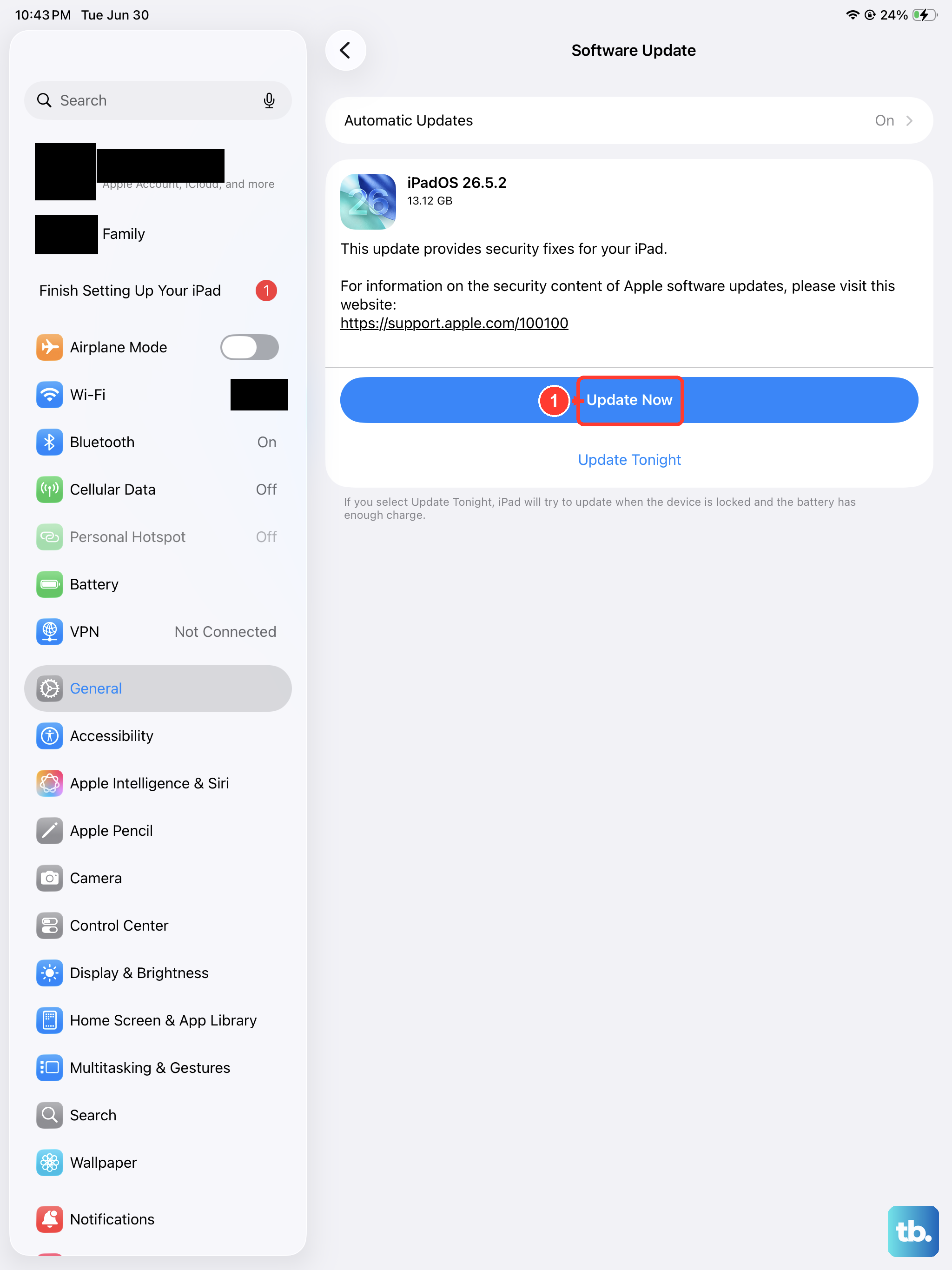
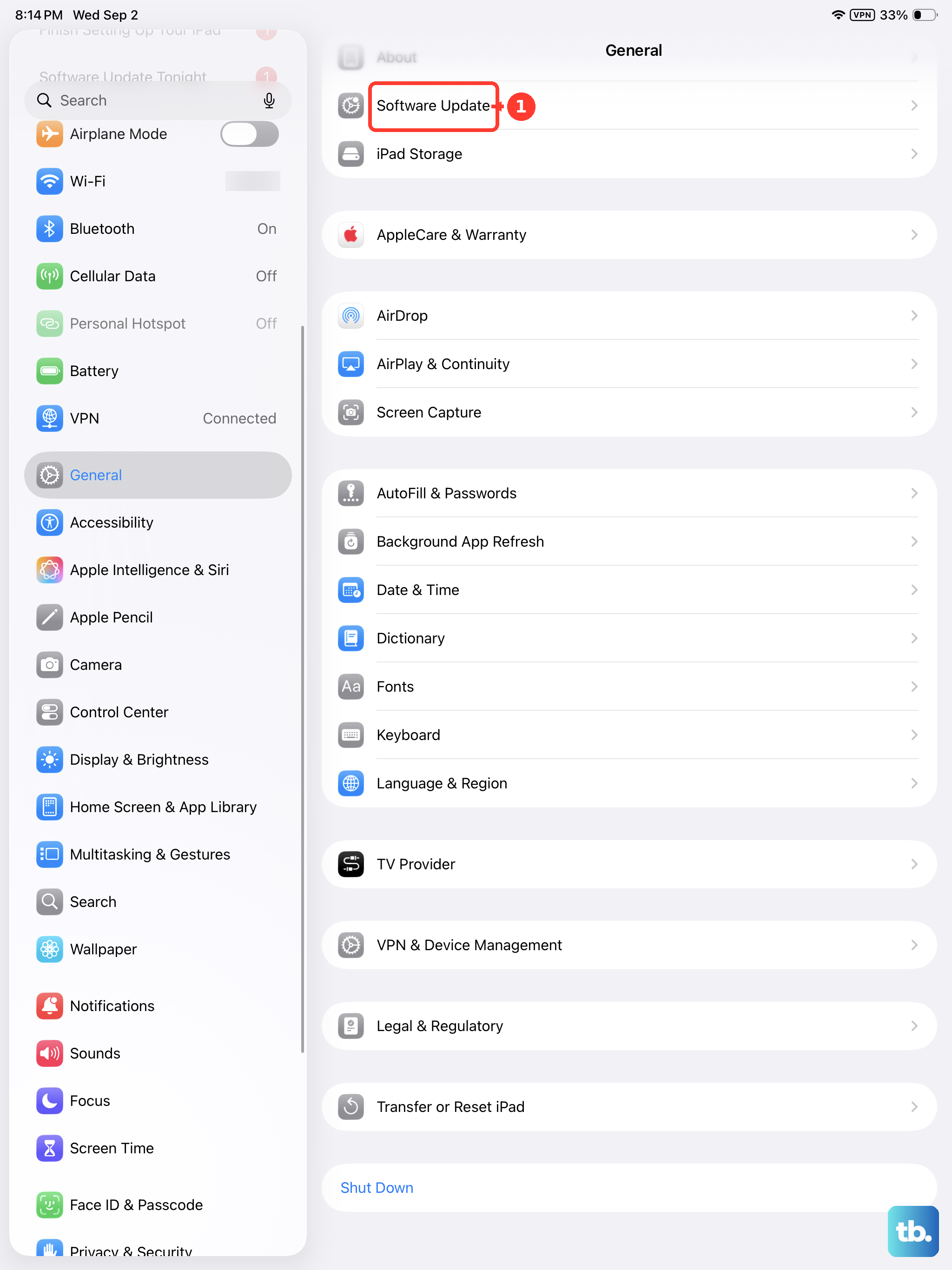
Apple regularly patches notification bugs in software updates. If you're on an older version of iPadOS 18, a minor update might have already fixed the exact issue you're seeing. Go to Settings > General > Software Update and check for available updates.
If there's an update waiting, install it. The iPad will restart, and the notification system gets refreshed as part of the update process.
Reset All Settings
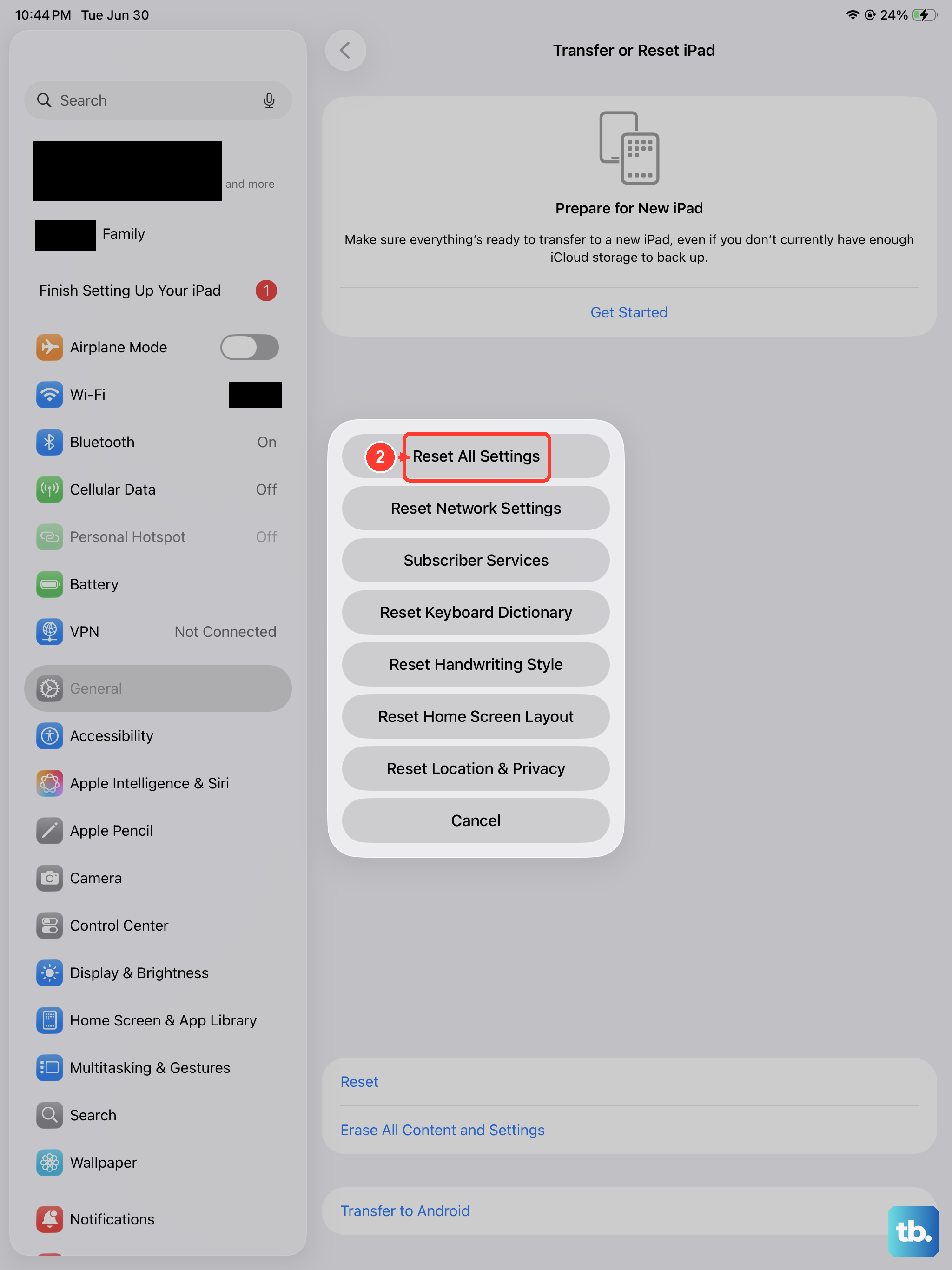
If those phantom notification counts keep coming back, a settings reset can clean up whatever is stuck in the system. This doesn't delete your photos, messages, or apps. It just returns system settings like Wi-Fi passwords, wallpaper, and notification preferences to default.
Go to Settings > General > Transfer or Reset iPad > Reset > Reset All Settings. Your iPad will restart, and you'll need to set up a few things again, but the false notification issue usually clears up after this.
Try these fixes in order, starting with the restart. Most of the time, the simpler solutions will take care of the problem without needing to dig into deeper settings.