
When you say "Hey Siri" on your iPad Air M3 and nothing happens, it's easy to feel like the voice assistant just went on strike. But most of the time the fix is simpler than you'd think. Let's walk through what's probably going on and how to get Siri talking again.
Check Your Basic Siri Settings
Start with the obvious but easy-to-overlook stuff. Open Settings and tap Siri & Search. Make sure both "Listen for 'Hey Siri'" and "Allow Siri When Locked" are turned on. If either is off, Siri won't respond to your voice.
While you're there, double-check that Siri is set to your preferred language and voice. A misconfigured language setting can make voice recognition fail entirely.
Is Sound Recognition Interfering?
On iPadOS 18, the Sound Recognition feature can automatically disable Hey Siri when it's active. This one's easy to trip up without realizing it.
Go to Settings > Accessibility > Sound Recognition and make sure it's switched off. If it's on, Siri's hands-free listening gets suspended. Turn it off and test Siri again.
Do Not Disturb or Focus Modes
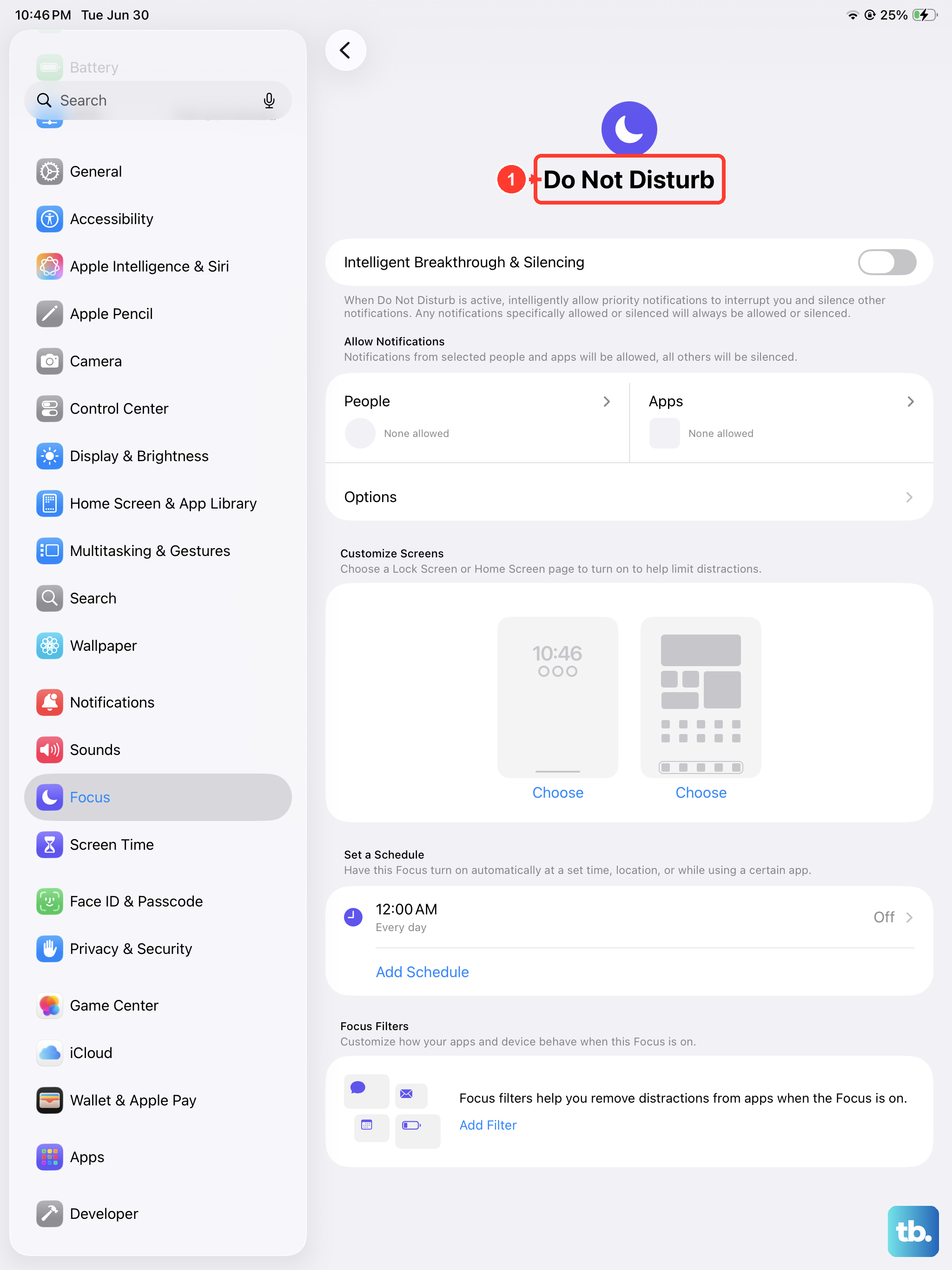
Your current Focus mode can also block Siri from responding to voice commands. Swipe down from the top-right corner to open Control Center and check if a Focus is enabled. Tap the Focus tile to turn it off temporarily.
If you want Siri to work even during a Focus, you can allow it in Settings > Focus by tapping your active Focus and adjusting the allowed apps and people. Siri itself isn't listed there, but silencing notifications doesn't affect voice activation in most cases.
Bluetooth Accessories Can Cause Conflicts
Sometimes a connected Bluetooth headset or speaker confuses Siri's microphone routing. Disconnect any Bluetooth accessories by going to Settings > Bluetooth and tapping the "i" next to the device, then choosing Disconnect.
After disconnecting, try saying "Hey Siri" again. If it works, the accessory was interfering. You can reconnect and see if the issue returns.
Volume and Audio Settings
If Siri hears you but you can't hear her response, the volume may be too low or your iPad might be in Silent mode. Check the volume using the buttons on the left side of the iPad Air M3. Also make sure the mute switch (if present) isn't activated, iPad Air models have a mute switch on the side.
To ensure Siri always speaks back, go to Settings > Siri & Search > Siri Responses and select "Always." That way you'll hear Siri even when the iPad is muted.
Device Position and Microphone Check
The iPad Air M3 has microphones near the top and bottom edges. If they're blocked, Siri can't hear you clearly. Remove any case or screen protector that might cover the microphone holes. Check for dust or debris and gently clean with a dry, soft brush or compressed air.
Also, by default Siri won't listen when the iPad is lying face down or covered. You can override this: go to Settings > Accessibility > Siri and turn on "Always Listen for 'Hey Siri'." That way the iPad will respond regardless of orientation.
Retrain Siri to Recognize Your Voice
If Siri sometimes responds but doesn't seem to recognize your voice, it's worth retraining the voice model. Go to Settings > Siri & Search and toggle off "Listen for 'Hey Siri'." Wait a few seconds, then toggle it back on.
You'll be prompted to say a few phrases like "Hey Siri" and "Siri, what's the weather?" Speak naturally and clearly. The setup takes about a minute and often improves recognition accuracy.
Restart Your iPad Air M3
A simple restart clears up temporary software glitches that can affect Siri. Press and quickly release Volume Up, then Volume Down, then press and hold the Top button until the Apple logo appears. Let go and wait for the iPad to restart.
Once it's back on, try "Hey Siri" again. This fix works surprisingly often for intermittent voice assistant problems.
Update to the Latest iPadOS
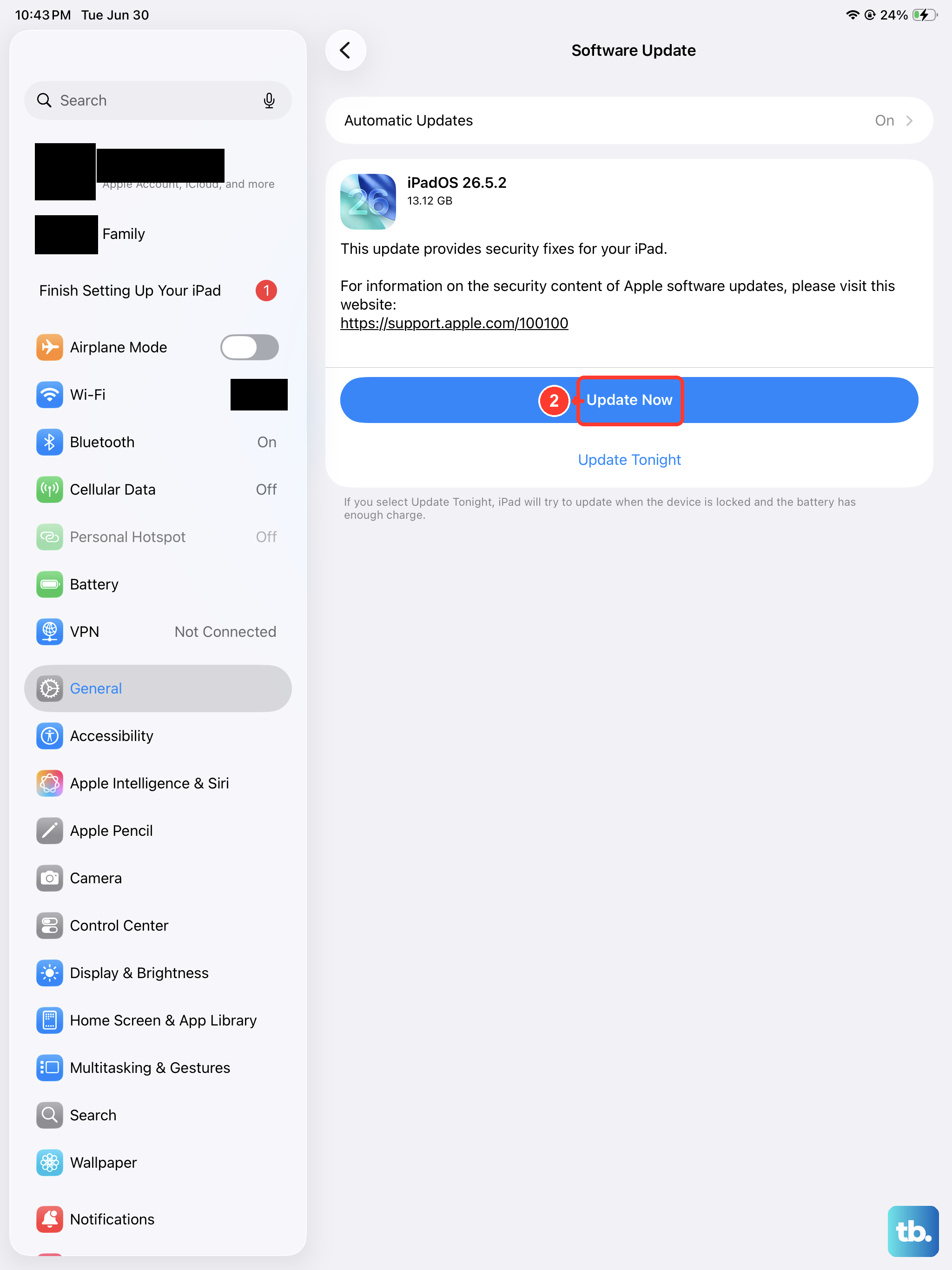
iPadOS 18 updates frequently include bug fixes for Siri and voice recognition. Go to Settings > General > Software Update and download any available updates. If there's a pending update, install it and let the iPad reboot.
After updating, test Siri. Keep in mind that updates can sometimes reset accessibility or Siri settings, so you may need to re-enable "Listen for Hey Siri" afterward.
Reset All Settings
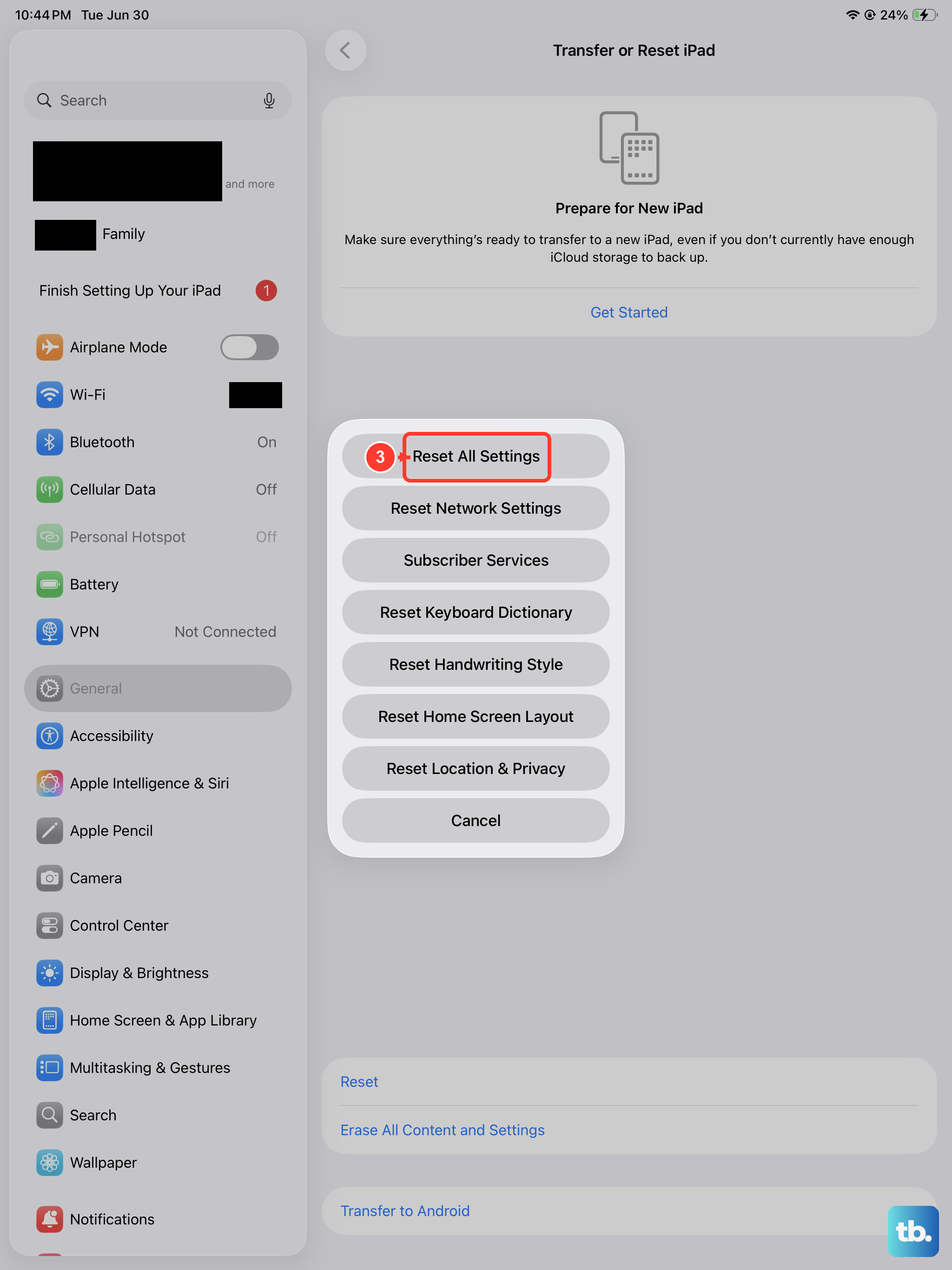
If nothing else has worked but you want to avoid wiping your data, resetting all settings can clear lingering configuration issues. Go to Settings > General > Transfer or Reset iPad > Reset > Reset All Settings.
This won't delete your apps, photos, or documents. It will reset network settings, display settings, and Siri settings back to defaults. You'll need to re-enable "Listen for Hey Siri" and reconnect to Wi-Fi, but it often solves stubborn Siri problems.
Check Your Internet Connection
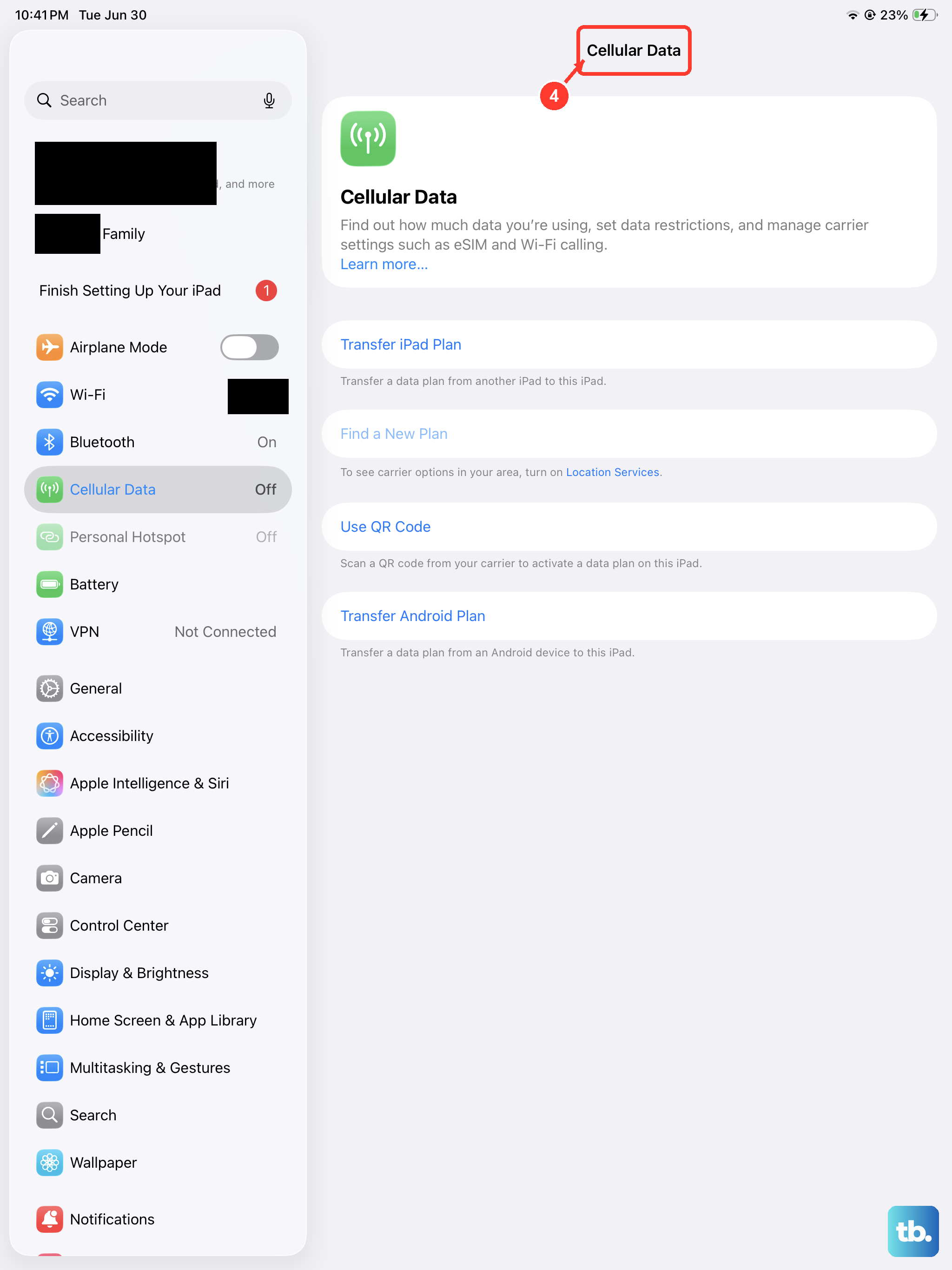
Siri needs an internet connection for most of its features, including voice processing that goes to Apple's servers. Make sure your iPad Air M3 is connected to Wi-Fi or cellular data. Open a web page to verify connectivity.
If you're on a restricted network (like a public Wi-Fi portal), Siri might not work until you sign in. Try switching to a different network or using your phone's hotspot to test.
Factory Restore as a Last Resort
When nothing else has worked, you can restore your iPad to factory settings. This erases everything, so back up your data first using iCloud or a computer. Then connect your iPad to a Mac or PC, open Finder (or iTunes on Windows), select your iPad, and choose "Restore iPad."
After the restore completes, set up your iPad as new or restore from a backup. Siri should work out of the box if the issue was software-related. Most voice assistant problems on the iPad Air M3 are fixable with the steps above, so start with the easiest checks and work through the list.