
When your iPad (11th gen) won't send text messages, it can be confusing, especially since it's not your primary phone. Messages might get stuck on "Sending" or fail to deliver, whether you're using iMessage or SMS. The fixes are a bit different on an iPad, but they're usually straightforward.
Check Your Internet Connection First
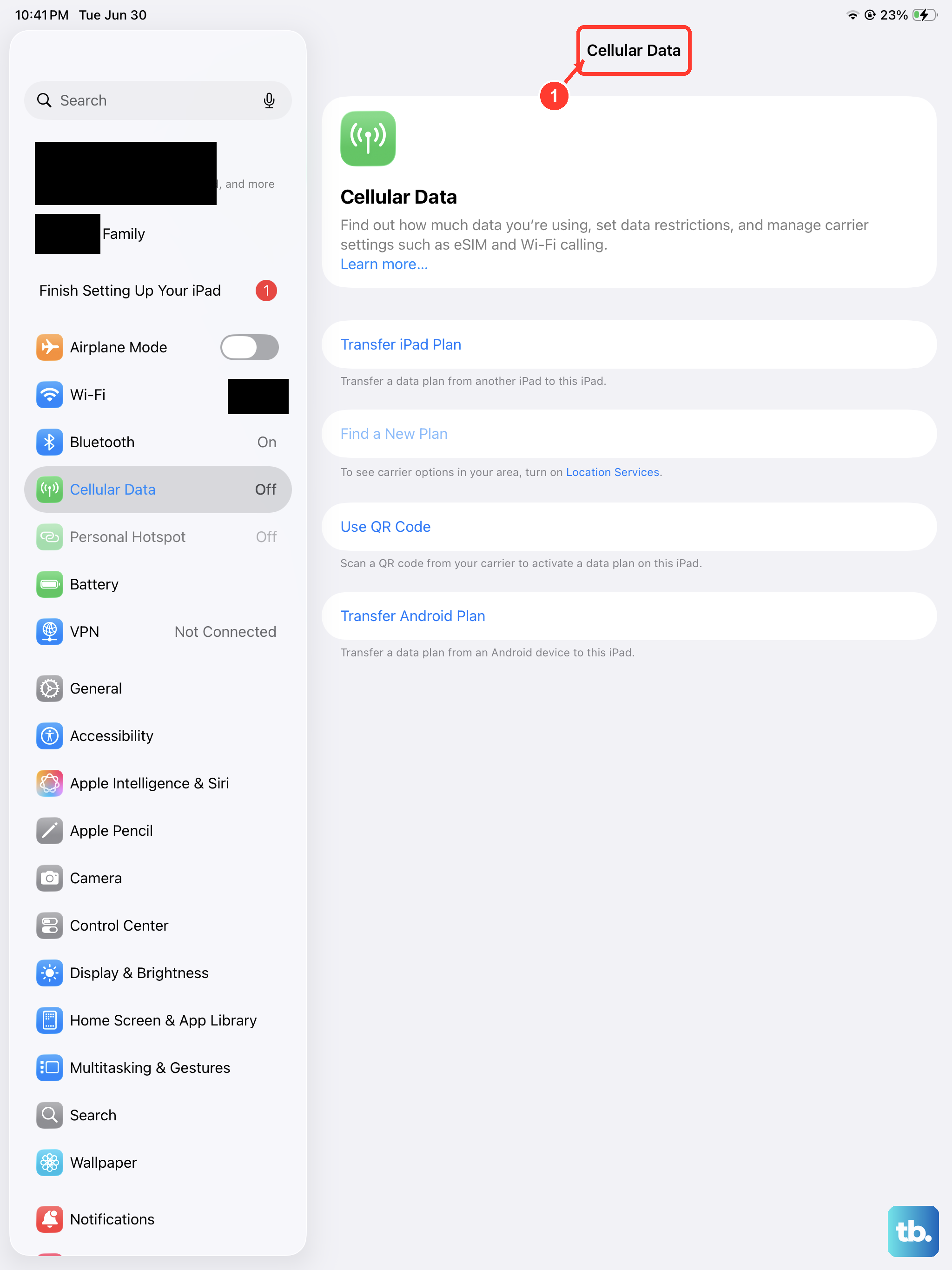
Your iPad needs an internet connection to send any message. For iMessage, it uses Wi-Fi or cellular data. For SMS, it relies on your connected iPhone's cellular network. Swipe down from the top-right corner to open Control Center and make sure Wi-Fi is on and connected. If you're using SMS forwarding from your iPhone, ensure both devices are on the same network.
If the connection seems weak, try toggling Airplane Mode on for 10 seconds, then off again. This quickly resets all the iPad's radios. Also, check if you can load a webpage in Safari. If you can't, the problem is your network, not the Messages app.
Restart Your iPad
A simple restart clears out temporary software glitches that can halt message sending. Press and quickly release the Volume Up button, then quickly press and release the Volume Down button. Finally, press and hold the Top button until you see the Apple logo appear, then release.
Verify iMessage is Set Up Correctly
On an iPad, iMessage is activated with your Apple ID; a phone number is optional and only appears if you also have a linked iPhone using the same Apple Account. Go to Settings > Messages. Make sure iMessage is switched on. Tap Send & Receive and check that your correct Apple ID email and, if you use it, your phone number are listed and checked.
Sometimes the service just needs a refresh. Turn iMessage off, wait a full minute, and then turn it back on. This forces your iPad to re-register with Apple's servers, which often gets things moving again.
Check for iPadOS and Carrier Updates
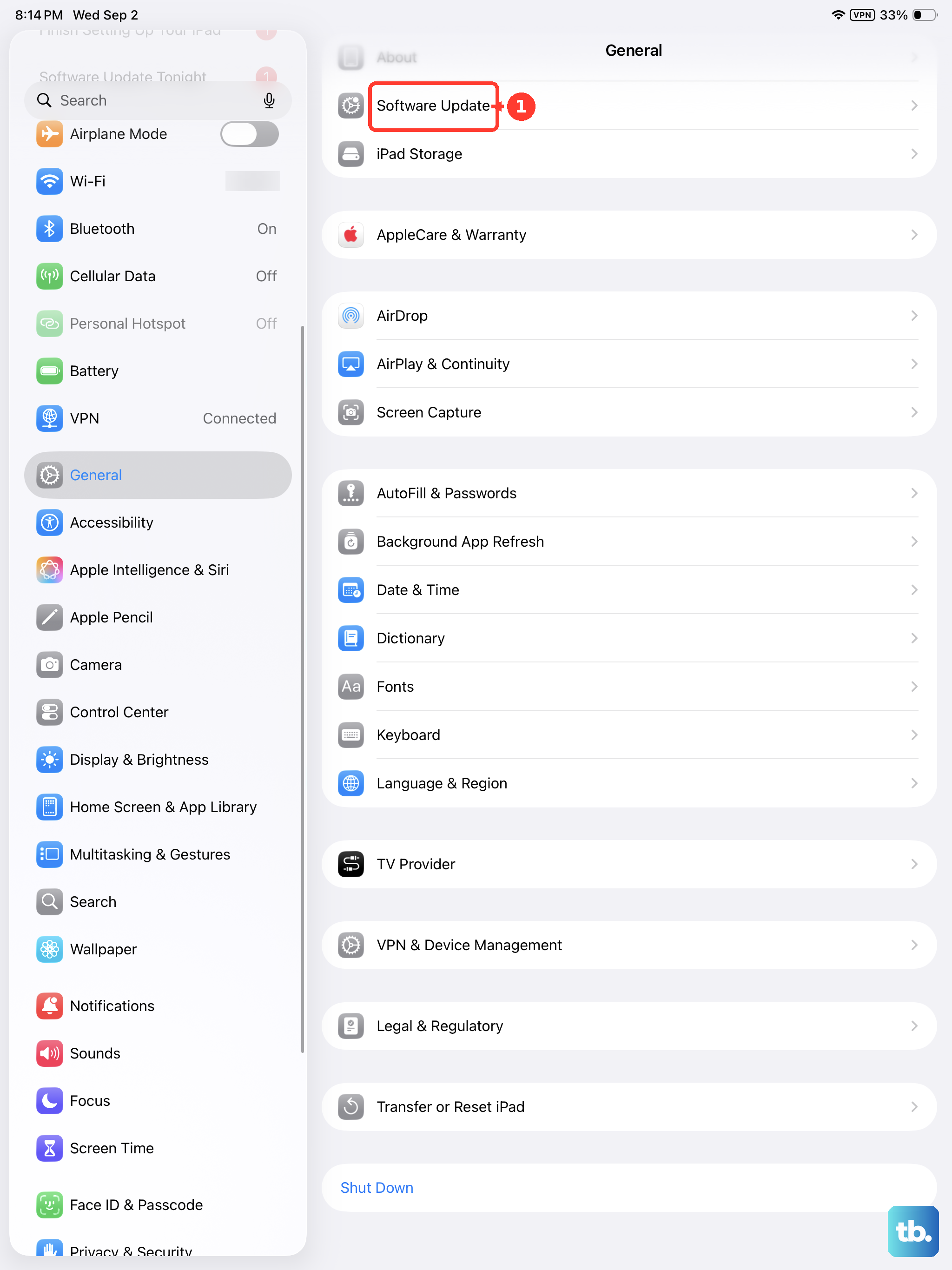
An outdated iPadOS version can cause messaging bugs. Go to Settings > General > Software Update to install any available updates. If you have a cellular model, carrier updates are included here too. These small updates fix connectivity issues specific to your network provider.
Reset Your Network Settings
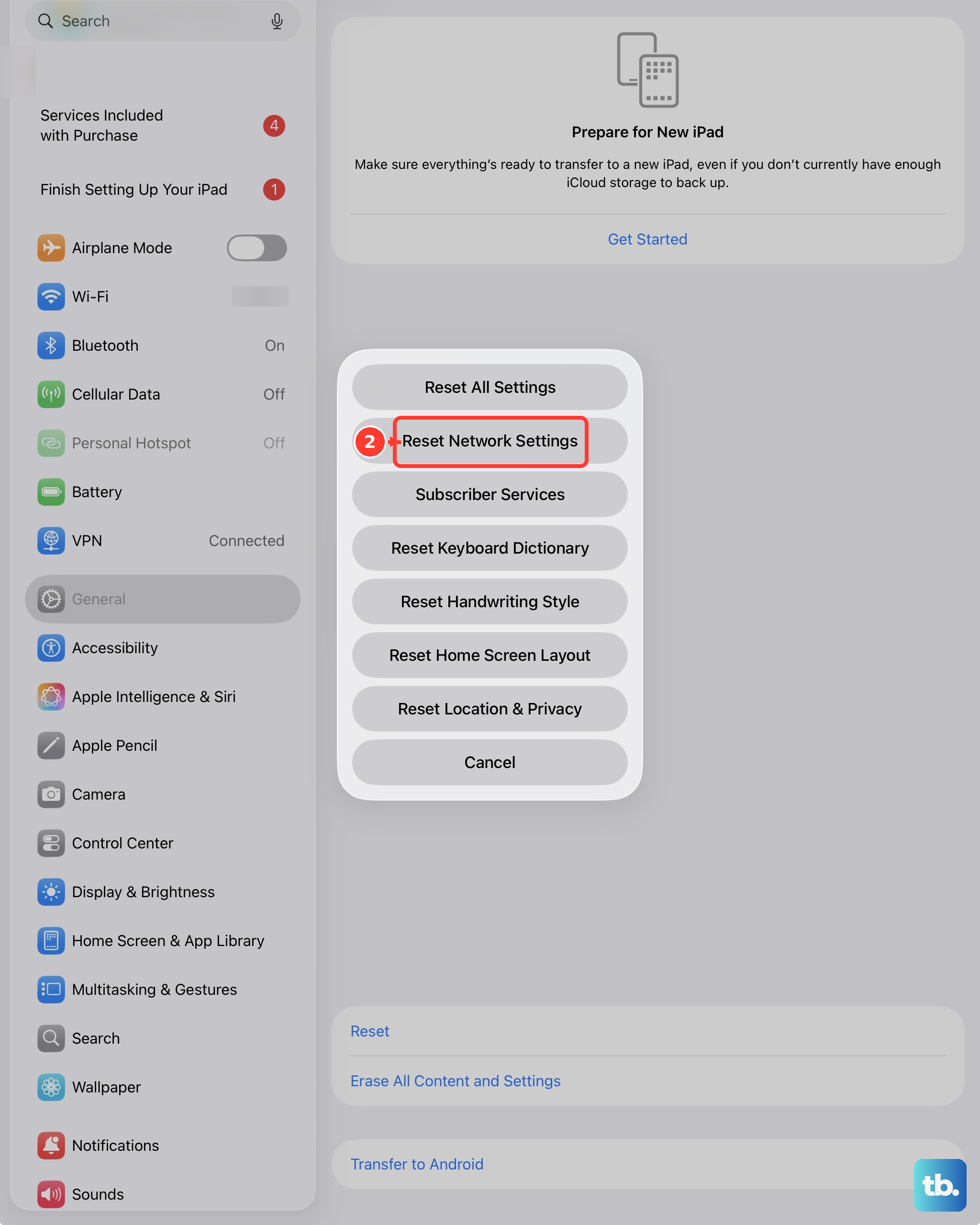
This is a stronger fix for persistent sending problems, especially if they started after changing networks. Go to Settings > General > Transfer or Reset iPad > Reset. Tap Reset Network Settings. This will erase all Wi-Fi passwords and network preferences, so have those handy. It rebuilds your connection from scratch, which can resolve deep-seated messaging issues.
Review Text Message Forwarding
If you're trying to send an SMS (green bubble) from your iPad, it relies on your iPhone. On your iPhone, go to Settings > Messages > Text Message Forwarding. Your iPad (11th generation) should be listed and toggled on. If it's off, turn it on. You might see a verification code pop up on your iPad that you need to enter on your iPhone.
Check the Recipient and Your Block List
If messages fail to only one contact, double-check the number or email address you're using. A typo can cause a silent failure. Also, check if you've accidentally blocked them. On your iPad, go to Settings > Messages > Blocked Contacts to see the list and remove them if needed.
Sign Out and Back Into iCloud
Since iMessage is tied to your Apple ID, a glitch in your iCloud account can be the culprit. Go to Settings, tap your name at the top, and scroll down to Sign Out. You'll be asked to keep a copy of your data on the iPad; say yes. After restarting your iPad, sign back into your Apple ID in Settings. This refreshes all account services, including Messages.
Ensure Date & Time Are Correct
iMessage uses secure timestamps, and if your iPad's clock is wrong, messages can fail. Go to Settings > General > Date & Time and make sure Set Automatically is enabled. This ensures your iPad gets the correct time from the network, which is essential for sending messages properly.