
When an app on your iPad 10th generation suddenly quits or freezes, it pulls you right out of whatever you were doing. This can happen for a bunch of reasons, but it's usually a temporary software hiccup that you can fix yourself. I'd start with a quick restart, as that solves a surprising number of these random crashes.
Restart Your iPad
This is the universal first step for a reason. A restart clears out the iPad's temporary memory and stops any background processes that might be interfering. For the iPad 10th generation, you have two options. You can do a standard restart by going to Settings > General > Shut Down and sliding the power off slider.
If the iPad is completely unresponsive, you'll need to force restart it. Quickly press and release the Volume Up button, then quickly press and release the Volume Down button. Finally, press and hold the Top button until you see the Apple logo appear on the screen. This doesn't erase any data, it just forces a hard reboot.
Update the Problem App
App developers are constantly pushing out updates to squash bugs. If you're only having trouble with one specific app, like Procreate or GoodNotes, checking for an update is your best bet. Open the App Store and tap your profile icon in the top right corner.
Scroll down to see if the problematic app is listed under the Available Updates section. If it is, tap Update next to it. Sometimes, an app might be buggy on the latest iPadOS version until its developer releases a compatibility patch.
Check for an iPadOS Update
While you're checking app updates, it's smart to see if your entire system is current. Apple includes important stability and security fixes in iPadOS updates that can affect app performance. Go to Settings > General > Software Update.
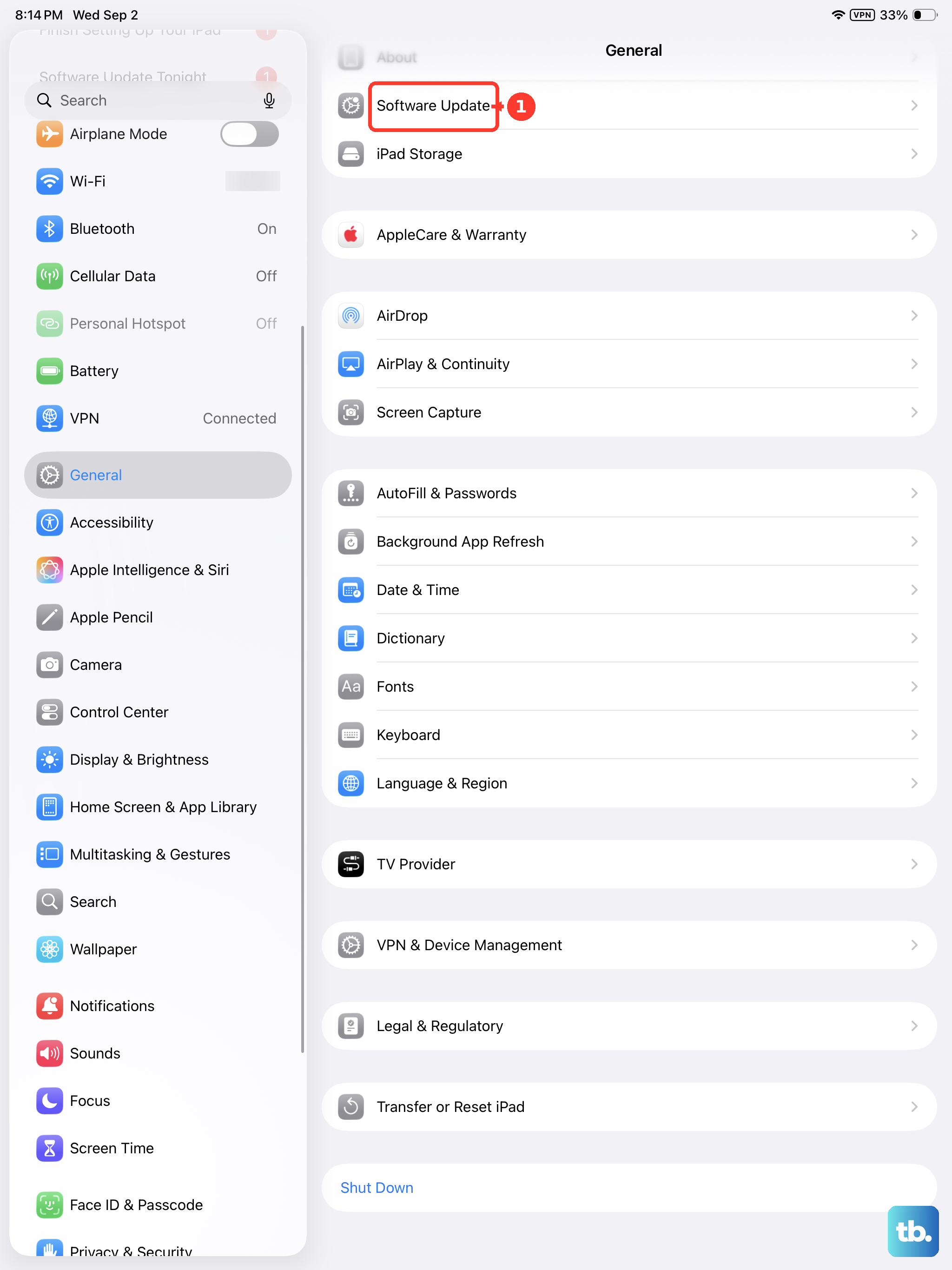
If an update is available, I'd recommend installing it, especially if you're on iPadOS 18. Make sure your iPad is connected to power and has a good Wi-Fi connection first, as these updates can be large. Keeping your iPad 10th generation updated is one of the easiest ways to prevent widespread app issues.
Close and Reopen the App
If an app is frozen but your iPad is still responsive, you can force it to close. This is different from just switching away from it. Swipe up from the bottom of the screen and pause in the middle to enter the App Switcher. Find the card for the frozen app and swipe it up and off the top of the screen to close it completely.
Wait a few seconds, then tap the app icon on your Home Screen to relaunch it. This gives the app a completely fresh start, which often clears up whatever was causing it to hang or crash repeatedly.
Free Up Storage Space
The iPad 10th generation doesn't have a laminated display, but it can still run into performance issues if it's crammed full. Apps need free space to create temporary files and cache data. When storage is critically low, everything can start to behave strangely.
Head to Settings > General > iPad Storage. This screen shows you a breakdown of what's using space. Look for large apps you no longer use, old videos, or message attachments. Even clearing a few gigabytes can make a noticeable difference in how smoothly apps run.
Offload or Reinstall the App
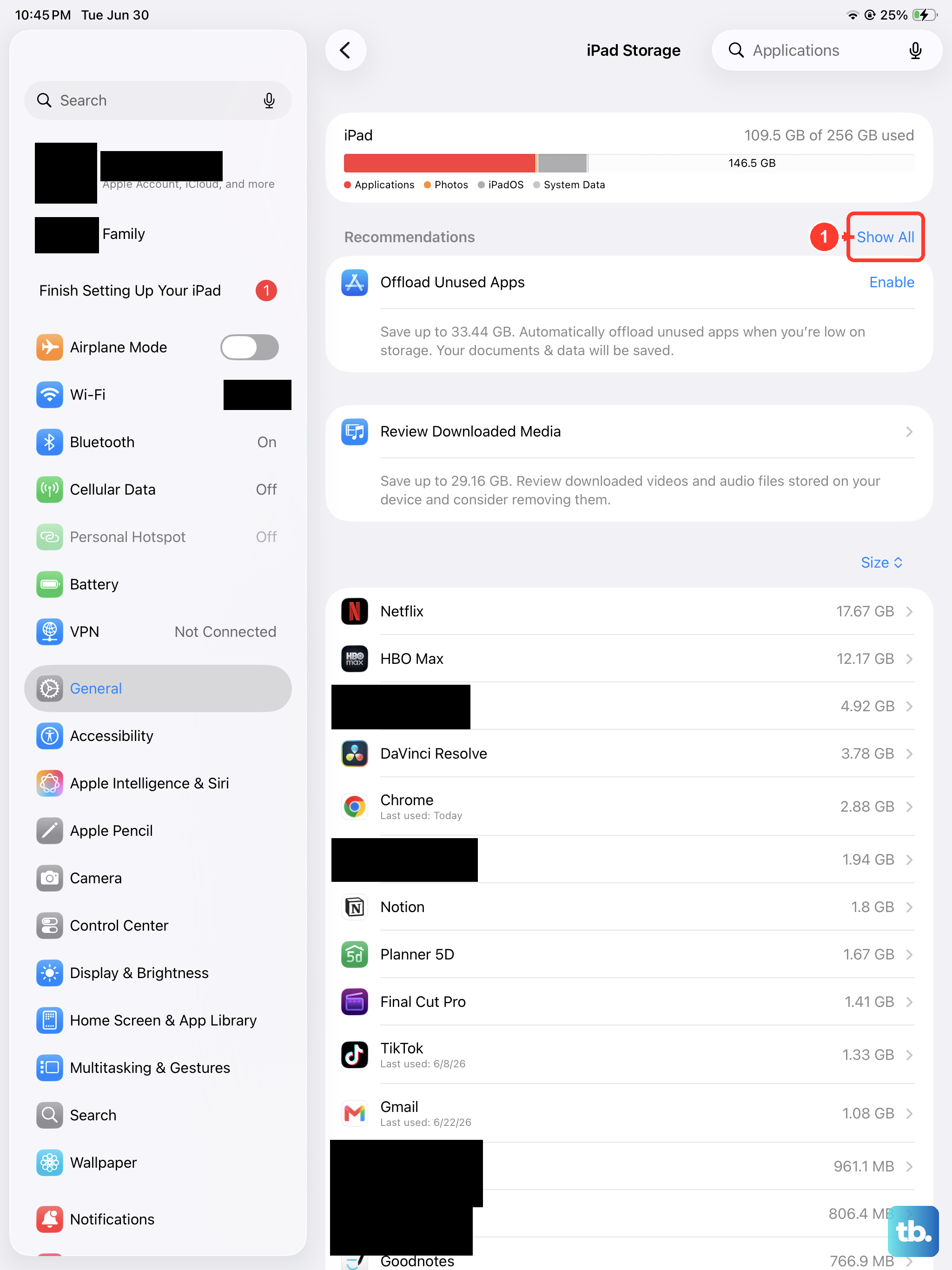
If a single app is the consistent troublemaker, you might need to give it a fresh install. iPadOS offers a clever middle step called Offload App. This removes the app itself but keeps its documents and data on your iPad. Go to Settings > General > iPad Storage, tap the problematic app, and select Offload App.
Then, tap Reinstall App from the same screen or download it again from the App Store. Your data should come back. If offloading doesn't work, you can choose Delete App instead for a completely clean slate, but be aware this will also delete any data stored only on the iPad.
Reset All Settings
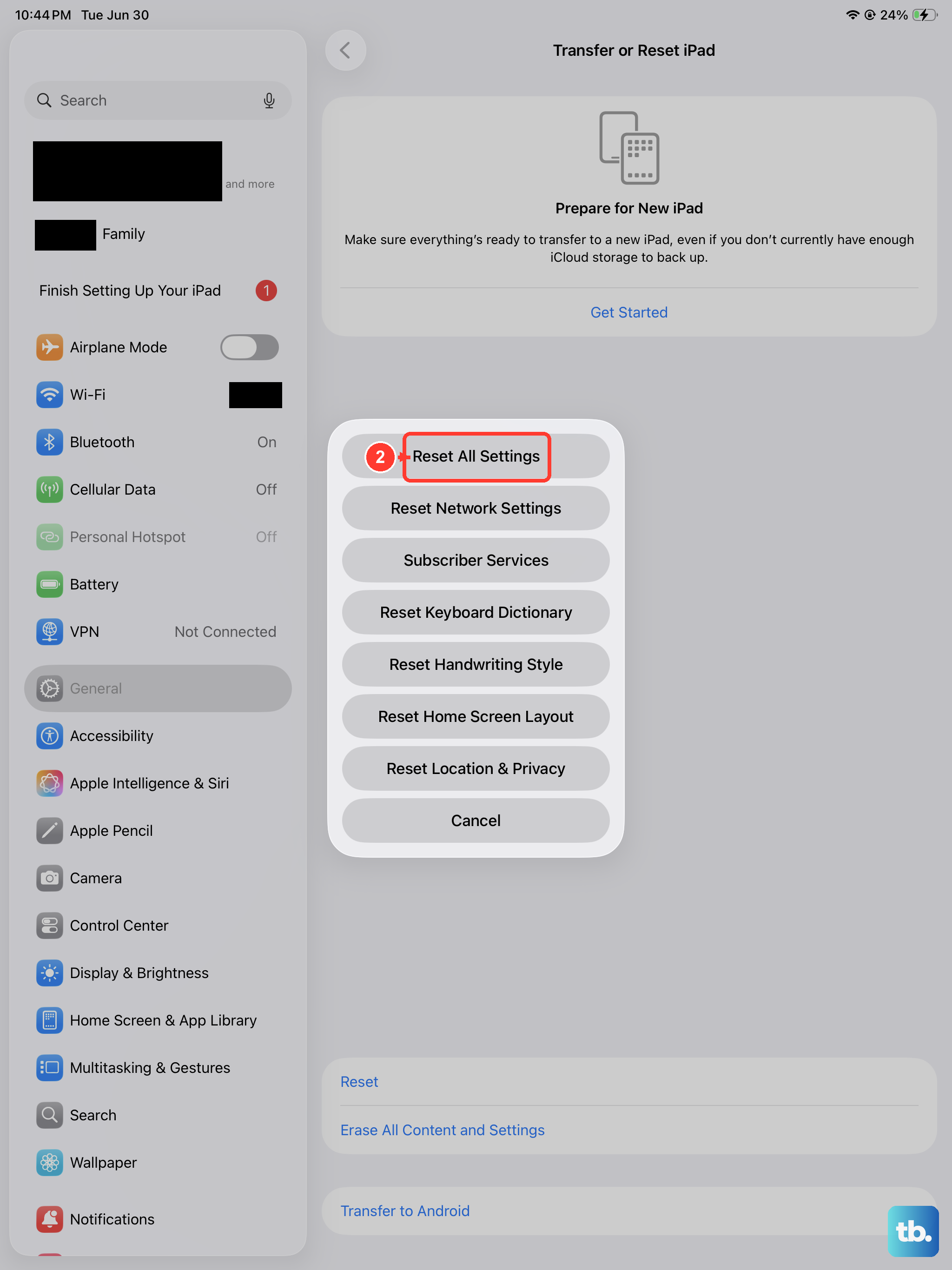
This is a more significant step, but it doesn't delete your personal data like photos or messages. It resets all your system settings back to factory defaults, things like Wi-Fi passwords, wallpaper, privacy permissions, and display brightness. A misconfigured setting here can sometimes cause app instability.
To do this, go to Settings > General > Transfer or Reset iPad. Tap Reset and then choose Reset All Settings. You'll need to enter your passcode. After the iPad restarts, you'll have to reconnect to Wi-Fi and redo some preferences, but your apps and their data will remain.
Check for Overheating and Performance
The iPad 10th generation can get warm during intensive tasks, especially if you're using a demanding app or have it charging. Extreme heat can cause the processor to throttle performance to cool down, which might make apps stutter or crash. If the back feels very hot to the touch, set it down in a cooler spot out of direct sunlight.
Also, consider how many apps you have running. While iPadOS and the A14 chip are great at multitasking, having many resource-heavy apps open in Stage Manager or Split View can push the system. Try closing a few apps you aren't actively using to free up memory.