
If your iPad 10th generation's battery seems to vanish faster than it should, you're not imagining it. The large battery paired with a 20W maximum charging speed can make a drain feel more noticeable. Let's start with the quickest way to see what's going on.
Head to Settings > Battery. This screen is your best friend. It shows your battery percentage over the last 24 hours and, more importantly, which apps are using the most power. Tap "Show Activity" to see if an app is running heavily in the background. This single check often points directly to the culprit.
While you're there, tap on Battery Health. Apple considers a battery for replacement when its maximum capacity falls below 80%. If yours is in the low 80s, it can already contribute to faster-than-normal drain, especially during intensive tasks.
Adjust Your Display Settings
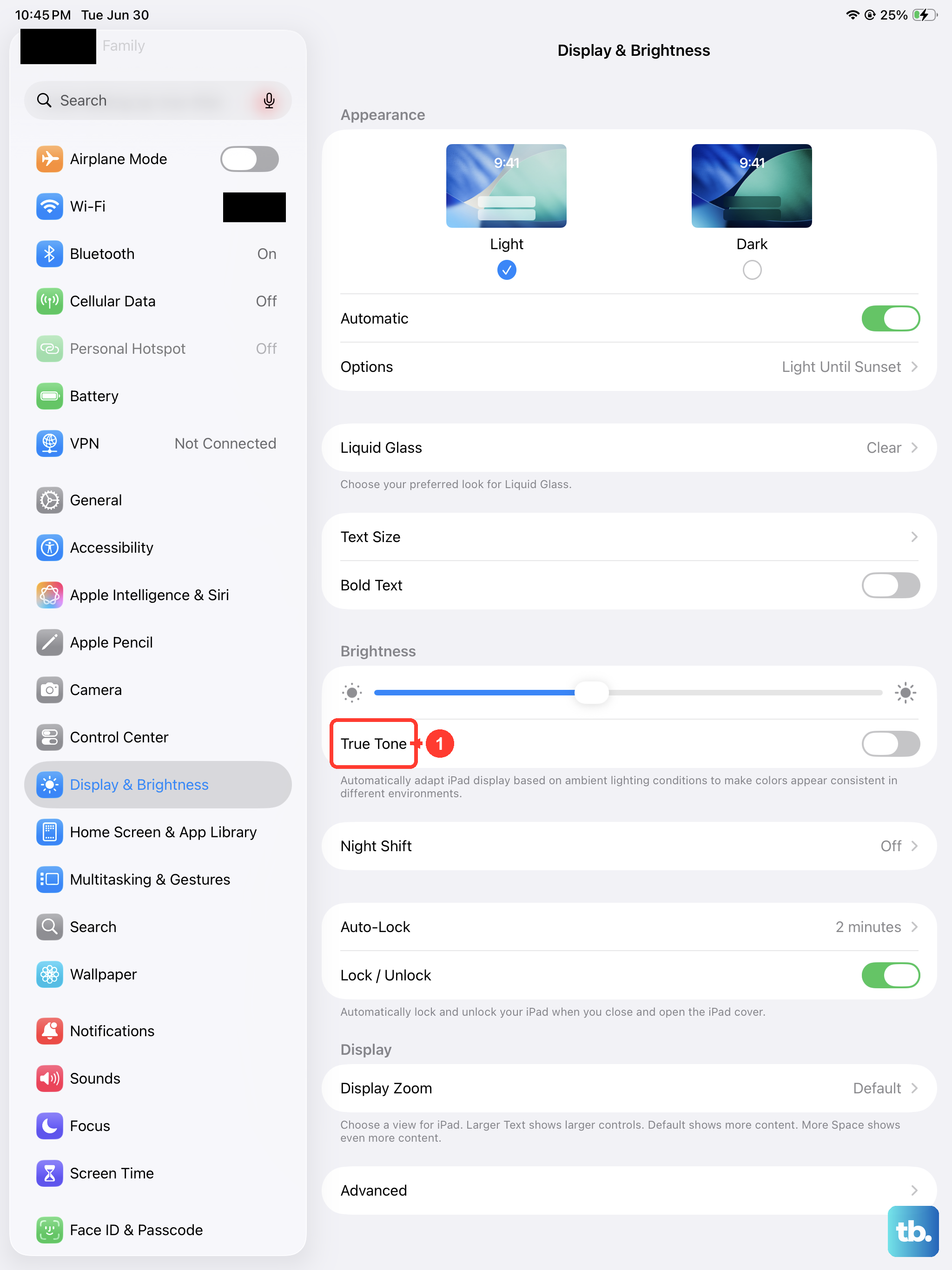
The display is one of the biggest battery users on any iPad. Start by pulling down Control Center and dragging the brightness slider down to a comfortable level. You'd be surprised how much a few notches can save.
Next, go to Settings > Display & Brightness. Set Auto-Lock to 2 minutes or even 30 seconds if you frequently set the tablet down. This ensures the screen turns off quickly. Also, consider toggling off True Tone, which constantly adjusts the screen's color temperature based on ambient light.
Since the iPad 10th gen has a standard LCD display (not an OLED), Dark Mode won't save as much power as on some phones, but it can still help a bit and is easier on the eyes. You can enable it in the same Display & Brightness settings.
Manage Background Activity and Location
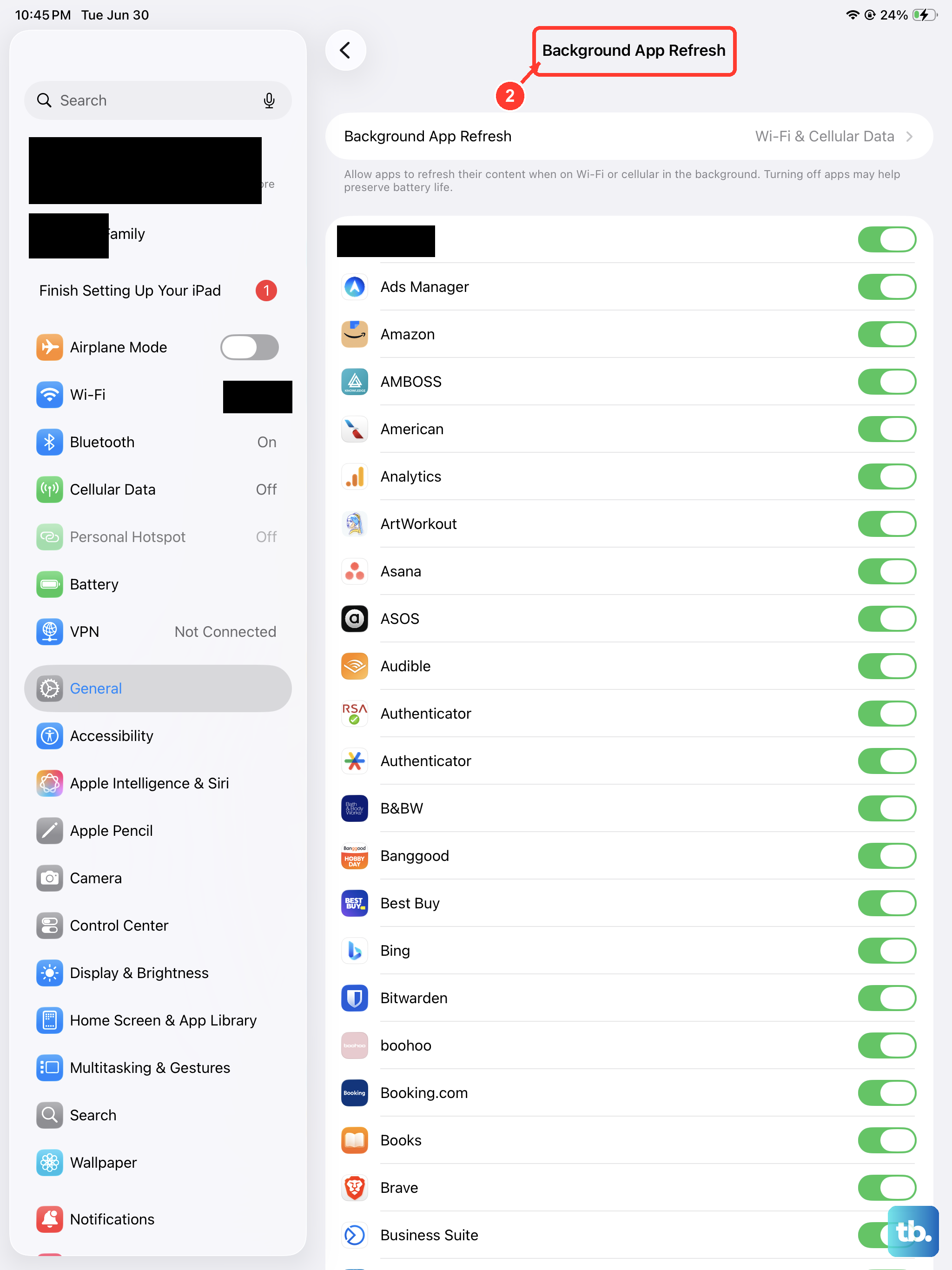
Apps refreshing in the background are a major drain. Go to Settings > General > Background App Refresh. You can turn this off entirely or selectively disable it for apps that don't need live updates. Social media apps are common offenders here.
Location Services can also run constantly. Navigate to Settings > Privacy & Security > Location Services. Review the list and set apps to "While Using" or "Never" instead of "Always" where it makes sense. You can also go into System Services at the bottom and disable things like "Product Improvement" analytics.
Update Your Software and Apps
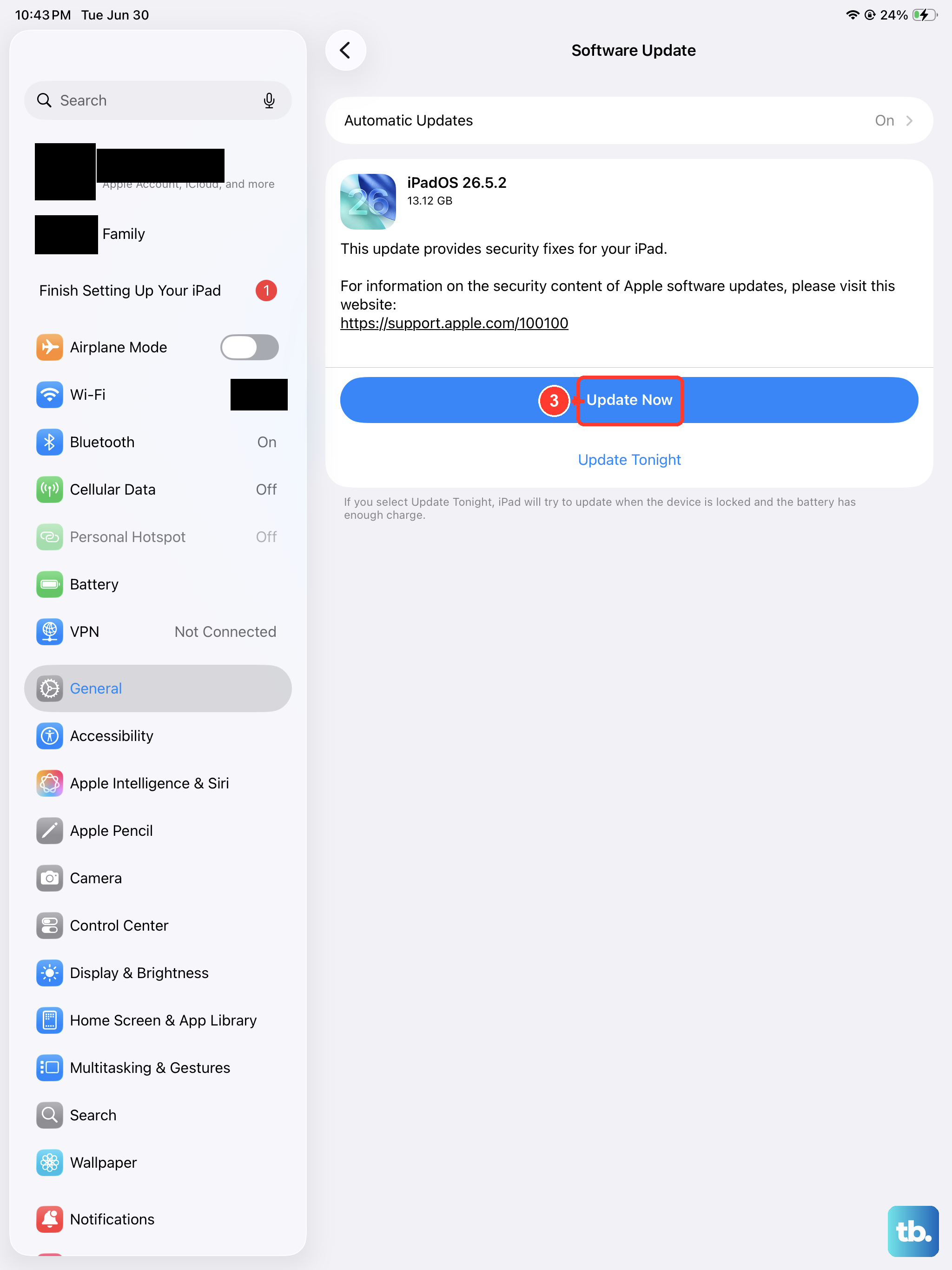
An outdated version of iPadOS can sometimes have bugs that hurt battery efficiency. Check for an update by going to Settings > General > Software Update. Install any available updates, as they often include performance optimizations.
Similarly, make sure your apps are up to date. Old app versions might not be optimized for the latest iPadOS. Open the App Store, tap your profile icon in the top right, and scroll down to update all pending apps.
Review Connected Accessories and Network Settings
If you're using a first-generation Apple Pencil, remember it charges via the Lightning port adapter. That adapter and the pencil itself draw a small amount of power when connected. Disconnect accessories you aren't actively using.
For network settings, if you're in an area with poor cellular signal (on cellular models) or weak Wi-Fi, your iPad works harder to maintain a connection. Turning on Airplane Mode in these situations can stop the drain, just remember to turn Wi-Fi back on manually if you need it.
Also, consider how you get your email. Go to Settings > Apps > Mail > Accounts > Fetch New Data. If "Push" is on, your iPad is constantly receiving new messages. Switching to "Fetch" and setting a schedule like hourly can make a significant difference.
Enable Low Power Mode and Reset if Needed
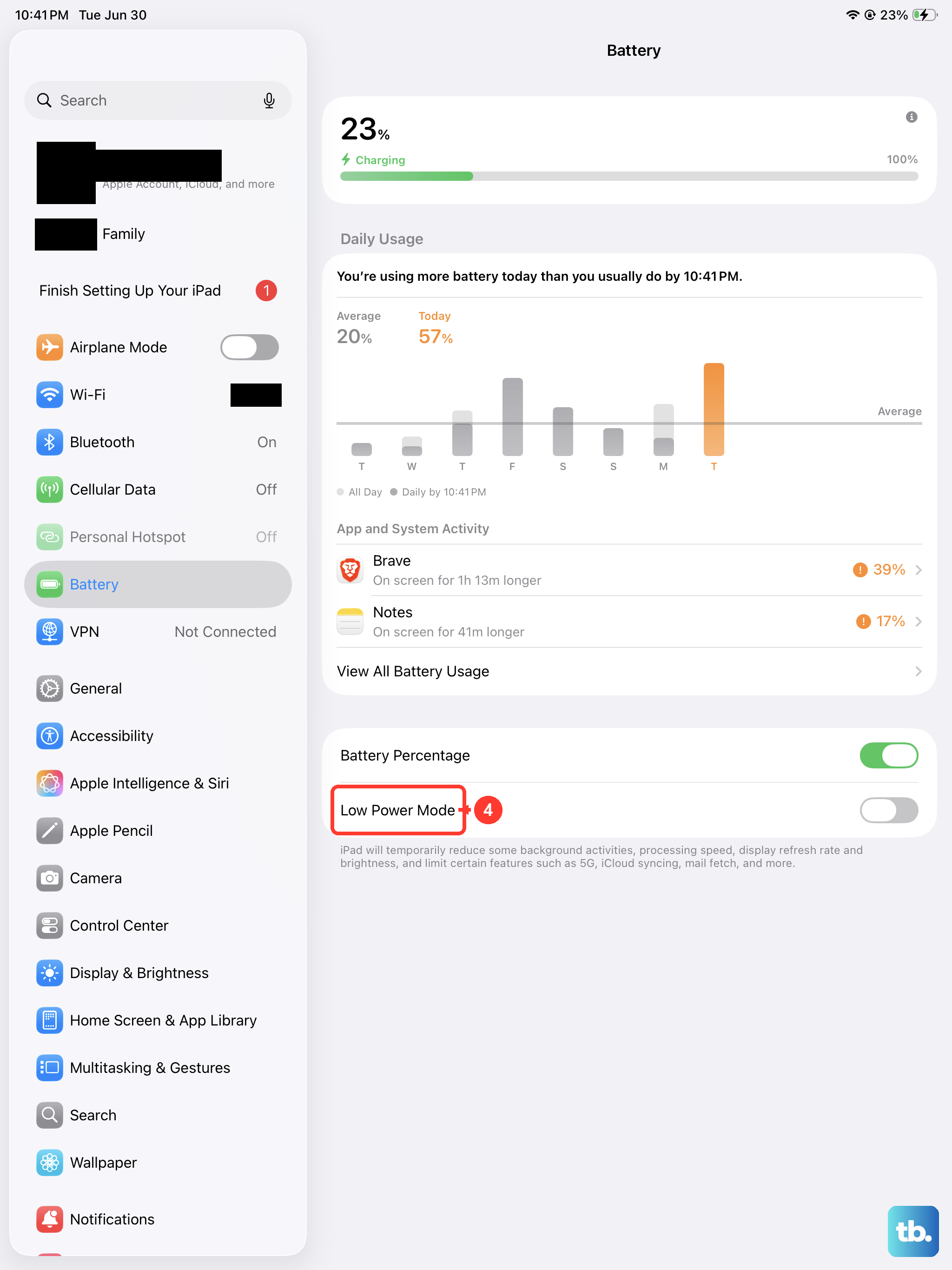
Your iPad has a Low Power Mode, just like an iPhone. You can find it in Settings > Battery. Turning this on reduces background activity, disables some visual effects, and pauses automatic downloads. It's a great temporary fix when you need to stretch the last bit of charge.
If you've tried everything and the drain persists, a software reset can help. First, try a force restart. Press and quickly release the Volume Up button, press and quickly release the Volume Down button, then press and hold the Top button until you see the Apple logo. This doesn't erase any data.
As a last resort, you can reset all settings. Go to Settings > General > Transfer or Reset iPad > Reset > Reset All Settings. This will revert all your preferences (like Wi-Fi passwords and wallpaper) back to default but won't touch your personal files or apps. It can clear out any conflicting settings causing problems.