
If your iPad 10th generation is making videos look choppy or causing them to buffer endlessly, it can really ruin the experience. This is a common hiccup, but the good news is you can usually sort it out without too much fuss.
Let's jump straight into the most likely fix. First, check how much storage you have left. Go to Settings > General > iPad Storage. If you're down to less than a gigabyte or two free, your iPad is struggling to breathe. Videos, especially high-resolution ones, need a lot of temporary space to play smoothly. Clearing out some old files, offloading unused apps, or moving photos to iCloud can make a world of difference.
Restart Your iPad
Before you do anything more involved, give your iPad a fresh start. A simple restart clears out temporary glitches in the memory that might be interfering with video playback. To restart your iPad 10th gen, press and quickly release the Volume Up button, then press and quickly release the Volume Down button. Finally, press and hold the Top button until you see the Apple logo appear on the screen.
Check Your Internet Connection for Streaming
If you're watching videos on YouTube, Netflix, or another streaming service, a weak Wi-Fi signal is the prime suspect. The iPad 10th gen doesn't have cellular options in all models, so Wi-Fi is your main gateway. Try moving closer to your router or restarting the router itself. You can also test by trying a different streaming app or playing a video you've downloaded directly to the device to see if the problem is connection-related.
Update iPadOS and Your Apps
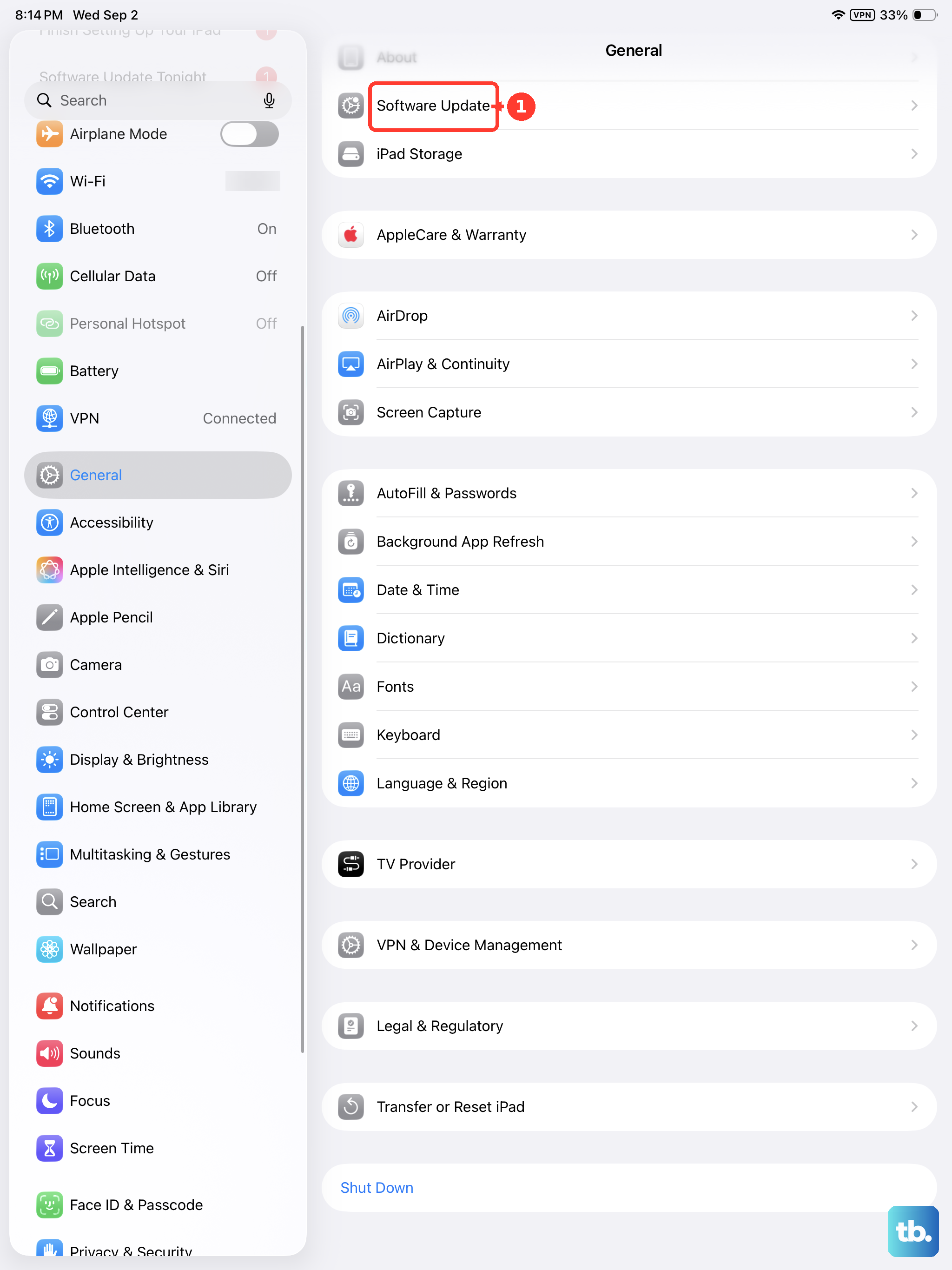
Running an old version of iPadOS can lead to compatibility issues with modern video codecs and apps. Apple releases updates that often include performance fixes. Head to Settings > General > Software Update to check for and install any available updates. While you're there, open the App Store, tap your profile icon, and update all your apps, especially the ones you use for video.
Close Background Apps and Reduce Multitasking Load
The iPad 10th gen is a capable device, but if you have too many apps running or are using heavy multitasking features like Stage Manager with several windows open, it can strain the system. Swipe up from the bottom of the screen and pause in the middle to see all your open apps. Swipe up on each app's preview to close it. Giving your video app the full attention of the processor often resolves playback stutters.
Check for Overheating
This model can get warm during extended use, especially if it's in a case or sitting in direct sunlight. If the iPad gets too hot, it will automatically throttle its performance to cool down, which can cause video lag. If the back feels unusually hot, turn it off for a few minutes, remove any case, and let it cool down in a shaded spot before trying again.
Reset All Settings
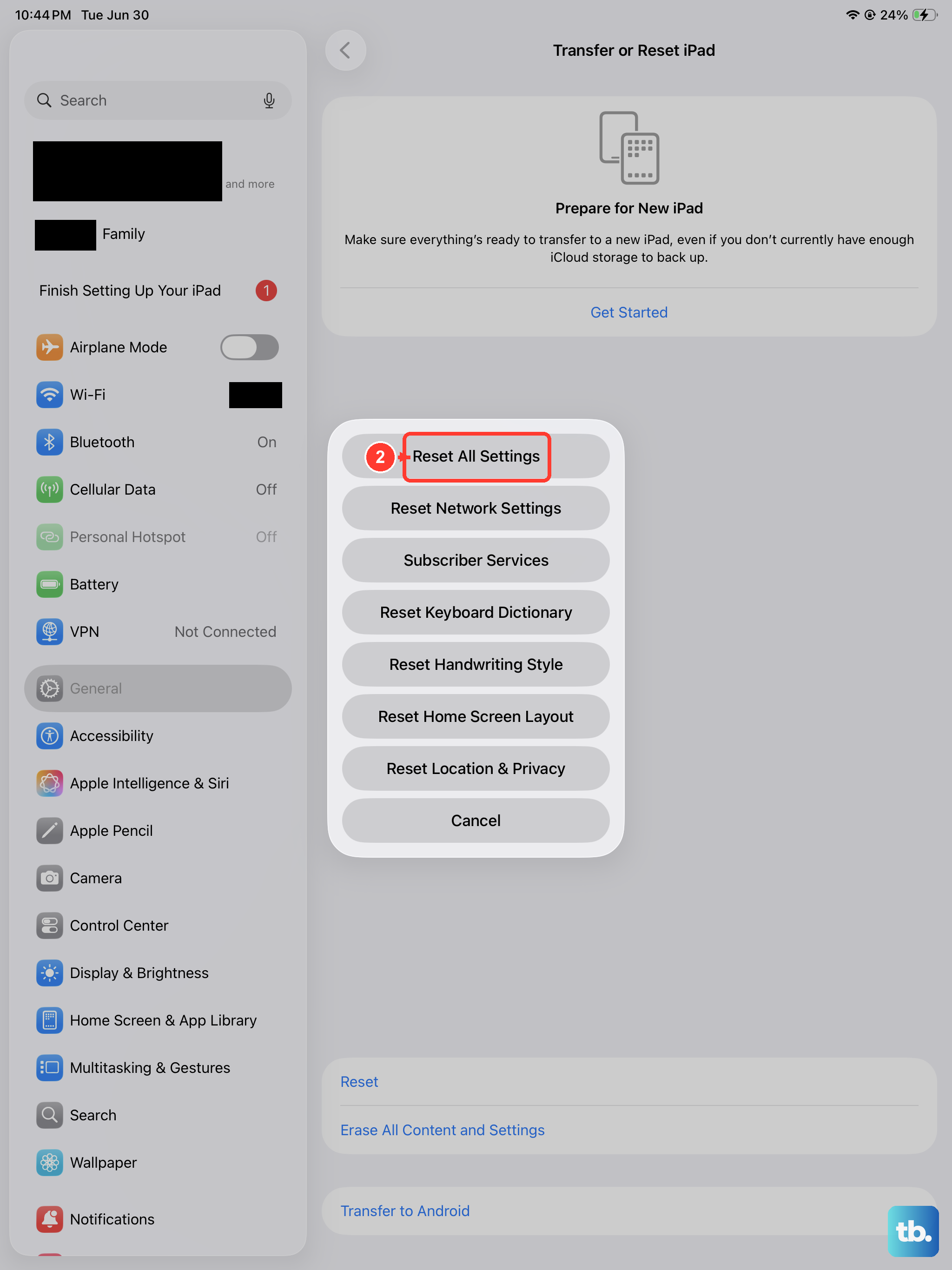
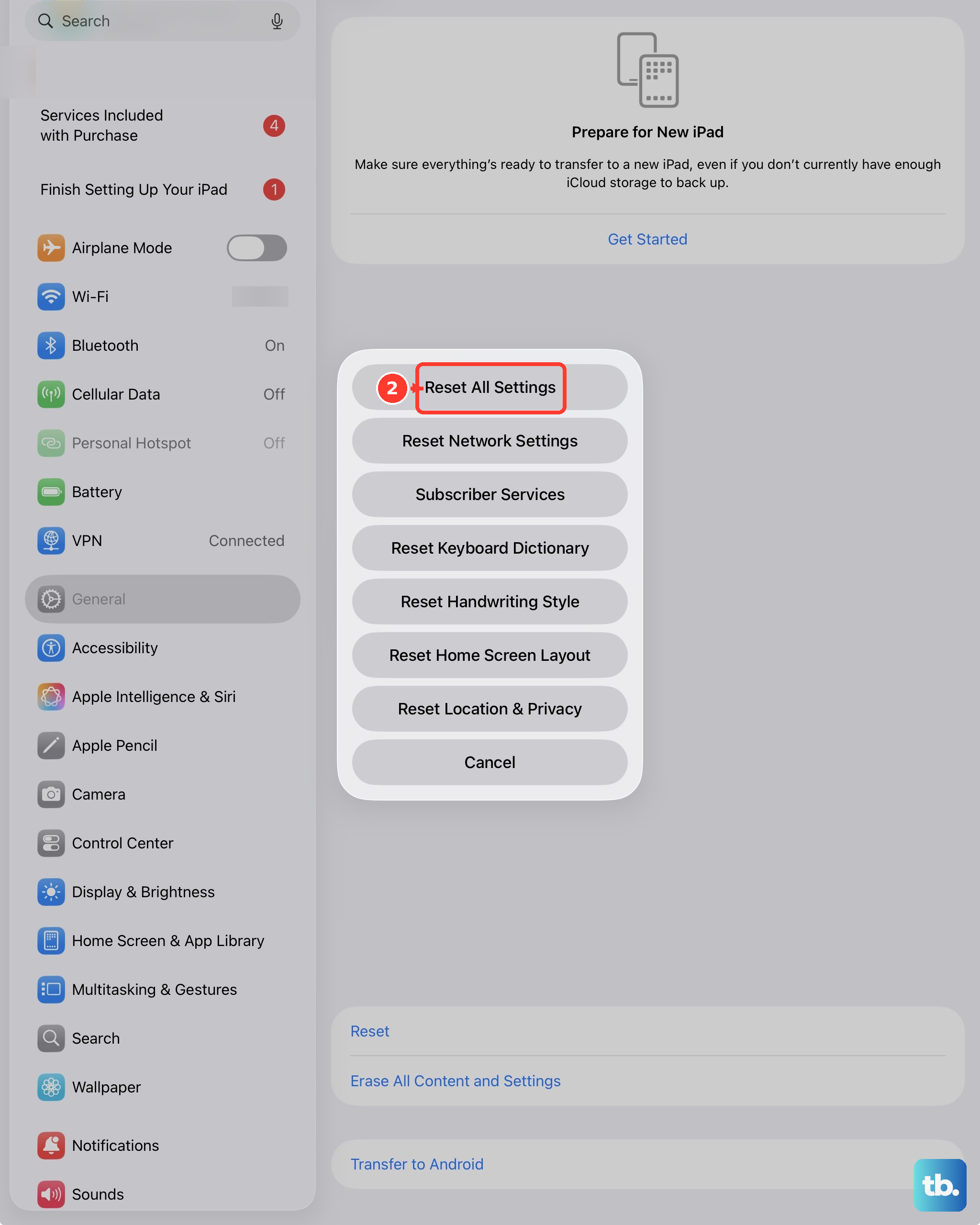
If the lag persists across every app, a deeper software setting might be misconfigured. Resetting all settings will return your network, privacy, and display settings to their defaults without deleting your personal data, photos, or apps. It's a good middle-ground step. Go to Settings > General > Transfer or Reset iPad. Then tap Reset and choose Reset All Settings. You'll need to re-enter Wi-Fi passwords and reconfigure some preferences afterward.
Consider the Video Source and Format
Sometimes, the issue isn't your iPad but the video file itself. Extremely high-bitrate 4K videos or files in less common formats might not play perfectly on every app. Try playing the problematic video in a different app, like the built-in Photos app versus VLC. If you're transferring videos from a computer, ensure the transfer completed fully and wasn't corrupted.
Factory Reset as a Last Resort
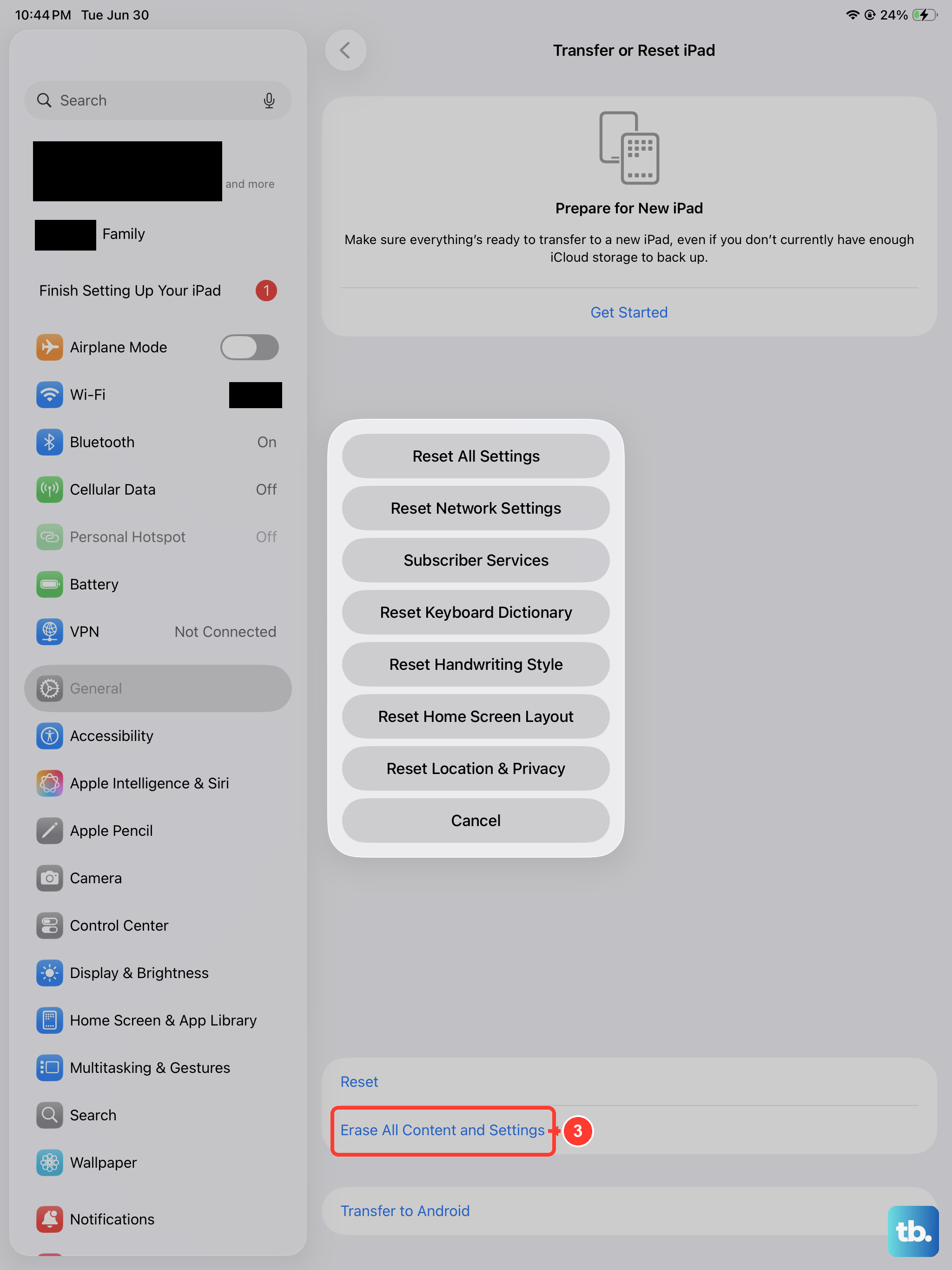
If you've tried everything and videos are still lagging, a factory reset is the final step. This will erase everything on your iPad and install a fresh copy of iPadOS. It's crucial to back up your iPad to iCloud or a computer first. To do this, go to Settings > General > Transfer or Reset iPad and tap Erase All Content and Settings. After the reset, you can set it up as new to test playback, or restore from your backup.