
If your iPad (11th generation) videos are stuttering, freezing, or lagging during playback, you're not alone. This frustrating issue can happen for several reasons, but most are easy to fix with some simple troubleshooting.
Free Up Storage Space
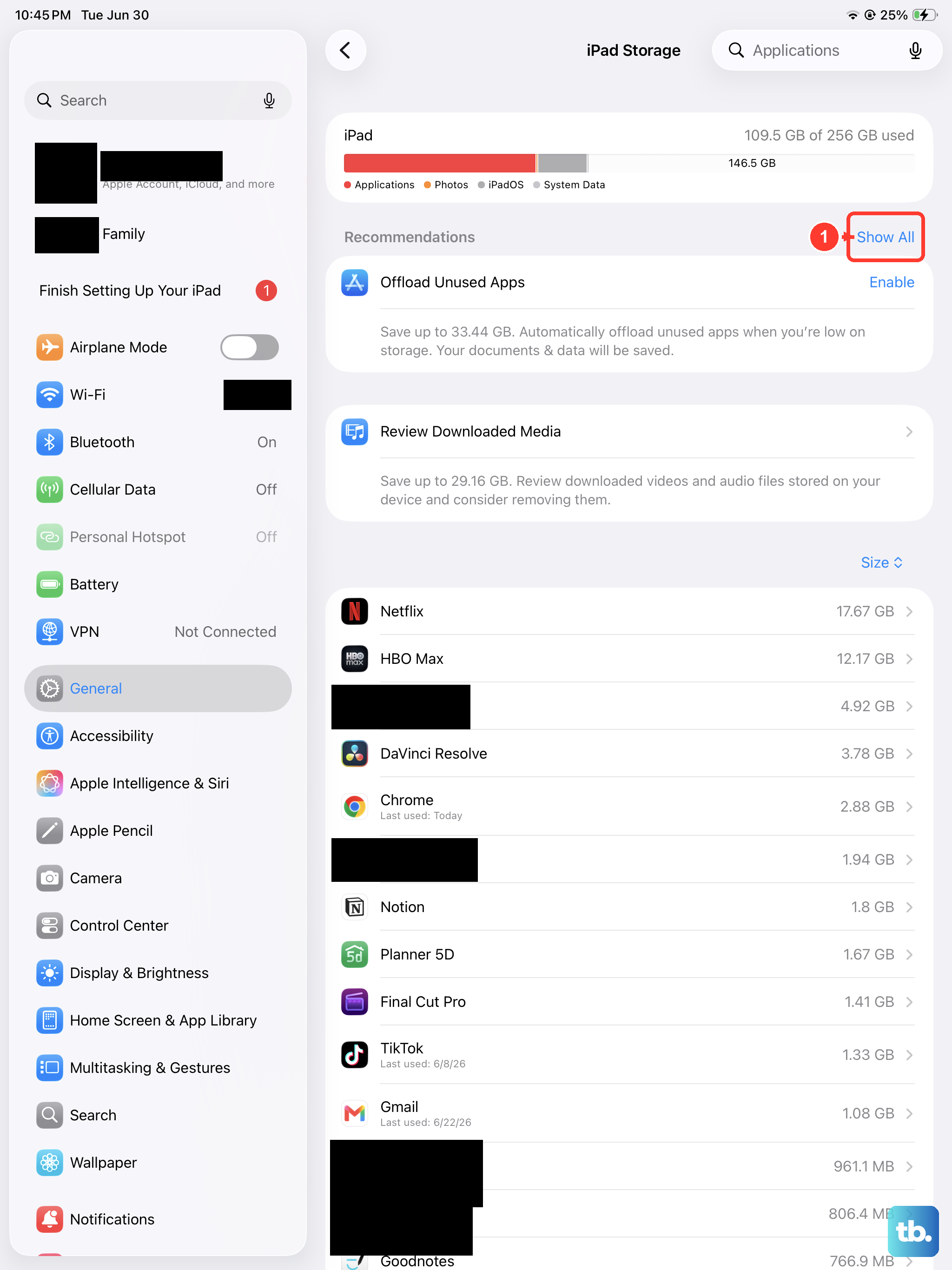
This is often the first place I'd check. When your iPad runs low on storage, video apps can't function properly. Videos require large, continuous file writes, and insufficient space causes dropped frames and lag.
Check your storage by going to Settings > General > iPad Storage. If you're below 1GB of free space, it's time to clean up. You can offload unused apps, delete old downloads, and manage your photo library.
Enabling iCloud Photos can help by storing your media in the cloud and freeing up local space on the device itself.
Check Your Internet Connection
For streaming videos from services like YouTube, Netflix, or Apple TV+, a weak Wi-Fi connection is a common culprit for buffering and lag. Even videos stored in iCloud can be affected.
Make sure you're connected to a strong, stable network. You can try switching Wi-Fi bands (from 2.4GHz to 5GHz if your router supports it) or temporarily using a cellular connection if your iPad model has it to see if the problem is network-related.
Update iPadOS and Your Apps
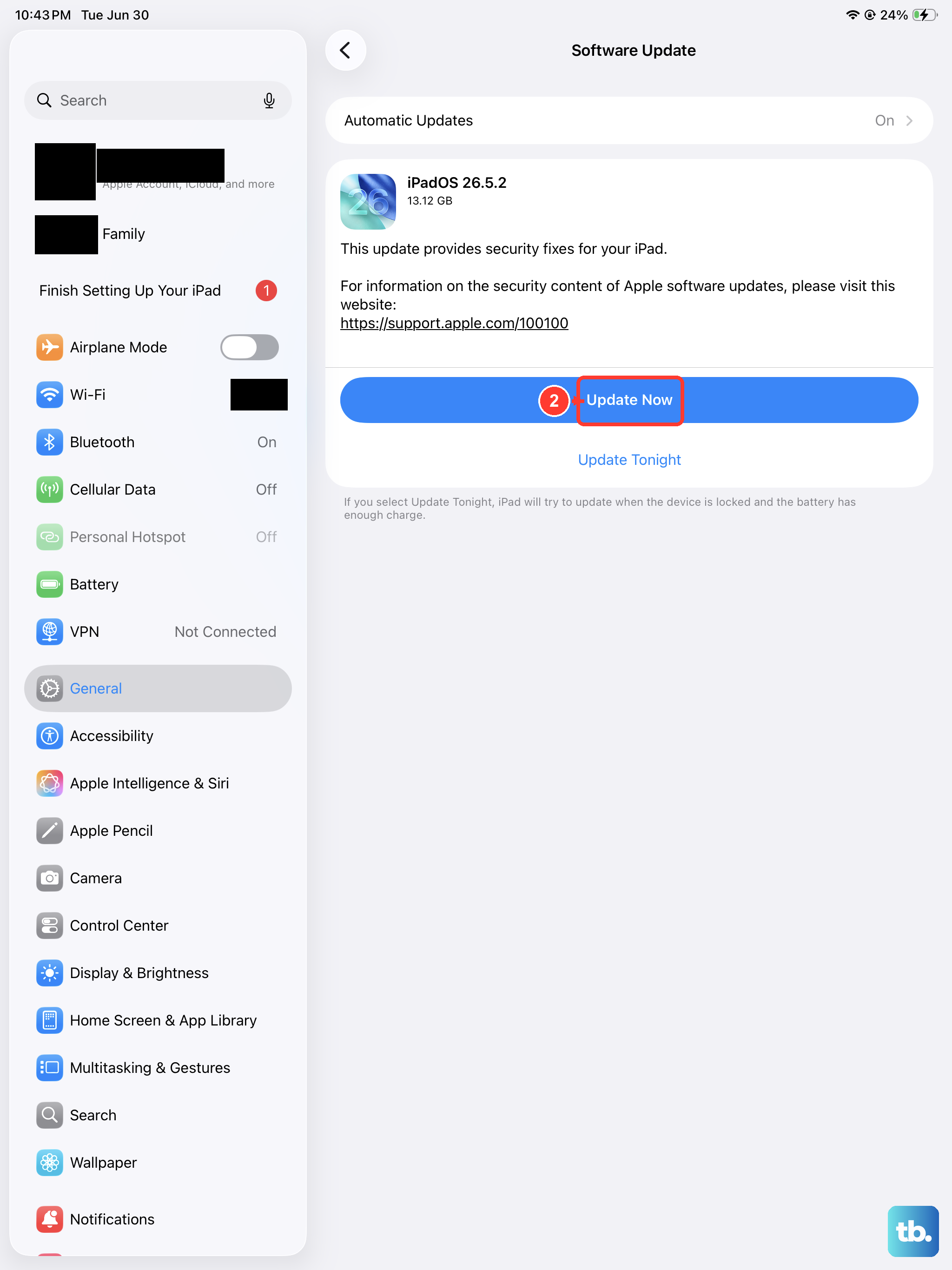
Running an outdated version of iPadOS can lead to compatibility issues with video files and apps. Apple regularly releases updates that include performance improvements and bug fixes for media playback.
Head to Settings > General > Software Update to check for and install any available updates. It's also a good idea to update your video apps through the App Store, as developers often patch playback issues.
Force Close and Restart the App
Sometimes the issue is isolated to a single app. If videos are only lagging in YouTube or Netflix, for example, force closing the app can clear its temporary cache and resolve a minor glitch.
Swipe up from the bottom of the screen and pause in the middle to enter the app switcher. Find the problematic app and swipe it up and off the top of the screen to close it. Then, reopen it and try playing your video again.
Restart Your iPad
This classic fix clears temporary system glitches and refreshes all processes. It's a quick step that solves more problems than you might think.
To restart your iPad (11th generation), press and quickly release the Volume Up button, press and quickly release the Volume Down button, then press and hold the Top button until you see the Apple logo appear. Release the button and let the iPad reboot.
Check for Background App Refresh
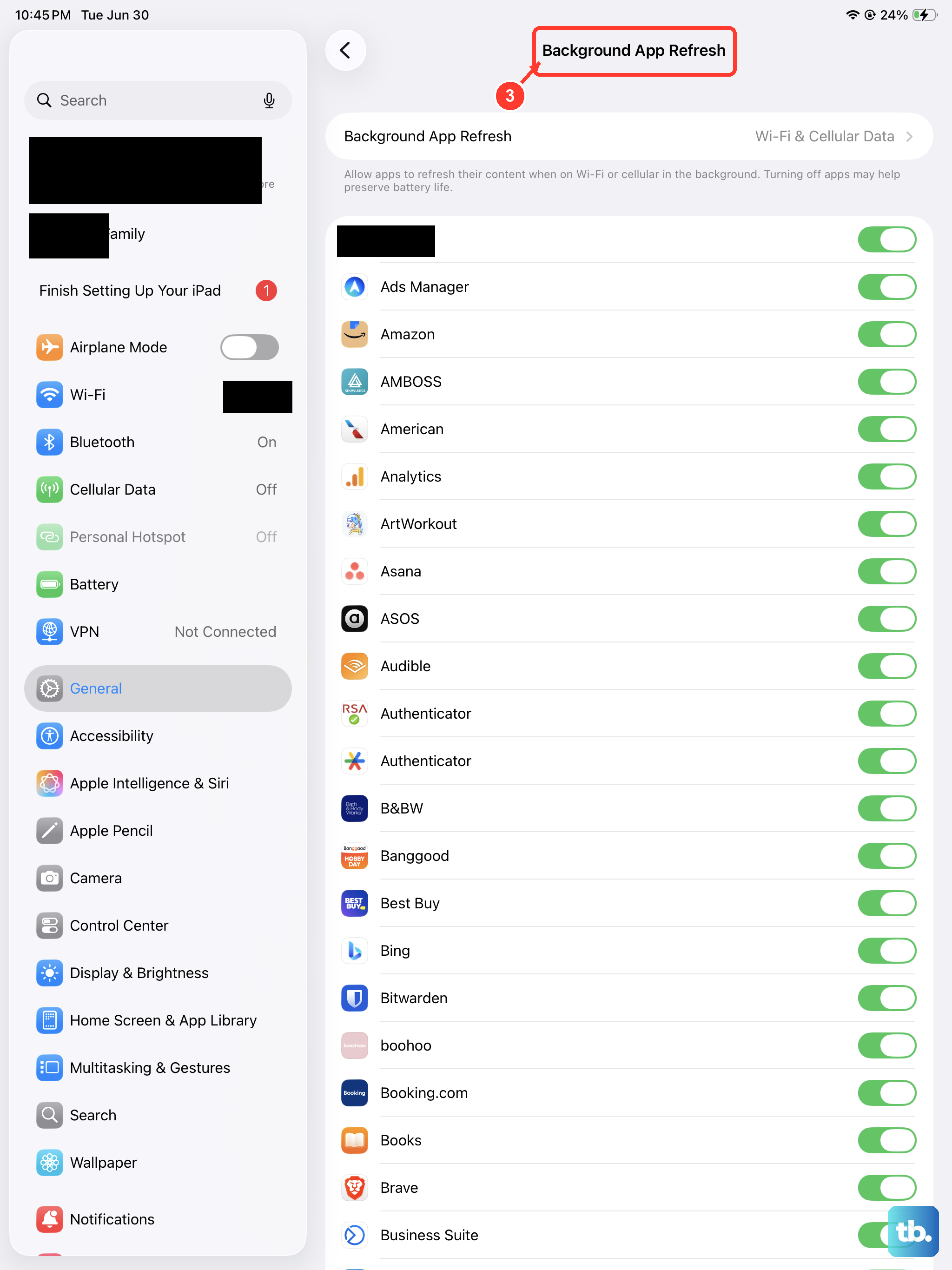
Too many apps refreshing content in the background can consume system resources, potentially affecting video playback performance. This is especially noticeable on older files or high-resolution videos.
You can manage this by going to Settings > General > Background App Refresh. You can turn it off entirely or selectively disable it for apps that don't need to update in the background.
Reset All Settings
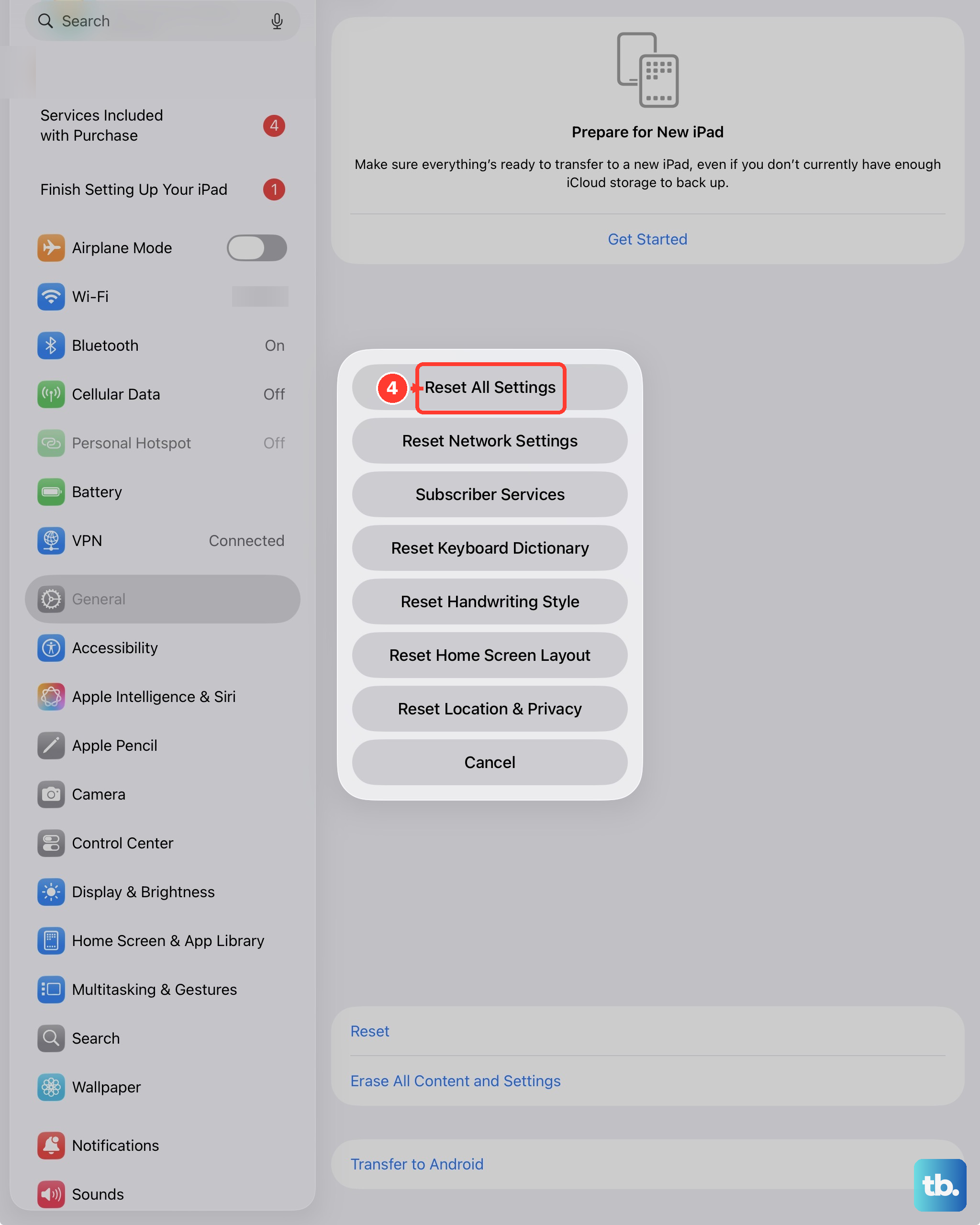
If the lag persists across multiple apps, a deeper software setting might be misconfigured. Resetting all settings can fix this without erasing your personal data, photos, or apps.
Go to Settings > General > Transfer or Reset iPad > Reset. Then, tap Reset All Settings. You'll need to re-enter your Wi-Fi passwords and reconfigure some preferences, but your files will be safe.
Consider the Video Source and Format
Not all video files are created equal. If you're experiencing lag with a specific video file you transferred or downloaded, it might be encoded in a format or resolution that your iPad struggles to decode smoothly.
Very high-resolution files (like 8K video) or videos with uncommon codecs can cause playback issues. Try playing a different video from a mainstream streaming service to see if the problem is with that one file or a system-wide issue.
Check for Overheating
While less common, an iPad that is too hot may throttle its performance to cool down, which can lead to lag in demanding tasks like video playback. This can happen if you're using the iPad while it's charging, in direct sunlight, or under a thick case.
If the device feels unusually warm, give it a break. Turn off the screen for a few minutes and let it cool down in a well-ventilated area before trying to play videos again.