
If your iPhone 17 Pro's battery is draining faster than it should, the first place to look is in your settings. Head to Settings > Battery and tap on Battery Health & Charging. This screen is your best friend for diagnosing the problem. It shows your battery's maximum capacity as a percentage, and if that number is below 85%, you'll likely notice it not lasting as long as it used to.
More importantly, check the Battery Usage section right above it. This breaks down exactly which apps have been using power over the last 24 hours or 10 days. I've seen cases where a single misbehaving app, often a social media or navigation app running location services in the background, is responsible for most of the drain. This gives you a clear target for your troubleshooting.
Manage Background Activity and Notifications
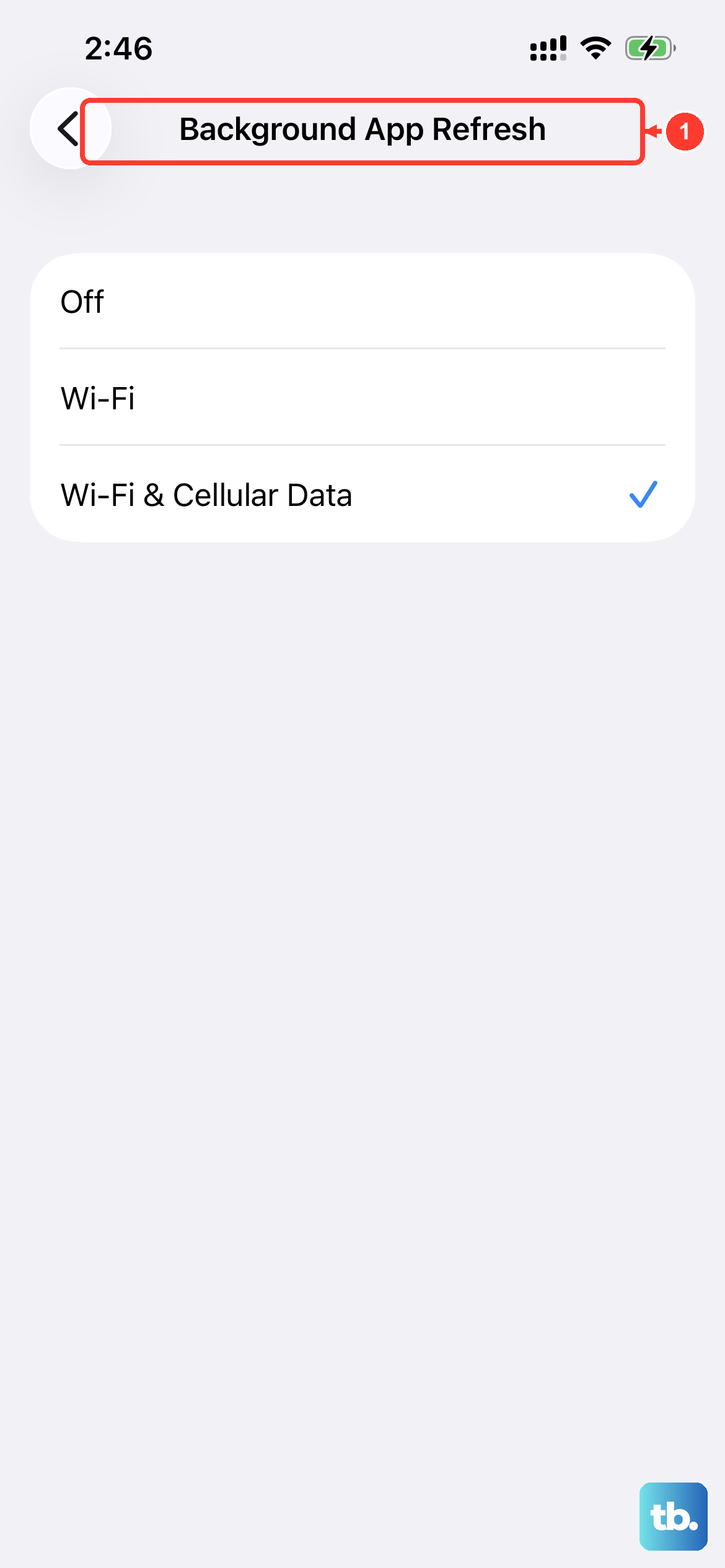
Background App Refresh is a common culprit for battery drain. This feature lets apps update their content in the background, which is convenient but can be a power hog. You can turn it off completely in Settings > General > Background App Refresh, or just disable it for specific apps you don't need constantly updated.
Push notifications can also wake your phone's display and radios frequently. Go through your notification settings for each app in Settings > Notifications and consider turning them off for apps where instant alerts aren't crucial. Changing them from persistent banners to temporary ones can help, too.
Location services are another major battery user. While some apps like Maps need it, many others request it unnecessarily. Go to Settings > Privacy & Security > Location Services and review each app. Set non-essential apps to "Never" or "While Using the App" instead of "Always."
Optimize Your Display Settings
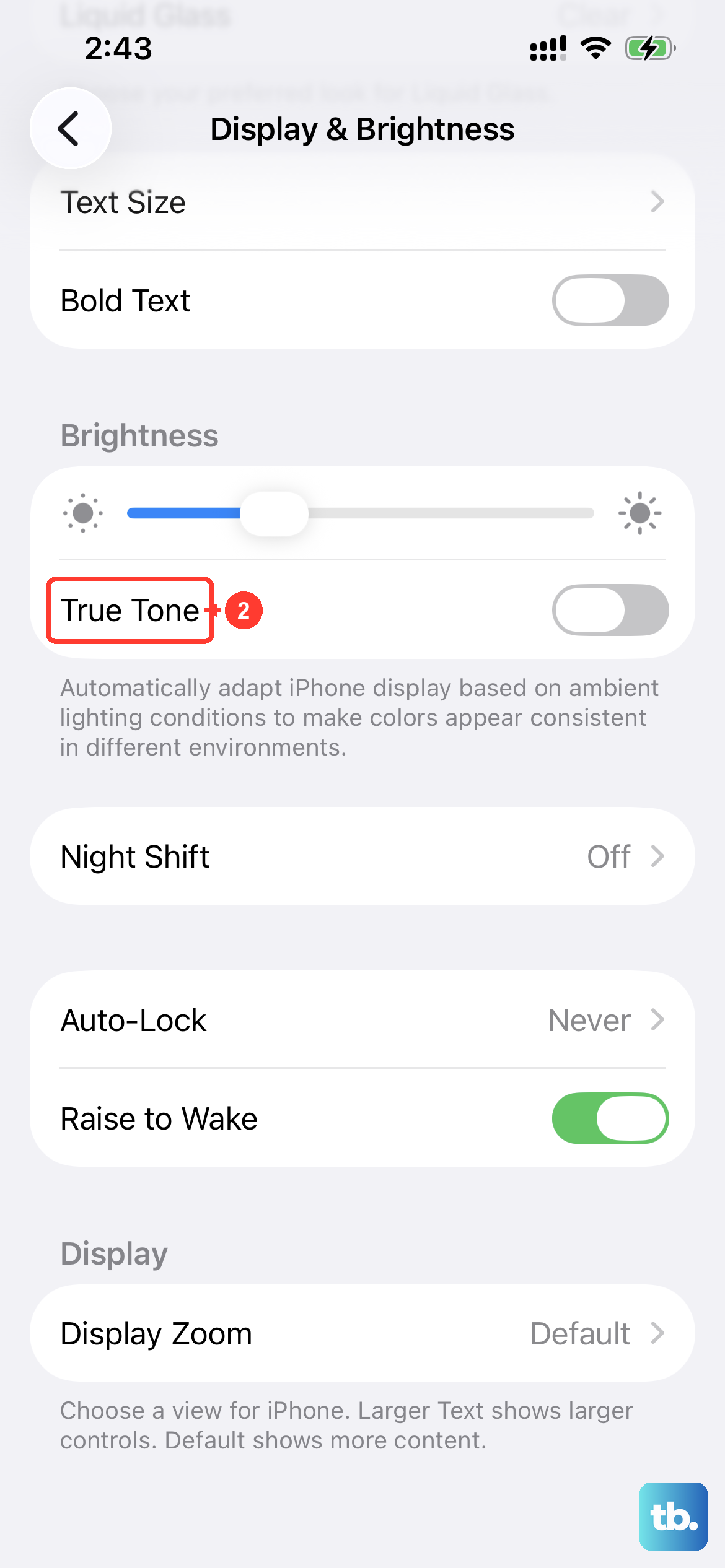
The iPhone 17 Pro's ProMotion display is beautiful but power-hungry. A simple fix is to reduce the auto-lock time. Go to Settings > Display & Brightness > Auto-Lock and set it to 30 seconds or 1 minute to ensure the screen turns off quickly when not in use.
Also in that menu, make sure Dark Mode is enabled. On the iPhone's OLED screen, displaying black pixels actually turns them off, saving a significant amount of power, especially at higher brightness levels. While you're there, consider turning off features like True Tone and Raise to Wake if you don't use them constantly.
Update Your Software and Apps
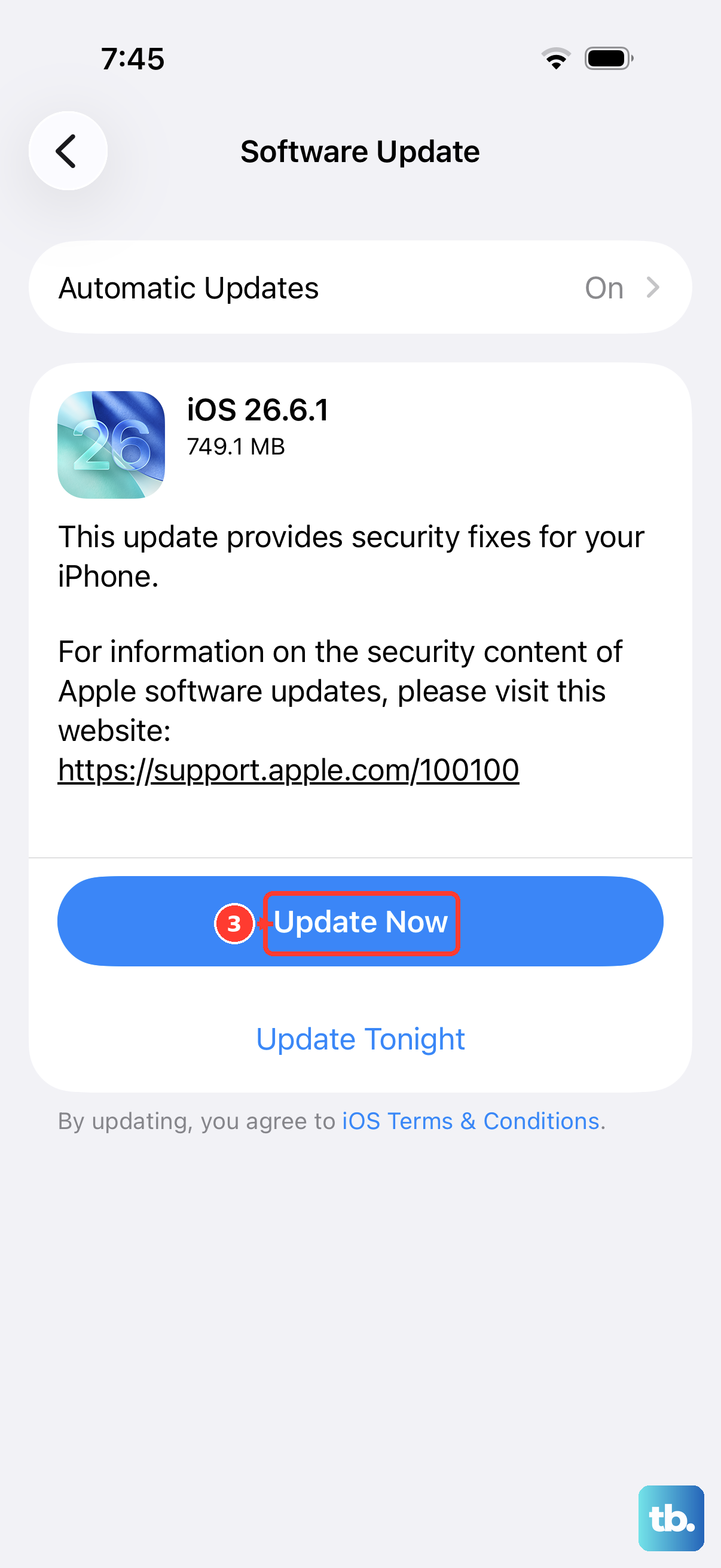
Apple frequently releases iOS updates that include battery performance improvements and bug fixes. It's always worth checking for an update. Go to Settings > General > Software Update to see if you're running the latest version of iOS 26.
Outdated apps can sometimes have bugs that cause excessive battery use. Open the App Store, tap your profile icon in the top right, and scroll down to see if any of your installed apps have pending updates. Installing these can resolve unseen background issues.
Check Your Charging Habits and Hardware
The iPhone 17 Pro supports super-fast 60W charging, but only with Apple's specific 40W Dynamic Power Adapter. If you're using a standard USB-C charger, you're likely getting around 30W. While slower, this can actually generate less heat, which is better for long-term battery health.
Speaking of heat, it's normal for the phone to get warm during a 60W fast charge. However, consistently charging while the phone is hot (like leaving it on a car dashboard) can accelerate battery degradation. Also, check your MagSafe charger alignment if you use one. A misaligned third-party case can cause inefficient charging, making the phone work harder.
Take a look at your charging optimization settings. In Settings > Battery > Charging, you'll find "Optimized Battery Charging." This learns your routine and holds the charge at 80% until you need it, reducing wear. For the absolute longest daily life, you can even set a hard 80% limit here.
Perform a Force Restart
If your battery is draining rapidly and the phone feels sluggish or warm, a software glitch might be the cause. A force restart can clear this up without deleting any data. On the iPhone 17 Pro, quickly press and release the Volume Up button, then quickly press and release the Volume Down button. Finally, press and hold the Side button until you see the Apple logo appear, then release.
Use Low Power Mode and Reset Settings
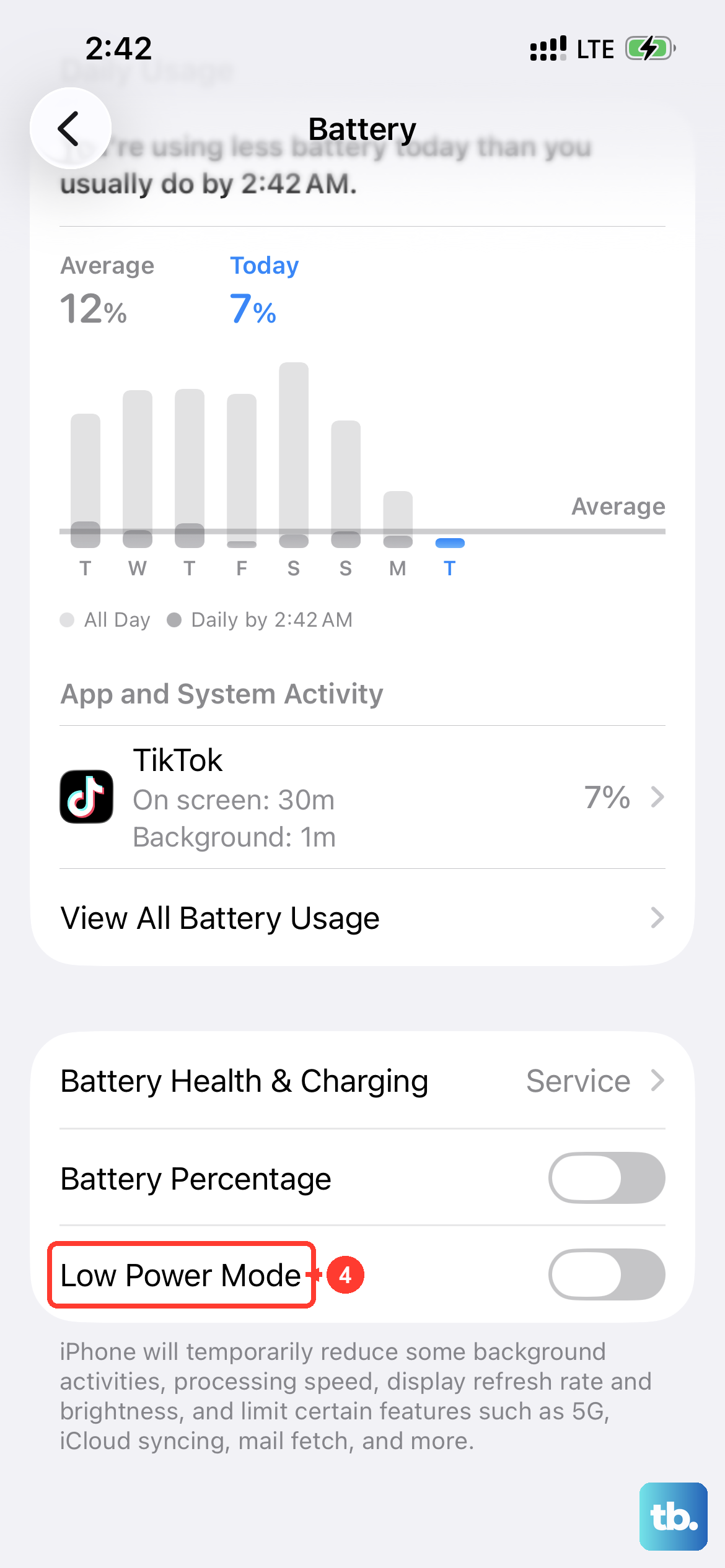
When you need to stretch your battery in a pinch, Low Power Mode is incredibly effective. You can turn it on manually in Settings > Battery, or let it prompt you automatically at 20% charge. It reduces background activity, mail fetch, and some visual effects to conserve power.
If you've tried everything and the drain persists, a settings reset can help. This won't erase your photos or apps, but it will reset all your system preferences like Wi-Fi passwords and wallpaper. Go to Settings > General > Transfer or Reset iPhone > Reset and choose Reset All Settings. After your phone restarts, you'll need to reconfigure your preferences, but it often resolves deep-seated software conflicts.











