
When your iPad 10th generation won't download apps from the App Store, it can bring your productivity and entertainment to a sudden halt. That spinning circle or stuck "Waiting..." message is a common headache, but it's usually something you can fix yourself. The issues often stem from simple software glitches, account problems, or connectivity hiccups.
Let's go through the most effective fixes, starting with the quickest solutions you should try first.
Check Your Internet Connection
A stable connection is the absolute first thing to verify. Open Safari and try loading a website like apple.com. If it doesn't load, your Wi-Fi is the issue.
Head to Settings > Wi-Fi and make sure you're connected to the right network. Try toggling Wi-Fi off and back on. If you're on iPadOS 18, you can also try turning on Airplane Mode from the Control Center for 30 seconds, then turning it off to reset the radios.
Force Restart Your iPad
This is my go-to second step for any weird iPad behavior. It clears the device's memory without deleting any data. For the iPad 10th generation, press and quickly release the Volume Up button, then press and quickly release the Volume Down button.
Finally, press and hold the Top button (on the top edge) until you see the Apple logo appear, then let go. This can clear up temporary software bugs that are blocking the App Store.
Sign Out and Back Into the App Store
Account authentication issues are a frequent culprit. To refresh your connection, open the Settings app and tap your Apple ID name at the top. Scroll down and tap Media & Purchases.
Tap Sign Out. Wait a moment, then sign back in with your Apple ID password. This simple reset often gets downloads moving again by re-establishing a clean link to Apple's servers.
Check Your Apple ID Payment Method
If there's a problem with the payment method on file for your Apple ID, even free apps might not download. Apple sometimes puts a hold on downloads if a card has expired.
Go to Settings > [Your Name] > Payment & Shipping. Make sure your payment method is current and valid. If you see an alert, update your information. For free apps, you can also try selecting "None" as the payment method if it's available.
Check Date & Time Settings
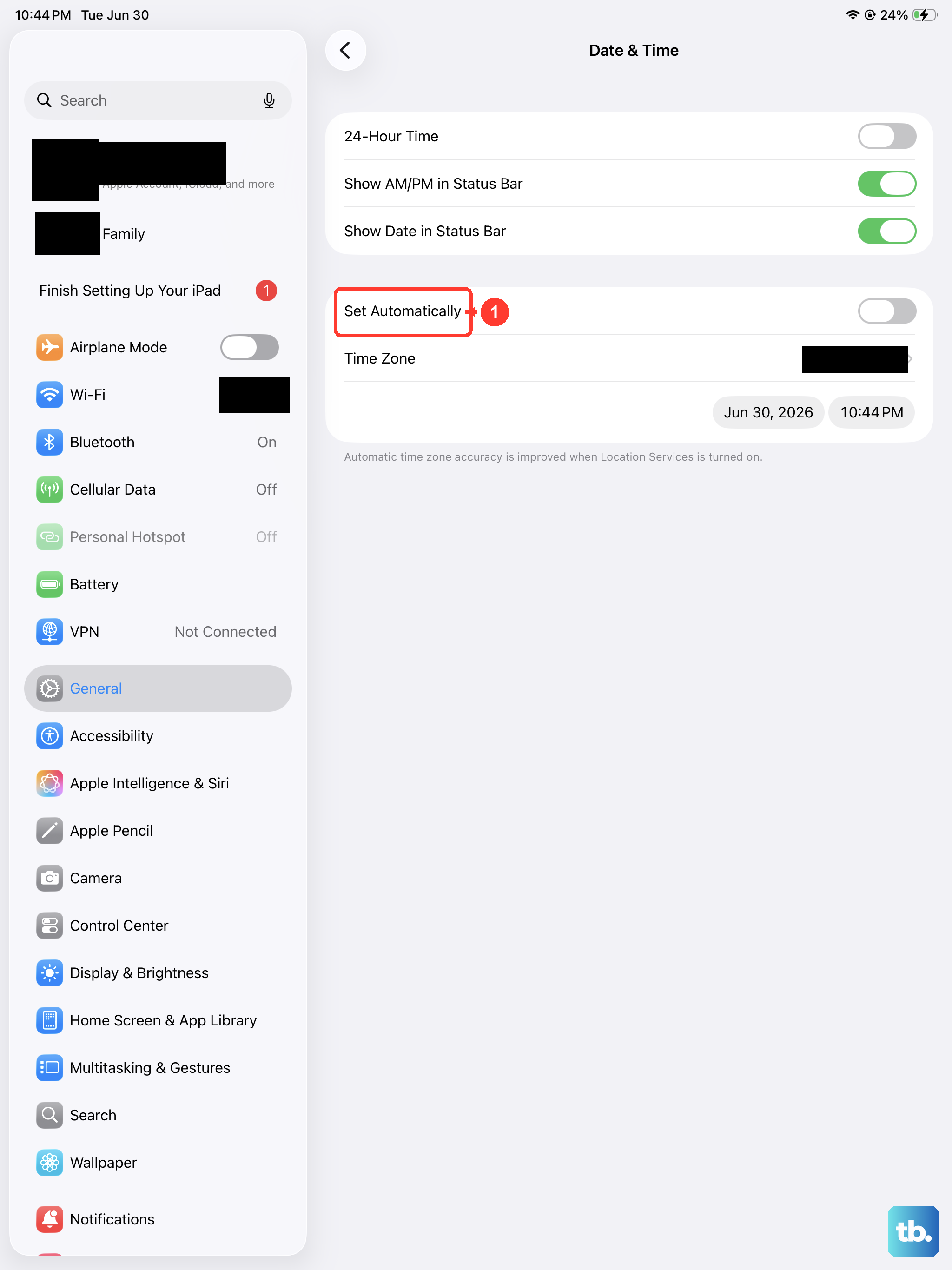
This one catches a lot of people off guard. If your iPad's date and time are incorrect, it can disrupt secure connections to services like the App Store. The fix is automatic.
Navigate to Settings > General > Date & Time. Ensure the switch for Set Automatically is turned on. This lets your iPad use network time, keeping everything in sync.
Check Available Storage Space
The iPad 10th generation starts at 64GB, which can fill up faster than you think. If you're completely out of space, the App Store has nowhere to put new apps.
Go to Settings > General > iPad Storage. You'll see a breakdown of what's using space. Look for large apps, old videos, or cached data you can delete. Freeing up even a few hundred megabytes can be enough to let a download proceed.
Update iPadOS
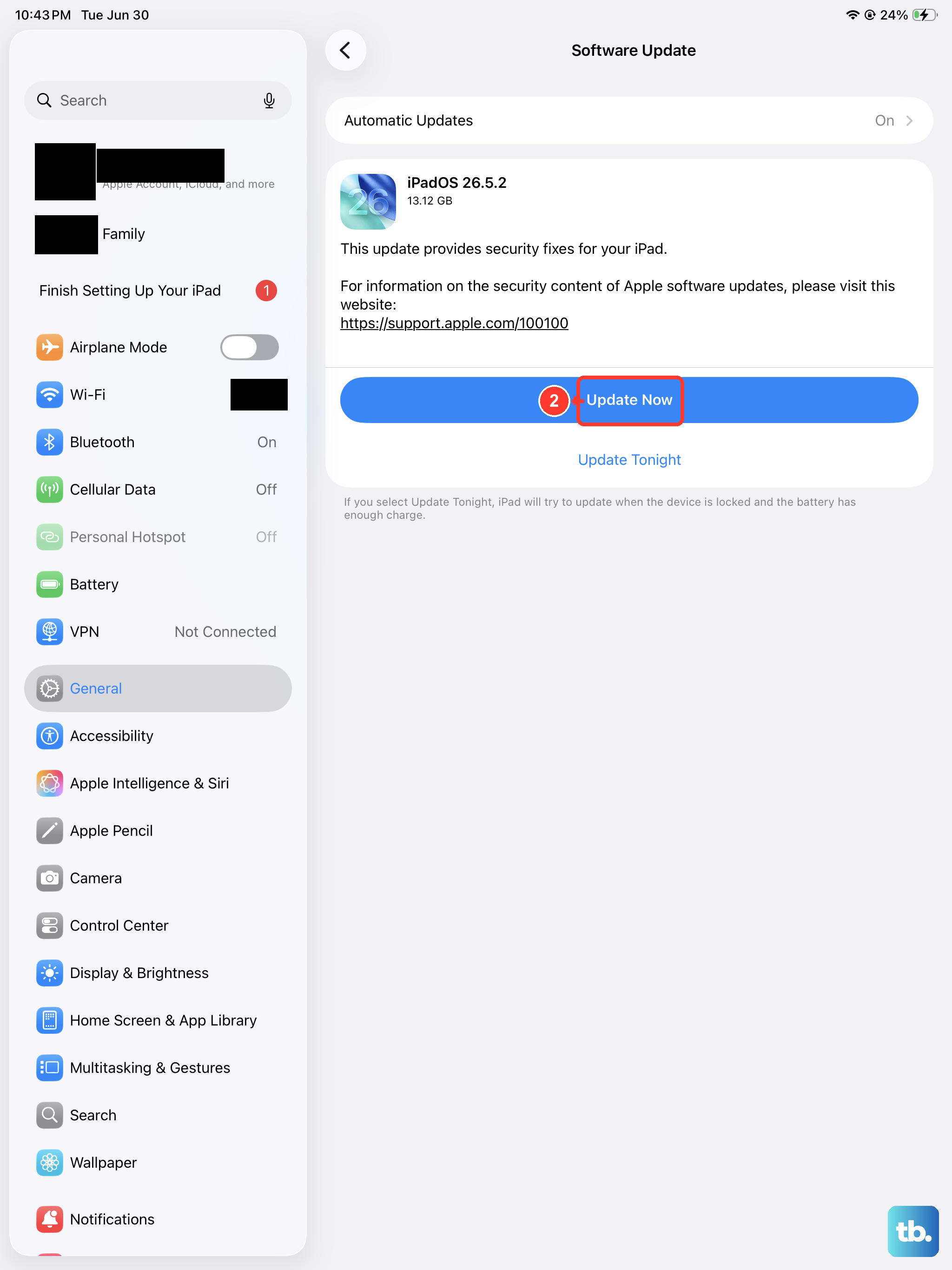
Running an outdated version of iPadOS can cause compatibility issues with the App Store. Apple frequently releases updates that include bug fixes for the store itself.
Open Settings > General > Software Update. If an update is available, tap Download and Install. I'd recommend doing this over Wi-Fi and plugging in your iPad with a 20W or higher USB-C charger, as the update can take a while on the 10th gen's large battery.
Reset Network Settings
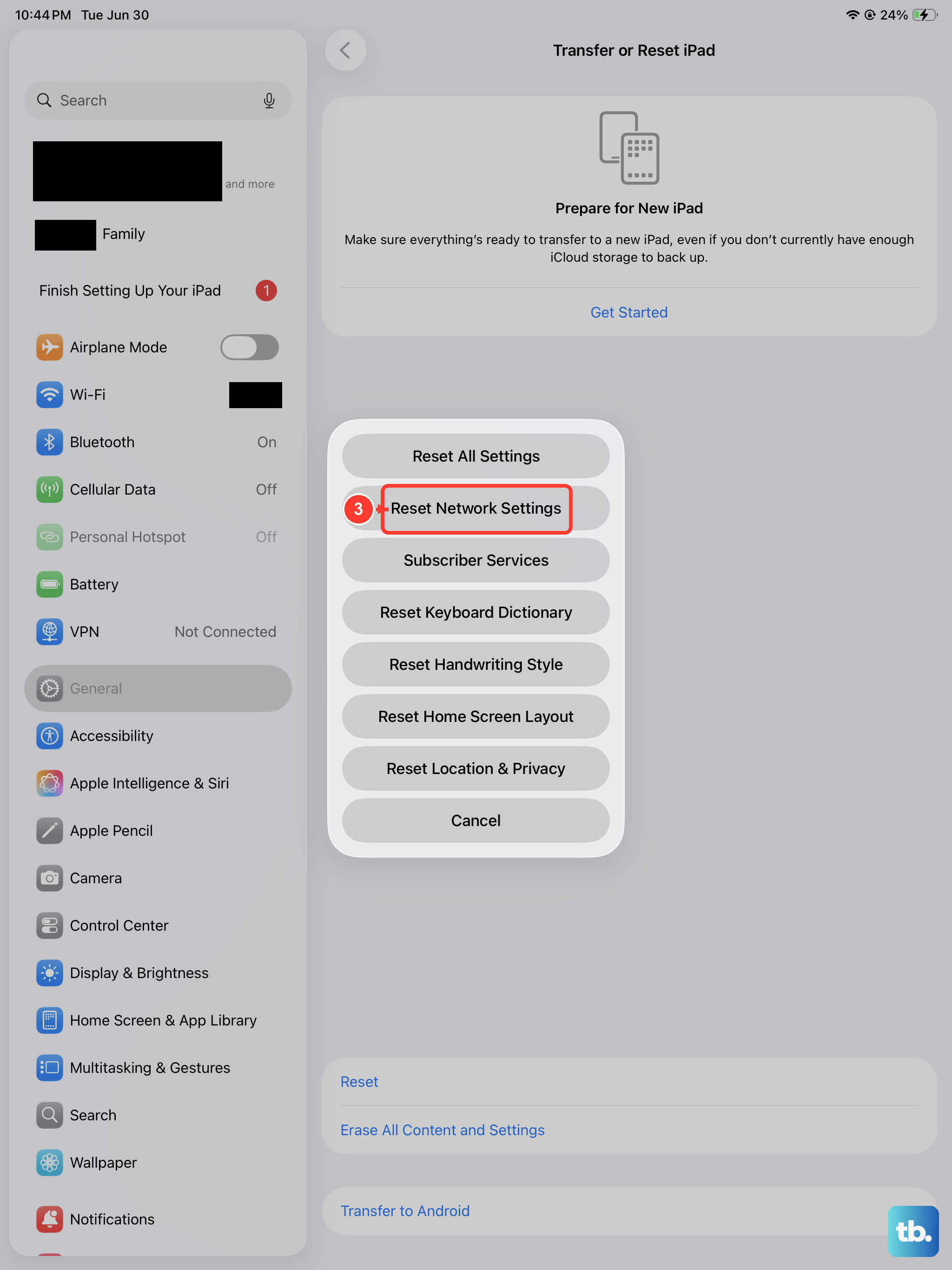
If you're still having trouble and suspect a deeper network problem, this step can help. It clears all your Wi-Fi passwords, VPN settings, and cellular preferences, so be prepared to re-join your Wi-Fi networks afterward.
Go to Settings > General > Transfer or Reset iPad > Reset. Then, tap Reset Network Settings and enter your passcode to confirm. Your iPad will restart, and you'll need to reconnect to your Wi-Fi.
Check Screen Time & Content Restrictions
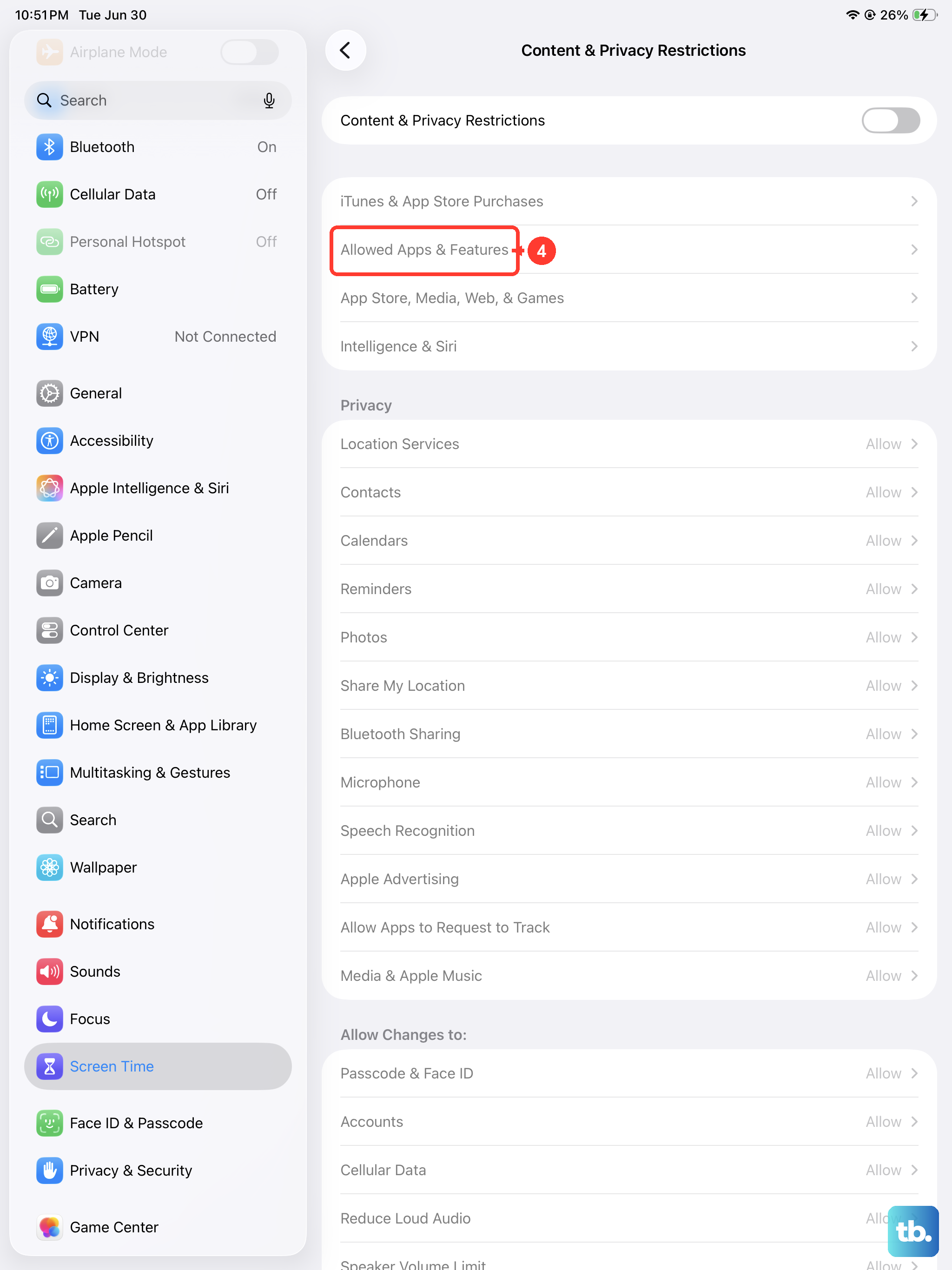
Screen Time restrictions can block app downloads and purchases, sometimes by accident. It's worth a quick check, especially if multiple people use the iPad.
Open Settings > Screen Time. Tap Content & Privacy Restrictions. If it's on, enter your Screen Time passcode. Then, tap iTunes & App Store Purchases and ensure Installing Apps is set to "Allow."
Offload and Reinstall the App Store App
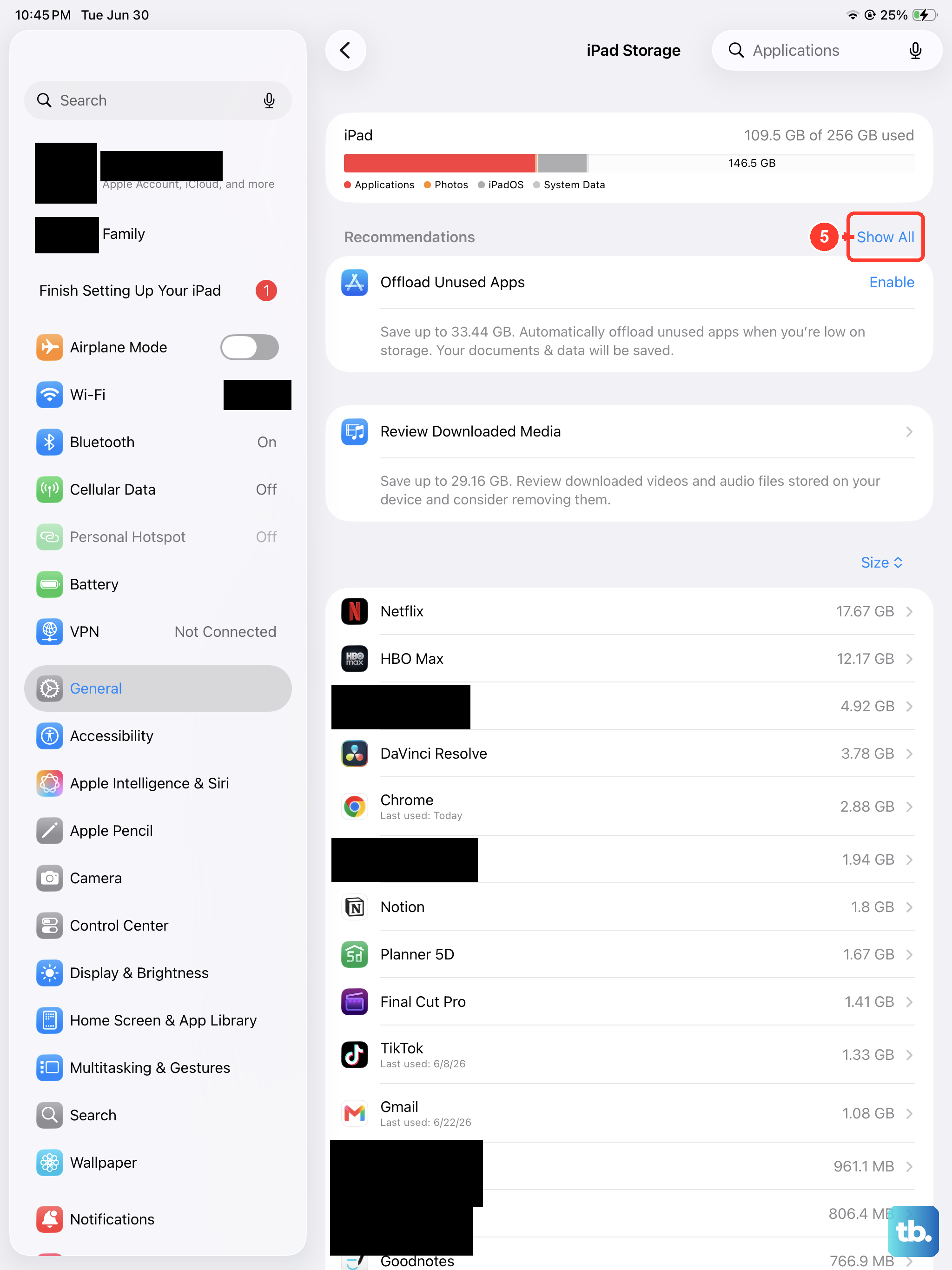
You can't delete the App Store, but you can offload it, which removes the app but keeps its documents and data. This can sometimes clear a corrupted state. First, make sure you're signed into iCloud.
Go to Settings > General > iPad Storage. Find "App Store" in the list and tap on it. Select Offload App. Wait a moment, then tap Reinstall App. The icon will reappear on your Home Screen, and you can try your download again.