
If your iPad 10th Generation is feeling sluggish, you're not alone. Even a relatively new tablet can start to lag after a while. The good news is that most slowdowns are caused by simple software issues you can fix yourself.
I'd start with a force restart. It's the quickest way to clear out any temporary glitches causing the slowdown. Here's how to do it on your iPad 10th Gen: quickly press and release the Volume Up button, then quickly press and release the Volume Down button. Finally, press and hold the Top button until you see the Apple logo appear on the screen.
This doesn't erase any of your data. It just gives the system a fresh start, which often resolves minor performance hiccups instantly.
Check Your Available Storage Space
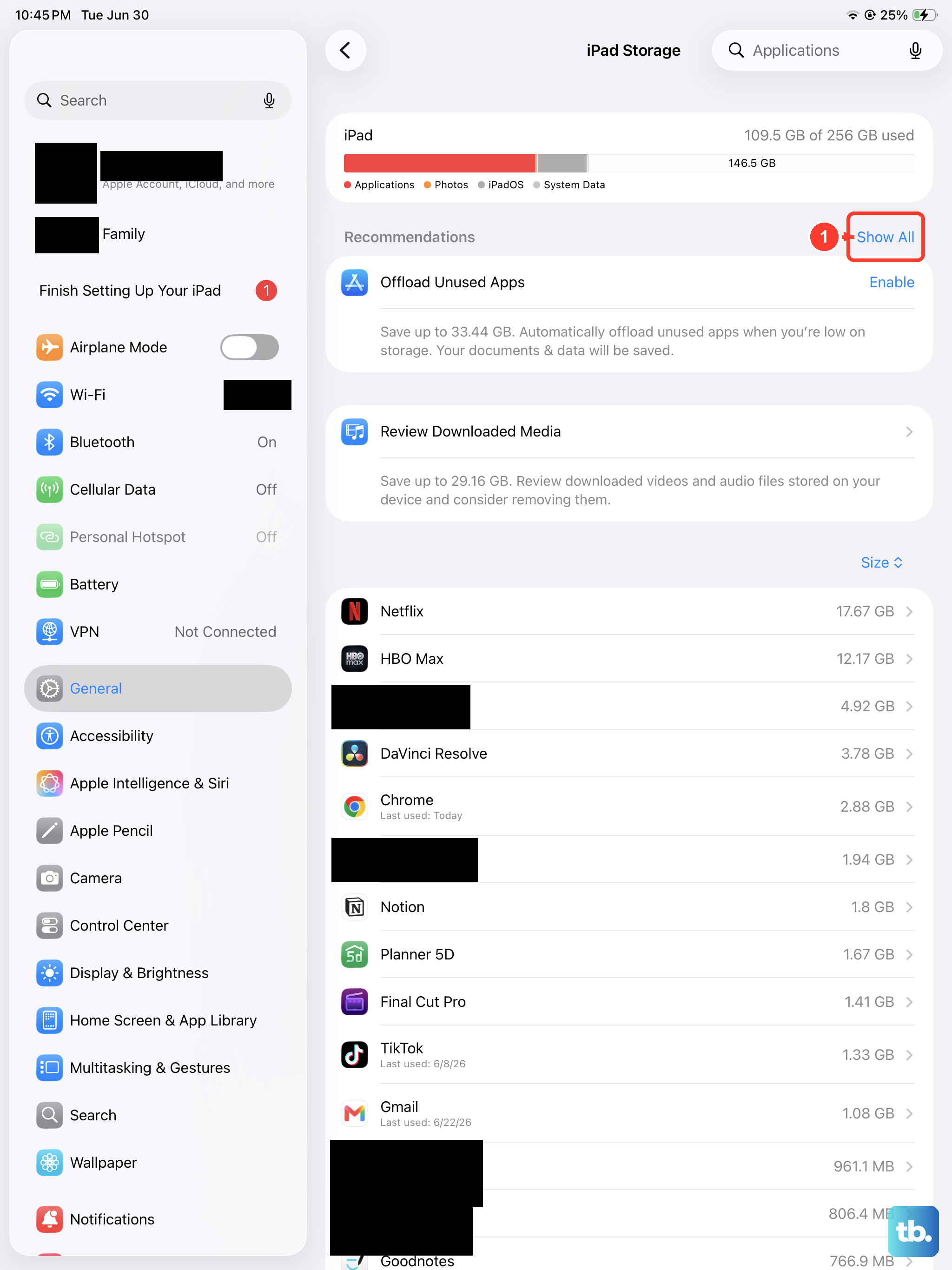
When your iPad's storage gets too full, it has a hard time functioning smoothly. The system needs free space to create temporary files and cache data. Go to Settings > General > iPad Storage to see a breakdown.
If you're below 1-2GB of free space, performance will suffer. Look for the biggest offenders, which are often photos, videos, and large app documents. You can offload unused apps (which removes the app but keeps its data) or manually delete old files you no longer need.
Update to the Latest Version of iPadOS
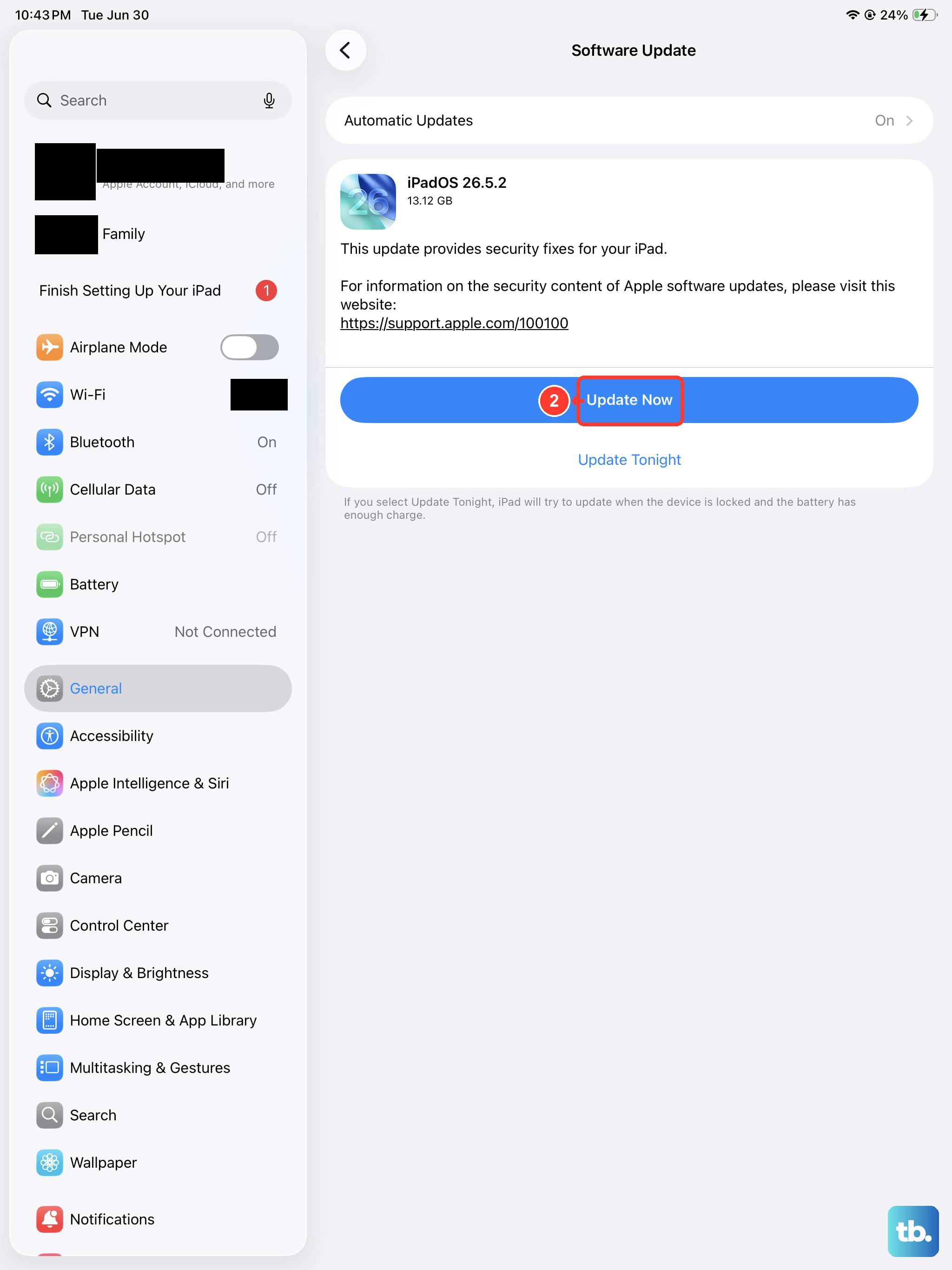
Apple frequently releases software updates that include performance improvements and bug fixes. An outdated version of iPadOS could be the root cause of your slowdown. To check, open Settings > General > Software Update.
If an update is available, I'd recommend installing it. Make sure your iPad is connected to Wi-Fi and has at least a 50% charge, or better yet, plug it into a 20W or higher USB-C PD charger. The 10th Gen's large battery can take a while to charge with the included 20W adapter, so plan accordingly.
Manage Apps Running in the Background
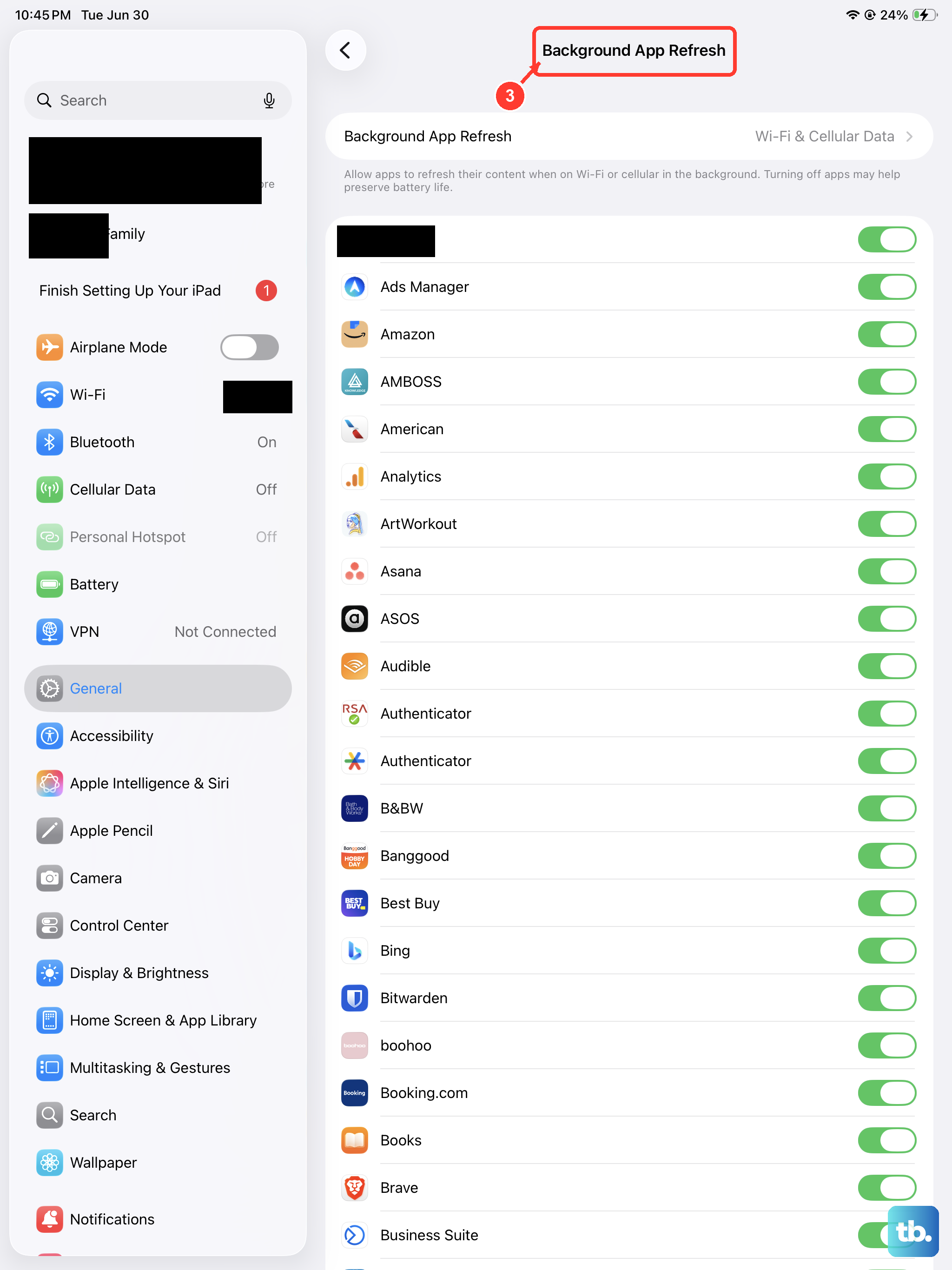
Even when you're not using them, some apps continue to refresh content and use system resources. You can control this with Background App Refresh. Head to Settings > General > Background App Refresh.
You can turn it off entirely or just for specific apps that don't need to be constantly updated, like games or utility apps. This can free up CPU and RAM for the tasks you're actively doing.
Close Unused Apps from the App Switcher
While iPadOS is generally good at managing memory, having dozens of apps suspended in the background can sometimes contribute to a feeling of lag. To close them, swipe up from the bottom of the screen and pause in the middle to enter the App Switcher.
Swipe left or right to find the apps you want to close, then swipe up on each app's preview to remove it from memory. You don't need to do this constantly, but it's a good reset if things feel bogged down.
Review Your Battery Health
While less common on a 2022 model, a significantly degraded battery can cause performance management to kick in. This feature, designed to prevent unexpected shutdowns, can throttle the processor. You can check this by going to Settings > Battery > Battery Health.
If the maximum capacity is below 80%, it might be affecting performance. For the iPad 10th Generation, this would be unusual unless the device has seen extremely heavy use, but it's worth a quick look.
Clear Safari's Website Data and History
Over months of browsing, Safari accumulates a huge cache of website data, images, and cookies. Clearing this out can speed up web browsing and free up storage. Open Settings, scroll down and tap on Safari.
Scroll down and tap Clear History and Website Data. Confirm your choice. This will log you out of websites, so you'll need to sign in again, but it often gives Safari a noticeable speed boost.
Reduce Motion and Visual Effects
The parallax and zoom animations in iPadOS look great, but they require graphics processing power. Turning them down can make the interface feel snappier, especially on the A14 chip. Go to Settings > Accessibility > Motion.
Turn on the switch for Reduce Motion. This simplifies interface animations. You can also try Settings > Accessibility > Display & Text Size and turn on Reduce Transparency to make some backgrounds solid.
Disable Automatic Downloads and Updates
Having your iPad automatically download app updates and new purchases can sometimes cause slowdowns when you're trying to do something else. You can turn this off to have more control. Navigate to Settings > App Store.
Under the Automatic Downloads section, turn off the toggles for App Downloads and App Updates. You can still update your apps manually through the App Store when it's convenient for you.
Reset All Settings as a Last Resort
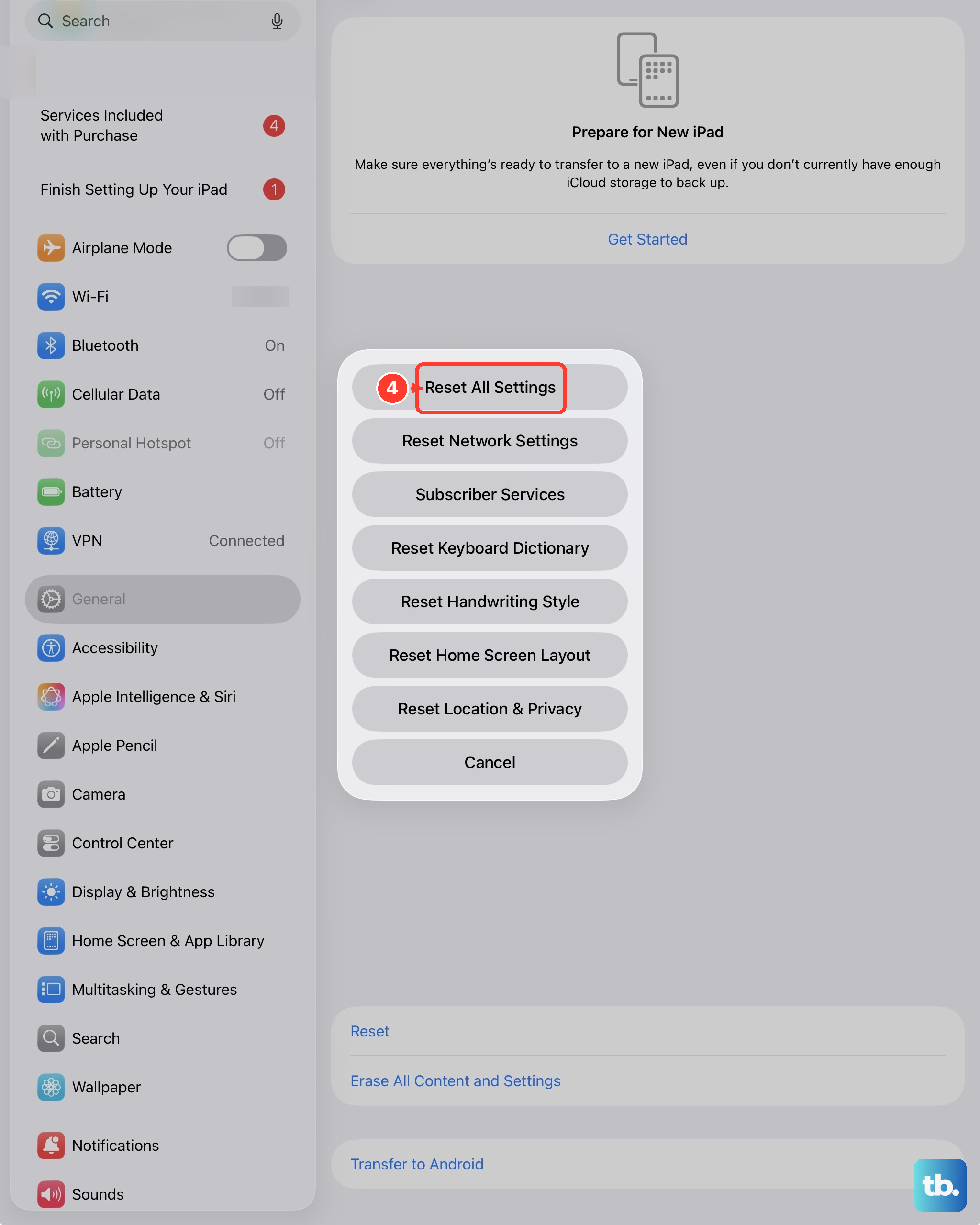
If you've tried everything else and your iPad is still slow, this step can help. It resets all your preferences, like Wi-Fi passwords, wallpaper, and privacy settings, back to factory defaults without erasing your personal data, apps, or media.
Go to Settings > General > Transfer or Reset iPad. Tap Reset, then choose Reset All Settings. You'll need to enter your passcode. After it reboots, you'll have to reconfigure your settings, but it can resolve deeper software conflicts.