

To watch Netflix on your TV without AirPlay, open Netflix on the TV or a supported streaming device and sign in. Netflix does not support AirPlay or iPhone and iPad Screen Mirroring for TV playback. You can also use a compatible wired connection or a receiver that supports Netflix mobile casting.
The short version
- Start on the TV: Open its Netflix app, or install it from the TV’s app store when offered.
- Use a streaming device: Apple TV HD and Apple TV 4K run Netflix directly without AirPlay.
- Check casting compatibility: Netflix mobile casting requires a Standard or Premium plan and a receiver on its supported list.
- Connect a cable: Compatible phones, tablets, and computers can play Netflix on a TV through a supported video connection.
| Method | What you need | Main limitation |
|---|---|---|
| TV app | A Netflix-supported smart TV | Support depends on model, region, and software |
| Streaming device app | A supported streaming device, cable box, or Blu-ray player | Check compatibility for the exact device |
| Game console app | A supported PlayStation or Xbox | Console network and regional requirements apply |
| Mobile casting | A listed receiver and Standard or Premium plan | Not available with an ad-supported experience |
| Phone or tablet cable | Video output support and compatible cables or adapters | Mobile-to-TV playback requires an eligible ad-free plan |
| Computer cable | A supported browser and digital video connection | The display connection must support HDCP |
Open Netflix directly on your TV
From your supported smart TV’s home screen or main menu, open Netflix. Sign in, choose a profile, and select a title. If your compatible remote has a dedicated Netflix button, press Netflix to launch the device’s app.
If the app is missing, search the TV’s app store for Netflix and install it if offered. Netflix also suggests checking the TV’s system-software updates; the update path depends on the manufacturer. Compatibility depends on the exact model, region, and software, and some devices made before 2015 are unsupported.
If your TV’s Netflix app has lost support, connect a supported streaming device, cable-provider box, or Blu-ray player. Select the HDMI input used by that device, open its Netflix app, sign in, and select a title. Before purchasing equipment, check the exact device or provider in Netflix’s supported-device directory.
Use Netflix on your streaming device
On Apple TV HD (4th generation) or Apple TV 4K, open App Store, search for Netflix, and select Get. Open Netflix, select Sign In, and complete authentication before choosing a title. Netflix runs on Apple TV itself, so AirPlay is unnecessary.
For a Netflix-supported Fire TV, select Search from the main screen and search for Netflix. Open its listing, select Free or Download, then select Open and sign in. Availability varies by Fire TV model and region.
On a supported Roku player or Roku TV, open Netflix from Home and sign in. If Netflix is missing and your Roku displays the channel menus, follow Channel Store > Movies & TV > Netflix > Add Channel, then select go to channel. You can also launch an installed Netflix app through Roku’s phone remote.
On Chromecast with Google TV, open Netflix from Home, select Member Sign in, enter your credentials, and select Continue. Its remote’s Netflix button also opens the app, including on HD models.
Sign in to the TV app
Sign in only through Netflix’s own app or website, and never share a code, password, or remote access with someone who contacts you. When the TV app displays a QR code after you select Sign in, scan it with your phone’s camera. Open the resulting link and tap Sign in to TV; this signs you into the TV app without casting video from your phone.
For a TV app offering code-based authentication, open Netflix and select Sign in. Open Netflix’s TV sign-in page on your phone or computer and complete the displayed instructions. Apple TV uses Netflix’s Apple TV sign-in page instead.
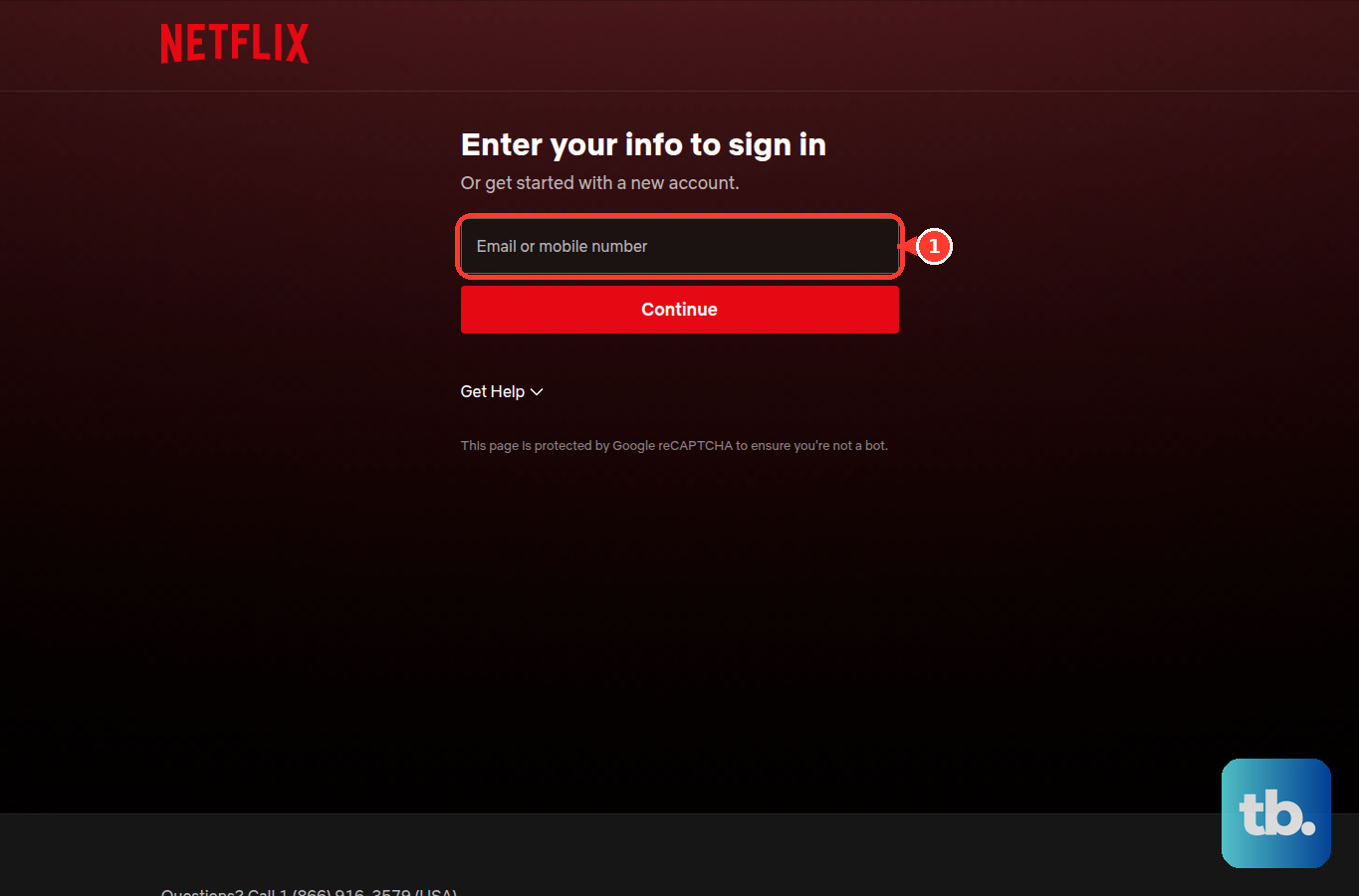
To enter your details with the TV remote, select Sign in > Use Remote. Enter your account email or primary phone number and select Next. Choose Send Sign-In Link and open the emailed link, or select Use Password Instead and enter your password. Email-link availability varies by TV app.
Open Netflix on your game console
On PlayStation 5 or PlayStation 5 Pro connected to PlayStation Network, open Home > Media > All Apps > Video and music apps > Netflix and select Sign in. On PlayStation 4 or PlayStation 4 Pro connected to PlayStation Network, press PS to reach Home, then open TV & Video > Netflix and select Sign in. Complete authentication and choose a title.
On the Xbox One family or Xbox Series X/S, open Store > Apps > Netflix from Home, using Search all apps when necessary. Select Install, then Launch, and sign in. Inside Netflix, press Y to search or B to open the Netflix menu. You need a region with Netflix and Xbox network service.
Use your phone as the remote
Your phone can control native Netflix playback on a compatible streaming device without sending video through AirPlay. For Apple TV HD or Apple TV 4K, connect your compatible iPhone or iPad and Apple TV to the same Wi-Fi network. Open Control Center, tap Apple TV Remote, select your Apple TV, and enter the displayed passcode when requested.
If the remote control is missing, use Add Controls > Add a Control > Remote. Use the remote to open the installed Netflix app on Apple TV.
For a supported Roku, get the remote app through Roku’s official mobile app page if needed. Open the app, select Devices, and choose your Roku. Open Apps on Roku > Your Roku Apps, select Netflix, and use the remote controls to navigate and play.
For Chromecast with Google TV or Google TV Streamer, select the streaming device in Google Home; on iOS, tap Open remote. Alternatively, in Google TV on Android, tap Connect TV, select the device, enter the TV’s code, and tap Pair. Use the virtual remote to launch Netflix on the TV.
Fix casting on a supported receiver
Netflix mobile casting works with Standard or Premium plans on Chromecast 3rd generation or older without a remote, select cast-enabled Vizio TVs, and select cast-enabled Compal TVs. Open Netflix on your phone, sign in, choose a profile, tap the Cast icon, select the receiver, and choose a title. If the icon is missing, check the receiver and plan against those requirements first.
On iPhone or iPad, open Settings > Privacy & Security > Local Network and enable Netflix when listed. Tap Allow when Netflix requests local-network permission. This permission does not make an excluded receiver compatible.
For a supported Chromecast setup, connect your phone and receiver to the same Wi-Fi network. Open Google Home, tap Home, and locate the Chromecast. If it is marked Offline or missing, check its power and network connection, reconnect it, and retry Netflix. Android casting also requires Android 9 or later.
If that supported setup still fails, update the companion apps. On Android, open Google Play Store, select the profile icon, then open Manage apps & device > Updates available and select Update all. On iPhone or iPad, open App Store, select the profile icon, then open Apps > Google Home and select Update. Reopen Netflix, and if the receiver still fails to connect, fully power it off for 15 seconds before restarting it.
Connect your phone or tablet with a cable
Wired mobile playback needs a device that supports video output, compatible cables or adapters, and an eligible ad-free Netflix plan. For a compatible Lightning iPhone or iPad, connect Apple’s Lightning Digital AV Adapter to the device, then connect an HDMI cable between the adapter and TV. Select that HDMI input on the TV and play Netflix. Supported Apple adapter models are A1438 and A1621.
For a USB-C iPhone or iPad with wired video output, connect a video-capable USB-C adapter and HDMI cable to the TV. Netflix recommends Apple’s USB-C Digital AV Multiport Adapter. Select the matching TV input and play Netflix; a USB-C connector alone does not establish video-output support. With a compatible USB-C or Thunderbolt display, you can instead use a video-capable direct cable.
An Android phone or tablet also needs external video-output support and an eligible plan. Connect it using a video-capable cable or adapter suitable for both ports, select the TV input, and play Netflix.
If a Lightning connection reports an unsupported display or error 10065, disconnect the cables from the adapter and attach the adapter to your iPhone or iPad. Open Settings > General > About > Apple HDMI Adapter > Model Number and check for A1438 or A1621. For a USB-C or Thunderbolt connection reporting an unsupported display, check the TV input and HDCP 2.2 support, then try another port or reverse the cable ends.
Connect a computer to the TV
You can play Netflix from a supported Windows computer, Mac, or Chromebook in a supported browser while connected to your TV. Connect the computer using a supported digital video connection, select the matching TV input, and open netflix.com in the browser. Sign in and play a title.
Netflix lists HDMI, HDMI Mini, USB-C, Thunderbolt, DisplayPort, and Mini DisplayPort among its supported cable types. The display connection must be compatible with HDCP. On Windows, press Windows + P to open presentation-display settings when you need to adjust the TV display connection.
Resolve plan or native app problems
If Netflix opens but mobile-to-TV playback is blocked by your subscription, check the plan requirement before changing hardware. Mobile-to-TV playback requires an eligible ad-free plan, while supported native TV apps can work with ad-supported subscriptions. Mobile plans exclude TV viewing.
To change your Netflix plan, open netflix.com/ChangePlan in a browser and sign in. Choose an eligible plan, select Continue or Update, then select Confirm Change; when the alternative confirmation appears, select Confirm. Partner-billed accounts may require changes through the partner.
Clearing the native Fire TV app’s data removes its current sign-in state. If that app malfunctions, open Settings > Applications > Manage All Installed Applications > Netflix and select Clear Data. Open Netflix and sign in again to use native playback.
Frequently Asked Questions
Can another physical remote control Netflix on Apple TV?
You can control Apple TV 4K with a compatible HDMI-CEC TV or receiver remote over its HDMI connection. To teach Apple TV a compatible infrared remote, open Settings > Remotes and Devices > Learn Remote and complete the displayed button-learning instructions. Then use that remote to navigate to Netflix.
Can you open Netflix with a voice command?
On a compatible voice-enabled TV device, press the remote’s microphone button and say Launch Netflix, then choose a title when the native app opens. On a supported assistant device, you can say Hey Siri, open Netflix. Netflix says command support varies; Fire TV requires a supported voice remote or Alexa-enabled device.
What should you do if Netflix blocks your home TV over its Household setting?
If you own the account and are establishing your actual Netflix Household, use your preferred home internet connection. Open the Netflix menu with Back, or Menu on Apple TV, then open Get Help or Settings > Manage Netflix Household > Update Netflix Household. Select Send Email, or Send Text if offered. In the message, select Yes, This Was Me, then select Confirm Update.
What should you do when a TV blocks Netflix while you are traveling?
When Netflix offers temporary access to you as an account owner away from home, use a non-Kids profile and select I'm Traveling. Select Send Email, or Send Text when offered, then open the message and select Get Code. Enter the temporary four-digit code on the TV before it expires; request limits apply.