

To update your iPhone to iOS 26, open Settings > General > Software Update, confirm that the offered update is iOS 26, then tap Download and Install. Before starting, back up your iPhone and connect it to power and Wi-Fi. Check the version carefully because you may see an iOS 26 update alongside a separate iOS 27 upgrade.
Your iPhone's compatibility and installed version determine which updates Apple offers. The normal software-update process does not downgrade an iPhone from iOS 27 to iOS 26.
The short version
- Check the version: Proceed only when the offered update is iOS 26.
- Prepare first: Back up your iPhone, then connect it to power and Wi-Fi.
- Already downloaded: Open the Update to iOS 26 banner to choose Update Now or Update Tonight.
- Computer alternative: Finder, Apple Devices, or iTunes on Windows can update your iPhone, but Apple's Finder and iTunes guides describe updating to the latest version of iOS.
| Option | When it applies | What to check |
|---|---|---|
| Apple's iOS 26 instructions | Check compatibility and preparation | Instruction page, not a browser installer |
| Software Update | Download and install manually | iOS 26 must be offered |
| Update Now | Install a downloaded update immediately | Banner names iOS 26 |
| Update Tonight | Schedule a downloaded update | Option appears for iOS 26 |
| Automatically Install | Install eligible updates overnight | Does not select iOS 26 specifically |
| Automatically Download | Download first and install later | Review the downloaded version |
| 5G download | Supported phone, carrier, plan, and coverage | Enable Allow More Data on 5G |
| Finder | macOS Catalina 10.15 or later | Updates to the latest version |
| Apple Devices | Windows PC running the app | Does not guarantee iOS 26 |
| iTunes | Windows PC where iTunes manages devices | Updates to the latest version |
| Temporary app removal | Storage prompt during an update | Apps reinstall after updating |
| Offload Unused Apps | Storage recommendation is available | Removes unused apps |
| Delete Update | Failed download appears in storage | iOS 26 must remain available to download again |
| Beta Updates | Leave the beta channel on iOS 16.4 or later | Does not immediately remove the installed beta |
| Recovery mode | Normal updating fails | Restore erases the device |
| iCloud backup setup | Backup requires newer iOS | Follow the offered update instructions |
| Computer backup setup | Backup requires newer iOS | Temporary setup is erased afterward |
| Apple Configurator update | Update an attached iPhone from a Mac | Installs the latest offered system |
| Apple Configurator IPSW | Appropriate installable image is available | Does not guarantee access to iOS 26 |
| Mac Shortcuts automation | Use Apple Configurator actions | Targets a connected iPhone |
| Managed update | Organization assigns an update | Target release must be available |
Check compatibility and prepare your iPhone
Apple lists the iPhone 11 through iPhone 17 families, including their listed mini, Plus, Pro, and Pro Max variants, as compatible with iOS 26. The list also includes iPhone 16e, iPhone 17e, iPhone Air, and iPhone SE models from the second generation onward. A supported model still needs an eligible iOS 26 update to be offered for its installed version.
Apple's official iOS 26 download page provides compatibility and installation instructions; it is not a browser-based installer. Back up your iPhone before installation, including when you plan to update through a computer. For the standard wireless update, connect your phone to power and Wi-Fi.
Install iOS 26 through Settings
Open Settings, select General, then tap Software Update. Read the offered version, and choose the iOS 26 update if a separate iOS 27 upgrade also appears. Tap Download and Install and follow the displayed instructions.
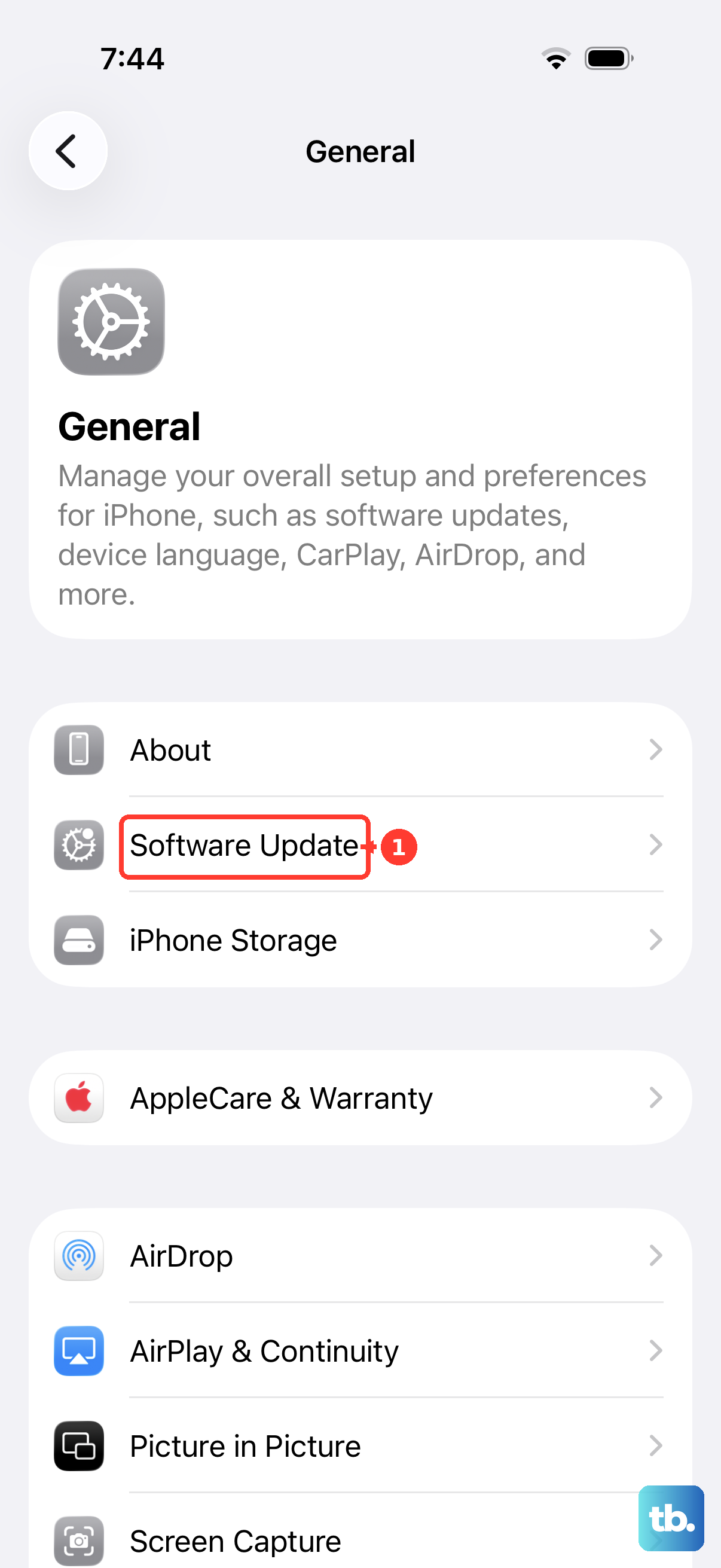
If iOS 26 is already downloaded and its banner appears, open Settings and tap Update to iOS 26. Tap Update Now to install immediately, then follow the instructions. To schedule installation instead, choose Update Tonight when that option appears and follow the instructions.
If the banner is missing, check Settings > General > Software Update for the offered update. When iOS 26 is not offered there, switching to a computer does not guarantee access to that release, because Apple's Finder and iTunes guides describe updating to the latest version of iOS.
Choose automatic download and installation settings
To download automatically and choose when to install, open Settings > General > Software Update > Automatic Updates. Turn off Automatically Install, then turn on Automatically Download. Keep your iPhone connected to Wi-Fi, charging, and locked, then review the downloaded version and install it using the available installation option.
To install eligible updates automatically, turn on Automatically Install in the same menu. Leave your iPhone charging and connected to Wi-Fi overnight; Apple says it notifies you before installation. Automatic installation does not select or guarantee iOS 26 specifically.
Update using a Mac or Windows PC
A computer gives you another installation route when the wireless update fails. Back up your iPhone first. Apple's Finder and iTunes guides describe updating to the latest version of iOS, so these routes do not guarantee that iOS 26 remains available.
On a Mac running macOS Catalina 10.15 or later, first switch to another internet connection if the Mac uses this iPhone's Personal Hotspot. Connect the iPhone and open Finder, then select your phone in the sidebar. Choose General > Check for Update. Click Download and Update, follow the displayed instructions, and enter your iPhone passcode if requested.
On Windows with Apple Devices, connect your iPhone using USB or USB-C, or use an already configured Wi-Fi connection. Open Apple Devices, select your iPhone in the sidebar, and select General. Select Check for Update, then select Update once an update is detected and the button becomes active.
If iTunes handles device management on your Windows PC, open iTunes and connect your backed-up iPhone. Click the device button in the toolbar, then select Summary > Check for Update. Click Download and Update and follow the instructions. Enter your passcode if requested.
Fix storage problems and failed downloads
If the wireless update shows a storage prompt, continuing temporarily removes apps, which the system reinstalls after the update. Tap Continue when that prompt appears. Follow the displayed instructions to proceed with installation.
To free up storage on your iPhone, open Settings > General > iPhone Storage and look for the offloading recommendation. Offloading removes unused apps from your device. If the recommendation is available, tap Enable next to Offload Unused Apps. Return to Settings > General > Software Update and retry the offered update.
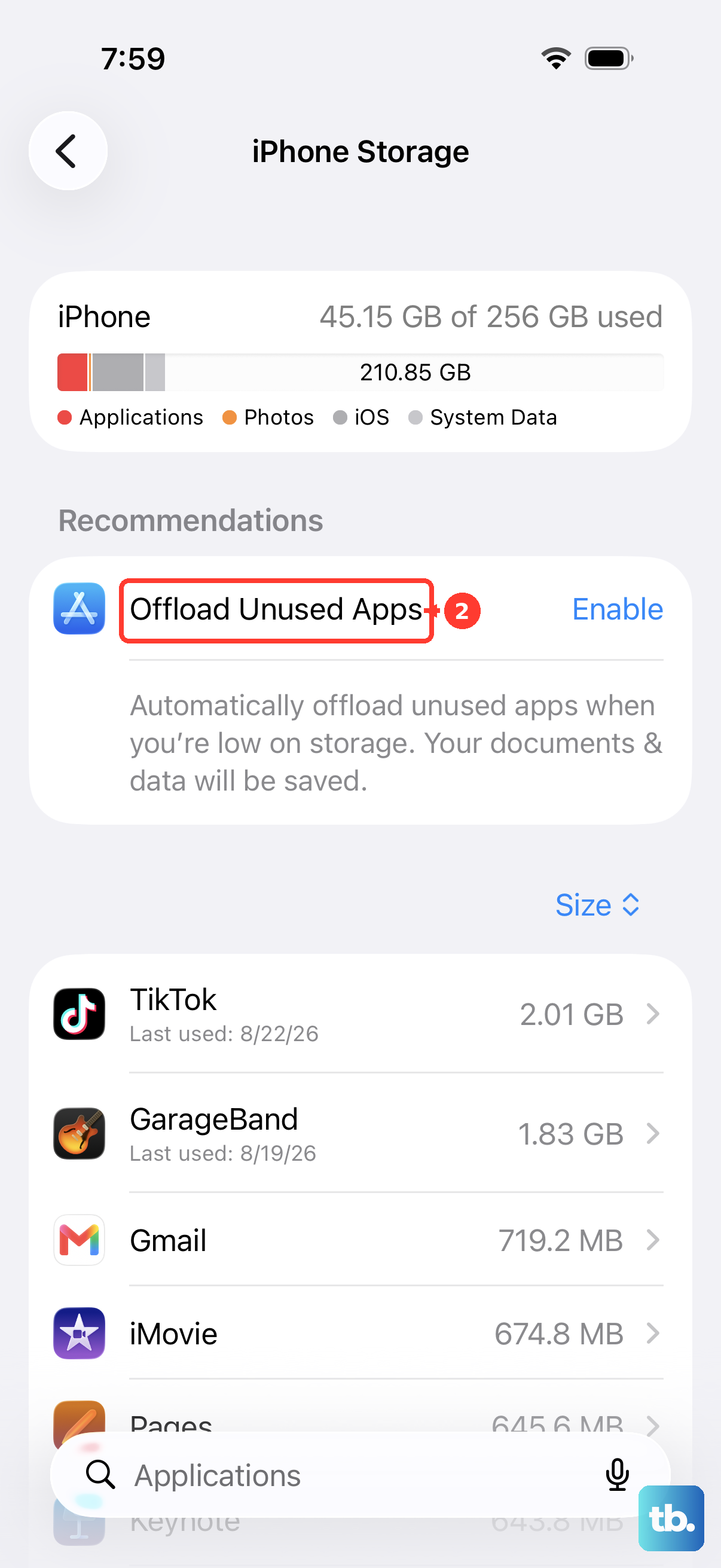
If an update fails, open Settings > General > iPhone Storage, then locate and tap the downloaded update if it is listed. Deleting it removes the downloaded package, not the installed operating system. Tap Delete Update, then return to Settings > General > Software Update and download again if iOS 26 is still offered.
If the update package is not listed or wireless installation still fails, try the computer update route. Apple's Finder and iTunes guides describe updating to the latest version of iOS, which may not be iOS 26.
Use recovery mode if normal updating fails
Connect your iPhone by USB to an updated Mac or a PC with the latest Apple Devices app, then open Finder or Apple Devices. Recovery mode is a troubleshooting route and does not guarantee installation of iOS 26 instead of a newer release.
Quickly press and release Volume Up, then quickly press and release Volume Down. Hold the Side button until the Connect to computer screen appears. This sequence applies to all iOS 26-compatible iPhones, including iPhone SE models from the second generation onward.
Locate your iPhone on the computer and select Update first if you have not already attempted it. Restoring reinstalls iOS and erases the device, so back up beforehand if you can to preserve data for restoring your iPhone from a backup. If recovery requires erasure, choose Restore.
Update before restoring an incompatible computer backup
If your computer backup requires newer iOS, you can complete a temporary setup and update before restoring it. On Transfer Your Apps & Data, tap Don't Transfer Apps & Data. Complete setup, then install the offered system update. Apple directs you to install the latest version for this process, so it does not ensure iOS 26.
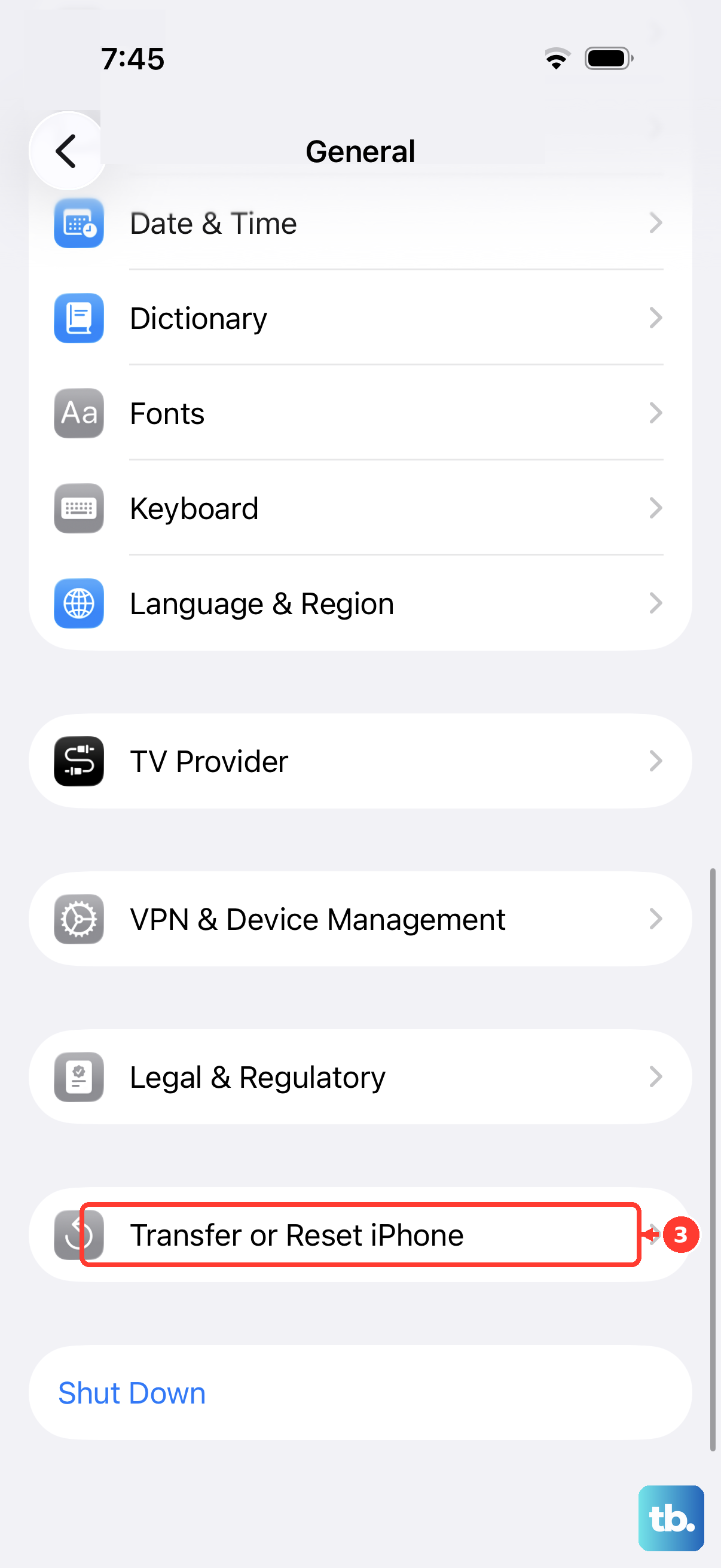
After the restart, open Settings > General > Transfer or Reset iPhone. Erasing removes the temporary setup's data. Tap Erase All Content and Settings and complete the displayed erasure process. Set up your iPhone again and restore the computer backup.
Use Apple Configurator for advanced updates
Apple Configurator for Mac provides an additional update route, primarily useful for administrators. Attach your iPhone to the Mac, select it in Configurator's device window, and click Update in the toolbar. Select Latest operating system version or Latest operating system version and apps. This installs the latest offered system rather than guaranteeing iOS 26.
If you have an appropriate, currently installable IPSW image, select the attached iPhone in Apple Configurator and drag the .ipsw file onto it, then choose the update operation. You can also drag the file onto a Blueprint for subsequent application. This route depends on the image being installable and does not guarantee access to a particular iOS 26 release.
For automation, use Apple Configurator's Update Devices action in a Mac shortcut targeting the connected iPhone. The action supports updating to the latest system and optionally supplying IPSW files. It runs through Mac Shortcuts and Configurator, rather than independently installing iOS 26 from an iPhone shortcut.
Frequently Asked Questions
Can you download iOS 26 using cellular data?
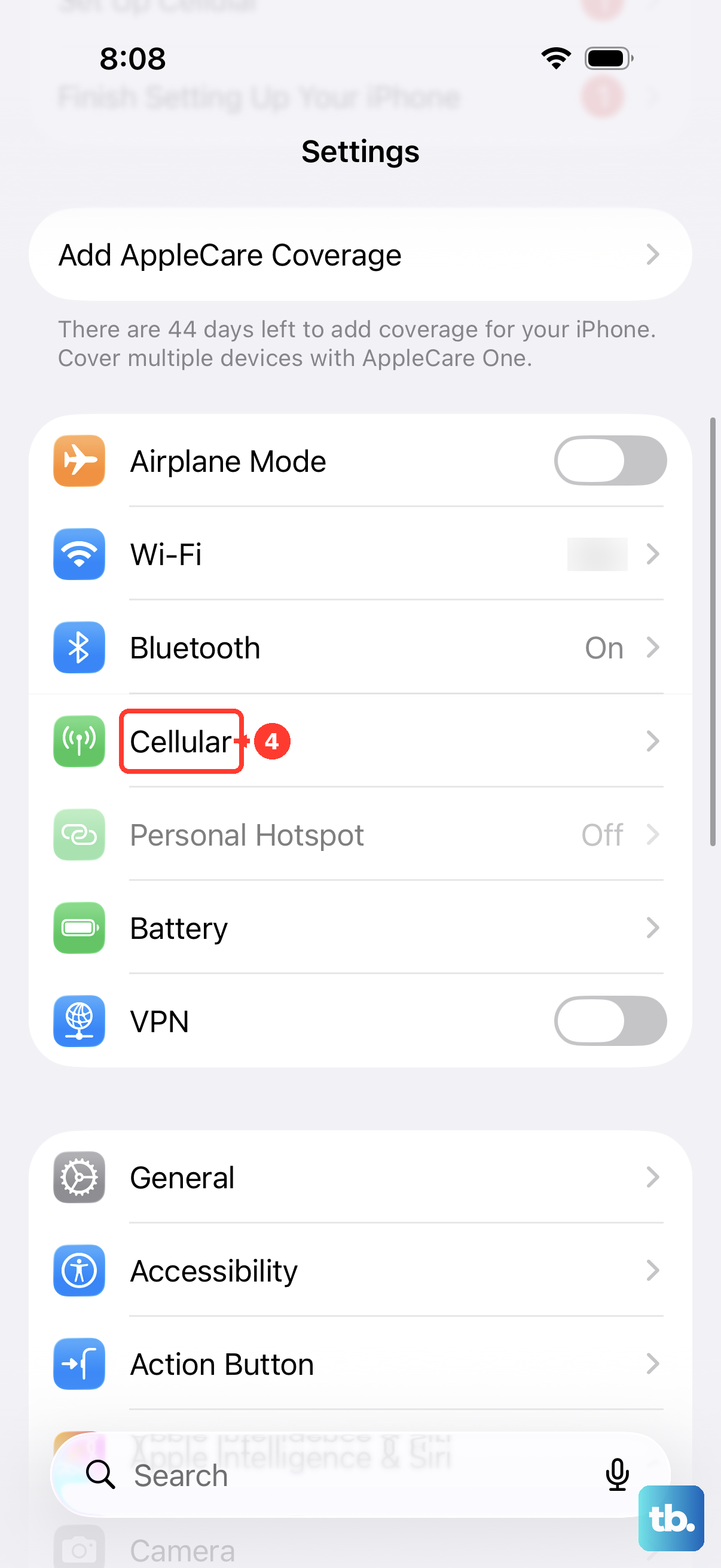
Yes, on a 5G-capable, iOS 26-compatible iPhone with a supported carrier, 5G plan, and coverage, open Settings > Cellular > Cellular Data Options > Data Mode and select Allow More Data on 5G. For Dual SIM, select the relevant line under Cellular before opening the data options. Regional labels can instead be Mobile Data and Mobile Data Options. Then check Settings > General > Software Update for the offered iOS 26 update.
How do you switch from beta updates to a public release?
On iOS 16.4 or later, open Settings > General > Software Update > Beta Updates and tap Off. Install an eligible public release when Software Update offers it. Turning this setting off does not immediately remove the installed beta or downgrade your phone. Returning specifically to public iOS 26 depends on your installed beta and the release Apple offers.
What happens if an iCloud backup requires newer iOS during setup?
Follow the software-update instructions offered while restoring the iCloud backup. Installation finishes before backup restoration continues. This setup option applies when the backup requires a newer system and does not guarantee that the installed release will be iOS 26.
How do you update an iPhone managed by your organization?
Start the assigned update from its notification or Settings, and enter your device passcode when requested. Your administrator can set update deadlines and automatic-update behavior, and the target release must be available. On iOS 17 or later, an update required during Automated Device Enrollment can occur before Setup Assistant finishes. Administrator-controlled automatic-update behavior applies to supervised devices running iOS 18 or later.