

To turn off automatic updates on your iPhone, open Settings > General > Software Update > Automatic Updates, then turn off Automatically Install and the Automatically Download control it reveals under iOS Updates. For App Store apps, open Settings > Apps > App Store and turn off App Updates separately. These iOS update controls apply to iOS 27 and recent iOS 26 versions displaying these labels.
The short version
- iOS updates: Turn off automatic installation and automatic downloading to control both parts of the process.
- App updates: Turn off App Updates in the App Store settings separately.
- Downloaded updates: You can remove a downloaded update from iPhone Storage before installation begins.
- Additional controls: System files, background security improvements and beta updates have separate settings.
| What you want to control | Where to find it | Scope |
|---|---|---|
| Automatic iOS installation | Software Update > Automatic Updates | Automatically Install under iOS Updates |
| Automatic iOS downloads | Software Update > Automatic Updates | Automatically Download under iOS Updates |
| App Store app updates | Settings > Apps > App Store | App Updates controls automatic app updates |
| An unwanted installed app | Touch and hold the app | Deletion removes the installed copy |
| A downloaded iOS update | Settings > General > iPhone Storage | Downloaded package only, before installation begins |
| Automatic system-file installation | Automatic Updates, under System Files | Automatically Install controls system-file changes |
| Background security installation | Settings > Privacy & Security > Background Security Improvements | Automatically Install on iOS 26.1 and later |
| Future iOS beta offers | Software Update > Beta Updates | Off stops future beta offers |
| New TestFlight beta apps | TestFlight > Settings > Automatic Updates for New Apps | New beta apps in TestFlight 3 or later |
| An individual TestFlight app | The beta app’s page, under App Information | Automatic Updates for that beta app |
| Alternatively distributed app updates | Settings > Apps > App Installation | Eligible iPhones using alternative distribution |
| Updates from an alternative marketplace | Touch and hold the removable marketplace app | Marketplace deletion stops updates supplied by it |
| App Store cellular access | Settings > Apps > App Store | Cellular Data leaves Wi-Fi updates possible |
| Automatic app updates on Wi-Fi | Settings > Wi-Fi, then the network’s Info button | Low Data Mode for that network |
| Automatic updates over cellular | Settings > Cellular | Low Data Mode for the selected connection |
| Temporary download suppression through Settings | Settings > Battery | Low Power Mode, with a model-specific path |
| Temporary download suppression through Control Center | Control Center on a Face ID iPhone | Low Power Mode control, if present |
| Temporary download suppression through Siri | Siri with voice activation available | Enables Low Power Mode |
| Managed automatic iOS updates | Your organization’s device administrator | Supervised, managed iPhones running iOS 18 or later |
| Managed update availability | Your organization’s device administrator | Temporary deferral on supported supervised iPhones |
Turn off automatic iOS installation and downloads
Open Settings, tap General, then open Software Update > Automatic Updates. Under iOS Updates, turn off Automatically Install. This controls automatic installation, while downloading has its own setting.
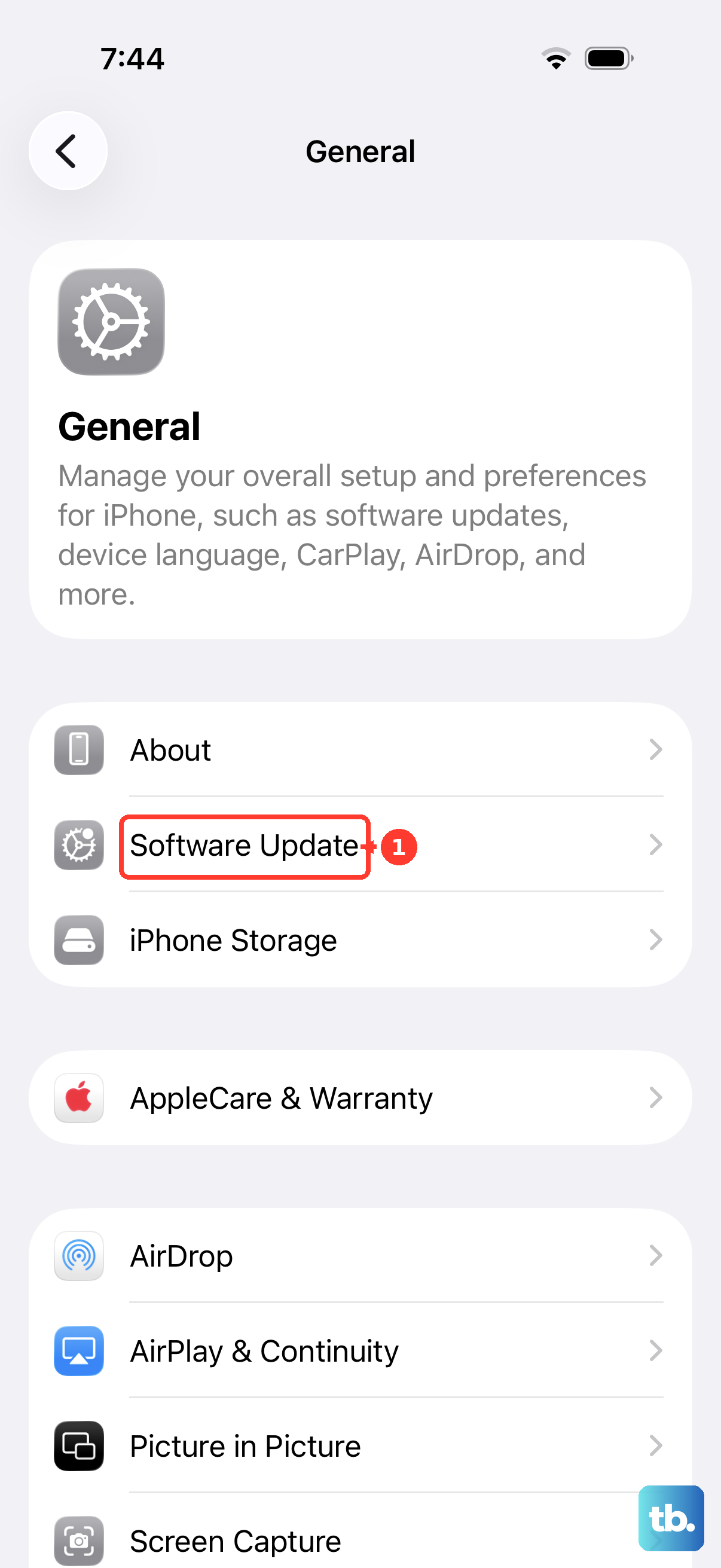
Turning off Automatically Install reveals Automatically Download. Turn that off too to stop automatic downloads of iOS updates. If you only want to choose when installation happens, you can leave automatic downloading enabled.
Stop automatic App Store updates
For apps downloaded from the App Store, open Settings > Apps > App Store. Turn off App Updates to disable automatic updates for those apps. On a work or school iPhone, your organization can separately set managed apps to update automatically. The Apps settings grouping is used in iOS 18 and later.
You can still update individual apps on iPhone when you choose. Open App Store, tap your photo or tap My Account, then tap App Updates. Tap Update beside the app you want to update.
If you no longer want a deletable app, deleting it removes that installed copy rather than preserving its current version. Touch and hold the app, tap Remove App, tap Delete App, then tap Delete.
The alternative deletion method also removes the installed copy. While Home Screen icons are jiggling, tap the app’s Remove icon, tap Delete App, tap Delete, then tap Done.
Remove an update that has already downloaded
Deleting an update removes the downloaded software package, not the version of iOS your iPhone is currently running. Before installation begins, open Settings > General > iPhone Storage. If the software update appears in the list, tap it, then tap Delete Update.
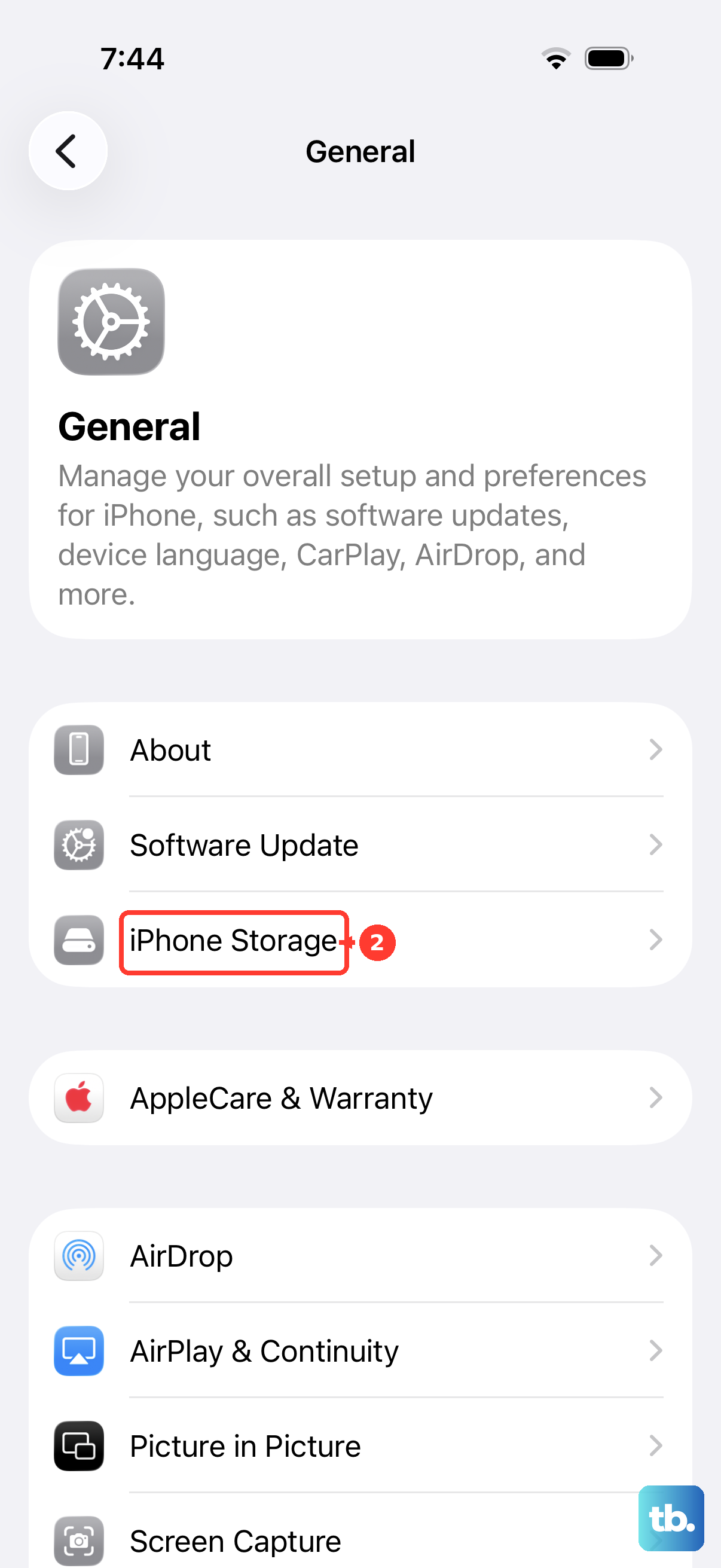
Disable automatic downloading separately to prevent another automatic download. Return to Settings > General > Software Update > Automatic Updates. Under iOS Updates, turn off Automatically Install, then turn off Automatically Download.
Choose how system files and security improvements install
On iOS 27 and recent iOS 26 versions displaying System Files, open Settings > General > Software Update > Automatic Updates. Turn off Automatically Install under iOS Updates. Under System Files, turn off Automatically Install as well.
Background security improvements use another setting on iOS 26.1 and later, including iOS 27. Open Settings > Privacy & Security > Background Security Improvements, then turn off Automatically Install. These improvements can still arrive as part of a subsequent full software update.
Stop beta updates for iOS and TestFlight apps
On an iPhone with beta-update access running iOS 16.4 or later, open Settings > General > Software Update > Beta Updates. Tap Off to stop future beta offers. This does not remove an installed beta or disable automatic updates for public iOS releases.
TestFlight beta apps have their own controls, separate from iOS updates and ordinary App Store releases. In TestFlight 3 or later, open TestFlight > Settings > Automatic Updates for New Apps, then tap Off. Beta apps with individual update settings retain those settings.
To stop automatic updates for an individual beta app, open TestFlight and open that app’s page. Under App Information, turn off Automatic Updates. Repeat this for each beta app whose individual setting you want to change.
Turn off updates for alternatively distributed apps
Eligible iPhones using alternative app distribution in Brazil, Japan or the European Union have an additional update setting. Availability depends on your region, Apple Account region, physical location and software support. On an eligible iPhone using alternative distribution, open Settings > Apps > App Installation. Under Automatic Downloads, turn off App Updates.
Deleting a removable alternative marketplace removes that marketplace app, and apps installed through it stop receiving updates from it. Touch and hold the marketplace app, tap Remove App, tap Delete App, then tap Delete.
Limit updates on a particular connection
If you only want to stop the App Store from using cellular data, open Settings > Apps > App Store and turn off Cellular Data. This blocks the App Store’s cellular access. Updates over Wi-Fi remain possible, so use the main App Updates switch to disable automatic app updates across connections.
On iOS 13 and later, Low Data Mode can disable App Store automatic updates on a particular Wi-Fi connection. Open Settings > Wi-Fi, tap the Info button beside the connected network, then turn on Low Data Mode. Configure this setting separately for each Wi-Fi network.
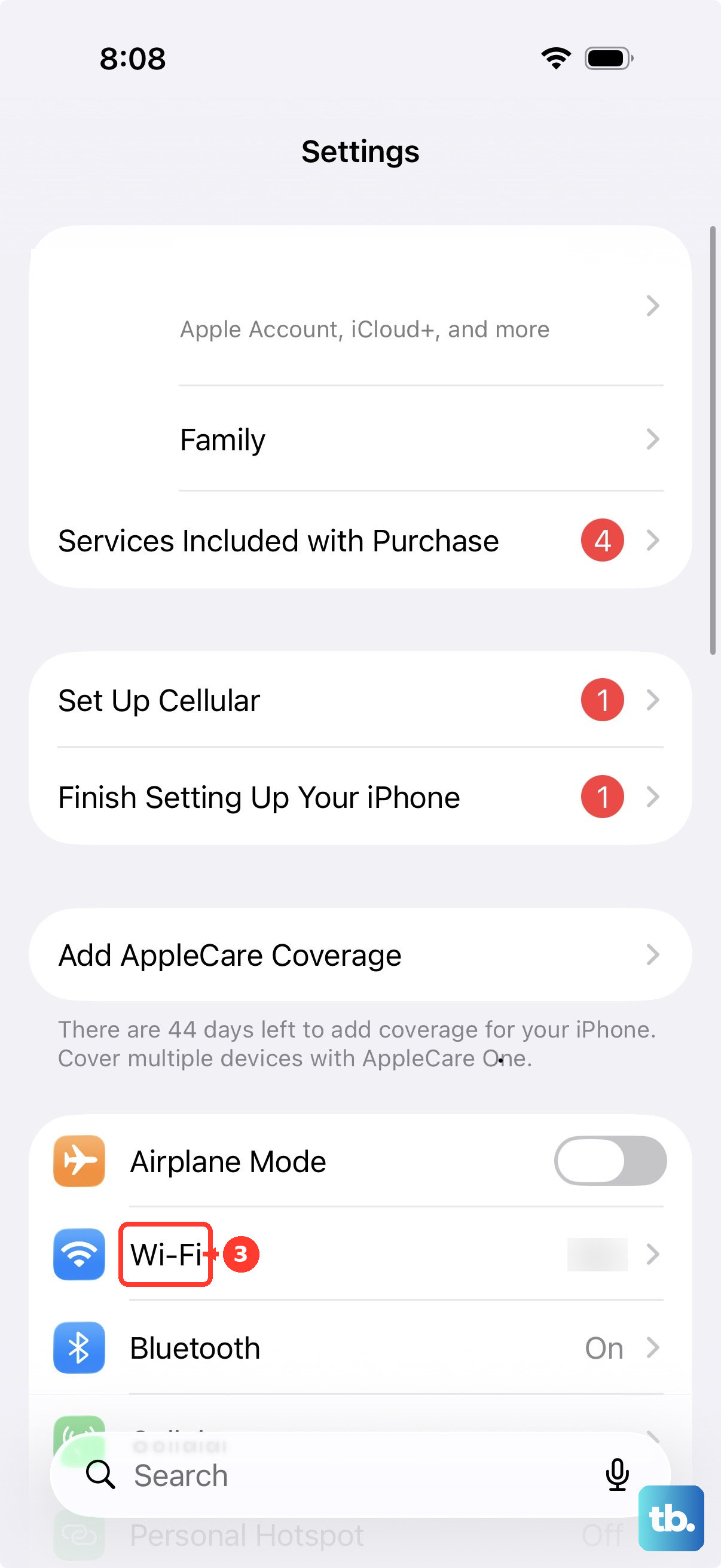
To pause automatic updates over LTE or 4G on iOS 13 and later, open Settings > Cellular > Cellular Data Options and turn on Low Data Mode. For 5G on a compatible iPhone and plan, open Settings > Cellular > Cellular Data Options > Data Mode, then select Low Data Mode.
With Dual SIM, select the relevant number under Cellular or Mobile Data before changing its data mode. Your carrier and SIM configuration can change the intermediate menus. Wi-Fi retains its separate setting.
Pause automatic downloads with Low Power Mode
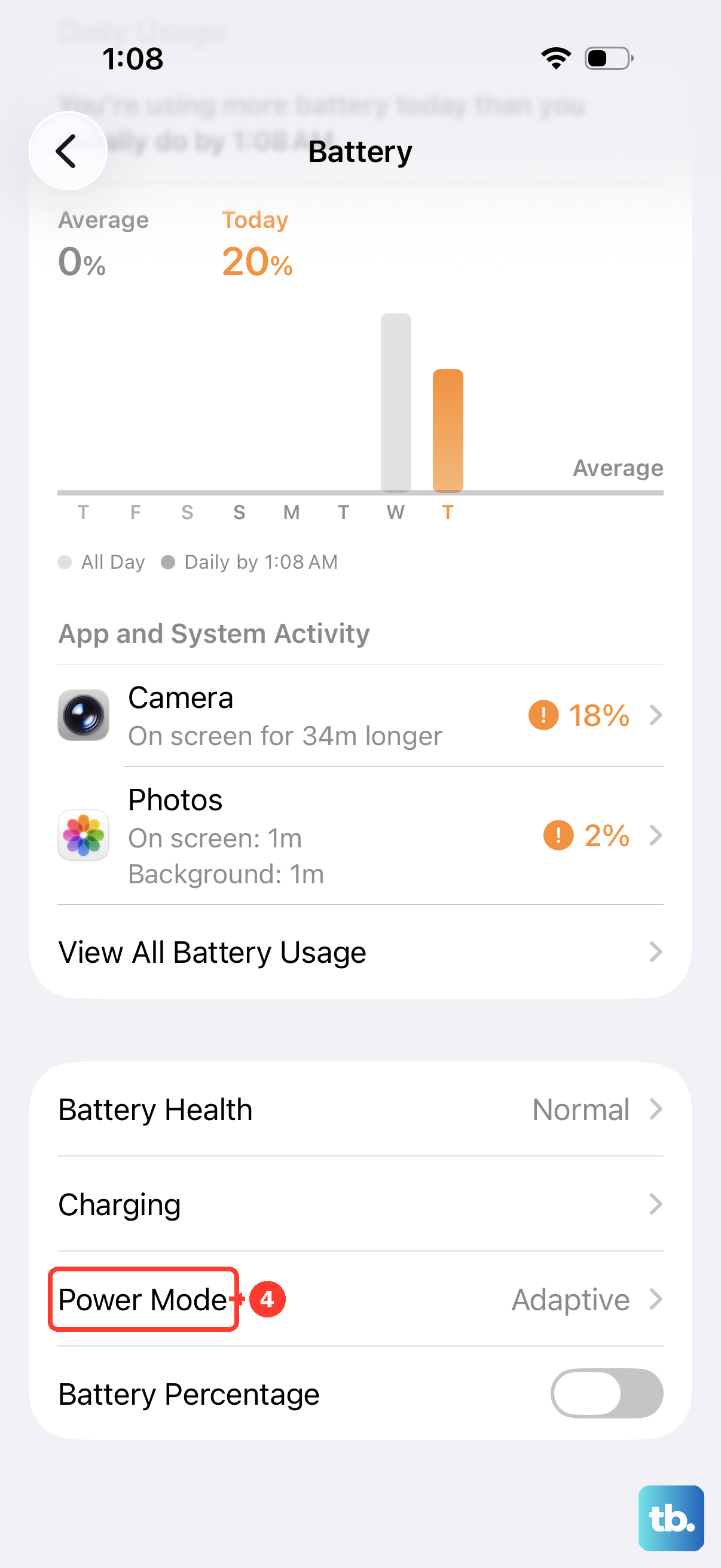
Apple says Low Power Mode temporarily suppresses automatic downloads. It switches off when charging reaches 80% or higher, so it is not a persistent way to stop iOS updates. Use the automatic-update settings above when you want downloads or installation to stay disabled.
On iPhone 15 and later running current iOS, open Settings > Battery > Power Mode and turn on Low Power Mode. On iPhone 14 and earlier running current iOS, open Settings > Battery and turn on Low Power Mode.
On a current Face ID iPhone, swipe down from the top-right corner to open Control Center. Tap the Low Power Mode battery control if it is present. If it is not present, use the model-specific path in Settings above.
On a current Siri-enabled iPhone with voice activation available, say Siri, turn on Low Power Mode. This enables the temporary automatic-download restriction. It does not directly change the iOS or App Store automatic-update switches.
Ask your administrator to manage work or school updates
On a supervised, managed iPhone running iOS 18 or later, ask your organization’s device administrator to configure automatic software-update actions. The administrator can set Download to AlwaysOff to prohibit automatic downloading, or InstallOSUpdates to AlwaysOff to prohibit automatic installation through SoftwareUpdateSettings. These are Apple management keys, and the administrator’s console path depends on the management service. Separate management enforcement can still require an update.
On supervised iPhones supported by declarative software-update management, you can also ask the administrator to configure an update deferral of 1 to 90 days through SoftwareUpdateSettings. The interval runs from Apple’s public release date. This delays availability rather than permanently disabling updates, and a separately enforced update can override the deferral.
Frequently Asked Questions
Does deleting an app cancel its subscription?
Deleting an app does not cancel its subscription. Treat app deletion and subscription cancellation as separate actions.
Why can’t you delete every app to stop its updates?
Some built-in Apple apps cannot be removed, and you may not be able to delete apps on an iPhone managed by your organization’s device management solution. The deletion steps apply only to deletable apps.
Do system-file updates change your iOS version?
System-file changes controlled under System Files do not change the iOS version. That setting controls automatic installation of those system-file changes.
Do you need to download a tool to turn off automatic updates?
You do not need an additional software download to disable automatic updates. You can change the iOS and App Store automatic-update controls in Settings.