

To troubleshoot laptop battery problems, check the outlet and charger, review charging limits, then check power use and battery health. Stop using the laptop and arrange manufacturer service if its battery expands beyond the enclosure. The Windows steps use Windows 11 menus, while instructions for other platforms are identified separately.
The short version
- Check power first: Try another outlet and connect the specified charger directly to the laptop.
- Check charging limits: Battery protection settings can intentionally stop charging below 100%.
- Investigate short runtime: Review app energy use and run the battery health checks for your laptop.
- Stop for swelling: Stop using a laptop whose battery expands beyond its enclosure and arrange manufacturer service.
| Check or fix | When to use it | What to do |
|---|---|---|
| Power connection checks | Battery will not charge | Inspect the charger and connect directly |
| Charging limit controls | Charging stops below full | Review the manufacturer's charging settings |
| Power saving controls | Battery drains during use | Review app consumption and reduce power use |
| Battery health checks | Runtime remains short | Inspect capacity and battery condition |
| Manufacturer diagnostics | Charging or runtime problems persist | Run the supported battery test |
| Updates and charger recognition | Surface or Dell charging problems persist | Install applicable updates and check Dell adapter recognition |
| Model-specific recovery | Mac power or Chromebook charging problems persist | Follow the procedure for your hardware |
| Battery service | Battery is swollen or diagnostics indicate repair | Arrange manufacturer service |
Check the charger and power connection
If the battery has expanded beyond the enclosure, stop using the laptop. Avoid pressing or puncturing the battery and arrange manufacturer service. Skip the remaining troubleshooting steps when swelling is present.
For charging problems on Dell, Mac, ASUS, Surface, and Chromebook laptops, test another outlet and inspect the adapter, cable, and charging port for damage or debris. Use the charger specified for your laptop. Disconnect docks, monitors, and other peripherals, then retry charging with the charger connected directly.
For a discharged Chromebook, unplug the charger from both the Chromebook and the wall. Reconnect it to the Chromebook first, then the wall, and leave it charging for at least 30 minutes. If it still will not charge, continue with the Chromebook diagnostics and hardware recovery steps below.
Check settings that limit charging
On a Windows 11 laptop with Smart charging, look for a heart on the battery icon. Hover over the icon and check for Fully Smart charged. Use your manufacturer's charging controls when you need a full charge.
On a supported Surface, open the Surface app and select Battery & charging. Under Smart charging, select Charge to 100%. Models with Charging mode offer choices such as Adaptive, Limit to 80%, and Charge to 100%.
On a supported ASUS laptop, open MyASUS and check Battery Care Mode. Older supported platforms use Battery Health Charging, sometimes in a separate app. Its Full capacity mode permits 100%, Balance mode limits charging to 80%, and Maximum lifespan mode limits it to 60%.
On Acer laptops with AcerSense charging controls, open Start > All Apps > AcerSense, then Personal Settings > Battery & USB Charging. Enable Full Battery Charging for 100%, or keep Optimized Battery Charging for an 80% limit. On Galaxy Book models with this battery protection control, open Samsung Settings > Battery and performance and inspect Protect battery, which limits charging to 85%.
On a Mac using Optimized Battery Charging or a supported Charge Limit, open the battery status menu and choose Charge to Full Now. To change optimized charging on macOS Ventura 13 or later, open the Apple menu > System Settings > Battery. Click the information button beside Charging or Battery Health, change Optimized Battery Charging, then select Done.
On an Apple silicon Mac laptop with macOS Tahoe 26.4 or later, the information button beside Charging also lets you set Charge Limit between 80% and 100%; select Done afterward. If your Mac still stops charging at 80% with optimized charging disabled, move it to a cooler, ventilated location and retry.
For a Chromebook with optimized charging controls, select the time and open Settings > System preferences > Power. Open Optimized charging > Change, choose Adaptive charging or Charge limit, then select Done. For a full charge during adaptive charging, select Fully charge now in its notification. If these controls are locked on a managed Chromebook, ask your administrator to review the charging policy.
Reduce power use when the battery drains quickly
On Windows 11, open Settings > System > Power & battery > Battery usage. Inspect Battery usage per app to identify the largest consumers. Apps with background controls offer More options > Manage background activity, where you can adjust Let this app run in the background. For apps without those controls, continue with the power saving settings.
On Windows 11 24H2 and later, select the taskbar battery icon, then select Energy saver. To reduce idle drain on current Windows 11, open Settings > System > Power & battery > Screen, sleep & hibernate timeouts. Under Turn my screen off after and under Make my device sleep after, choose shorter times. Microsoft's battery-saving tips refer to this area as Screen and sleep.
On a Mac, open Activity Monitor > Energy and compare Energy Impact, 12 hr Power, and Preventing Sleep; available columns vary by hardware. On compatible Macs running macOS Ventura or later, open the Apple menu > System Settings > Battery. Under Energy Mode, choose Low Power Mode for On battery.
On a Chromebook with Battery Saver, select the battery icon and open Settings > System preferences > Power, then enable Battery Saver. This control is unavailable while charging and turns off automatically when you connect power.
On the Lenovo Yoga Slim 7i Aura Edition 15-inch, generation 9, you can also turn off your keyboard backlight to reduce power use. Press Fn + Space to cycle through its backlight modes, including Off.
Check battery health and capacity
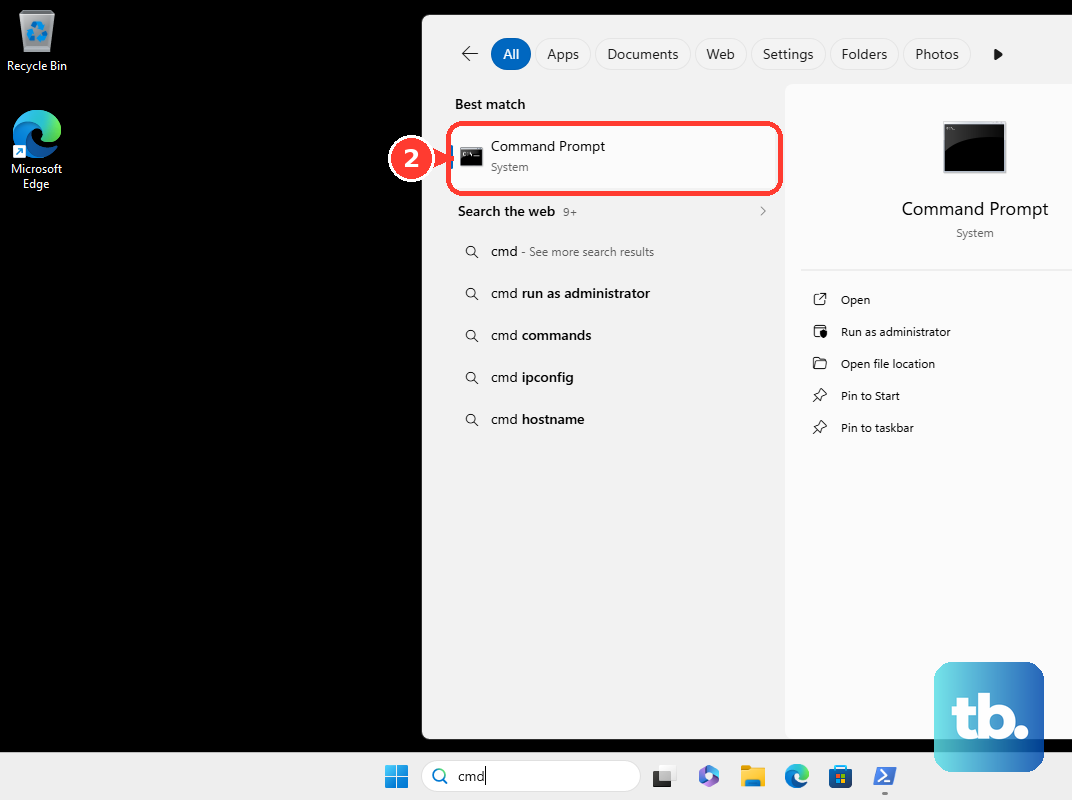
On Windows 11, search for Command Prompt, right-click it, select Run as administrator, then select Yes. Enter this command to generate a battery report:
powercfg /batteryreportOpen the HTML file at the location reported by the command. Inspect its capacity and usage history, then continue with your manufacturer's battery diagnostics if runtime remains poor.
On a Mac with the current settings interface, open the Apple menu > System Settings > Battery and inspect Battery Health. Use the reported condition when deciding whether to request battery service.
On ChromeOS 90 or later, select the time and open Settings > About ChromeOS > Diagnostics. Inspect battery health, cycle count, and current, then run the battery discharge test. You can also search for Diagnostics from Launcher.
Run the laptop manufacturer's battery tests
On a Dell with supported onboard diagnostics, start or restart the laptop and repeatedly press F12. Select Diagnostics and press Enter. After testing, open Advanced Test > System Info > Health.
For an HP Windows laptop with the diagnostic app, open HP PC Hardware Diagnostics Windows > Component Tests > Power > Battery Check, then select Run once. After completion, select Finish, then Test Logs. If you need the app, obtain it through HP's official repair portal.
On a supported ASUS laptop, open MyASUS > System Diagnosis > Diagnostic Tool > Battery problems. Connect the adapter, select Checkup, then Results. If System Diagnosis is absent, that hardware does not support the feature; continue with the Windows battery report.
To run Apple Diagnostics on a supported Mac, shut down and disconnect unnecessary accessories. On Apple silicon, hold Power until Options appears, release it, then hold Command + D. On an Intel Mac, start while holding D, or use Option + D if necessary. Record the diagnostic reference codes.
Install manufacturer updates and check charger recognition
On a supported Surface Pro, Laptop, Go, or Book, open the Surface app, select Help & support > Check for updates, and install applicable updates. If the battery problem continues, return to the app, select Get help, and describe it. You can obtain the app from its official Microsoft Store listing.
On a compatible Dell Windows laptop, open SupportAssist > Home > Update Software > Start. Apply applicable driver and BIOS updates, then restart when requested. If you need the app, select Download SupportAssist on Dell's official SupportAssist page.
If SupportAssist itself fails, restart the laptop and wait five minutes. Uninstalling SupportAssist removes the diagnostic app. If necessary, on Windows 11, open Settings > Apps > Installed Apps, find Dell SupportAssist, select Uninstall, then reinstall it from Dell's product page.
For a Dell that still will not charge properly, repeatedly press F2 at startup and inspect Overview > AC Adapter for charger recognition. Under Power or Battery, find the battery charge configuration setting and select Standard for full charging. Review Advanced Battery Charge schedules where present. Dell BIOS labels and available settings vary by model.
Use the recovery procedure for your model
For an Apple silicon Mac with a charging problem, restart the computer as the power management troubleshooting step. Apple specifies restarting for Apple silicon Macs; Intel SMC reset key combinations do not apply.
If a Mac will not power on, check the power connection and try another compatible adapter or cable. Hold Power or Touch ID for about 10 seconds, then press it normally. Disconnect accessories and repeat if necessary.
A Chromebook hardware reset may delete some files in Downloads. For most Chromebooks, shut down, hold Refresh, tap Power, then release Refresh when startup begins. Model-specific exceptions exist, so follow your model's procedure when this sequence does not apply.
Google also documents an alternative Chromebook hardware reset using Back + Refresh + Power. A hardware reset may delete some files in Downloads. For this alternative, hold those keys for at least 10 seconds; on a Chromebook tablet, hold Volume Up + Power for at least 10 seconds instead.
Arrange service when the checks point to the battery
For a Mac, base your battery service request on its reported battery condition. For HP, use the diagnostic failure code to start a repair through the repair portal. A swollen battery requires manufacturer service without further use.
For a Dell replacement battery, identify your laptop by its Service Tag on Dell Support. Open Parts & Repairs > Power & Power Supplies and match the replacement to that laptop. Replacement availability depends on your model and region.
Frequently Asked Questions
Should you calibrate a laptop battery that reports the wrong percentage?
Use calibration when your manufacturer's diagnostic workflow calls for it. On an HP notebook supporting UEFI diagnostics and automatic calibration, charge the battery, disconnect the adapter, shut down, then start while repeatedly pressing Esc; press F2 and open Component Tests > Power > Battery > Run once. If calibration is indicated, select Calibrate Battery > Start Calibration; if your Battery Health Manager setting is not Let HP manage my battery charging, select Continue when prompted to change it. Complete the displayed charging schedule and retest.
How can you investigate battery drain while a Windows laptop sleeps?
On a Windows laptop supporting Modern Standby, open Command Prompt as administrator and run powercfg /sleepstudy /duration 7. Open Sleepstudy-report.html and inspect sessions with high battery consumption.
Can Chrome help reduce battery consumption?
In current Chrome on Windows, macOS, or a Chromebook with a battery, open More > Settings > Performance, enable Energy Saver, and choose its activation setting. To suspend it temporarily, select the Energy Saver icon beside the address bar, then select Turn off now. If energy controls are locked in a managed browser, ask your administrator to review its battery saving policies.
Where can you check battery status on Ubuntu?
On Ubuntu desktop using the GNOME interface, open Activities, search for Power, and open the Power panel. Under Batteries, inspect the charge level, charging status, and estimated remaining time.