Your printer is on, the job is sent, and nothing useful comes out. The problem usually sits in one of five places: the printer hardware, the queue, the connection, the driver, or the app sending the job.
Start with the quick checks, then move through the device settings that match where you print from. These fixes focus on current Windows 11, macOS, iPhone, iPad, Android, ChromeOS, and major printer-brand support paths.
1. Check the printer before touching settings
Start at the machine itself. A printer with an open door, empty tray, jammed page, sleep state, or cable problem will ignore perfect computer settings all day.
Wake the printer and confirm it is powered on. Check the printer display, LCD, or LED lights for the exact error. Load paper correctly and close every access door. Clear paper jams using the printer's own jam path.
Check ink or toner levels from the printer display or brand app. For USB printers, connect the cable directly to the computer instead of a hub. For wired network printers, confirm the Ethernet cable runs to the router or access point.
For Canon wireless printers with lost network communication, use Canon's network reset rhythm first: turn off the printer. Then unplug the printer power cord and unplug the wireless router or modem power cords. Wait 30 seconds, reconnect the network equipment, reconnect the printer, and print again.
2. Clear stuck jobs from the queue
- 1.On Windows 11, open Start > Settings > Bluetooth & devices > Printers & scanners.
- 2.Select your printer.
- 3.Choose Open print queue.
- 4.Right-click each stuck print job and choose Cancel.
A single failed job can block every job behind it, so clear the queue before reinstalling anything.
On Mac, open Apple menu > System Settings > Printers & Scanners. Select the printer and open Printer Queue. Then resume a paused printer or manage the waiting jobs. While a Mac is printing, the printer icon in the Dock also opens the queue.
3. Run Windows Get Help and restart the spooler
Use Windows diagnostics before making deeper changes. Windows 11 includes printer diagnostics in the Get Help app, and it checks printer not found errors, connection failures, queue problems, and spooler trouble.
Open Start > Get Help. Search for a printer problem, or open Microsoft's printer troubleshooter entry point. Run the printer diagnostic and apply the fixes it offers. If jobs still refuse to move, restart the spooler.
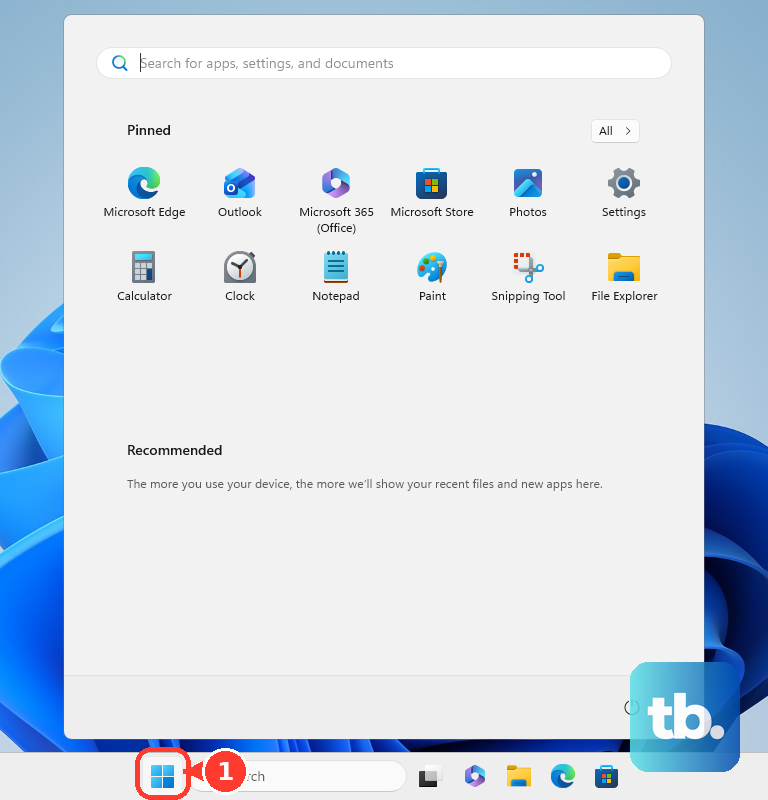
Select Search on the taskbar. Type services and open Services. Select Print Spooler and choose Restart.
The shortcut is Windows key + R. Type services.msc, press Enter, and then restart Print Spooler.
4. Reconnect Wi-Fi so the printer appears
Confirm the printer is connected to Wi-Fi. Connect the Windows PC, Mac, iPhone, iPad, Android phone, or Chromebook to the same Wi-Fi network as the printer.
On Android, open Settings > Network and Internet > Internet. Select the correct Wi-Fi network. To remove the wrong saved Android network, touch and hold the saved network. Choose Forget, then reconnect.
Wireless printing breaks when the printer and device land on different networks. Put them back on the same Wi-Fi network before changing drivers.
On Windows 11, turn on local discovery for private networks. Open Start > Settings. In Find a setting, search for manage advanced sharing settings. Open Manage advanced sharing settings.
Under Private networks, turn on Network discovery. Turn on File and printer sharing.
For brand-specific Wi-Fi resets, use the path that matches the printer. HP button models: press Cancel to ready the printer. Hold Wireless and Cancel for five seconds or until the wireless light or icon blinks.
HP touchscreen models: open Wireless or Setup > Network setup or Settings > Restore Network Settings. Epson touchscreen models: open Home > Setup > Network Settings > Wi-Fi Setup > Wi-Fi Setup Wizard.
Canon PIXMA and inkjet models supported by Canon PRINT: put the printer in Cableless Setup or Easy Wireless Connect mode. Open Canon PRINT, choose the setup or reconnect option, and enter the Wi-Fi password. Let the printer join the network.
Brand menus differ by model. When the labels do not match, use the support page for the exact printer model.
5. Remove the printer and add it again
On Windows 11, open Start > Settings > Bluetooth & devices > Printers & scanners. Select the printer and choose Remove. Restart the computer.
Return to Printers & scanners. Choose Add device. If Windows does not find it, next to The printer that I want isn't listed, choose Add a new device manually. Re-adding the printer rebuilds the queue and lets the operating system pick the current connection path.
On Mac, open Apple menu > System Settings > Printers & Scanners. Select the printer and choose Remove Printer. Confirm Remove Printer.
Choose Add Printer, Scanner, or Fax. Select the printer, then choose Add. If the Mac printer list still behaves badly after the queue and re-add steps, reset the printing system.
Open Apple menu > System Settings > Printers & Scanners. Control-click the printer list or empty printer list. Then choose Reset Printing System. This removes printers, scanners, and fax queues from the list.
6. Update drivers, apps, and firmware from the maker
Bad printer software can leave the printer visible but useless. Use the operating system first, then the printer maker's official support page.
On Windows 11, open Start > Settings > Bluetooth & devices > Printers & scanners > Add device. Let Windows install the recommended driver. If printing still fails, get the current driver, app, or firmware from HP support, 123.hp.com, Epson Official Support, Canon USA Support, or Brother Support & Downloads.
HP: open the HP app on Windows or Mac. Click the printer. Choose Diagnose & Fix, then choose Start. For firmware, open the printer in the HP app.
Use Advanced Settings > General > Firmware Update > Check now. Epson: on Windows, open Start or the Apps screen > EPSON or the Epson Software program group > EPSON Software Updater. On Mac, open Applications > Epson Software > Epson Software Updater.
Canon: use the printer panel path HOME > Setup > Device settings > Firmware update > Install update. Or use Remote UI > Firmware update > Firmware update > Update.
Brother: open the Brother support Downloads page for your model. Download the Firmware Update Tool, run it, and follow the on-screen instructions.
Skip HP Print and Scan Doctor. HP says that tool is retired and directs users to the HP app.
7. Print from iPhone, Android, or Chromebook the current way
On iPhone or iPad, connect the iPhone or iPad to the same Wi-Fi network as the AirPrint-enabled printer. Open the app you want to print from. Tap the Share button or Actions button. Choose Print or the Print button.
Tap No Printer Selected. Choose the AirPrint-enabled printer. Choose copies and options. Tap Print.
Phones and Chromebooks do not use the same print setup flow as desktop computers. Use the built-in print path first.
On Android in Chrome, open the page, image, or file in Chrome. Tap More > Share > Print. Use the down arrow to adjust settings. Then select the printer at the top.
To turn on Android printing, open Settings > Connected devices > Connection preferences > Printing > Default Print Service > On. If the printer maker requires a plugin, install and enable its print service from the Play Store. Then return to Printing.
On Chromebook, select the time at the bottom right. Open Settings. Go to Device > Printers and scanners > Print. Then under Other available printers, choose Save next to your printer.
If Chromebook auto-discovery fails, use Settings > Device > Printers and scanners > Print > Other available printers > Add printer manually. Do not use Google Cloud Print. Google deprecated Cloud Print in December 2020 and ended support on January 1, 2021.
8. Hand work and school printers to IT
Managed printers are controlled outside normal home settings. Windows business devices can use Windows Protected Print Mode or Universal Print, and managed Chromebooks can receive printers through the Google Admin console.
Send IT the printer name, your device type, the app you printed from, and the exact error shown on the printer or computer. That gives them the pieces they need to check policy, assignment, and printer access.
9. Check the printer selected inside the app
The printer setup may be fine while the app is sending the job to the wrong destination.
Open File > Print in the app. Select the printer you want to use and confirm the status shows Ready. Check the page size, orientation, layout, and page range. Clear Print to PDF or Print to file when you want paper output.
Print from another app, such as Notepad or Paint on Windows, to separate an app issue from a printer issue.
In Microsoft Edge, open Settings and more > Print. Press Ctrl+P on Windows, or press Command+P on macOS. If the preview fails, choose Cancel. Open the print dialog again.
Restart Microsoft Edge. Or select Print using system dialog. On Windows, Ctrl+Shift+P opens the system print dialog; on macOS, use Option+Command+P.
Frequently Asked Questions
Why does my printer say offline when it is turned on?
The printer can be powered on while the queue is paused, the device is on a different Wi-Fi network, the cable is disconnected, or the Windows Print Spooler is stuck. Check the printer display, clear the queue, confirm the same Wi-Fi network, then restart Print Spooler on Windows.
Why does my printer show up but not print?
A stuck job, paused queue, bad driver, or firmware problem can leave the printer visible without printing. Cancel waiting jobs first, then remove and add the printer again, then update the driver or firmware from the printer maker.
How do I fix a printer that my iPhone cannot find?
Connect the iPhone or iPad and the AirPrint-enabled printer to the same Wi-Fi network. Then open the app, tap Share or Actions, choose Print, tap No Printer Selected, choose the printer, and tap Print.
What replaced Google Cloud Print?
Use each platform's current print system: AirPrint on iPhone and iPad, the Android print framework with Default Print Service or a printer-maker service, ChromeOS printer settings on Chromebook, and Windows or macOS printer settings on computers.