

To fix a Spotify plugin not working on Stream Deck, update Stream Deck and the plugin, start playback in Spotify, then check your plugin’s playback device and sign-in requirements. Elgato’s Spotify and BarRaider’s Spotify Integration need different fixes, so identify the maker before changing authentication settings. The Windows Settings paths below use Windows 11 menus.
The short version
- Identify the maker: Check Preferences > Plugins before choosing plugin-specific fixes.
- Update both components: Install current Stream Deck software and check for a separate plugin update.
- Start playback: Open Spotify and play a song before testing the Stream Deck action.
- Check authentication: BarRaider requires Premium, while Elgato requires Premium sign-in for its library, playlist, search, and queue actions.
- Keep basic controls available: Stream Deck’s System > Multimedia actions provide a playback fallback.
| What fails | What to try | Applies to |
|---|---|---|
| Plugin stopped after an update | Update Stream Deck and the plugin | Both makers |
| Elgato playback controls do nothing | Open desktop Spotify and start music | Elgato |
| One key has no action | Assign and configure a Spotify action | Both makers |
| Library or queue actions fail | Sign in through the plugin with Premium | Elgato |
| Wrong or missing playback device | Start music and select Reload devices | BarRaider |
| Playlist is missing | Move it into the first 50 and refresh | BarRaider |
| Control is disconnected or throttled | Retry the key or wait out the countdown | BarRaider |
| Track information is wrong | Keep Play/Pause active on the page | BarRaider |
| Private listening affects playback | Turn off Private session | BarRaider |
| Authorization fails | Check Auth v2, credentials, and tokens | BarRaider |
| Authentication repeatedly disappears | Launch Stream Deck without administrator privileges | BarRaider |
| Validation fails | Restart Stream Deck and retry with Edge | BarRaider |
| Login succeeds but API error 403 appears | Check the developer app’s permitted users | Personal developer apps |
| Spotify itself cannot play | Check playback, update, clear cache, then reinstall if needed | Both makers |
| Plugin remains broken | Reinstall the affected plugin | Both makers |
| All keys are blank | Check the application, USB connection, and firmware | Physical Stream Deck devices |
| You need basic playback controls | Add System > Multimedia | Current Stream Deck software |
| Fixes do not resolve the failure | Contact the plugin’s maker with the exact error | Both makers |
Identify and update your Spotify plugin
Open Stream Deck, select Preferences > Plugins, and identify the installed maker. Elgato’s Spotify supports Windows and macOS and requires Stream Deck 6.9 or later. BarRaider’s Spotify Integration requires Windows, Stream Deck 7.1 or later, and Spotify Premium.
Select the Preferences gear, open General, and select Check For Updates... to install an offered update. If your Windows plugin stopped working after Stream Deck 7.5.1, update to 7.6 or later. Elgato says version 7.6 fixes the regression that prevented some plugins from interacting with the application.
Next, sign into your Marketplace account at the upper right of Stream Deck. Open Preferences > Plugins, locate the affected plugin, select Check for update..., then select Update. Launching Stream Deck while signed into Marketplace also triggers automatic plugin updates unless automatic updating is disabled for that plugin.
Check playback and the assigned action
Open Spotify and test playback directly before changing more plugin settings. If Spotify cannot play, restart it and compare playback with another device or the web player. Continue with the Spotify repair steps below if playback fails independently of Stream Deck.
For Elgato’s plugin, open the Spotify desktop application and start music on your computer or phone, then test the Stream Deck control again. Keep Spotify running on the computer when sending audio to another speaker through Spotify Connect.
If a blank key has no assigned action, drag the intended Spotify action from the list on the right onto that key. Select the key and configure its action properties. If every key is blank or shows only the Elgato logo, move to the connection checks below.
Check sign in for Elgato’s advanced actions
Elgato’s basic playback controls use the Spotify desktop application, while its library, playlist, search, and queue features require plugin sign-in. For those advanced actions, sign into Spotify through the plugin with a Premium account. That Premium sign-in requirement applies to these features rather than every basic desktop control.
Sign in only through Spotify’s own app or website, and never share a code, password, or remote access with someone who contacts you. If basic playback works but an advanced action fails, check the plugin’s sign-in before reinstalling Spotify.
Refresh BarRaider’s devices and playback controls
In Stream Deck, drag Play/Pause from Spotify [BarRaider] onto a key. Start a song in Spotify, select Reload devices, and choose the intended playback device from the dropdown. Test that action before troubleshooting other buttons.
When devices or playlists remain missing, start playback, switch Stream Deck profiles, and return to the original profile. For a missing playlist, move it into the first 50 playlists in Spotify and refresh again. BarRaider recommends this playlist step for its integration.
If a key shows that the plugin lost its connection to Spotify, press that key to retry the control. If the plugin shows a throttling countdown, wait for it to finish and reduce the visible playback, shuffle, repeat, and volume-display actions. For incorrect song information, URI exports, or playlist additions, keep a Play/Pause action active on the affected page.
Also turn off private listening when troubleshooting BarRaider playback. On Spotify desktop, select your profile picture and turn off Private session. On mobile or tablet, select your profile picture, open Settings and privacy > Privacy and social > Listening activity, and turn off Private Session. This setting affects the account across devices.
Repair BarRaider authorization
Check the BarRaider setup window for Auth v2, and update the plugin if that label is missing. For an existing Spotify developer app, open its settings in the Spotify Developer Dashboard and set Redirect URI to http://127.0.0.1:4202, then select Add and Save. Use that address instead of an older localhost redirect.
Open Settings > View client secret in the developer app, then copy Client ID and Client secret into Spotify Integration setup. If authentication repeatedly disappears, quit Stream Deck and launch it normally without administrator privileges. BarRaider identifies elevated execution as a cause of recurring authentication loss.
If a key reports that your tokens are invalid, select Revoke Approval at the bottom of the Play button’s settings, then go through the setup wizard again. If the plugin incorrectly identifies your Premium account as Free, sign out of the Spotify desktop app and spotify.com, select Revoke at the very bottom of the plugin settings, restart the computer, and sign in again.
For validation failures, restart Stream Deck and retry authorization with Microsoft Edge. To change the browser for this retry on Windows 11, open Start > Settings > Apps > Default apps. Under Set defaults for applications, select Microsoft Edge, then select Set default beside Make Microsoft Edge your default browser. Retry the plugin’s authorization.
If browser authorization succeeds but plugin validation still fails, investigate whether a firewall, antivirus application, or VPN is blocking the connection. BarRaider recommends checking these connection blockers after a successful browser authorization.
If your personal developer app returns API error 403 after login, check its permitted users. Open Spotify Developer Dashboard, select your app, then open Settings > Users Management > Add new user and enter the intended user’s name and Spotify email address. Development-mode apps require a Premium owner and allow up to five authenticated users. Apply this check to integrations using a personal developer app, including BarRaider.
Repair Spotify when it cannot play directly
When Spotify itself fails, check your internet connection, close unused applications, and ensure your firewall permits Spotify. Check SpotifyStatus and Spotify Community’s Ongoing Issues board before repeatedly reinstalling. If a blue dot appears beside your desktop profile picture, select the picture and choose Update Spotify now.
Clearing the cache removes Spotify’s cached files. On desktop, select your profile picture and open Settings > Storage, then select Clear cache. Retest playback directly in Spotify before returning to Stream Deck.
Reinstalling Spotify removes the application, and downloaded music and podcasts must be downloaded again. On Windows 11, close Spotify, open Start > Settings > Apps > Installed apps, find Spotify, and select More > Uninstall. Reinstall it from the official Spotify download page or Microsoft Store.
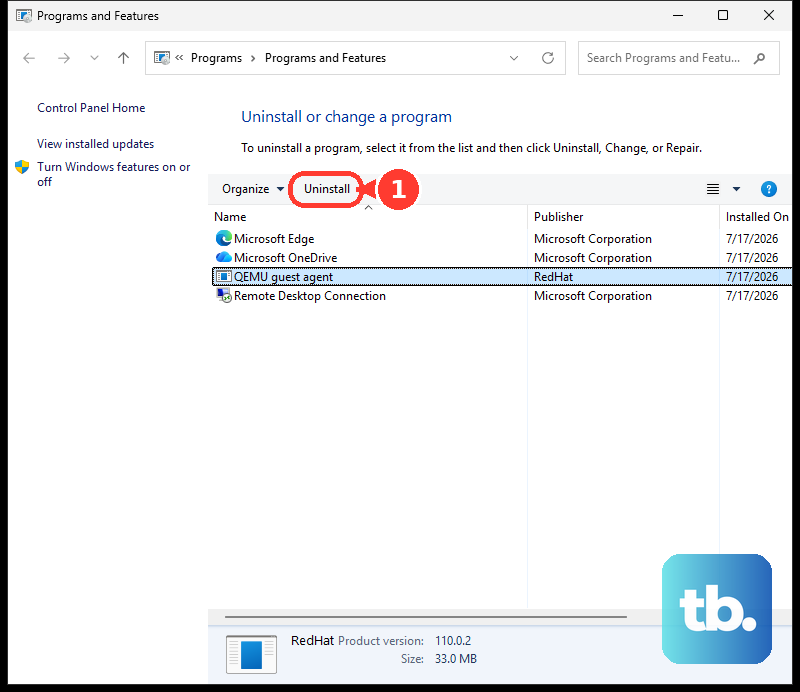
If your Windows installation exposes Spotify through the Start menu, another removal route is Start > All apps, then right-click Spotify and select Uninstall. For a traditional desktop installation listed in Control Panel, open Control Panel > Programs > Programs and Features, right-click Spotify, and select Uninstall or Uninstall/Change. These routes also remove Spotify, so you will need to reinstall it and download offline content again.
Reinstalling on macOS also removes Spotify, and downloaded music and podcasts must be downloaded again. Open Finder’s Applications, move Spotify to Trash, remove it, and reinstall.
A clean reinstall also deletes Spotify’s cache and application-support files, and downloaded music and podcasts must be downloaded again. For persistent macOS problems, quit Spotify, select Go in Finder, hold Option, and select Library. Delete com.spotify.client and com.spotify.client.helper from Caches, then delete the Spotify folder from Application Support. Restart the Mac and reinstall Spotify.
Reinstall the affected Stream Deck plugin
Uninstalling removes the affected plugin from Stream Deck. Select the Preferences gear, open Plugins, right-click the plugin, and select Uninstall. Confirm the uninstall when Stream Deck asks.
Reinstall the same maker’s product through Marketplace, choosing either Spotify by Elgato or Spotify Integration by BarRaider. You can also select the Marketplace icon in Stream Deck, sign in through the browser, and select Stream Deck > Plugins to find the correct product.
Select Get when available; if the page uses the cart flow, select Continue to checkout > Get now > Open in Stream Deck. After installation, drag an action from the right-hand Action List onto a key and configure it.
If in-app removal fails, completely quit Stream Deck through its taskbar or menu-bar icon. On Windows, press Windows + R and open the following folder.
%appdata%\Elgato\StreamDeck\Plugins\On macOS, open Finder and press Command + Shift + G. Open this folder instead.
~/Library/Application Support/com.elgato.StreamDeck/Plugins/Deleting the affected plugin’s folder removes that plugin’s files. Delete only that plugin’s folder, reopen Stream Deck, and reinstall the same maker’s plugin through Marketplace.
Check the connection when the whole deck fails
If multiple plugins fail or all keys stay blank, launch the Stream Deck application first. For a physical USB Stream Deck, try another USB port and connect directly to the computer or through a powered hub. Try another cable if your model has a detachable cable.
Elgato recommends firmware updates only when you are experiencing a hardware problem. For a hardware-wide fault, install current Stream Deck software, open Preferences > Devices, and select Update Firmware... if offered. Keep Stream Deck connected and the computer powered on until the update finishes.
Use basic controls and contact the right maker
To keep playback controls available, add System > Multimedia to a Stream Deck key. Choose Previous Track, Play / Pause, Next Track, Stop, Mute, Increase Volume, or Decrease Volume, then test with Spotify playing. These commands control the operating system’s media player, and their availability and target-player behavior depend on the operating system.
If the plugin still fails, check whether other plugins fail too and open the affected plugin’s Marketplace page. Select Support > Get help for its maker, or select Contact Elgato for Elgato’s plugin. Include your operating system, Stream Deck version, plugin version, failing action, and exact error.
Frequently Asked Questions
Can a Stream Deck hotkey control Spotify without plugin authentication?
Yes, add System > Hotkey to a key and assign Space. Bring Spotify into focus before testing playback. You can also add System > Open and select the Spotify application with the file selector to create a launch button.
How can you see which keyboard shortcuts Spotify supports?
Focus the Spotify desktop app or web player and open its shortcut reference with Ctrl + / on Windows or Command + / on Mac. The reference shows the shortcuts supported by the application you are running.
Does removing Spotify account access reset an integration?
Removing access disconnects the integration, and using it again requires its authorization flow. To do this, sign into Spotify’s Apps page, locate the affected integration, and select Remove Access. This resets its access but does not guarantee a repair.
What should you do if Windows explicitly blocks the plugin?
On Windows 11 where Smart App Control is available, inspect Windows Security > App & browser control > Smart App Control settings when an application-control block is reported. Microsoft recommends obtaining a properly signed application from its developer. Smart App Control has no per-app exception, and its Off setting disables protection globally.
Does Elgato’s Spotify plugin support Stream Deck dials?
Yes, Elgato’s Spotify plugin supports keys and dials. Its Now Playing feature also supports the Stream Deck Neo Infobar.
How do you clear Spotify’s cache on a phone or tablet?
Clearing the cache removes Spotify’s cached files. Select your profile picture, open Settings and privacy > Data-saving and offline, then under Storage, select Clear beside Clear cache. Use this when Spotify playback itself malfunctions on that device.