Your MacBook Pro's keyboard has gone dark, or the screen is too dim to use. Those symptoms need different checks, so start with the brightness controls for the part that's giving you trouble. Work through the matching fixes below to check lighting settings, idle timers, and startup problems before arranging a repair.
Turn up the keyboard lighting
If the keys are dark but the screen works, open Apple menu > System Settings > Keyboard. Move the Keyboard brightness slider to the right.
On a 2024 or later Apple silicon MacBook Pro, the keyboard backlight turns on only when the ambient light sensor detects low light, so the keys can stay dark in a bright room. If they don't light up, use the sensor check below.
For a shortcut, open Control Center > Keyboard Brightness if that control is already available. Raise its slider.
To add a missing control in macOS Tahoe 26 or macOS 27, open Control Center > Edit Controls. Drag Keyboard Brightness into Control Center. Click Done.
Tip: press the dedicated keyboard-light increase key if your keyboard has one, but don't assume F5 and F6 control the backlight on every MacBook Pro.
Raise the screen brightness
Use these controls when the screen is dim or black. The keyboard brightness slider only changes the lighting beneath the keys.
Press the Increase Brightness key repeatedly, using the key with the screen-brightness symbol. On a Touch Bar MacBook Pro, tap the expand arrow in the Control Strip. Use the display-brightness control. The expanded strip also has separate keyboard-brightness buttons.
When you can navigate the desktop, open Apple menu > System Settings > Displays. Move the Brightness slider to the right. For another route to the slider, open Control Center > Display. If the brightness keys run app commands, open Apple menu > System Settings > Keyboard > Keyboard Shortcuts > Function Keys.
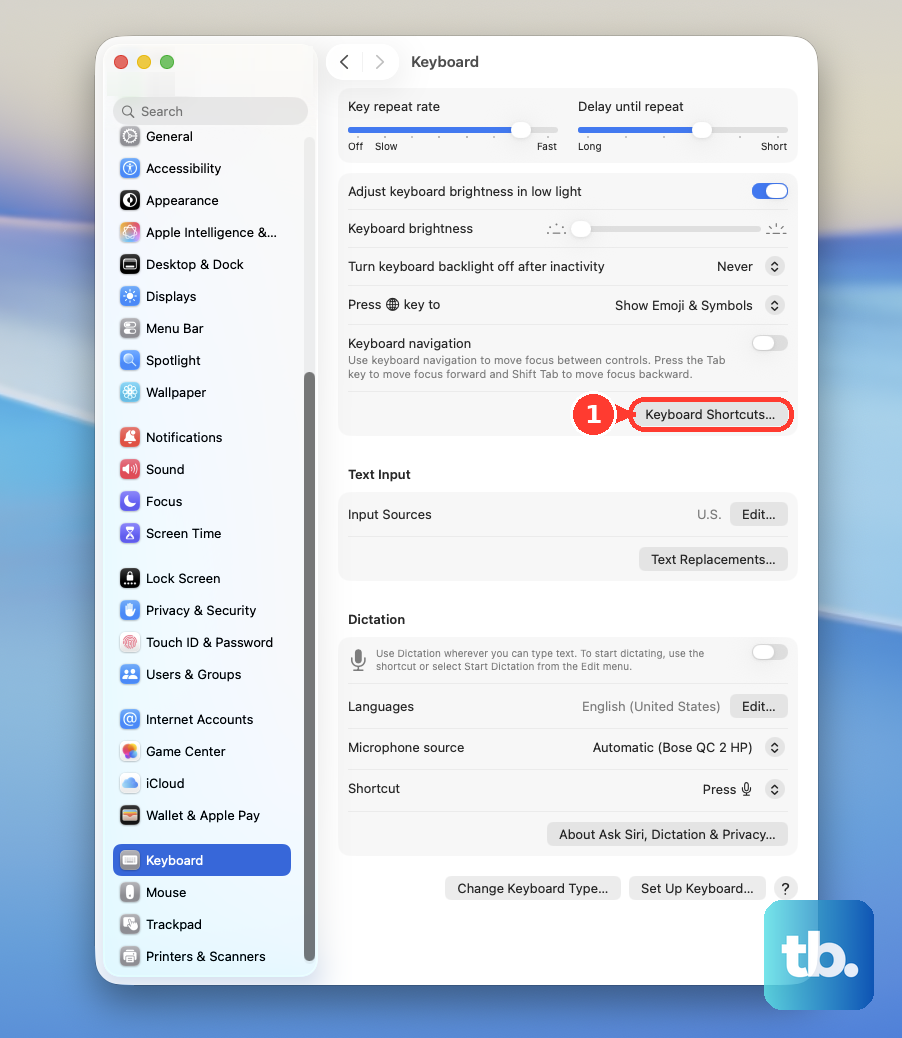
Turn off Use F1, F2, etc. keys as standard function keys to restore system controls on keys with the relevant brightness symbols.
Extend the timers when lighting switches off
An inactivity timer turns off keyboard lighting or the display after a set idle interval, even with working hardware.
For keys that go dark after you stop typing, open System Settings > Keyboard. Choose a longer interval under Turn keyboard backlight off after inactivity.
For a screen that switches off at predictable intervals, open Apple menu > System Settings > Lock Screen. Set a longer interval for Turn display off on battery when inactive. Set Turn display off on power adapter when inactive separately for the time you spend plugged in.
If the screen only dims when you unplug it, open Apple menu > System Settings > Battery > Options. Turn off Slightly dim the display on battery if that option appears. This stops intentional battery dimming; it does not repair a failed backlight.
Check automatic lighting and the sensor
Open System Settings > Keyboard. Turn on Adjust keyboard brightness in low light.
Open System Settings > Displays. Enable Automatically adjust brightness. Apple recommends this setting when screen brightness adjusts poorly or takes too long to reach its full level.
On a 2024 or later Apple silicon MacBook Pro, remove anything obstructing the area near the camera before doing the following sensor check.
On those models, briefly cover the ambient light sensor near the camera with your hand. With both automatic settings enabled, the expected response is a dimmer display and brighter keyboard lighting. While the sensor is covered, raise the Keyboard brightness slider in System Settings > Keyboard.
Tip: allow the display time to warm up if the problem is slow brightening.
Restart a Mac that stays black at startup
A blank screen alone doesn't establish that the backlight has failed. Use these checks when the Mac is stuck during startup or shows no clear signs of powering on.
Check that the power adapter and charging cable are connected to a working outlet. Try another compatible adapter or cable if the power connection isn't working. For a 2024 or later Apple silicon MacBook Pro, connect a working Apple power adapter of the appropriate wattage using a working charging cable. Allow at least 15 minutes of charging on those models.
Disconnect accessories such as hubs, drives, printers, and phones. If you can use the menus, choose Apple menu > Restart with power connected. Apple silicon Macs need no additional manual SMC-reset sequence.
If the Mac is stuck on a blank screen, hold the power or Touch ID button for up to 10 seconds until it turns off. A forced shutdown risks losing unsaved work. Press and release the power button to start it again.
If VoiceOver is active and the Mac remains interactive, press VO-Shift-Fn-F11 to toggle Screen Curtain off. VO means Control-Option or Caps Lock; Screen Curtain intentionally leaves the screen black while it's enabled.
Test for software interference
Back up your Mac before installing updates if you can access it. Connect the Mac to power. Open Apple menu > System Settings > General > Software Update. Install the offered compatible update, leaving the lid open and power connected until installation finishes.
If the problem persists, shut down the Mac to test it in safe mode. This checks for interference from software that loads during startup.
On Apple silicon, hold the power button until Loading startup options appears. Select your startup volume. Hold Shift while clicking Continue in Safe Mode.
On an Intel MacBook Pro, use this alternative: turn on the Mac while holding Shift until the login window appears. Log in. Check whether the affected lighting works in safe mode.
If safe mode avoids the problem, restart normally. Open System Settings > General > Login Items & Extensions.
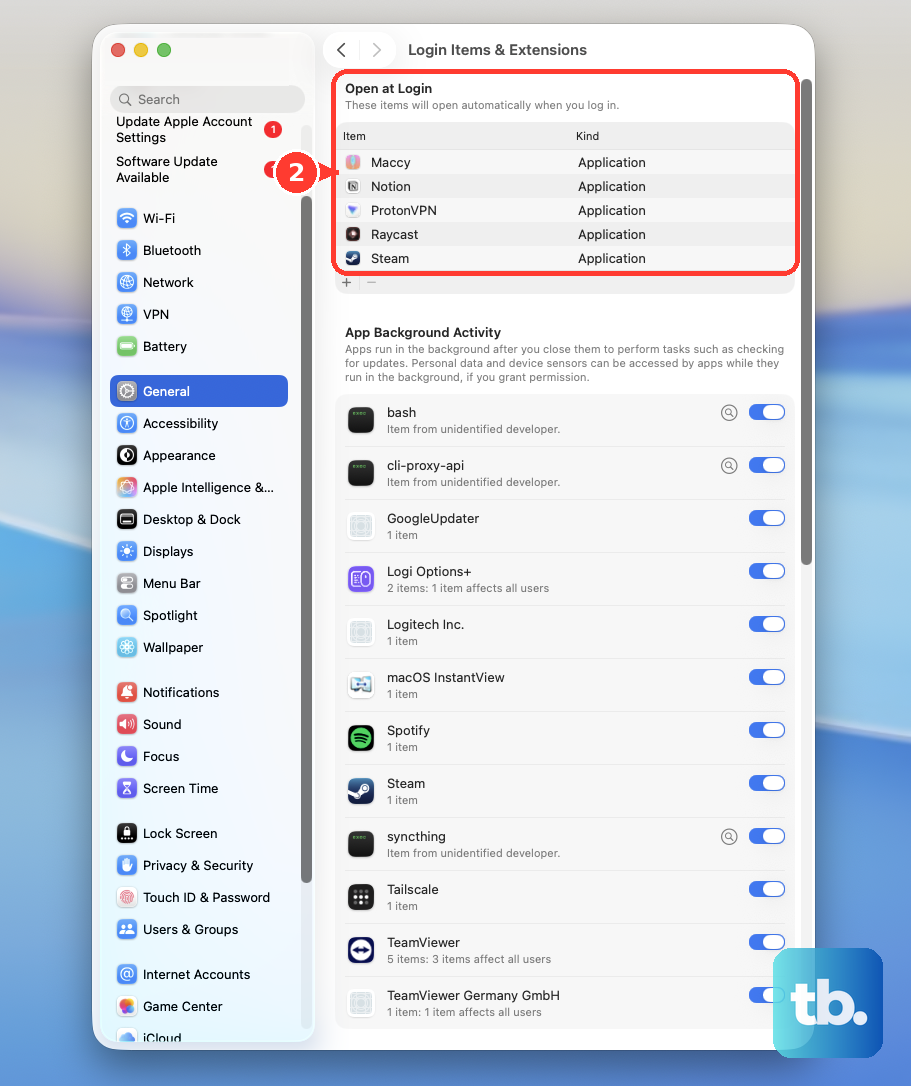
Record the items under Open at Login so you can restore them later. Select an item in Open at Login. Click Remove, repeating this selection and removal for each recorded item. Restart the Mac to test the lighting again.
If removing the items resolves the issue, add one recorded item back to Open at Login. Restart after that addition, repeating the add-and-restart sequence for each remaining item. Remove the item that brings the problem back.
Tip: give this check particular attention if the screen works before login but goes dark afterward.
Restore normal brightness on an XDR display
These adjustments address reference-mode restrictions and thermal brightness limiting on Liquid Retina XDR displays.
If brightness controls are disabled or the screen cannot reach its usual brightness, open Apple menu > System Settings > Displays. Select the built-in display. Choose Preset > Apple XDR Display (P3-1600 nits). Some specialized reference modes disable manual brightness controls.
If a brightness warning appears in the menu bar or Control Center > Display, quit resource-heavy apps. Close or hide windows showing HDR content. Lower the room temperature. Choose Apple menu > Sleep.
Wait 5 to 10 minutes. Press a key to wake the Mac. Arrange service if brightness limiting continues with the room below 77°F or 25°C.
Look for signs that need hardware checks
For a 2024 or later Apple silicon MacBook Pro, remove cases, covers, and screen protectors, then check for cracks or liquid damage. Compare how the screen looks at startup and after login.
On those models, connect a compatible, known-working external monitor with the Mac connected to working AC power. Compare the internal and external images. A working external screen gives a repair provider useful information, but it doesn't identify the failed component by itself.
Move the lid through its normal opening and closing range and note whether the image or lighting cuts out at particular positions. Report that behavior when requesting service; moving the lid is an observation, not a cable repair.
For dark keys on the same models, hold Caps Lock slightly longer than a quick tap and check its indicator. If the keyboard itself doesn't respond, connect an external keyboard to continue troubleshooting. Note any evidence of liquid damage.
Run diagnostics and arrange service
Shut down your Mac. Disconnect nonessential devices while keeping power connected. On Apple silicon, hold the power button until startup options appear. Hold Command-D to launch Apple Diagnostics.
For an Intel MacBook Pro, hold D at startup instead, or Option-D if D doesn't work. Follow the onscreen prompts, including any offered keyboard or display tests on macOS Tahoe 26 and later. Save any diagnostic reference codes.
If the lighting still fails, contact Apple Support, an Apple Store, or an Apple Authorized Service Provider. Describe whether the keyboard, display, or both are affected. Share your diagnostic codes and observations with the repair provider.
For a persistent blank screen at startup, ask Apple Support about macOS Recovery. Apple's troubleshooting route includes startup-disk repair and, if needed, macOS reinstallation to address startup problems.
Tip: mention a recent display replacement, because qualifying repairs on Apple silicon Macs running macOS Tahoe 26 or later require completion through Repair Assistant.
Frequently Asked Questions
Can Siri increase my MacBook Pro's screen brightness?
Yes. With Siri enabled, activate it using your configured method and say, “Increase my screen’s brightness.”
How do I reach brightness controls with VoiceOver?
With VoiceOver enabled, press VO-Shift-O to open Control Center. Navigate with VO plus an arrow key, then use VO-Space at the desired control or slider action. VO means Control-Option or Caps Lock.
Can I still use Apple's free display-backlight service program?
The former 13-inch MacBook Pro Display Backlight Service Program has ended. Contact Apple through its ordinary service channels for repair options.
How do I finish calibration after a display replacement?
On an eligible Apple silicon MacBook Pro running macOS Tahoe 26 or later, connect to the internet. Open Apple menu > System Settings > General > About > Parts & Service. Select Restart & Finish Repair. Install any required update, then follow Repair Assistant. These options appear only when a detected qualifying repair needs completion.