Your MacBook's keyboard is dark, or the screen is too dim to use. Those symptoms need different fixes, even though both look like a backlight problem. Start with the brightness controls below, then follow the checks for lighting that switches off, a blank startup screen, or an XDR brightness warning.
Bring the keyboard brightness back up
A keyboard brightness setting turned all the way down leaves a backlit keyboard dark. On a MacBook equipped with a backlit keyboard, open Apple menu > System Settings > Keyboard.
Move Keyboard brightness to the right. If your keyboard has a dedicated keyboard-brightness increase key, press it to raise the lighting. Don't assume F5 and F6 control the backlight on every MacBook.
For automatic lighting in dim surroundings, enable Adjust keyboard brightness in low light. Keep the area near the camera unobstructed so the ambient-light sensor has a clear view.
Raise the screen brightness
If the keyboard lights up but the screen stays dim, open Apple menu > System Settings > Displays. Drag Brightness to the right. On keyboards with display-brightness keys, press the Increase Brightness key, marked with the larger sun symbol, as another way to adjust it.
For an onscreen shortcut, open Control Center in the menu bar. Raise the display-brightness slider.
To check automatic adjustment on a MacBook with an ambient-light sensor and this setting, temporarily turn off Automatically adjust brightness in System Settings > Displays. Adjust Brightness manually to compare the behavior. Enable Automatically adjust brightness again when you want the screen to respond to surrounding light.
If the slider works but the brightness key doesn't, try the function-key setting next. If the screen stays completely blank at startup, go straight to the power and restart checks below.
Make the brightness keys respond
On compatible Apple keyboards with macOS Ventura 13 or later, restore the printed hardware functions as the default:
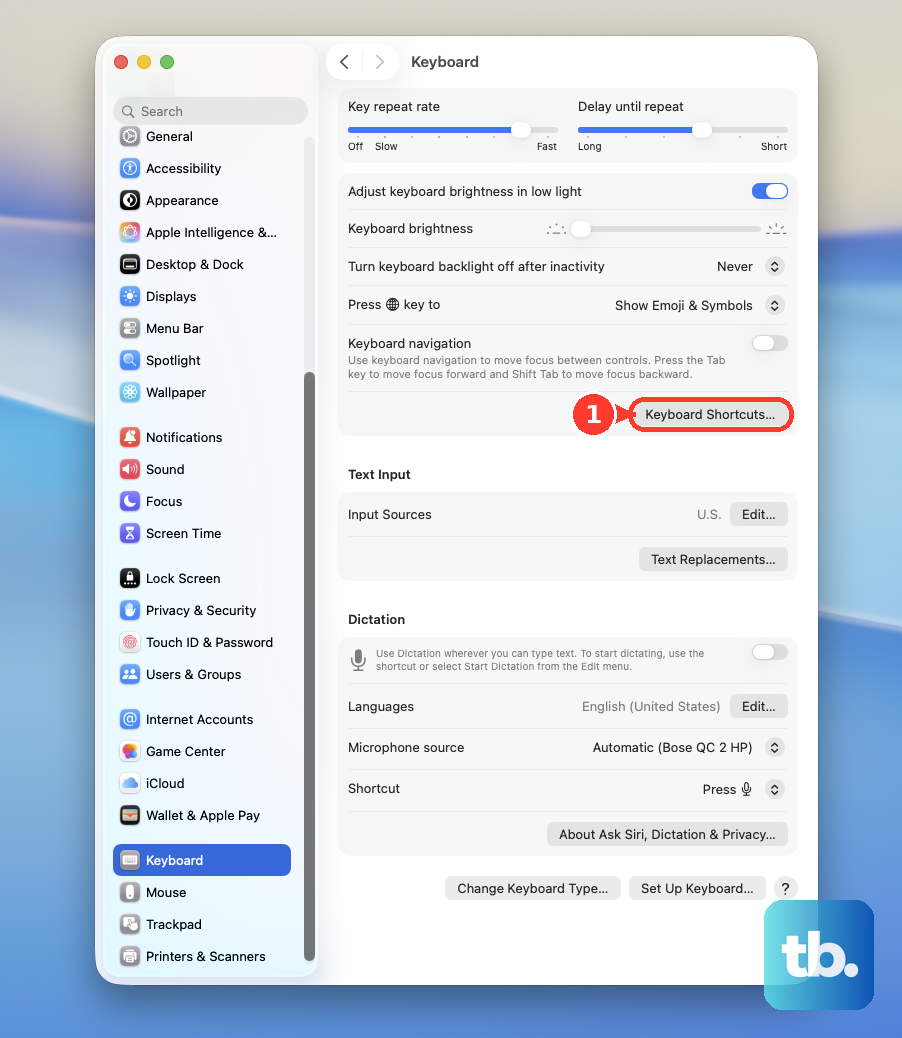
- 1.Open Apple menu > System Settings > Keyboard.
- 2.Click Keyboard Shortcuts.
- 3.Select Function Keys.
- 4.Turn off Use F1, F2, etc. keys as standard function keys.
- 5.Press the key marked for the brightness function you need.
Stop lighting from switching off during pauses
An inactivity timer switches off keyboard lighting or the display after a set period without activity. For keyboard lighting, open System Settings > Keyboard. Choose a longer interval beside Turn keyboard backlight off after inactivity.
For the screen, open Apple menu > System Settings > Lock Screen. Lengthen Turn display off on battery when inactive. Lengthen Turn display off on power adapter when inactive for the same behavior while plugged in.
If the screen dims specifically on battery power, open Apple menu > System Settings > Battery. Under Additional Options, turn off Slightly dim the display on battery if your laptop offers it.
A desktop that disappears when the pointer reaches a corner calls for a different check. Open System Settings > Desktop & Dock > Hot Corners. Change the unwanted corner assignment. Click Done.
Restore normal brightness on an XDR display
Use these checks on a MacBook Pro with a Liquid Retina XDR display when brightness controls are disabled or a limited-brightness warning appears. Some specialized reference modes disable brightness sliders and keys.
Open Apple menu > System Settings > Displays. Select the built-in display if necessary. Under Preset, choose Apple XDR Display (P3-1600 nits) to restore the general-purpose mode.
A limited-brightness warning needs a different response. Quit apps using substantial system resources. Close or hide windows showing HDR content. Lower the surrounding room temperature.
Choose Apple menu > Sleep. Leave the display to cool for 5 to 10 minutes. Press a key to wake the Mac. If limited brightness persists with the room below 77°F or 25°C, seek service.
Restart a MacBook with a blank startup screen
These checks address power trouble and a MacBook stuck at a blank startup screen. Check the charging cable for damage. Secure both charging connections. Try a working power outlet.
Test another compatible charging cable or power adapter if available. Disconnect drives, printers, hubs, phones, and other accessories. Hold the power button, or Touch ID, for approximately 10 seconds to shut down the Mac. A forced shutdown risks losing unsaved work.
Release the button. Press it normally to turn the Mac on again.
For an Apple-silicon Mac that still responds to menus, connect power before using the normal restart option. Choose Apple menu > Restart. Apple states that the SMC reset happens automatically on these Macs.
Isolate software that loads at startup
A lighting problem that disappears in safe mode points to software that loads during startup. For Apple silicon, shut down the Mac. Hold the power button until startup options appear. Select the startup volume.
Hold Shift while clicking Continue in Safe Mode. For an Intel MacBook, start or restart while holding Shift until the login screen appears. Test the affected keyboard or display lighting in safe mode.
Restart normally to leave safe mode. If the result points to startup software, open System Settings > General > Login Items & Extensions.
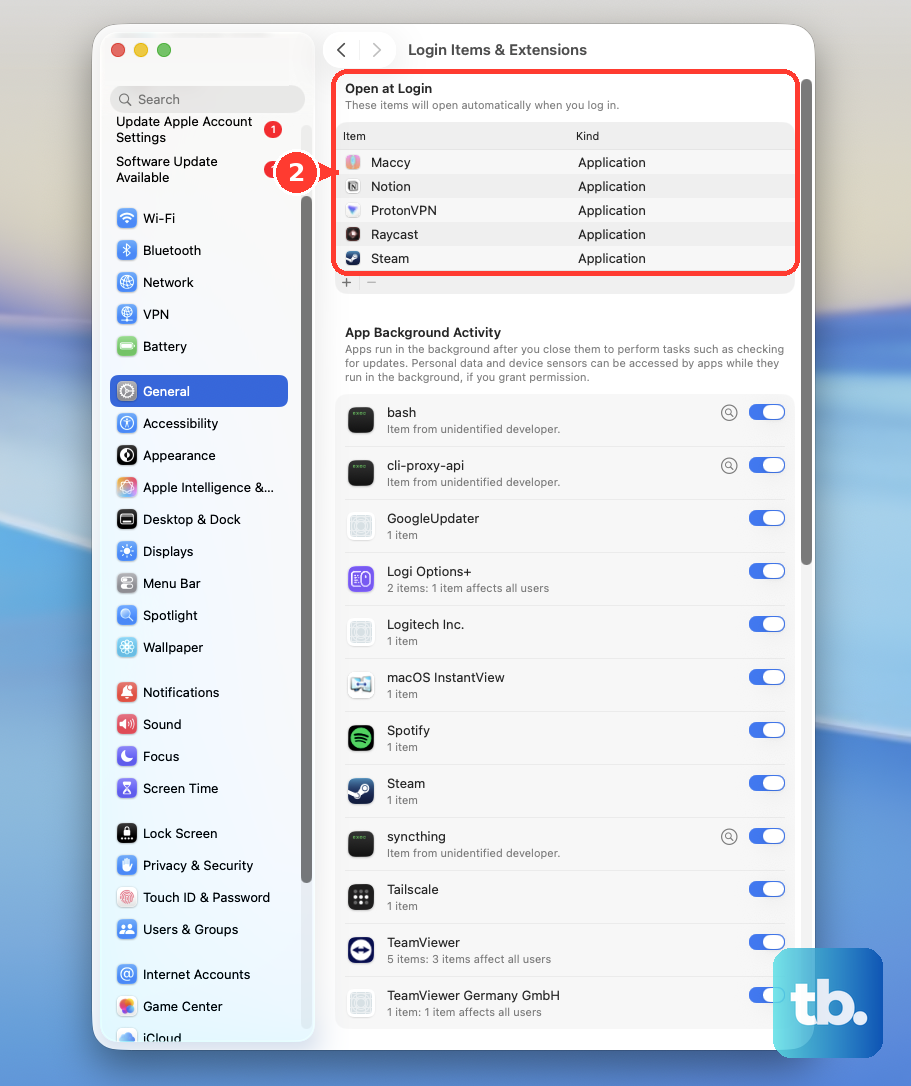
Record the items under Open at Login. Select an item from that list. Click Remove, repeating for the remaining items. Restart to test the lighting.
If the problem clears, restore one login item. Restart again, repeating this process with one item at a time to identify the culprit.
For the macOS update check, back up your Mac first. Open Apple menu > System Settings > General > Software Update.
Click the offered update, upgrade, or restart button to install the compatible update. Enter your administrator password when prompted. Keep the lid open during installation.
Repair a persistent blank startup through Recovery
Recovery tools address software-related startup failures; they cannot repair failed lighting hardware. Back up first when possible before reinstalling macOS.
On Apple silicon, shut down, hold the power button until startup options appear, then choose Options > Continue. On Intel, turn on the Mac while holding Command-R. Select the requested disk or user and authenticate when prompted.
In Recovery, select Disk Utility > Continue, then View > Show All Devices. Starting with the lowest volume, run First Aid > Run, working upward through volumes, volume groups, containers, and the device. Quit Disk Utility and restart.
If startup remains blank, return to Recovery, select the macOS installation or reinstallation option, and click Continue. Choose Macintosh HD rather than Macintosh HD - Data when both appear. Ordinary reinstallation preserves apps and personal data and requires an internet connection.
Find out whether the hardware needs service
If the lighting still isn't working, run Apple Diagnostics to check for hardware problems. Shut down the Mac. Disconnect unnecessary peripherals, keeping power connected.
On Apple silicon, hold the power button until Options appears. Hold Command-D to start diagnostics. On Intel, hold D during startup instead. Use Option-D if D doesn't work.
Follow the diagnostic prompts. On macOS Tahoe 26 and later, select the relevant built-in-display or keyboard diagnostic offered for your Mac.
Record any reference codes. ALS001 relates to the ambient-light sensor, NDK codes relate to the keyboard, and VFD001 through VFD007 relate to display or graphics issues.
For an Apple-silicon or T2 MacBook with suspected firmware failure after other blank-screen remedies fail, Apple's firmware revival procedure provides a further recovery route using another Mac. Revival preserves data; firmware restoration erases the affected Mac.
If these checks don't restore the lighting, arrange service through Apple, an Apple Authorized Service Provider, or an Independent Repair Provider. Bring the Mac and any diagnostic codes.
Frequently Asked Questions
How do I add a missing Keyboard Brightness control?
In macOS Tahoe 26 and current Control Center interfaces, open Control Center > Edit Controls. Drag Keyboard Brightness into Control Center, then click Done. Available controls depend on your hardware. To pin it to the menu bar, Control-click the control and choose Copy to Menu Bar or Add to Menu Bar, whichever appears.
Can VoiceOver make the screen look like the backlight is broken?
Yes. With VoiceOver running, Screen Curtain hides the screen. Press VO-Shift-Fn-F11 to toggle it off; VO means Control-Option or Caps Lock. For VoiceOver's dimmed tiled presentation, press VO-Fn-F10 again to return to normal. Command-F5 turns VoiceOver off, which also disables Screen Curtain.
How do I adjust lighting on a MacBook Pro with a Touch Bar?
Tap the Control Strip's expand button, then use its display-brightness or keyboard-brightness controls. To add missing controls, open System Settings > Keyboard > Touch Bar Settings > Customize Control Strip. Drag the desired controls into the Touch Bar.
Is the old MacBook Pro backlight service program still available?
No. The former 13-inch MacBook Pro Display Backlight Service Program has ended. Use Apple's ordinary service routes instead.