


To change the Microsoft account used to sign in to Windows 11, open Settings > Accounts > Your info, switch to a local account, then connect the replacement Microsoft account. These steps use Windows 11 menus. You can also add a separate Windows user or change an individual app’s account, depending on what you want to change.
The short version
- Keep the existing profile: Switch its sign-in to a local account, then connect the Microsoft account you want.
- Create a separate profile: Add the other Microsoft account under Settings > Accounts > Other users.
- Switch existing users: Press Windows + L, dismiss the lock screen, and select the other account.
- Change one app: Use that app’s account controls because an app account change does not replace your Windows sign-in.
| Your goal | Where to start | What changes |
|---|---|---|
| Replace your profile’s Microsoft account | Accounts > Your info | Windows sign-in identity through a local account |
| Stop using a Microsoft account for Windows | Sign in with a local account instead | Existing profile uses local credentials |
| Connect a local profile to Microsoft | Sign in with a Microsoft account instead | Existing profile uses a Microsoft account |
| Add a separate Microsoft account user | Other users > Add account | Creates another Windows profile |
| Create a local user before connecting Microsoft | Other users > Add account | Creates a separate local profile first |
| Switch users from the lock screen | Windows + L | Active Windows user |
| Switch users through Start | Start > Accounts | Active Windows user |
| Sign out through Start | Start > Accounts > Sign out | Closes the current session |
| Sign out through the Start context menu | Shut down or sign out > Sign out | Closes the current session |
| Switch or sign out through the security screen | Ctrl + Alt + Delete | Switches users or closes the session |
| Add a different sign-in email | Microsoft account alias settings | Adds an address to the same account |
| Change your primary email identity | Make primary beside an alias | Primary address on the same account |
| Add an account for apps | Accounts > Your accounts | Accounts available to apps |
| Switch or add an Edge profile | Edge profile image | Browser identity and associated data |
| Switch Microsoft 365 accounts | File > Account > Switch Account | Office identity |
| Sign out of Office and sign back in | File > Account > Sign out | Office session and signed-in identity |
| Replace your personal OneDrive account | OneDrive Settings > Account | Personal cloud storage connection |
| Remove an old Windows user | Other users > Account and data | Deletes that user’s local sign-in information and data |
| Give a replacement user administrator access | Change account type | Account privileges |
| Prepare the PC for another owner | System > Recovery > Reset PC | Fresh setup after removing files, apps, and settings |
Replace the account on your existing Windows profile
To keep using your existing Windows profile with a different Microsoft account, convert it to a local account first, then connect the replacement account. Microsoft provides both conversions, but there is no dedicated single-button account replacement procedure.
Save your work because the first conversion ends with signing out. Open Settings, select Accounts, then open Your info. Select Sign in with a local account instead and complete the requested verification.
Enter the local username, password, and password hint requested by Windows. Choose a username that no other account on this PC uses. Select Next, then select Sign out and finish. Sign back in using the local account credentials you just entered.
Return to Settings > Accounts > Your info and select Sign in with a Microsoft account instead. Enter the replacement Microsoft account and complete the authentication prompts. This switches your local account to that Microsoft account, and Windows shows the account you switched to the next time you sign in.
If you already use a local account, start directly by selecting Sign in with a Microsoft account instead. If you simply want to stop using a Microsoft account for Windows sign-in, finish after converting to a local account and signing back in.
Add another Microsoft account as a separate user
Create a separate Windows user when another person needs their own profile or you want to keep both profiles available. This adds another profile without replacing the Microsoft account on your current one. Account management requires appropriate administrator access.
Open Settings > Accounts > Other users and select Add account. Enter the other Microsoft account’s email address and complete setup. Afterward, switch to that user and authenticate with its account.
You can also create a local user first and connect a Microsoft account later. From Add account, select I don't have this person's sign-in information, then select Add a user without a Microsoft account and complete setup. Sign in to the new user, open Settings > Accounts > Your info, and select Sign in with a Microsoft account instead. Enter the desired Microsoft account and complete authentication.
Switch between Windows users already on the PC
Once both Windows users exist, press Windows + L and dismiss the lock screen. Choose the other available account, then enter that user’s sign-in credentials. If Fast User Switching is disabled by your organization, save your work and sign out first; then have the other user sign in. This changes the active Windows user without replacing either profile’s Microsoft account.
To switch through the account menu, select Start, then select your user picture or the Accounts icon. Select the ellipsis button, choose the other user, and authenticate. On organization-managed devices, the menu may also offer Switch user.
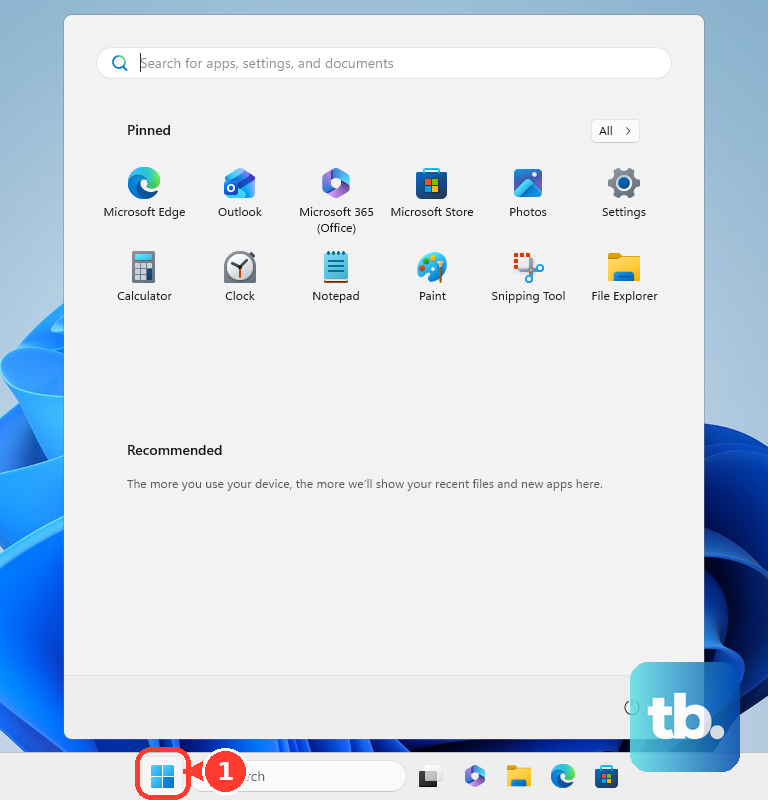
To sign out before changing users, save your work, open Start, select your user picture or the Accounts icon, and select Sign out. If Sign out is missing from Start, press Ctrl + Alt + Delete and select Sign out. Signing out closes the applications in your current session. Choose the other user on the sign-in screen and authenticate.
For another sign-out route, right-click Start and select Shut down or sign out > Sign out, then choose the other account on the sign-in screen. You can also press Ctrl + Alt + Delete and select Sign out. If that screen offers Switch user, you can select it, choose the other Windows account, and authenticate.
Change your email address while keeping the same account
If you only want a different email address for signing in, add an alias. An alias retains the same Microsoft account, storage, subscriptions, and settings. It does not connect Windows to another existing Microsoft account.
Open the Microsoft account sign-in email settings and sign in. Select Add email and complete verification to add an alias. Existing aliases can also be used to sign in to Windows.
To change the primary email identity displayed on Windows devices, select Make primary beside the desired existing alias. Your underlying Microsoft account remains the same.
Change accounts in apps separately
Apps have their own account controls, so changing an app’s account does not replace your Windows sign-in identity. To add an alternative Microsoft account for apps through Windows, open Settings > Accounts > Your accounts, select Add a Microsoft account, and complete authentication. Older Windows menus call this page Email & accounts.
In Microsoft Edge, select your profile image and choose another profile. To add one, select Set up a new profile and complete sign-in with the desired Microsoft account. Each browser profile has its own identity and associated browser data.
For Microsoft 365 desktop apps such as Word, select File > Account > Switch Account, then sign in to the desired account. The replacement account needs the appropriate license for licensed functionality.
Another route is to select File > Account > Sign out; classic Outlook uses Office Account. Close all Office apps, then reopen one and select File > Account > Sign In. Authenticate with the replacement account to complete the change.
Reconnect OneDrive to the account you want
OneDrive has a separate account connection, and only one personal OneDrive account can be connected at a time. To replace it, select the OneDrive cloud icon, then open Help and Settings > Settings > Account. Select Unlink this PC, then select Unlink account.
Start OneDrive setup again and authenticate with the replacement account. This changes the personal account used by the OneDrive sync app. Complete the Windows profile conversion separately if you also want to replace your Windows sign-in account.
Fix missing account and switching options
If you cannot find Sign in with a Microsoft account instead, check your current account type under Settings > Accounts > Your info. That option appears only when your current Windows account is local. If it already uses a Microsoft account, select Sign in with a local account instead and complete that conversion first.
If the other user is missing from the sign-in screen, make sure you have added it under Settings > Accounts > Other users. If the account is already added but is not listed, select Other user and enter its credentials. Adding an account for apps under Your accounts does not create a separate Windows user. On a managed PC, an administrator may also restrict user switching or Microsoft account addition and sign-in, so ask the administrator to review those restrictions.
Remove an old Windows user after moving
Remove the old Windows user only if you created a separate profile and no longer need the previous one. Removal deletes that user’s local sign-in information and data, so keep any needed files before proceeding. It does not delete the online Microsoft account.
From another administrator account, open Settings > Accounts > Other users. Expand the old account and, beside Account and data, select Remove. Review the removal prompts before completing the action.
If the replacement user needs administrator privileges, an administrator can select that account under Other users and choose Change account type. Select Administrator, then select OK. Changing privileges does not change the Microsoft account associated with the profile.
Use a fresh setup for an ownership change
A reset gives you a fresh setup when handing the PC to another owner. Choosing Remove everything removes personal files, applications, and settings. If you plan to donate, recycle, or sell the PC, also turn on Clean data, which takes longer but makes removed files harder for other people to recover. Back up needed files before starting. If the PC is encrypted, make sure you have its BitLocker recovery key before you reset it.
To factory reset and remove everything, open Settings > System > Recovery and select Reset PC. Choose Remove everything, select Local reinstall or Cloud download, and follow the reset prompts. During the subsequent Windows setup, use the desired Microsoft account.
You do not need installation media or a Windows reinstall for normal account switching. If you separately need to reinstall Windows, complete that as its own task.
Frequently Asked Questions
Can you merge two Microsoft accounts by switching them in Windows?
No, Microsoft does not allow personal Microsoft accounts to be merged. Switching accounts does not transfer purchases, balances, gamertags, or game progress.
How do you change the primary account in new Outlook?
Select View > View settings, then open Accounts > Your accounts. Under Email accounts, select Manage for the desired account, then select Set as primary account.
Can you switch Microsoft accounts only on the account website?
Yes, open the Microsoft account website and open the account manager associated with your name. Select Sign in with a different account, or select Sign out before signing into the other account. This changes the website session without changing your Windows sign-in.
How do you switch accounts in Microsoft Teams?
Select your profile picture and choose the other account. To add one, select Add another account, then select an existing identity or select Create or use another account and complete sign-in.
Can signing out of Office remotely sign you out of Windows?
No, remote Office sign-out removes the Office session or license association without signing you out of Windows. Office can take up to 72 hours to detect that sign-out.