

To force a pending game update on Steam, open View > Downloads and tell Steam to download the game’s waiting update now. This starts the update immediately, overriding its scheduled automatic-update time. You can also open Library and launch an installed game to trigger its available update.
The desktop steps apply to Steam on supported Windows, macOS and Linux systems. On a Mac, choose Steam > Preferences wherever these steps say Steam > Settings. Start with the download control, then adjust update preferences if you want future updates sooner. Use the repair steps when an update fails.
The short version
- Start now: Start the game’s waiting update from Downloads to override its scheduled time.
- Another direct trigger: Launch the installed game from Library to force an available update.
- Future updates: Choose Immediately download updates in the game’s automatic-update settings.
- Failed downloads: Retry after restarting, then use cache clearing or the repair option that matches the problem.
| Action | When to use it | What it does |
|---|---|---|
| Start the update in Downloads | An update is pending | Starts the update immediately |
| Launch the game | An installed game has an available update | Triggers the update immediately |
| Reorder the queue | Several downloads are waiting | Changes their queued order |
| Immediately download updates | You want one game updated promptly | Changes its automatic-update preference |
| Let Steam decide when to update | You want automatic scheduling restored | Lets Steam schedule updates |
| Turn off Schedule auto-updates | You configured a restricted time window | Removes that time restriction |
| Enable Allow downloads during gameplay | You are playing another game | Permits background downloads |
| Turn off Limit download speed | You configured a speed cap | Removes download throttling |
| Remote desktop management | You are using another updated Steam client | Lets you manage the target computer’s download |
| Remote management on Steam Deck | You want to control another updated client | Press Y in Downloads to select it |
| Steam Mobile remote downloads | The target computer is running Steam and signed in | Lets you start updates from your phone |
| Local-network transfer | Another eligible computer has updated game files | Uses available local files for the update |
| Steam Deck display-off downloading | An update is already downloading | Continues the download before sleep |
| Default Public Version | An older alternate branch is selected | Obtains the public version |
| Developer-provided beta version | The developer provides the requested branch | Obtains that branch’s build |
| Restart the computer | An update or installation error occurs | Provides a first troubleshooting step |
| Clear Cache | Download problems persist | Clears Steam’s download cache |
| Verify game files | Installed files are damaged or incomplete | Checks files and downloads needed repairs |
| Repair Folder | The library has write-permission problems | Repairs the affected library folder |
| Download Region | A content-server region has problems | Changes the download region |
| Move the installation | Space or the original drive is a problem | Relocates the game to another library drive |
| Administrator checks | Network or security software blocks Steam | Addresses blocking through appropriate exceptions |
| Reinstall Steam in place | Client-related failures persist | May repair client or service files |
Start the update from Downloads or Library
Open View > Downloads, or select Downloads at the bottom of Steam. Find the game with the waiting update and tell Steam to download it immediately. This overrides the automatic-update time assigned to that game.
With several downloads queued, you can drag the game’s entry ahead of other queued downloads. That changes the queue order; tell Steam to download that game’s update immediately when you want it to start now.
Another way to start an available update is to open Library and launch the installed game. Steam forces the update immediately, including when automatic updating is restricted. If the update starts but fails, use the repair steps below.
Set a game to download updates immediately
For a game you want updated promptly in the future, right-click it in Library and select Properties... > Updates. Under Automatic Updates, select Immediately download updates. For an update already waiting, return to Downloads and start it from there.
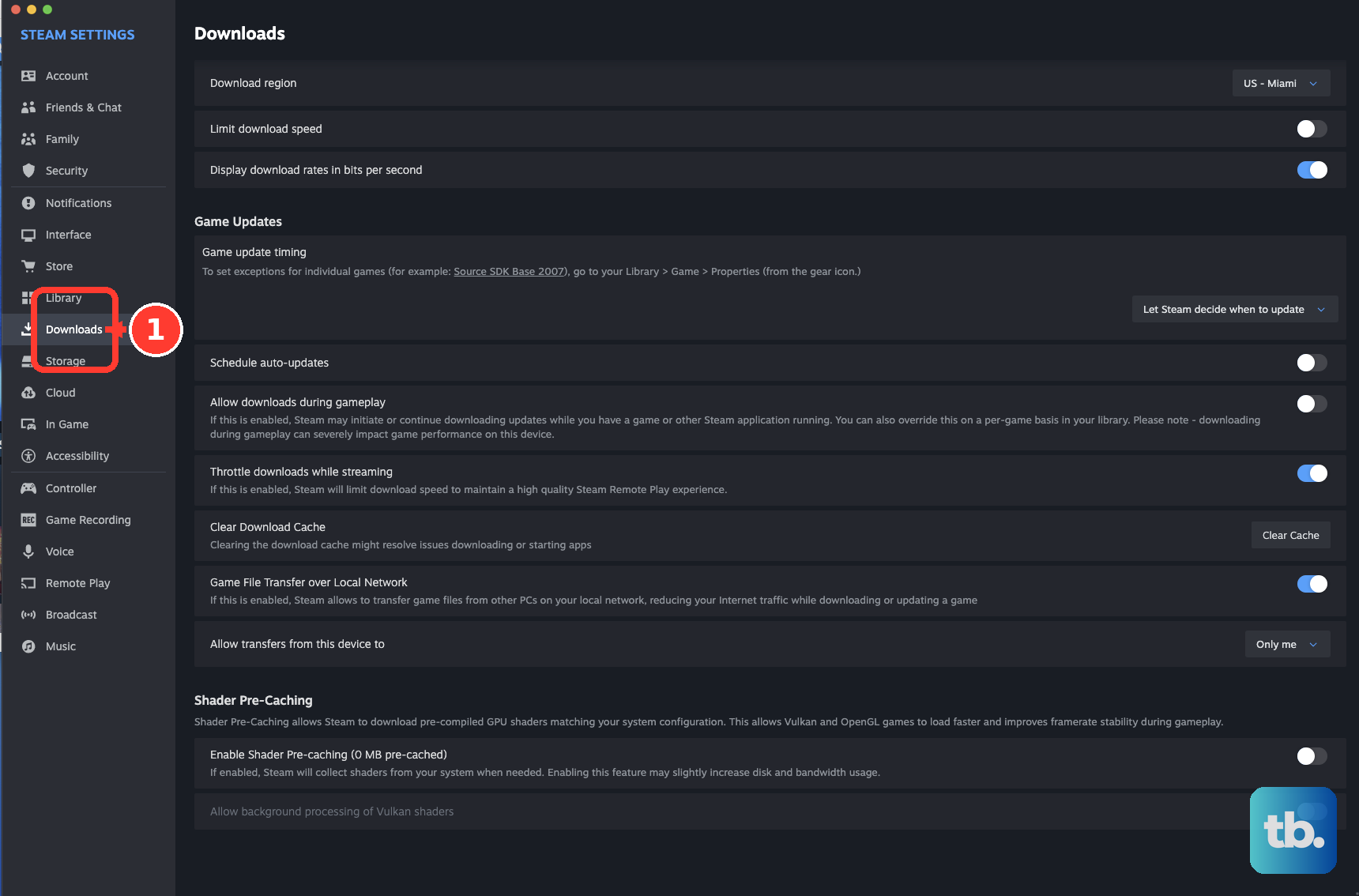
To restore automatic scheduling across installed games, open Steam > Settings > Downloads. Under Updates to installed games, select Let Steam decide when to update. Open Manage Exceptions to review individual game overrides; the button includes the exception count. Restoring scheduling does not guarantee an immediate download.
Adjust schedules and download restrictions
To remove a time restriction you configured, open Steam > Settings > Downloads. Turn off Schedule auto-updates, then start the particular update from Downloads. Removing your time restriction still leaves Steam’s own scheduling in place.
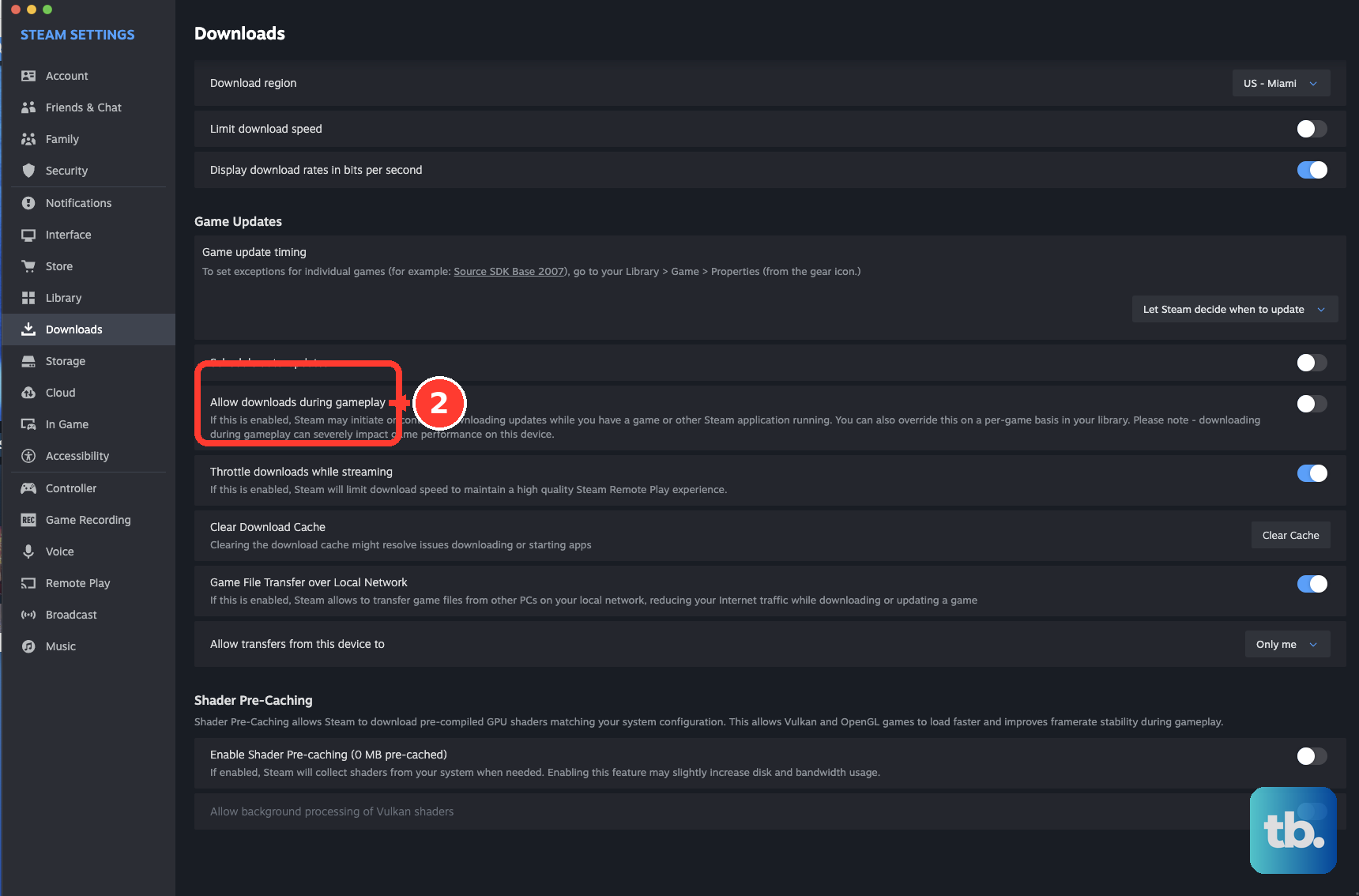
When you want another game’s update to download during gameplay, open Steam > Settings > Downloads and enable Allow downloads during gameplay. Return to Downloads and start the pending update. You can also adjust a per-game background-download override under that game’s Properties > Updates.
A speed cap affects download speed rather than the scheduled start time. In Steam > Settings > Downloads, turn off Limit download speed to remove that cap. You still need to start the waiting update through Downloads.
Choose the game version you need
If your game offers alternate versions, an older selected branch can prevent you from receiving the expected public release. Right-click the game in Library, select Properties and open Game Versions & Betas. Select Default Public Version to leave the alternate branch and obtain the public version.
For a beta update the developer provides, open the game’s Properties > Game Versions & Betas and select the developer’s specified version. For a protected version, enter the developer-provided access code under Private Versions and select Check Code, then select the unlocked version. Branch names and access requirements vary by game.
Restart and clear the cache when an update fails
For an update or installation error, restart your computer, reopen Steam and retry the update in Downloads. If you need help with the client restart, follow the steps to restart Steam completely. Check the result before moving to another repair.
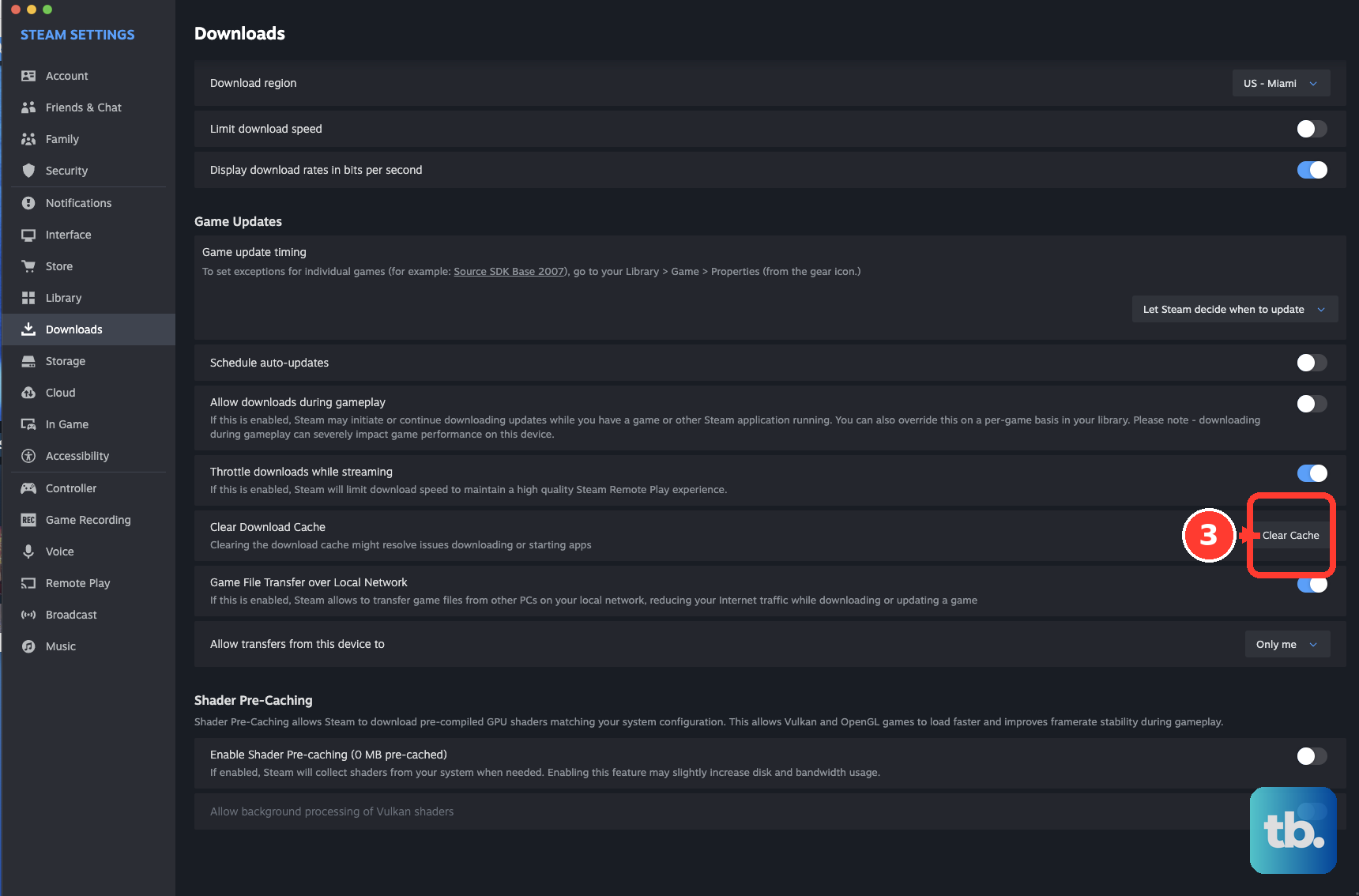
Clearing the download cache removes that cache, and you may need to sign in again afterward. Open Steam > Settings > Downloads, select Clear Cache, then select Confirm. Sign in again if required and retry the update.
Repair damaged files or a library folder
For damaged or incomplete installed files, restart the computer and open Steam. Right-click the game in Library, then select Properties... > Installed Files > Verify integrity of game files. Allow verification and any necessary repair downloads to finish.
You can follow the full steps to verify game files on Steam when the installation needs repair. Verification checks the installed files; it is not a universal command for finding new updates.
Library write-permission problems call for a folder repair. Open Steam > Settings > Storage, select the affected library drive, open its ... menu and select Repair Folder. Retry the update after repairing the folder.
Address download region and drive problems
A malfunctioning or overloaded content-server region can cause download failures. Open Steam > Settings > Downloads > Download Region and choose another nearby region. Retry the update with that region selected.
If insufficient space or problems with the original drive are preventing the update, move the installation to another library drive. Open Steam > Settings > Storage and create another library location if needed. Select the game, select Move and choose the destination, then retry the update after the move finishes.
Resolve network or security software blocking
If you use a managed computer or network, have the computer or network administrator check whether firewall, antivirus, proxy or monitoring software blocks Steam. Have them configure appropriate exceptions, then retry the update. This check also applies to consumer systems where security software interferes with Steam downloads.
Repair Steam when client problems persist
Persistent client-related update failures may require reinstalling Steam into its existing location. Valve says installing in place preserves installed games and may repair client or service files.
Uninstalling Steam first can delete installed game content. Open the official Steam download page and select Install Steam for your operating system. Run the installer and install Steam into the existing Steam location. Reopen Steam and retry the pending update in Downloads.
Frequently Asked Questions
Can you start a Steam game update from your phone?
Yes, you can use Steam Mobile on iOS or Android to start remote game updates. Leave Steam running and signed in on the target computer, then use Library in Steam Mobile to access remote downloads for the game. If you need the app, open Valve’s mobile-app page and follow the Steam Mobile link for the Apple App Store or Google Play.
Can you manage a pending update from another computer or Steam Deck?
Yes, update both Steam clients so they support Remote Downloads Management. On another desktop client, manage the remote computer’s pending download from the Downloads page, or use the remote options on the game’s details page. On Steam Deck LCD or OLED, open Downloads and press Y to select a different Steam client, then select the target device and manage its pending download.
Can Steam Deck keep downloading with its display off?
Yes, on Steam Deck LCD and OLED with the current client, start the update first, then press the Power button while it is downloading and select Continue. This continues an active download before sleep; it does not independently start a scheduled update. You can configure downloading on battery power under Settings > Power.
Can Steam get update files from another computer on your home network?
Yes, on current Steam PCs and receiving Steam Decks, subject to Valve’s transfer eligibility requirements. Keep an updated copy of the game on another computer running Steam on the same local network, and ensure both clients’ Game File Transfer settings permit the transfer. Start the target game’s update normally, and Steam checks for available local files before downloading them from its internet servers.