To restart Steam completely, choose Steam > Exit on Windows or Linux, or Steam > Quit Steam on Mac, wait for it to close, then reopen it. Finish your game and let cloud synchronization complete before you exit. Closing or minimizing the window can leave Steam running, so use the exit command.
The short version
- Normal restart: Choose Steam > Exit, wait for shutdown, then launch Steam again.
- Mac restart: Choose Steam > Quit Steam or press Command + Q, then reopen it.
- Frozen client: Stop Steam and any remaining Steam helper processes before relaunching.
- Steam Deck: Press Steam, choose Power > Restart, and let the device boot again.
| Method | Where to use it | Main catch |
|---|---|---|
| Steam > Exit | Windows or Linux desktop | Wait for shutdown before reopening |
| Steam > Quit Steam | Mac desktop | Keep Steam active when using Command + Q |
| Notification-area Exit Steam | Windows and supported Linux desktops | Requires an available Steam icon menu |
| Taskbar Exit Steam | Windows | The command may not appear |
| Exit Now | Stalled Steam shutdown | Can interrupt downloads or cloud synchronization |
| Big Picture Exit Steam | Desktop Big Picture | Exit Big Picture Mode leaves Steam running |
| Task Manager | Frozen Windows client | Stop remaining Steam helpers too |
| Force Quit | Frozen Mac client | Check Activity Monitor if helpers remain |
| Activity Monitor | Mac process cleanup | Identify Steam’s remaining child processes |
| GNOME System Monitor | Frozen Linux client on GNOME | Use Force Stop if needed |
| KDE Plasma System Monitor | Frozen Linux client on KDE | Use Kill (KILL) if needed |
| Windows restart | Steam remains stuck on Windows | Restarts the whole computer |
| Mac restart | Steam remains stuck on macOS | Restarts the whole Mac |
| GNOME restart | Steam remains stuck on GNOME Linux | Restarts the whole computer |
| Steam Deck Restart | Responsive Gaming Mode | Restarts the whole device |
| SteamOS Restart Steam | Client-only restart in Gaming Mode | Requires Developer Mode |
| Steam Deck forced restart | Unresponsive Deck | Button timings differ by model |
| Recovery-dialog Restart Steam | Unresponsive webhelper error | Available when the dialog appears |
| Recovery with GPU acceleration disabled | Recurring webhelper error | Changes rendering behavior |
| Clear download cache | Persistent download problems | Requires signing in again |
| Reinstall over Steam | Broken Windows or Linux client | Use the existing installation location |
| Apply a client update | Windows or Linux desktop | Requires an available update |
| Leave the client beta | Desktop beta participants | Changes your update channel |
Quit and reopen Steam on your desktop
On Windows or Linux, open the Steam menu and select Exit. Wait for Steam to finish closing, then launch it from your desktop shortcut or application launcher. Give pending downloads and cloud synchronization time to finish before forcing a stalled shutdown.
With Steam active on Mac, select Steam > Quit Steam, or press Command + Q. Once it closes, open Steam from Applications or the Dock. A complete restart stops the client and its relevant helper processes before you relaunch it.
You can also right-click Steam’s notification-area icon on Windows and choose Exit Steam, then reopen it. Linux desktops that expose Steam’s notification-area menu offer the same exit route. On Windows, Exit Steam can also appear in Steam’s taskbar menu.
If Steam’s Shutdown dialog stays open, wait for the Exit Now button to become available. Select it to finish closing the client, then reopen Steam. This can interrupt pending downloads or cloud synchronization, so use it only when shutdown is not completing.
Exit Steam from Big Picture
In desktop Big Picture, open the Steam menu, select Power, then choose Exit Steam. Relaunch Steam using your operating system’s launcher after it closes. You can use this route on Windows, Mac, and Linux where the exit command is available.
Choose Exit Steam, not Exit Big Picture Mode, which leaves the client running. On Steam Deck in Gaming Mode, use the device restart or client-only restart steps below.
Stop frozen Steam processes on Windows
Press Ctrl + Shift + Esc to open Task Manager, then open Processes. Select Steam and choose End task. End any remaining Steam Client WebHelper processes belonging to that session before opening Steam again.
Check the process list before relaunching so you do not leave part of the previous session running. Restarting only Steam’s webhelper restarts its rendering components without restarting the entire client. If Steam still cannot close or reopen, restart Windows using the steps below.
Force quit Steam on Mac
Press Option + Command + Esc to open the force-quit window. Select Steam, choose Force Quit, then reopen it after it closes. You can also choose Apple menu > Force Quit to reach the same control.
If Steam processes remain, open Activity Monitor and select Steam under Process Name. Click the Stop button, then choose Quit or Force Quit. Use View > All Processes, Hierarchically to identify remaining Steam child processes, then stop those processes before relaunching.
Close unresponsive Steam on Linux
On a GNOME desktop, open System Monitor and select Processes. Select Steam and choose End Process; if it does not stop, right-click it and choose Force Stop. Stop remaining Steam helpers as necessary, then launch Steam again.
In KDE Plasma System Monitor, select Steam in the process table and choose End Process. For a hung process, right-click it and select Send Signal > Kill (KILL), then confirm Forcibly End Process when prompted. Stop remaining Steam helpers before reopening the client.
Restart your computer when Steam stays stuck
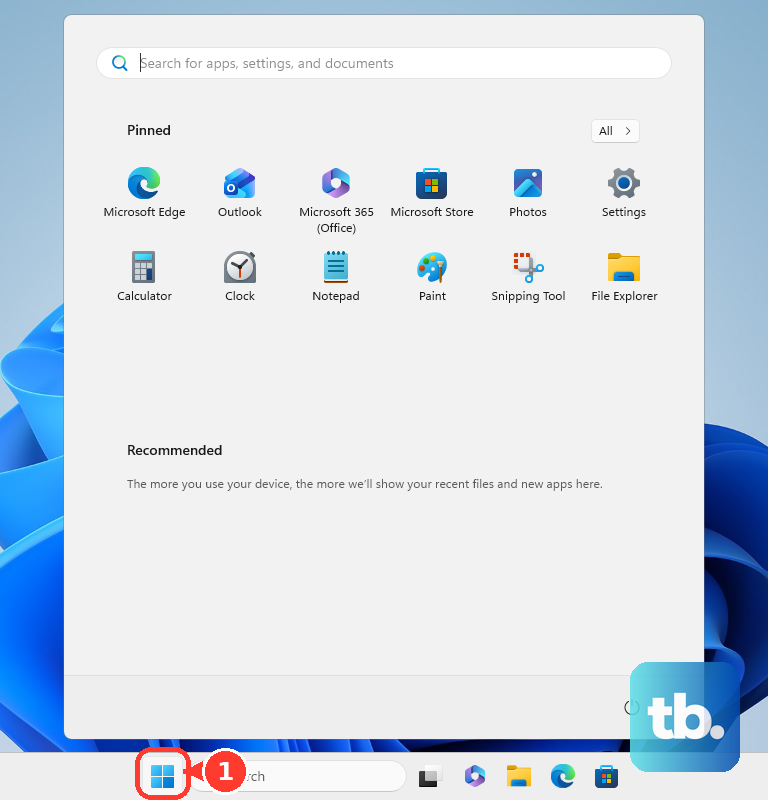
Save your other work before restarting the whole computer. On Windows, select Start > Power > Restart. After Windows restarts and you sign in, launch Steam if it has not started automatically.
On Mac, choose Apple menu > Restart, then open Steam after signing in. On a GNOME Linux desktop, open the system menu at the right of the top bar, select the power button, and choose Restart…. Sign back in and launch Steam after the computer restarts. Other Linux desktops use different menu arrangements.
Restart Steam on Steam Deck
In Steam Deck Gaming Mode, press Steam and choose Power > Restart. Steam starts again as part of the device boot. Putting the Deck to sleep does not completely restart the client.
For a client-only restart in SteamOS Gaming Mode, press Steam, open Settings > System, and enable Enable Developer Mode. Then press Steam and choose Power > Restart Steam. That command is available when Developer Mode is enabled.
If your Deck is unresponsive, hold Power for 4 seconds on the LCD model or 7 seconds on the OLED model. If it remains unresponsive, hold Power for a full 10 seconds on LCD or 16 seconds on OLED. If the device ends powered off, press Power to boot it again.
Fix errors that return after restarting
When Steam displays Steamwebhelper is not responding, select Restart Steam and accept the dialog. If the problem returns, select Restart Steam with GPU Acceleration disabled in the same recovery dialog and accept it. That option changes rendering behavior as part of the restart.
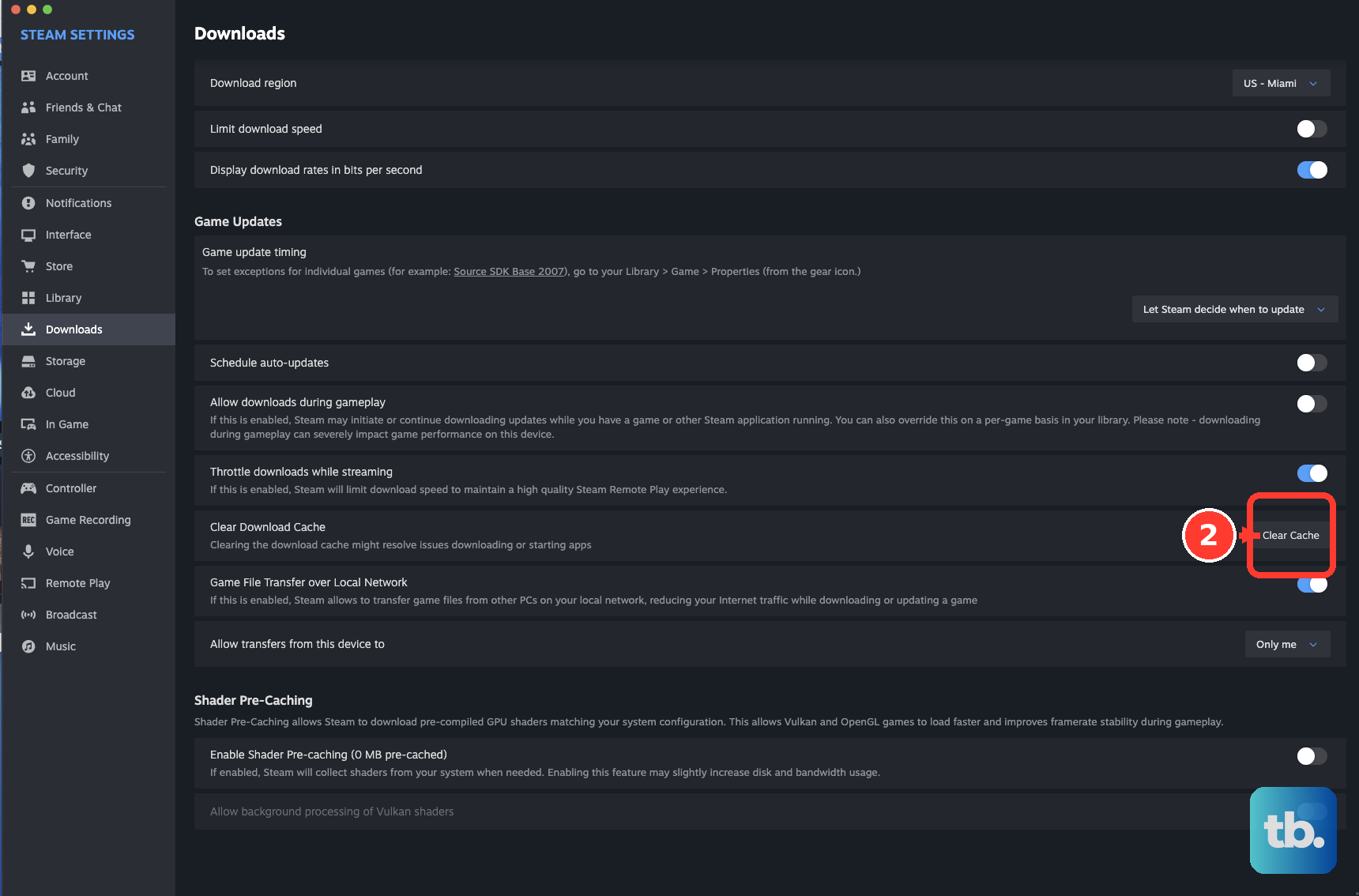
For download problems that persist after a normal restart, open Steam > Settings > Downloads; on Mac, use Preferences in place of Settings. Under Clear Download Cache, click Clear Cache, then Confirm. Steam restarts and requires you to sign in again, while your installed games remain installed.
If ordinary restarts fail to resolve a broken Windows or Linux client, close Steam and get the installer from the official Steam download page. Reinstall to the same existing Steam location, then launch it. Valve says this repair preserves your installed games while repairing client and service files.
On Mac, Valve uses a separate procedure. Choose Steam > Quit Steam and drag Steam from Applications to the Trash. In Finder, hold Option while opening the Go menu, choose Library, then open Application Support > Steam. To keep your downloaded games, delete everything there except the SteamApps folder. Empty the Trash, then reinstall Steam and launch it.
Frequently Asked Questions
Can you restart desktop Steam from the Steam mobile app?
Valve's Steam Mobile app doesn't include a documented control for restarting Steam on your computer. Closing and reopening the phone app restarts only that app, not Steam on your computer.
Does switching to Offline Mode restart Steam?
No, choosing Steam > Go Offline... switches modes without requiring a client restart. Changing Download region, however, prompts you to restart Steam before the change takes effect.
How do you restart Steam to apply a client update?
On Windows or Linux, choose Steam > Check for Steam Client Updates.... When an update is available, select Download if offered, then Apply and restart Steam when ready. You need an available or already downloaded update to restart this way.
How do you leave the Steam client beta and restart?
Open Steam > Settings > Interface > Client Beta Participation, select No beta chosen, then select Restart Now. On Mac, use Preferences in place of Settings. Leaving the beta changes your update channel as well as restarting the client.