You want to find your biggest Google Drive files, but the place to sort them depends on what you need. The website’s storage view puts files across your account in size order, while your device’s file manager handles individual folders. Start with the website for a storage ranking, or jump to the instructions for your device to sort a folder.
Find your largest files in Google Drive
The website’s storage view finds the files using the most space in your account. Open drive.google.com on your computer, then sign in to the Google account whose files you want to sort.
Click Storage in the left sidebar. Your files initially appear largest first. Click Storage used to change the ordering, then click Storage used again to reverse it.
Go straight to the storage page
For a direct route, open Google Drive’s storage page in a desktop browser. Sign in to your account. This opens the same storage view with files ordered largest first.
Click Storage used to reverse the order. This view works for personal and work or school accounts; it ranks account storage rather than sorting a chosen folder and all its subfolders. If the shortcut fails to open the storage view, open drive.google.com, then click Storage in the left sidebar.
For a Windows folder, use File Explorer
With Google Drive for desktop installed and signed in on Windows 11, open File Explorer. Navigate to your Google Drive location. Open the folder you want to sort.
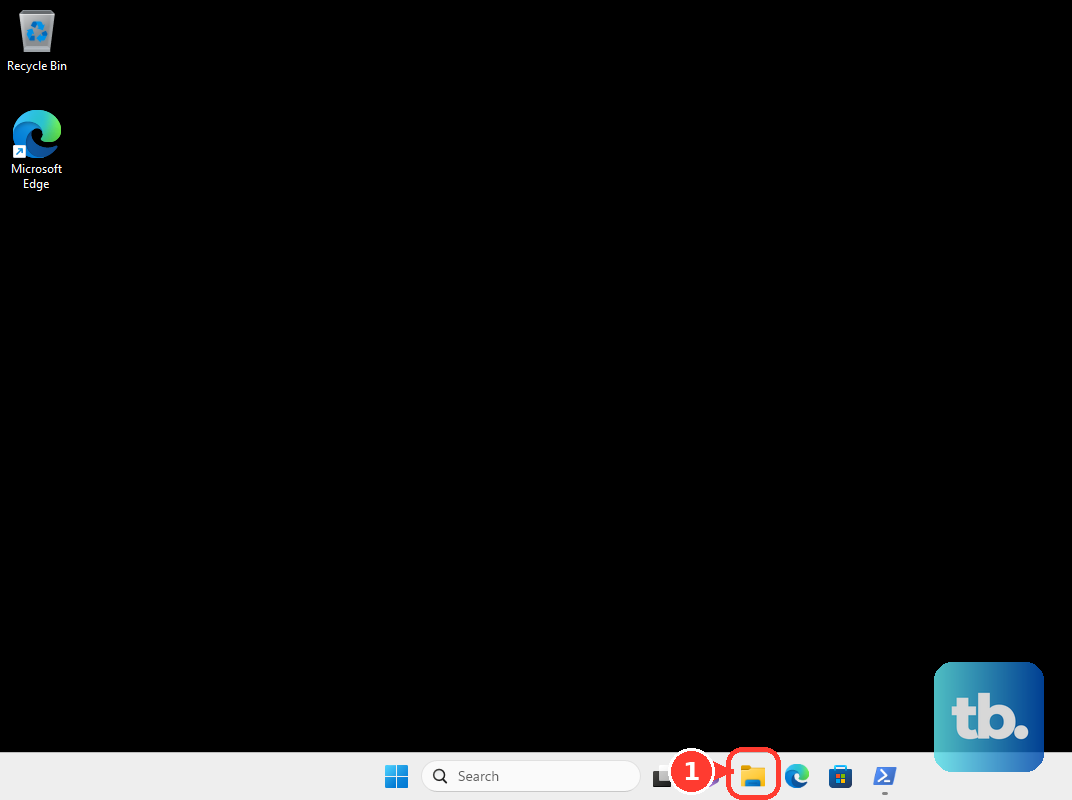
Select View > Details. Right-click an empty area, then choose Sort by > Size.
This sorts the displayed folder’s files using filesystem size information. It does not rank your entire Google Drive account by cloud storage consumption or calculate sizes recursively through subfolders.
Arrange a Mac folder by size
With Google Drive for desktop installed and signed in, open Finder. Select Google Drive, then open the folder you want to arrange. Switch to List view.
If the Size column is hidden, Control-click a column heading, then enable Size in that menu. Click the Size column heading to sort the files, then click Size again to reverse the order. Use the website’s Storage view for cloud storage usage, since Finder’s representations of Google-native documents do not measure that usage.
Use Apple Files on iPhone or iPad
Apple’s Files app sorts a Google Drive folder by size once Drive is enabled as a location. Install the Google Drive app, then set up the Google Drive app. Open Files, then tap Browse.
Open More, tap Edit, then turn on Google Drive. Tap Done, then open the Google Drive location. Navigate to the folder you want to sort. The ordering covers items in that folder, and the size information supplied varies by file type.
On iPhone, tap More; on iPad in portrait orientation, tap More. On iPad in landscape orientation, tap the Icons button. Choose Size. This sorts the displayed folder, not your account’s entire storage.
Sort a Chromebook folder
Open Files on your Chromebook, then select Google Drive in the left navigation. Open My Drive and navigate to the folder you need. Open the sorting control, then choose Size. For an account-wide storage ranking, use Storage on the Google Drive website.
On Android, sort downloaded copies
Use this method to compare selected files after downloading them to your phone. Files by Google sorts those local copies; it does not sort the cloud contents of your Google Drive account.
In the Google Drive app, tap More beside a downloadable file, then tap Download. Files with download restrictions cannot be downloaded through this route. Repeat the download steps for the other files you need.
Open Files by Google, then open the category containing your downloads. Tap More, choose Sort by, then select Size.
Frequently Asked Questions
Can I use larger: or size: to search Google Drive?
Google directs size searches to Storage and does not document Gmail-style larger: or size: operators for Drive. Open Storage, then use Storage used to change the order.
Do I need Backup and Sync for the desktop methods?
No. Google replaced Backup and Sync with Drive for desktop. Follow installation instructions for Drive for desktop when setting up the File Explorer or Finder methods.
Why can’t I change the sorting in Home or Recent?
Google Drive does not support sorting in Home or Recent. Open Storage to order files by storage used.
Does the Google Drive mobile app have a documented size-sort option?
Google documents a Sort by control under My Drive on Android and iOS, but its instructions do not list Size or Storage used among the choices. The mobile cleanup tools are also separate from the website’s account-wide storage ranking.