


Press Windows + D to show the desktop, then press the same keys again to restore your windows. This shortcut works in Windows 11 and Windows 10. You can also use the Windows 11 taskbar corner or swipe down with three fingers on a compatible touchpad.
The short version
- Quickest option: Press Windows + D to show the desktop and press it again to restore your windows.
- Mouse option: On Windows 11, click the far corner of the taskbar beyond the notification area.
- Touchpad option: Swipe down with three fingers on a compatible touchpad.
- Missing icons: Right-click an empty desktop area, select View, and check Show desktop icons.
| Method | Action | When to use it |
|---|---|---|
| Desktop shortcut | Windows + D | Show or restore windows in Windows 11 or 10 |
| Taskbar corner | Click beyond the notification area | Show the desktop with a mouse in Windows 11 |
| Desktop preview | Hold Windows and press , | Take a temporary look in Windows 11 or 10 |
| Minimize all | Windows + M | Minimize windows in Windows 11 or 10 |
| Touchpad gesture | Swipe down with three fingers | Use a compatible Windows 11 or 10 touchpad |
| Configured touchpad gesture | Assign three-finger or four-finger swipes | Customize a compatible Windows 11 laptop touchpad |
| Touchscreen gesture | Enable touch gestures and swipe down with three fingers | Use a compatible Windows 11 touchscreen |
| Voice access | Say Go to desktop | Show the desktop while Voice access is listening in Windows 11 |
| Voice access setup | Turn on Voice access and download language files | Prepare voice control with a microphone in Windows 11 |
| On-Screen Keyboard | Select Windows and D | Enter the shortcut without a physical keyboard in Windows 11 or 10 |
| Individual windows | Windows + Down arrow | Minimize windows individually in Windows 11 or 10 |
| All other windows | Windows + Home, then Windows + Down arrow | Minimize other windows, then the active window, in Windows 11 or 10 |
| Shell automation | Invoke Shell.ToggleDesktop() | Toggle the desktop through Windows desktop shell automation |
| Windows-key shortcut policy | Allow shortcuts in Group Policy | Address an administrator restriction on applicable Windows editions |
| Desktop icons | Check Show desktop icons | Restore hidden icons in Windows 11 or 10 |
| File Explorer | Select Desktop | Access desktop contents in Windows 11 or 10 |
Show the desktop with your keyboard
Hold Windows and press D to reveal the desktop in Windows 11 or Windows 10. When you want your windows back, press Windows + D again. Use this toggle when you want to reach the desktop and then return to your open windows.
Click the taskbar corner
On Windows 11, click the far corner of the taskbar, beyond the notification area, to show the desktop. Click the same spot again to restore your windows.
If clicking the corner does not show the desktop on Windows 11, right-click the taskbar and select Taskbar settings. Expand Taskbar behaviors and check Select the far corner of the taskbar to show the desktop. Click the far corner again after enabling it.
Preview the desktop or minimize windows
For a temporary look in Windows 11 or Windows 10, hold Windows and press ,. Release Windows to end the preview. This previews the desktop without leaving it available for interaction, so use Windows + D when you need to work on the desktop.
Another option in either version is Windows + M, which minimizes all windows. To restore minimized windows, press Windows + Shift + M. This method uses a separate shortcut to restore windows.
To minimize windows individually in Windows 11 or Windows 10, activate a window and press Windows + Down arrow. A maximized window may first return to its restored size, so repeat the shortcut if needed. Repeat for the remaining windows until the desktop is exposed; behavior can vary by application.
You can also press Windows + Home in either version to minimize all windows except the active one. Then minimize the remaining window with Windows + Down arrow, repeating if it first returns from maximized to restored size. The first shortcut alone leaves the active window on the screen.
Set up touchpad swipes
On a compatible Windows 11 or Windows 10 touchpad, swipe downward with three fingers to show the desktop. Microsoft notes that some gestures require a precision touchpad. If the gesture does not work, use Windows + D to reach the desktop.
On Windows 11 laptops with compatible touchpads and the relevant gesture settings, open Settings > Bluetooth & devices > Touchpad. Expand Three-finger gestures or Four-finger gestures, then set Swipes to Switch apps and show desktop. Swipe downward with the corresponding number of fingers.
Enable touchscreen gestures
On Windows 11 devices with a compatible touchscreen, open Settings > Bluetooth & devices > Touch. Turn on Three and four-finger touch gestures, then swipe downward with three fingers on the screen. If you use Windows 10, choose the keyboard shortcut or a compatible touchpad gesture instead.
Use the On Screen Keyboard
You can open and use the On Screen Keyboard to enter the desktop shortcut without a physical keyboard. On Windows 11, open Start > Settings > Accessibility > Keyboard, then turn on On-Screen Keyboard. Select its Windows and D keys to invoke Windows + D.
On Windows 10, open Settings > Ease of Access > Keyboard, then turn on the toggle under Use the On-Screen Keyboard. Select its Windows and D keys to show the desktop. On Windows 11, you can also use this keyboard on a PC without a touchscreen.
Set up Voice access
With Voice access configured, running, and listening on Windows 11, version 22H2 or later, say Go to desktop. The English commands Go home and Minimize all windows are alternatives. You need a microphone and internet access for the initial language-file download.
To enable it on Windows 11, version 22H2 or later, open Start > Settings > Accessibility > Speech, then turn on Voice access. During first-time setup, select the recognition language and select Agree and continue. After the language files download, select your microphone, then select Continue for the optional introductory guide.
Fix hidden icons or blocked shortcuts
If you can see the desktop background but your icons are hidden, right-click an empty desktop area and select View. Check Show desktop icons to display them. These steps work in Windows 11 and Windows 10 and control icon visibility rather than minimizing windows.
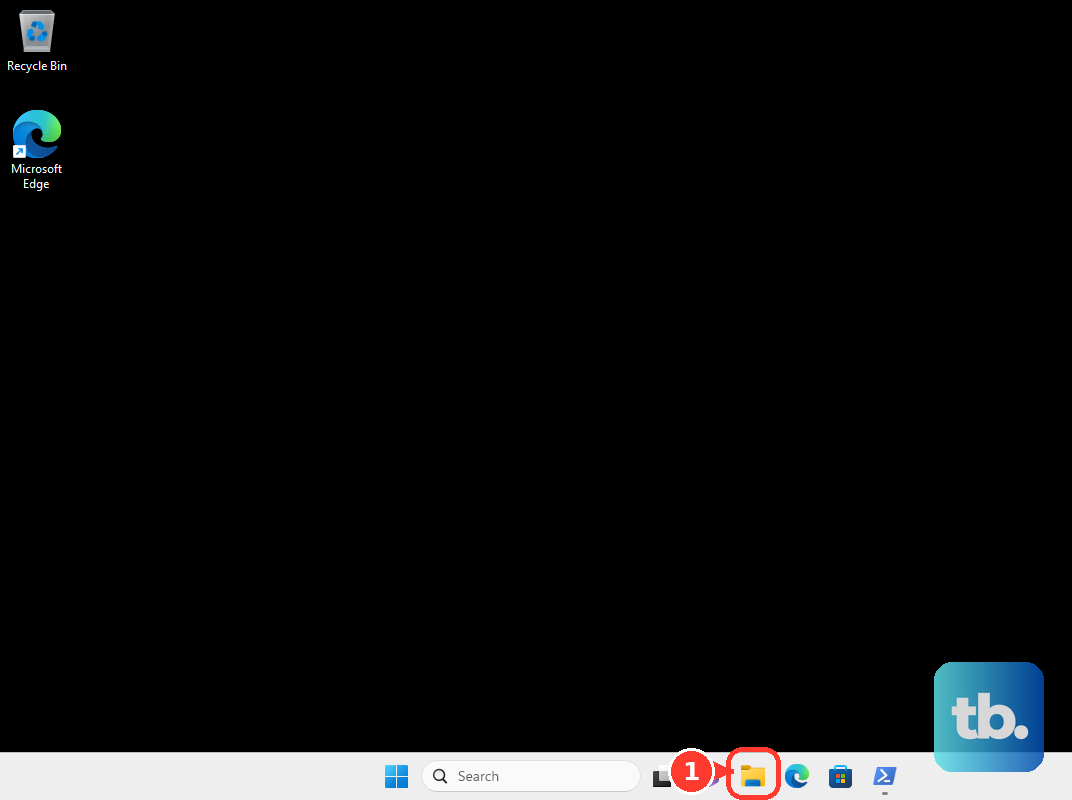
To reach your desktop files directly, open File Explorer and select Desktop in the navigation pane. This works in Windows 11 and Windows 10 even when desktop icons are hidden. You can access the desktop contents without revealing the desktop background.
If an administrator has disabled Windows-key shortcuts, the relevant Group Policy can allow them again. On Windows 11 Pro, Enterprise, Education, and IoT Enterprise, an administrator can open User Configuration > Administrative Templates > Windows Components > File Explorer > Turn off Windows Key hotkeys in Group Policy. Select Disabled or Not Configured to permit the shortcuts; this setting does not itself show the desktop.
Toggle the desktop with PowerShell
For a scripted alternative, run the following command in Windows PowerShell. It invokes Shell.ToggleDesktop() on the Shell.Application automation object. Microsoft describes this Windows desktop shell method as performing the same toggle as the taskbar button.
(New-Object -ComObject Shell.Application).ToggleDesktop()Frequently Asked Questions
Can Voice access work without an internet connection?
Yes, after the initial language files download, Voice access on Windows 11 can work offline. You need internet access for that first download.
Where can you find additional touchpad gesture assignments?
On a Windows 11 laptop with a compatible touchpad and the relevant gesture settings, open Settings > Bluetooth & devices > Touchpad > Advanced gestures. You can find additional gesture assignments there.
What replaced Windows Speech Recognition?
Voice access replaced Windows Speech Recognition on Windows 11 22H2 and later in September 2024. If you are moving from the older feature, use the Voice access commands for desktop control.
Can an administrator manage Windows-key shortcuts through MDM?
Yes, the corresponding MDM policy is ./User/Vendor/MSFT/Policy/Config/ADMX_WindowsExplorer/NoWindowsHotKeys. On Windows 11, it applies to Pro, Enterprise, Education, and IoT Enterprise editions and controls Windows-key shortcuts rather than showing the desktop itself.