

Adding a second monitor turns messy window juggling into a wider, cleaner workspace. Windows puts the main controls in Settings, the Project menu, and a few hardware-specific tools for docks, wireless displays, and gaming layouts. Start with the cable and input checks, then set how each screen behaves.
1. Connect the monitors first
- 1.Plug each monitor, TV, or projector into a compatible video output on your PC, laptop, dock, or adapter. Use HDMI, VGA, DVI, DisplayPort, USB-C with DisplayPort or Thunderbolt, or a supported docking station.
- 2.Turn on the external display.
- 3.Use the monitor's physical buttons or on-screen display to set Input or Source to the port you used, such as USB-C, DisplayPort, HDMI, DVI, or VGA.
- 4.Wait for Windows to detect the display and show the desktop.
Check the monitor input before changing Windows settings.
2. Make Windows look for a missing display
When a wired monitor is connected but does not appear, open Start > Settings > System > Display > Multiple displays > Detect. Windows scans again for connected screens from that control. Windows 10 uses the same path, but Microsoft consumer support for Windows 10 ended on October 14, 2025.
3. Arrange screens so the mouse moves correctly
Open Start > Settings > System > Display.
Next, select Identify so Windows shows the number assigned to each physical screen.
Drag the display boxes into the same left, right, higher, or lower position as your real monitors.
Select Apply.
This layout controls where your pointer and windows move between screens.
4. Choose duplicate or extend mode
This fixes whether your displays mirror each other or create one larger desktop.
Press Windows logo key + P.
Choose PC screen only to use only the built-in or primary screen.
Choose Duplicate to show the same image on both displays.
Choose Extend to spread your desktop across multiple displays.
Choose Second screen only to use only the connected external display.
5. Open Project from Quick Settings
Select the Network, Sound, or Battery icons on the far right side of the taskbar.
Then select Project.
Choose PC screen only, Duplicate, Extend, or Second screen only.
Use this route on a Windows 11 touchscreen or Surface-style device when no keyboard is attached.
6. Tune each monitor's size and direction
For mismatched monitor sizes, open Start > Settings > System > Display, then select the display you want to change. Under Scale & layout, adjust Scale, Display resolution, or Display orientation. Make changes one display at a time so the selected screen is the one you are fixing.
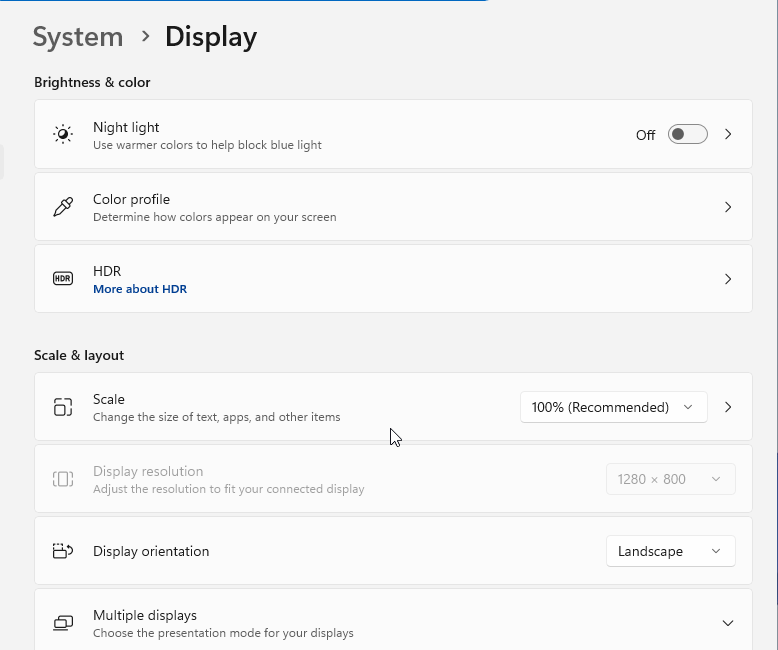
7. Keep windows and the taskbar in place
This fixes window shuffle after you unplug a monitor or reconnect at your desk.
Open Start > Settings > System > Display.
Open Multiple displays.
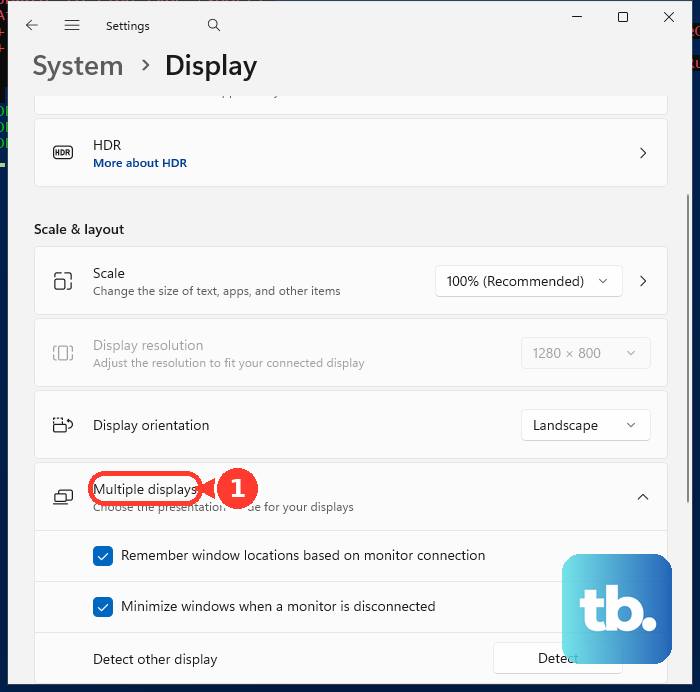
Turn on Remember window locations based on monitor connection.
Turn on Minimize windows when a monitor is disconnected to tuck those windows away when the monitor disconnects.
After that, right-click the taskbar and select Taskbar settings.
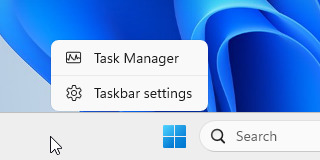
Expand Taskbar behaviors.
Check Show my taskbar on all displays to show the taskbar on every monitor.
8. Add wireless displays docks or daisy chained monitors
For a Miracast wireless display, turn on the TV, projector, display, or adapter, press Windows logo key + K, select the display, then follow the on-screen instructions.
From Windows 11, search for Cast, select Connect to a wireless display, then select Connect.
To use another Windows PC as a wireless display, open Start > Settings > System > Projecting to this PC on the receiving PC, add the Wireless Display optional feature, launch Wireless Display, then press Windows logo key + K on the projecting PC and select that computer. The Wireless Display app needs Windows 11 version 22H2 or later on the receiving PC; on an earlier version, type connect in the taskbar search box and open Connect instead.
For a WiGig dock, turn on the TV or projector, turn on the WiGig dock, confirm the PC supports WiGig and WiGig is turned on, press Windows logo key + K, then select the dock.
For a docking station, connect the dock to a compatible laptop port such as USB-C, Thunderbolt 3, or Thunderbolt 4, connect the displays to the dock, then configure them in Start > Settings > System > Display.
For daisy chaining, connect the PC to the first monitor, connect that monitor to the next monitor, then arrange the screens in Start > Settings > System > Display. Use DisplayPort 1.2 or higher MST, USB-C DisplayPort Alternate Mode, or Thunderbolt 3 or higher; HDMI daisy chaining is not supported.
Dock and daisy-chain limits come from the laptop, dock, graphics hardware, monitor ports, and supported resolution combinations.
9. Use GPU tools only for advanced layouts
Use Start > Settings > System > Display first for normal duplicate and extended desktop setups.
On Intel graphics, open Intel Graphics Command Center, select Display, use the display's More options menu, then choose Extend, Mirror, Make Display Primary, or Combine Displays on supported hardware.
On NVIDIA systems, open NVIDIA Control Panel, select Display > Set up multiple displays, check the displays you want to use, then select Apply.
For NVIDIA Surround, open NVIDIA Control Panel > 3D Settings > Configure Surround, check Span displays with Surround, select Configure, then finish the layout in the Set Up Surround window.
On AMD Radeon systems, use Windows Display Settings for duplicate and extended modes.
For AMD Eyefinity, first enable extended mode in Windows, then open AMD Software, search for Display, select Display Settings, and choose Quick Setup in the Eyefinity section.
On managed work or school PCs, the Microsoft policy that sets a default multiple-display mode (ConfigureMultipleDisplayMode) is documented for Windows Insider Preview builds only, on Pro, Enterprise, Education, and IoT Enterprise editions. Use the regular Windows display controls for changes available to you, and contact your IT admin when the options do not stay changed.
Skip older Control Panel display setup paths. Current Windows guidance uses Start > Settings > System > Display and Windows logo key + P.
Frequently Asked Questions
What is the fastest way to switch between duplicate and extend?
Press Windows logo key + P, then choose Duplicate to mirror your screen or Extend to use multiple displays as one larger desktop.
Why does my second monitor not show up in Windows?
Confirm the monitor is powered on and set to the correct Input or Source, then go to Start > Settings > System > Display > Multiple displays > Detect.
Can I connect multiple monitors through one laptop port?
Yes. Use a compatible USB-C, Thunderbolt 3, or Thunderbolt 4 dock, or daisy-chain supported monitors over DisplayPort MST, USB-C DisplayPort Alternate Mode, or Thunderbolt.
Can Windows use another PC as a second screen?
Yes, when both devices support wireless display. Set up the Wireless Display app on the receiving Windows PC, then press Windows logo key + K on the projecting PC and select it.
How do I stop using an external monitor without unplugging it?
Press Windows logo key + P, then choose PC screen only to use the built-in display or Second screen only to use the connected external display.
How do I show PowerPoint notes on one screen and slides on another?
In PowerPoint, select Slide Show, then enable Use Presenter View. In Windows Display settings, set the displays to Extend these displays first.