

To set the default printer in Windows 10, open Settings > Devices > Printers & scanners, turn off Let Windows manage my default printer, then select your printer > Manage > Set as default. Check that Printer status: changes to Default to confirm your choice.
Your printer must already be installed before you can select it. You can keep a fixed default or let Windows choose based on the printer you last used.
The short version
- Choose a fixed printer: Turn off Let Windows manage my default printer before choosing your default.
- Confirm the selection: Select your printer, open Manage, choose Set as default, and check for Default.
- Use another route: You can also select a default through Devices and Printers in Control Panel or the classic print queue.
- Check Edge separately: Edge can remember its most recently used printer independently of your Windows default.
| Option | When to use it | Scope |
|---|---|---|
| Settings | Choose a fixed default | Installed Windows printer |
| Control Panel | Select through the printer context menu | Windows default |
| Classic print queue | Select through the Printer menu | Windows default |
| Automatic management | Let Windows choose based on printer use | Windows default |
| Keyboard search | Open printer settings quickly | Entry point to the same settings |
| PrintUI | Select through Command Prompt | Installed Windows printer |
prnmngr.vbs | Set or display the default with a script | Windows printing administration scripts |
| PowerShell CIM | Select with SetDefaultPrinter | Windows PowerShell 5.1 |
| PowerShell COM | Select with WScript.Network | Windows PowerShell with the COM component available |
| Windows management policy | Stop automatic default changes | Managed editions supporting the policy |
| Edge print preview | Remember the last printer used in Edge | Browser printing destination |
| Edge system default policy | Make Edge initially select the Windows default | Policy-managed Edge |
| Edge printer matching policy | Select a printer using a matching rule | Managed Edge profiles |
| Chrome printing policies | Define a browser default printer | Managed Chrome on Windows |
| Microsoft PC Assist | Consider Microsoft's companion app | Windows PCs supported by PC Assist |
| Win32 API | Set the default from an application | Windows desktop development |
| Windows 11 settings | Make the selection on a Windows 11 PC | Different Settings path |
Choose your default printer in Settings
On Windows 10, open Start, then select Settings > Devices > Printers & scanners. Turn off Let Windows manage my default printer so you can keep the printer you choose as the default.
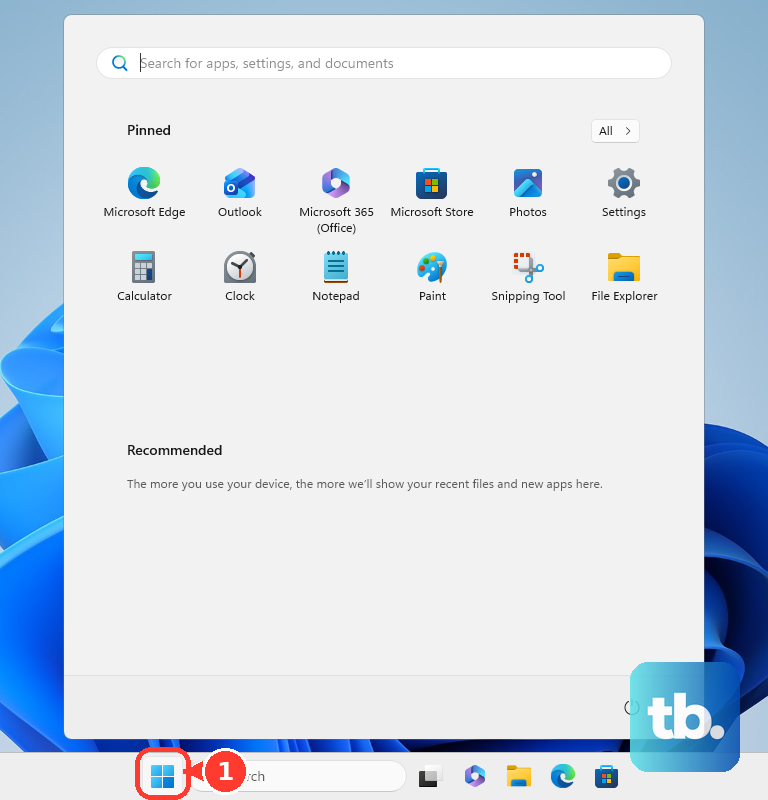
Select the installed printer you want to use, then choose Manage. Click Set as default and check that Printer status: reads Default.
You can change your default printer in Windows through this page whenever you need a different selection. If you want to keep that selection, leave automatic management turned off.
Select a printer through Control Panel
Before using this route for a fixed default, on Windows 10 open Settings > Devices > Printers & scanners and turn off Let Windows manage my default printer. Then open Control Panel > Devices and Printers. Right-click the printer you want and select Set as default printer.
Automatic management still matters when you make the selection through Control Panel. If Windows later chooses a different printer, turn off Let Windows manage my default printer before selecting your preferred printer again.
Set the default from the print queue
On Windows 10, open Start > Settings > Devices > Printers & scanners, select your printer, and choose Open queue. In the classic queue window, select Printer > Set As Default Printer. If Windows displays a message saying it will stop managing your default printer for you, select OK.
To confirm the result, return to Printers & scanners, select the same printer, and choose Manage. Check that Printer status: reads Default.
Let Windows choose the last printer used
On Windows 10, open Start > Settings > Devices > Printers & scanners, then turn on Let Windows manage my default printer. Print using the printer you want Windows to use. Windows manages the default based on printer use, and on mobile PCs the selection can also change with location.
To return to a fixed printer, turn off Let Windows manage my default printer. Select your preferred printer, choose Manage, and click Set as default again.
Set the default with Command Prompt
For a fixed selection, first turn off Let Windows manage my default printer. Open Command Prompt in the intended user's session. Run the following command, replacing Printer Name with the installed printer's exact name and preserving the capitalization of PrintUIEntry.
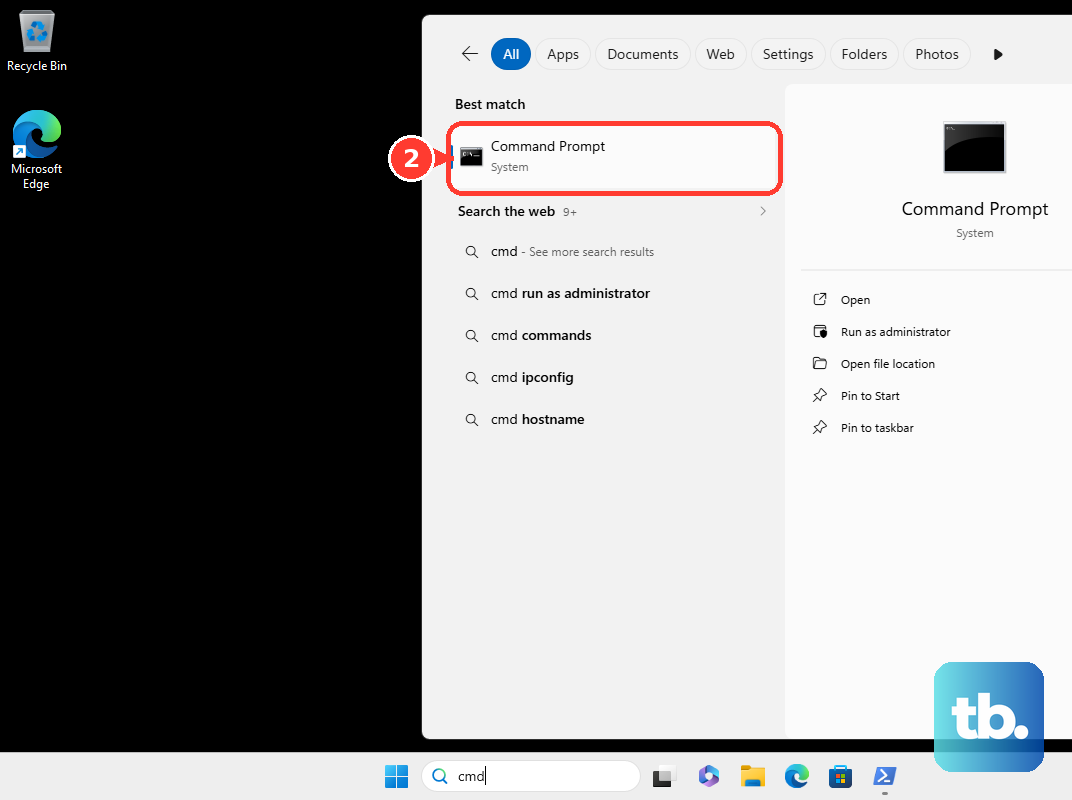
rundll32 printui.dll,PrintUIEntry /y /n "Printer Name"You can also use the supplied printing administration script, prnmngr.vbs, on Windows 10. For an English installation, run the following command with your installed printer's name. If your script-language folder differs, replace en-US with that folder's name.
cscript "%WINDIR%\System32\Printing_Admin_Scripts\en-US\prnmngr.vbs" -t -p "Printer Name"The -t option sets the default printer named by -p. To display the default instead, replace -t -p "Printer Name" with -g.
Select the printer with PowerShell
On Windows 10 with Windows PowerShell 5.1, you can select the default through CIM. Open Windows PowerShell in the intended user's session. Identify the printer by running this command.
Get-CimInstance -Class Win32_PrinterReplace Printer Name in the following commands with the actual printer name. Names containing quotation marks or backslashes require appropriate escaping in the filter. Run the assignment first, followed by the command that calls SetDefaultPrinter.
$printer = Get-CimInstance -Class Win32_Printer -Filter "Name='Printer Name'"
Invoke-CimMethod -InputObject $printer -MethodName SetDefaultPrinter
Another option uses the WScript.Network COM method, when that component is available in Windows PowerShell. In the intended user's session, run the following command after replacing Printer Name with the installed printer's exact name.
(New-Object -ComObject WScript.Network).SetDefaultPrinter('Printer Name')Control automatic selection on managed PCs
On managed Windows editions supporting the policy, open Group Policy and go to User Configuration > Administrative Templates > Control Panel > Printers. Open Turn off Windows default printer management and select Enabled. Then select the desired default printer separately, because this policy controls automatic management without naming a printer.
Windows Home does not include the Local Group Policy Editor, so use the Windows 10 Settings method for your own selection. For supported MDM-managed devices, the corresponding policy is ./User/Vendor/MSFT/Policy/Config/ADMX_Printing/LegacyDefaultPrinterMode. Configure it using ADMX-backed SyncML.
Choose how Edge selects its printer
In Microsoft Edge on Windows 10, press Ctrl + P, choose the desired printer under Printer, then select Print. When the PrintPreviewUseSystemDefaultPrinter policy is disabled or unconfigured, Edge uses the most recently used printer as its next default destination. This affects Edge's print preview without changing the Windows default.
If Edge keeps choosing a different printer, make the selection in its print preview even after setting your Windows default. In a policy-managed configuration with Edge administrative templates installed, you can instead open Administrative Templates > Microsoft Edge > Printing > Set the system default printer as the default printer. Select Enabled to make print preview initially select the Windows default. This policy does not apply to profiles signed in with a Microsoft account.
For a managed profile, another policy lets you supply a printer-matching rule. Open Administrative Templates > Microsoft Edge > Printing > Default printer selection rules. Supply JSON such as the following, replacing the example with a suitable case-sensitive regular expression.
{"namePattern":"^Office Printer$"}Edge selects the first matching printer when you first try to print. This matching policy does not apply to profiles signed in with a Microsoft account.
Configure a browser default in managed Chrome
In managed Chrome user or browser settings on Windows 10, open Printing > Print preview default > Default printer selection. Select Define the default printer. Configure Printer Types, Printer Matching, and Default Printer with a case-sensitive printer-name or ID expression.
The separate System Default Printer setting controls whether print preview follows the system default or the most recently used printer. These settings affect Chrome's printing destination without changing your Windows default.
Frequently Asked Questions
Is there a keyboard shortcut to open printer settings?
Press Windows + Q, type printers, and select Printers & scanners. This opens the same Windows 10 settings page, where you can continue with manual or automatic printer selection.
Can I put the default printer command in a batch file or shortcut?
Yes, you can use the PrintUI command in a batch file or command shortcut on Windows 10. Use the installed printer's exact name and preserve the capitalization of PrintUIEntry.
Should I use a WMIC command from an older tutorial?
Microsoft has deprecated the WMIC command-line utility, so use the PowerShell CIM method for a scripted approach. WMI itself remains supported; the deprecation applies to the WMIC utility.
What changes if I use Windows 11?
On Windows 11, open Start > Settings > Bluetooth & devices > Printers & scanners, then turn off Let Windows manage my default printer. Select the printer and choose Set as default, without the additional Windows 10 Manage step. For automatic selection, turn on Let Windows manage my default printer instead.
Can Microsoft PC Assist select a default printer?
Microsoft advertises default-printer selection through PC Assist for Windows PCs supported by the app. You can also make the selection directly in Windows 10 through Settings, Control Panel, or the classic print queue.
How can an application set the default printer?
A Windows desktop application or administrative utility can call SetDefaultPrinter with the installed printer's name. For a shared printer, use the form \\server\printername. The API sets the default for the current user on the local computer.