You want links, HTML files, and web shortcuts on your Windows 11 PC to open in Microsoft Edge instead of whatever browser keeps grabbing them. Maybe you just installed another browser and it hijacked everything, or a recent Windows update quietly reset your preference.
Edge is preinstalled on Windows 11, so there is usually nothing to download. The whole job happens inside the Settings app, and on a current build it can take a single click. This guide covers the fast one-click method first, then the precise per-type methods for the stragglers, plus the File Explorer shortcuts and the quirks to expect afterward.
Work through them top to bottom. Most people are done after the first method.
Open Settings > Apps > Default Apps
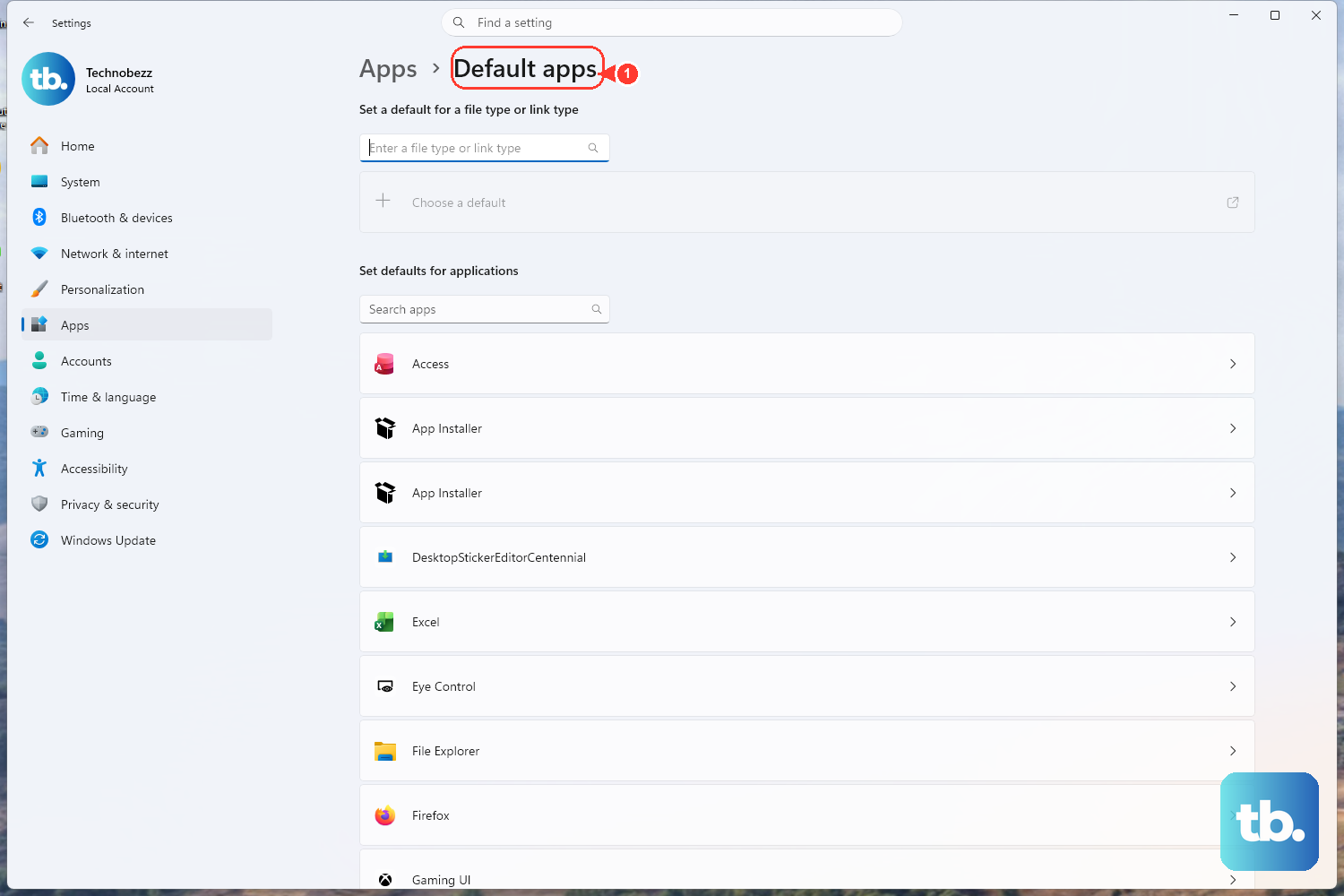
Every reliable method starts here, so reach this screen first.
Open the Settings app from Start > Settings, or press the Windows key + I.
Go to Apps > Default apps.
For a faster shortcut, press Windows key + R, type ms-settings:defaultapps, and press Enter to land directly on this page.
Keep this page open. Both the one-click method and the per-type methods below live here.
Use the One-Click "Set Default" Button
This is the quickest path and the one to try first. It assigns the major web link and file types to Edge together.
- 1.On the Default apps page, find the "Set defaults for applications" section.
- 2.Current Windows 11 builds have no single "Web browser" tile like Windows 10 did, so type Microsoft Edge in the search box at the top (or scroll the app list), then click it.
- 3.On the Microsoft Edge page, look next to "Make Microsoft Edge your default browser" and click the Set default button at the top.
- 4.Confirm the entries for HTTP, HTTPS, .htm, and .html now show Microsoft Edge. This one button switches those major types at once.
If every web entry now reads Microsoft Edge, you are finished. If a few types still point elsewhere, use the per-type methods next.
One requirement: this single button needs a reasonably current Windows 11 build. It arrived in update KB5011563 (OS Build 22000.593, released March 28, 2022). On older builds you have to set each type individually, which the following sections also cover.
Assign Edge by Link Type (HTTP and HTTPS)
Web protocols are the single most common reason another browser keeps reopening. If links still launch the wrong app, fix the protocols directly.
On the Default apps page, click "Choose defaults by link type."
Next, locate the protocol you want to change, such as HTTP, HTTPS, or FTP, and click it to see the available handlers.
Select Microsoft Edge, then click "Set default" to confirm.
Before moving on, pay special attention to HTTP and HTTPS; verify both read Microsoft Edge.
Assign Edge by File Type (.htm, .html, and More)
Use this when the one-click button left certain file types on another app, or you are on an older build without that button.
On the Default apps page, scroll to "Choose defaults by file type" near the bottom.
In the search box, type the extension you want to change, for example .htm, .html, .shtml, .xht, .xhtml, .svg, .pdf, .mht, or .mhtml.
Click the extension; the current default app appears beneath it.
Select Microsoft Edge from the list, then click "Set default" to confirm.
Repeat for every web-related extension still pointing to another browser.
This same screen is where you would reassign any of these extensions later if you ever need a different app to handle one of them.
Set Edge per Type From Its Own App Page
If you prefer to handle everything from one place, work directly inside Edge's entry rather than bouncing between the link-type and file-type lists.
Open Settings (Windows key + I) > Apps > Default apps.
Then type Microsoft Edge in the "Set defaults for applications" search box and click it in the results.
Click the "Set default" button at the top to assign the major types at once.
After that, scroll the remaining list on Edge's page and click any entry still showing another browser, then select Microsoft Edge for it.
Force a File Type to Edge From File Explorer
If you have a stubborn web file on hand, you can set the association straight from File Explorer instead of digging through Settings.
In File Explorer, right-click a web file such as an .htm or .html file.
Select "Open with" > "Choose another app."
Select Microsoft Edge in the list; use "More apps" or "Choose an app on your PC" if it is not shown.
Click "Always" to make Edge the permanent default for that file type. Choose "Just once" only for a one-time open.
Set Edge as Default Through File Properties
This is a second per-file-type route that some people find clearer, and it confirms the association in the same window.
Right-click a web file, for example an .html file, and choose Properties.
On the General tab, find the "Opens with" section and click "Change."
Select Microsoft Edge, click "Set default," then click OK.
Tips and Gotchas to Expect
A few Windows 11 behaviors surprise people right after they set Edge, so know them in advance.
To be fully covered, make sure the core types are on Edge: protocols HTTP and HTTPS (most important), plus .htm and .html. Secondary web types include .shtml, .xht, .xhtml, .svg, .pdf, .mht, .mhtml, and protocols such as FTP and MAILTO.
Microsoft's older help page for switching to Edge still lists the legacy path Settings > Apps > Default apps > Web browser. That reflects the Windows 10 or early-build flow, not the current Windows 11 layout, so follow the steps above instead.
Skipping any web entry, especially HTTP, HTTPS, .htm, or .html, is the most common reason another browser keeps reopening. Re-verify these after using "Set default."
Windows updates and feature updates can silently reset your default-browser preference, so re-check this page after any major update.
Setting Edge as default does not change its in-browser search engine, which is Bing by default. That is changed separately inside Edge's own Settings.
Frequently Asked Questions
Why does Windows 11 have no single "Web browser" option like Windows 10?
Current Windows 11 removed the one-tap "Web browser" dropdown. Instead you select the Microsoft Edge app in Default apps and use its "Set default" button, or change each file type and protocol individually. Microsoft's older help page still shows the old "Web browser" path, but it does not match the current layout.
I clicked "Set default" but another browser still opens. What did I miss?
Almost always a web entry was skipped. Open Default apps, check "Choose defaults by link type" for HTTP and HTTPS, and "Choose defaults by file type" for .htm and .html. Set any of those still pointing elsewhere to Microsoft Edge.
Do I need to download Microsoft Edge first?
Normally no. Edge is preinstalled on Windows 11, so it is already available in the Default apps list. Only if it were missing would you install or update it first, following Microsoft's official guidance for switching to Edge.
Why do Widgets and Windows Search still open Edge even after I changed my default?
Some Windows features open Edge regardless of your default browser, including links from the Widgets panel, Windows Search and its suggestions, and certain Help or Settings links. This is a known Windows 11 quirk. For users in the European Economic Area, Microsoft updated Windows 11 (reported July 30, 2025) so the Widgets board and MSN feed open links in the default browser, citing the Digital Markets Act; there is no confirmation this extends outside the EEA.
Is there a way to force those Windows features to use my default browser?
An open-source workaround called MSEdgeRedirect, available from GitHub, can intercept Edge command-line launches to push features like Widgets and Search to a chosen browser. It is unofficial, its downloaded EXE may trigger a security warning, and such tools can break with future Windows updates; an older similar tool, EdgeDeflector, stopped working after Windows closed its loophole.
Does Windows undo my choice after updates?
It can. Windows updates and feature updates sometimes silently reset default-app preferences, including your browser. If links start opening in the wrong place again, return to Settings > Apps > Default apps and re-confirm Microsoft Edge.











