


Send a large video from your iPhone with AirDrop to a nearby Apple device, a shared album or cloud link to a remote recipient, or Mail Drop for an email message up to 5 GB. Choose the method based on the recipient's device and whether they need the original file. Sending a link avoids a messaging app's attachment limit.
The short version
- Nearby Apple devices: Use AirDrop with Wi-Fi and Bluetooth enabled on both devices.
- Remote recipients: Create a temporary shared album on iOS 27 or share a cloud storage link.
- Email delivery: Use Mail Drop for an entire message up to 5 GB, with downloads available for 30 days.
- Chat attachments: WhatsApp documents support up to 2 GB, while Telegram supports 2 GB per file or 4 GB for Premium senders.
- Smaller copies: Trim the video in Photos or export it at a lower resolution through iMovie.
| Method | Best use | Main catch |
|---|---|---|
| AirDrop | Nearby compatible Apple devices | Start with both devices nearby |
| Temporary shared album | Remote sharing from Photos | Requires iOS 27 and expires after 30 days |
| Permanent shared album | Ongoing full-resolution sharing | New iOS 27 albums use the owner's iCloud storage |
| Mail Drop | Email delivery | Entire message must be at most 5 GB |
| iCloud Drive link | Sharing a file stored in iCloud | Requires available storage and suitable access settings |
| Google Drive link | Sharing through your Google Account | Requires available storage and suitable access settings |
| WhatsApp document | Sending through a WhatsApp chat | Up to 2 GB per document |
| Telegram file | Sending through Telegram | Up to 2 GB, or 4 GB for Premium senders |
| LocalSend | Nearby Android or computer transfers | Both devices need the app and the same local Wi-Fi network |
| Photos trimming | Sending only the footage you need | Shortens the video or divides it into clips |
| iMovie export | Reducing size while keeping the full duration | Lower resolution reduces detail |
Send to a nearby Apple device with AirDrop
Use AirDrop when the recipient has a compatible Apple device nearby. Enable Wi-Fi and Bluetooth on both devices, and disconnect Personal Hotspot. Open Photos, select the video, tap Share, choose AirDrop, then select the recipient. They tap Accept to receive it.
For someone outside your contacts, have the recipient open Control Center, hold the connectivity controls, then choose AirDrop > Everyone for 10 Minutes. When both devices use iOS 26.2 or later, the recipient follows the AirDrop code prompt on their device, then gives you the code that appears so you can enter it. Check these receiving settings first when their device does not appear.
To control the file you send, open Share > Options in Photos before choosing AirDrop. Select Current to prevent format conversion, or Most Compatible for compatibility conversion. Enable All Photos Data when you want AirDrop to include the original file and edit history, then tap the Close button and choose AirDrop.
Keep the devices nearby while starting the transfer. An already-started AirDrop transfer can continue over the internet when the devices leave Bluetooth or Wi-Fi range. Open Settings > General > AirDrop > Use Cellular Data to control whether that continuation can use cellular data.
Share an album link from Photos
On iOS 27 or later, you can create a temporary shared album and send its link through Messages, Mail, or another communication app. The album expires after 30 days, does not require iCloud Photos, and does not consume your iCloud storage. Availability varies by region; use a cloud storage link if this option is unavailable.
Open Photos > Collections > Shared Albums, then tap the Add button. Name the album and select your video. Use Sharing Options to configure access, turn on Make Album Temporary, then tap Done. Tap Share to send an invitation through Messages or Mail, or copy the link.
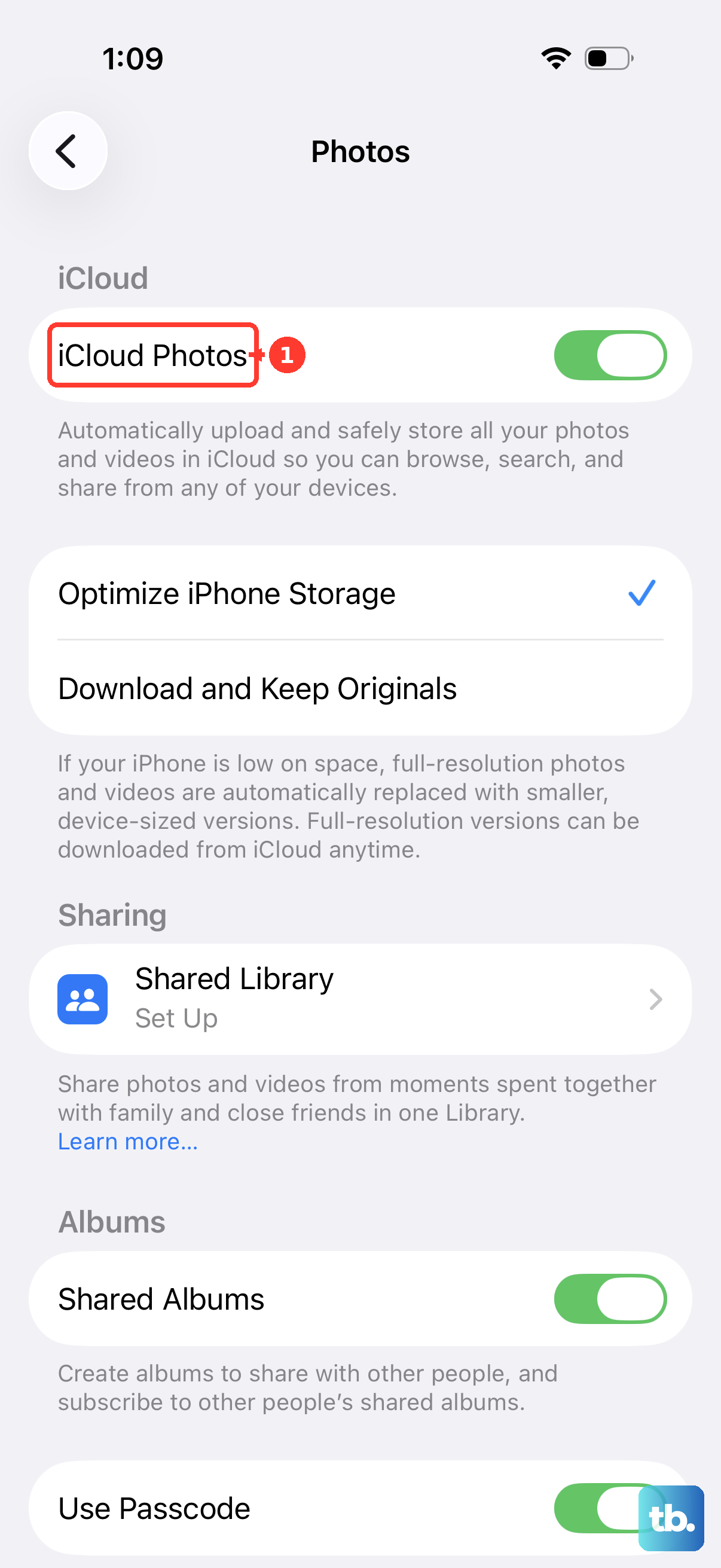
For ongoing sharing, new permanent Shared Albums on iOS 27 support full-resolution media and use the album owner's iCloud storage. Open Settings, tap your name, then choose iCloud > Photos and enable iCloud Photos and Shared Albums. You need enough available iCloud storage for the media.
In Photos, open Collections > Shared Albums and tap the Add button. Name the album, select the video, configure Sharing Options, and tap Done, leaving Make Album Temporary off. Open the album, tap Manage Shared Album, then tap Invite Participants and choose a contact or app to share its link, or tap Copy Album Link to send or post it.
Email the video with Mail Drop
Use Mail Drop when you want to deliver the video through the iPhone Mail app. Open Photos, select the video, then tap Share > Mail. Fill in To, optionally add a Subject or message, and tap Send. Accept the Mail Drop offer when Mail presents it for the oversized attachment.
The entire message, including all attachments, must be at or below 5 GB. Recipients have 30 days to download the files, and Mail Drop attachments do not consume your ordinary iCloud storage. Tell the recipient to download the video before that window closes.
When several attachments push the message over the limit, send separate messages for separate files. A single video larger than 5 GB needs a different transfer method or a smaller exported copy. Mail Drop also has a 1 TB aggregate storage limit, so splitting messages does not remove every service limit.
Send a cloud storage link
For a video already in iCloud Drive, open Files, locate it, then hold the file and tap Share. Open the menu beneath its filename and select Share a Link. If you need help locating a downloaded video first, find downloads on your iPhone before choosing the file.
Open People you choose can edit to configure People you choose or Anyone with the link. Under New Participants Can, choose permission to view and download when the recipient only needs a copy. Choose how to send the invitation. iCloud Drive requires available iCloud storage, so a full account can prevent the upload.
If you use Google Drive, open the app, tap Add > File upload, and select the video. Use Location to choose its folder, optionally change File Name, then tap Upload. Your Google Account needs enough available storage.
Beside the uploaded video, tap More > Share, enter the recipient's email, choose Viewer, then tap Send. For broader link access, use More > Manage access > General access, tap the right arrow, then choose Anyone with the link. Copy the file link and send it through your communication app.
If the recipient cannot open the video, review the file's access settings. Your work or school administrator may restrict external sharing or public links, so those options may be unavailable on an organizational account.
Use file attachments in WhatsApp or Telegram
For a large video in WhatsApp, use its document attachment option, which supports files up to 2 GB. Open the recipient's chat, tap the Attach button (+), then choose Document. Select the video file from iCloud Drive or another available file source and tap Send.
WhatsApp's regular video attachments have smaller default size limits than its 2 GB document option. When your file exceeds the document limit, send a cloud link instead. That lets you share it without reducing the footage to fit the chat attachment.
Telegram supports files up to 2 GB for free accounts and 4 GB for Premium senders. From Photos or Files, select the video, tap Share > Telegram, choose the recipient, and complete sending. If your video exceeds your account's file limit, send a cloud link.
To send the untouched source through Telegram, select the video in its attachment selection and choose Send as File. Edits made in Telegram's media editor are not applied in that mode, so choose it when you want the source file.
Transfer locally to Android or a computer
Use LocalSend when the receiving device is nearby but cannot use AirDrop. Install it on both devices from the official LocalSend download page, choosing iOS for your iPhone and the appropriate receiving platform. You can transfer to Android, Windows, Mac, Linux, and other iPhones without an account or internet connection.
Connect both devices to the same local Wi-Fi network and open LocalSend on each. Select the video on your iPhone, then tap the nearby receiving device to start the transfer.
If the app cannot find the other device, check that both devices are on the same local network and that LocalSend has permission to access it. Open Settings > Privacy & Security > Local Network and enable LocalSend, or tap Allow on its initial permission request. This app permission is separate from AirDrop's receiving controls.
Make a smaller copy when necessary
Trim the video when the recipient only needs part of it. Open it in Photos, tap Edit, then drag the ends of the frame viewer to select the footage to keep. Tap Done > Save Video as New Clip, then send that shorter copy. Repeat from the original with other ranges when separate clips are acceptable.
To keep the full duration while reducing resolution, install Apple's iMovie app. These steps apply to an iPhone 12 or later running iOS 26 or later with the latest iMovie. Open iMovie > Start New Project > Movie > Media > Video, select the video, then tap Create Movie > Done.
Tap Share > Save or Share Video > Options, then select a lower resolution such as 720, 540, or 360. Tap Done, then choose Save Video, Save to Files, or AirDrop. Lowering resolution reduces detail, so use an original-file transfer when preserving quality matters.
If the exported copy still exceeds the receiving service's limit, choose a lower resolution or send a link using a service that supports its size.
Fix permissions when sending stalls
When an upload app cannot see your video, open Settings > Privacy & Security > Photos. Select the app and adjust its permitted library access, or respond to its photo-access request while selecting media. Then return to the app and select the video again.
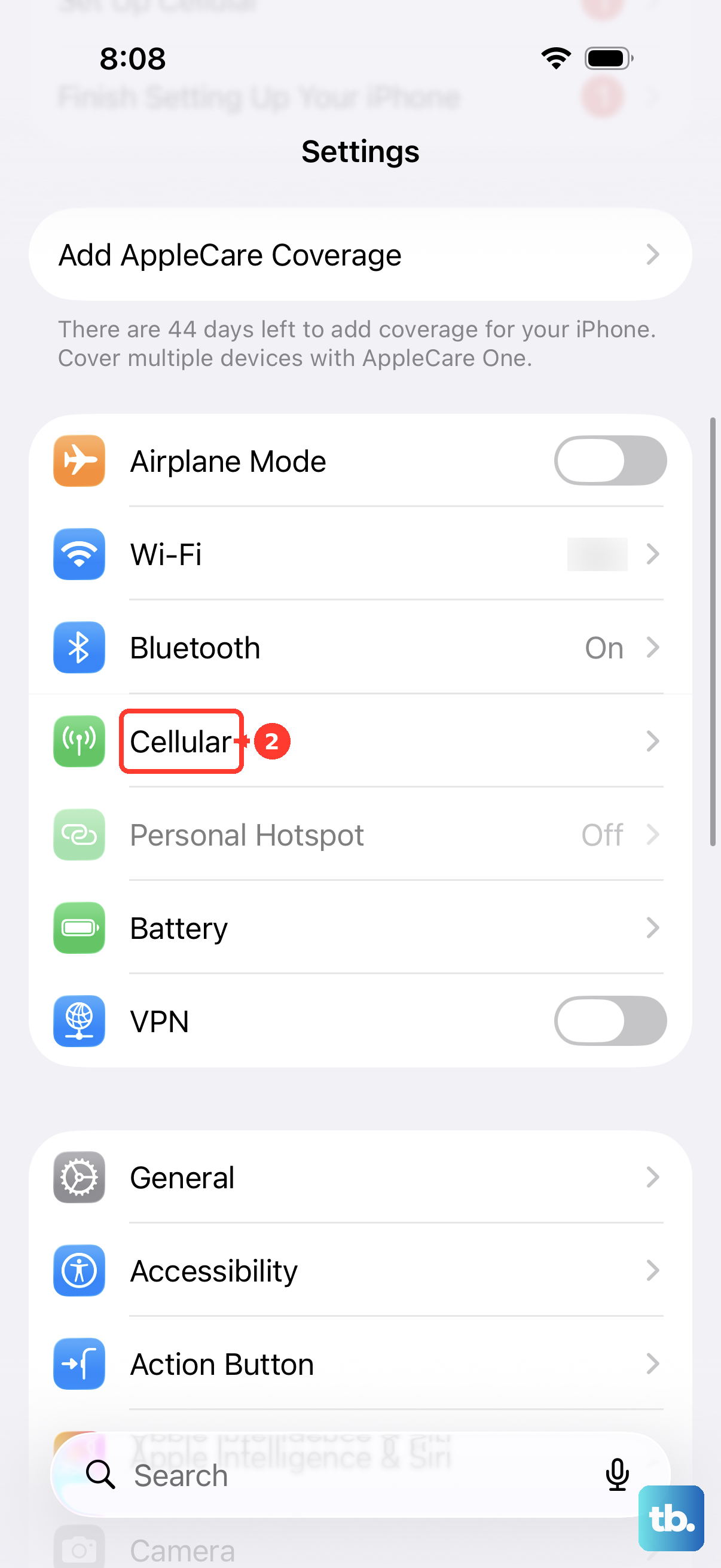
For an upload that works on Wi-Fi but stops on cellular, open Settings > Cellular and enable Cellular Data. Scroll to the apps list, using Show All when needed, and enable the upload app. Its own upload controls still apply, and cellular transfers can incur carrier charges.
A missing sharing app may need its share extension enabled. In Photos or Files, tap Share, swipe left across the app row, then tap More > Edit. Enable the desired option and tap Done. Only compatible installed share extensions can appear, and enabling one does not change the service's attachment limit.
Frequently Asked Questions
Can I send a large video through regular iPhone Messages?
You can attach a video through Messages, but carrier limits and automatic compression can affect delivery. Open a conversation, tap the Add button, choose Photos, select the video, then tap Done and the Send button. With a supported carrier, you can enable high-resolution RCS messaging in Settings > Apps > Messages > RCS Messaging. RCS does not provide a universal attachment limit that guarantees a multi-gigabyte video will fit.
Can I send the original video without Wi-Fi or an upload?
You can export the unedited original to compatible external storage connected through USB-C, Lightning, or an appropriate adapter. In Photos, select the video and choose Share > Export Unmodified Original. Select the storage device under Locations and tap Save, then disconnect it and give it to the recipient.
Does changing Camera settings make an existing video smaller?
Camera recording settings affect future videos rather than the large file you already have. For smaller future recordings, choose a lower resolution or frame rate in Settings > Camera > Record Video. Under Settings > Camera > Formats, choose High Efficiency for the space-saving HEVC format or Most Compatible for H.264 compatibility.
Can I upload the video somewhere just for people to watch?
You can upload to YouTube to share a processed viewing version of the video. An Unlisted video is accessible to anyone with its link, while Private videos have separately restricted viewers. Uploads longer than 15 minutes require account verification, and the maximum upload is 256 GB or 12 hours, whichever comes first.
Why does an older Shared Album reduce my video's quality?
Albums created with iOS 26 or earlier retain their older limits until upgraded, including videos up to 15 minutes delivered at up to 720p. On iOS 27 or later, open Photos > Collections > Shared Albums, select the older album, then choose More > Upgrade Shared Album and follow the onscreen instructions. Newly added media uses original resolution after the upgrade.
Can Google Photos share a video larger than Mail Drop allows?
You can back up videos up to 10 GB in Google Photos with supported formats and enough available Google storage. Open the video and choose Back up now, then select Share > Get link after uploading. To preserve resolution and quality, tap your profile picture, open Google Photos settings > Backup > Photos & videos quality, and choose Original quality before uploading. Storage saver resizes videos above 1080p.