


To select multiple files on the Google Drive website, click the first file, then hold Ctrl on Windows or Command on Mac while clicking each additional file. For a consecutive group, click the first file, hold Shift, and click the last file to include the items between them.
The short version
- Separate files: Hold Ctrl on Windows or Command on Mac while clicking additional files on the Drive website.
- A consecutive group: Click the first file, then hold Shift and click the last file.
- All visible items: Focus the web file list and press Ctrl + A on Windows or ChromeOS, or Command + A on Mac.
- Files in different folders: Search for matching files, then select them together in the results.
- iPhone and iPad: Enable Google Drive in Files, open the folder, and use Select to choose files.
| Method | Where to use it |
|---|---|
| Separate files with modifier clicks | Drive website on Windows or Mac |
| Consecutive range with Shift | Desktop Drive website |
| Extend a range with the keyboard | Drive website on Windows, ChromeOS, or Mac |
| Select separate files with the keyboard | Drive website on Windows, ChromeOS, or Mac |
| Select all visible items | Drive website |
| Select search results | Desktop Drive website |
| Use an external keyboard | Android Drive app with a compatible keyboard |
| Open Drive in a file manager | Windows or Mac with Drive for desktop signed in |
| Select with item checkboxes | Windows 11 File Explorer with Drive for desktop |
| Use File Explorer keyboard controls | Windows 11 with Drive for desktop |
| Select separate files in Finder | Mac with Drive for desktop |
| Select a range in Finder | Finder’s List view with Drive for desktop |
| Drag a selection rectangle in Finder | Mac with Drive for desktop, particularly Icon view |
| Select everything in a Finder window | Mac with Drive for desktop |
| Select through the built-in Files app | Chromebook |
| Enable the Drive location in Files | iPhone or iPad with Drive installed and set up |
| Select through Files on iPhone | Enabled Google Drive location in Apple Files |
| Select through Files on iPad | Enabled Google Drive location in Apple Files |
| Use Windows Sticky keys | Windows 11 keyboard accessibility settings |
| Use the Windows on-screen keyboard | Windows 11 keyboard accessibility settings |
| Use Mac Sticky Keys | macOS keyboard accessibility settings |
| Use the Mac Accessibility Keyboard | macOS keyboard accessibility settings |
| Use Chromebook Sticky keys | ChromeOS accessibility settings |
| Try a spoken selection shortcut | Windows 11 22H2 and later with Voice access configured |
| Choose files for an email | Gmail desktop website |
| Choose files in another app’s picker | Apps that enable multiple selection in Google Picker |
| Choose Gemini sources | Desktop Gemini in Drive with an eligible plan |
| Select files for storage cleanup | Google One website with a personal Google Account |
| Swipe through cleanup items on Android | Google One storage manager when over quota |
| Swipe through cleanup items on iPhone or iPad | Google One storage manager when over quota |
| Get Drive for desktop | Google’s Drive product page for Windows and Mac |
Select separate files on the Drive website
Open Google Drive in your browser and open the folder containing your files. Click the first file you want, then hold Ctrl on Windows or Command on Mac while clicking each additional file. Release the key when you finish, or press Esc to clear the selection and start over.
Select a range or all visible items
For a consecutive group, click the first file, hold Shift, and click the last file. Release Shift after selecting the group. Drive includes the intervening items, so use separate clicks if unwanted files fall between your endpoints.
To select all visible items, focus the file list rather than the search field. Press Ctrl + A on Windows or ChromeOS, or Command + A on Mac. Google describes this shortcut as selecting all visible items, so do not treat it as selecting every file throughout your account. Press Esc to clear the selection.
Find and select files from different folders
Use search to bring together matching files from different folders. Enter search terms in Drive, or narrow the results with the Type, People, and Modified filters. Press Enter to display the results.
Focus the results and select individual matches with Ctrl-click on Windows or Command-click on Mac. For a consecutive group, click the first result, then hold Shift and click the last. To select all visible results, press Ctrl + A on Windows or ChromeOS, or Command + A on Mac.
Select files using only the keyboard
On the Drive website in Windows, ChromeOS, or macOS, select a starting file and hold Shift. Press Up, Down, Left, or Right to extend the selection through the list or grid.
For separate files, focus a wanted item and press Shift + Space to select it. Hold Ctrl on Windows or ChromeOS, or Command on Mac, while pressing Up, Down, Left, or Right to move focus without changing the selection. Release the modifier, then press Shift + Space to toggle the newly focused item. Repeat for the remaining files.
Select Drive files on your phone or tablet
On iPhone or iPad, first have the Google Drive app installed and set up. Open Files > Browse > More > Edit, turn on Google Drive, then tap Done. This enables the Drive location inside Files.
On iPhone, open Files > Browse > Google Drive and open the required folder. Tap More > Select, then tap each wanted file. Available actions depend on the Drive provider and the selected items.
On iPad, open Files, choose Google Drive, and open the required folder. Tap Select, then tap each wanted file.
On Android, connect a USB or Bluetooth keyboard to your phone or tablet, open Drive, and focus the file list. Press Ctrl + A to select all visible items. Keyboard and language compatibility can vary.
For an Android keyboard range, select the starting item and hold Shift while pressing Up, Down, Left, or Right until the selection includes the items you want. Press Esc to deselect.
Select files through your computer’s file manager
If you need Drive for desktop, open Google’s Drive product page and, under Sync your desktop with Drive, click Download Drive for desktop. With Drive for desktop signed in, open File Explorer on Windows or Finder on Mac and open Google Drive. Then open My Drive, choose Shared drives if your account has access, or open the relevant synced folder.
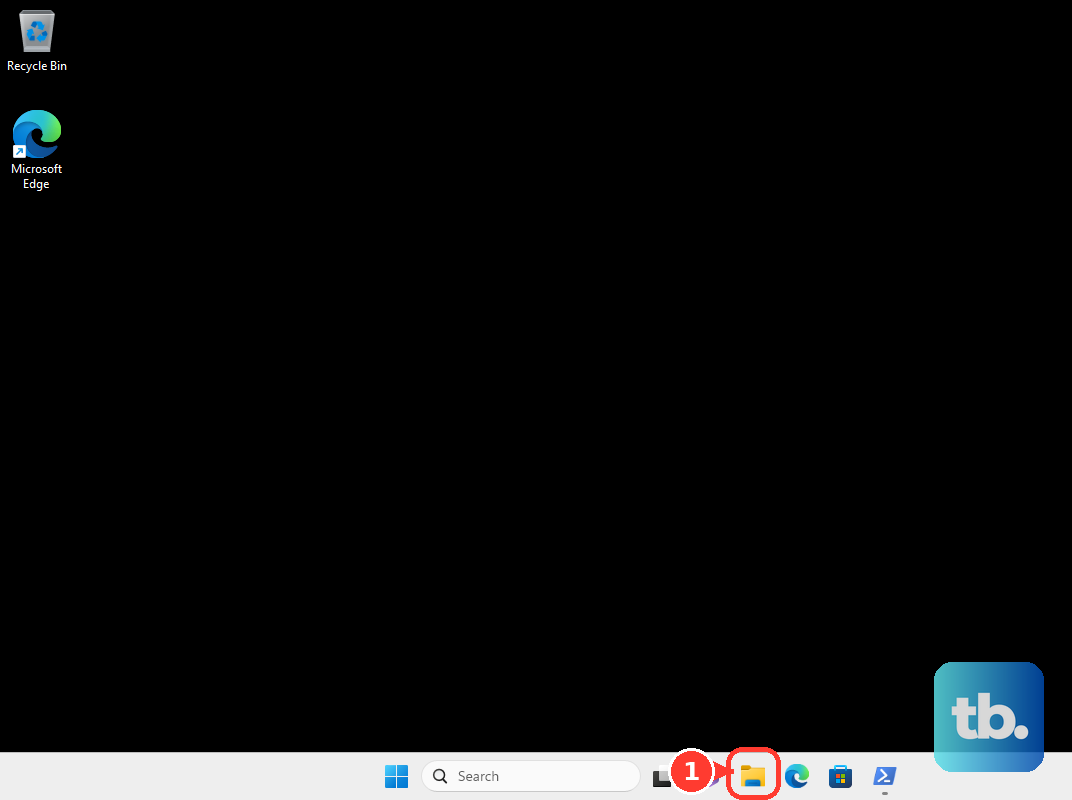
On Windows 11, open the Google Drive folder in File Explorer and choose View > Show > Item check boxes. Click the selection box beside each wanted filename. This setting belongs to Windows.
For keyboard selection in Windows 11 File Explorer, focus the file pane and press Ctrl + A to select all items. For a range, select a starting item and hold Shift while pressing Up, Down, Left, or Right. For separate items, hold Ctrl, move with those arrow keys, and press Space to toggle each wanted item.
In Finder on Mac, open the required Google Drive folder, hold Command, and click each wanted file. For an adjacent range, use List view, click the first item, then hold Shift and click the last.
To drag a selection rectangle in Finder, start beside the wanted items, hold the mouse or trackpad button, and drag across them. Apple identifies Icon view as particularly useful for this method. To select everything in the required Finder window, activate that window and press Command + A.
On a Chromebook, open Files, choose Google Drive in the left sidebar, and open the relevant folder. Hold Ctrl and click each wanted file. This uses the built-in Files app without a separate Drive for desktop installation.
Use accessibility controls for selection shortcuts
If holding shortcut keys together is difficult, you can use your operating system’s keyboard accessibility controls to enter Drive’s selection shortcut. These controls change how you enter the keys; keep the Drive file list focused when using them.
On Windows 11, open Start > Settings > Accessibility > Keyboard and turn on Sticky keys. Return focus to Drive’s file list, press Ctrl, release it, then press A.
For a displayed keyboard on Windows 11, open Start > Settings > Accessibility > Keyboard and turn on On-screen keyboard, or press Windows + Ctrl + O. Focus Drive’s file list and use the displayed Ctrl and A keys.
On Mac, choose Apple menu > System Settings > Accessibility > Keyboard and turn on Sticky Keys. Focus the Drive file list, press Command, release it, then press A.
For a displayed keyboard on Mac, choose Apple menu > System Settings > Accessibility > Keyboard and turn on Accessibility Keyboard. Focus Drive’s file list and enter Command + A using the displayed keyboard.
On a Chromebook, select the time, then choose Settings > Accessibility. Under Keyboard and text input, turn on Sticky keys. Focus the Drive file list, press Ctrl, release it, then press A.
Select Drive files for storage cleanup
For a personal Google Account, open Google One and choose Storage. Under Get your space back, click Free up account storage. Under Clean up suggested items or Clean up by service, choose the relevant Google Drive category or service and select the wanted files. Stop before Delete if you only want to review the selection.
On Android, when your account is over quota, open Drive, tap your profile picture or initial, and choose the account. Tap Manage storage or the cloud icon displaying storage usage, then under Clean up by service, choose Google Drive. Swipe right on items you want to mark for cleanup and left on items to keep. Tap Review and stop there to review your choices.
On iPhone or iPad, when your account is over quota, open Drive and tap Clean up space or Manage storage when offered. Under Clean up by service, choose Google Drive. Swipe right to mark items for cleanup and left to keep others, then tap Review. These selections mark cleanup candidates rather than highlighting files in Drive’s main list.
Frequently Asked Questions
How do you select multiple Google Drive files to send in Gmail?
On the Gmail desktop website, click Compose, then Insert files using Drive, and select the wanted files. Choose Drive link or Attachment, then click Insert. Attachment is available for files other than Google Docs, Sheets, Slides, and Forms.
Why does another app’s Google Drive picker handle selection differently?
The app integrating Google Picker controls whether multiple selection is enabled, and its entry-point label varies. When the app enables it, open its Drive picker, browse the files, select the wanted items, then click or tap Insert. This selects files for the app you are using.
How do you select multiple files as sources for Gemini in Drive?
With an eligible Google Workspace or Google AI plan, open Drive on your computer and click Ask Gemini. In the left panel, under Your sources or Project sources, click Add, select the wanted files, then click Add again. This selects analysis sources for Gemini.
Can you use Windows Voice access to select Drive files?
On Windows 11 22H2 and later, you can try combining Voice access with Drive’s selection shortcut. With Voice access already configured and listening, focus Drive’s file list and say Press Control A. This combines Microsoft’s supported spoken-key syntax with Drive’s Ctrl + A shortcut for all visible items.