


To select more than one file on the Google Drive website, click the first file, then hold Ctrl on Windows or Command on Mac while clicking each additional file. Release the key when you finish selecting. You can also use keyboard shortcuts to select neighboring files or all visible items.
The short version
- Individual files: On the Drive website, hold Ctrl on Windows or Command on Mac while clicking additional files.
- All visible items: Focus the website’s file area, then press Ctrl + A on Windows or ChromeOS, or Command + A on Mac.
- Neighboring files: On the Drive website, hold Shift and use the directional keys to extend your selection.
- iPhone and iPad: Enable Google Drive in Apple’s Files app, then tap Select to choose multiple files.
| Where you select | Method or option | What it does |
|---|---|---|
| Drive website on Windows or Mac | Hold Ctrl on Windows or Command on Mac while clicking | Select individual files |
| Drive website on Windows, ChromeOS, or Mac | Ctrl + A on Windows or ChromeOS; Command + A on Mac | Select all visible items |
| Drive website on Windows, ChromeOS, or Mac | Shift with directional keys | Extend a selection |
| Drive website on Windows, ChromeOS, or Mac | Shift + Space with modified keyboard navigation | Select scattered files without a mouse |
| Drive website on Android with a hardware keyboard | Ctrl + A or Shift with directional keys | Select all visible or neighboring items |
| Windows 11 File Explorer with Drive for desktop | Item check boxes | Select individual Drive files |
| Windows 11 File Explorer with Drive for desktop | Ctrl + A | Select all files in the current folder |
| Windows 11 File Explorer with Drive for desktop | Shift with directional keys | Select adjacent files |
| Windows 11 File Explorer with Drive for desktop | Ctrl with directional keys, followed by Spacebar | Select scattered files |
| Mac Finder with Drive for desktop | Hold Command while clicking | Select individual files |
| Mac Finder with Drive for desktop | Click the first item, then hold Shift and click the last | Select a consecutive range in an ordered view |
| Mac Finder with Drive for desktop | Drag from empty space | Select a group of items |
| Mac Finder with Drive for desktop | Command + A | Select all files in the current folder |
| Mac Finder with VoiceOver and Drive for desktop | VoiceOver selection commands | Select multiple items with VoiceOver |
| Chromebook Files app | Hold Ctrl while clicking | Select individual Drive files |
| iPhone or iPad Files setup | Enable Google Drive as a location | Make Drive accessible in Files |
| iPhone Files app with Drive enabled | More > Select | Select files by tapping each one |
| iPad Files app with Drive enabled | Select | Select files by tapping each one |
| Google One storage management for personal accounts | Storage cleanup selection | Choose Drive files to review for deletion |
| Gemini in Drive with an eligible plan | Add files as sources | Choose files for analysis |
| Google’s Drive product page | Download Drive for desktop | Get installation guidance for desktop integration |
Select individual files on the Drive website
Open drive.google.com and locate the files you want. Click the first file, then hold Ctrl on Windows and click each additional file. On Mac, hold Command instead. Release the modifier key when you have selected all the files you need.
Select all visible items
Open the required folder or results view on the Drive website, then click a file to focus the items area. Press Ctrl + A on Windows or ChromeOS, or Command + A on Mac. Google describes this shortcut as selecting all visible items, so its scope is the current view rather than every file throughout your account.
Build a selection with the keyboard
On the Drive website on Windows, ChromeOS, or Mac, select your starting file. Hold Shift and press Down Arrow, Up Arrow, Left Arrow, or Right Arrow to extend the selection in that direction. Repeat until the required files are selected, using the direction that fits the list or grid.
To select scattered files without a mouse, focus the first file and press Shift + Space. On Windows or ChromeOS, hold Ctrl while using the directional keys to move to another file without changing your selection. On Mac, hold Command while using those keys instead.
At the next file you want, press Shift + Space to add it. Repeat the navigation and selection sequence for the remaining files. If you include an unwanted item, focus it and press Shift + Space again to deselect it.
Enable Drive in Files and select files on iPhone or iPad
First, set up and sign in to the Google Drive app on your iPhone or iPad. Open Files > Browse > More > Edit, turn on Google Drive, and tap Done. This enables the Drive location in Apple’s Files app when the Google Drive file provider is available.
On iPhone, open Browse > Google Drive in Files and open the required folder. Tap More > Select, then tap each file you want to include.
On iPad, open the Google Drive location in Files and open the required folder. Tap Select, then tap each desired file.
Use a keyboard with Drive on Android
With a hardware keyboard connected to your Android phone or tablet, open Drive on the web and focus the file area. Press Ctrl + A to select all visible items.
For a smaller group, select a starting file, then hold Shift and press Down Arrow, Up Arrow, Left Arrow, or Right Arrow to extend the selection. Continue in the direction of the files you want. These keyboard steps apply to Drive on the web.
Select Drive files on a Chromebook
Open the Chromebook’s Files app, then open Google Drive in the left sidebar. Open the folder containing your files, hold Ctrl, and click each file you want to select. This method uses the Chromebook Files app and does not require a Windows or Mac Drive for desktop installation.
Select Drive files in Windows File Explorer
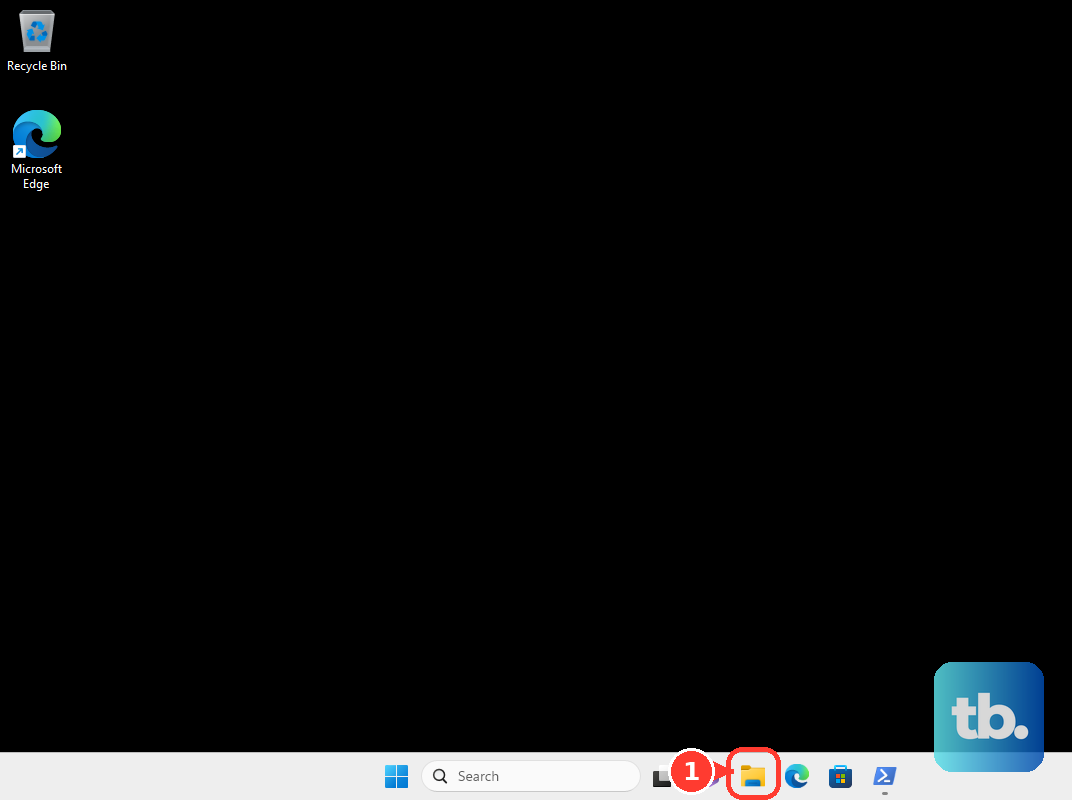
With Google Drive for desktop configured, open File Explorer and navigate to the required folder inside Google Drive. These File Explorer steps use Windows 11 menus. Open View > Show, select Item check boxes, then tick the checkbox beside each desired file.
To select all files in the current folder, focus the file list and press Ctrl + A. For adjacent files, select a starting file, hold Shift, and press Down Arrow, Up Arrow, Left Arrow, or Right Arrow in the direction of the files you want.
For scattered files, use Ctrl with one of those directional keys to move focus to a desired item, followed by Spacebar to select it. Repeat that sequence for the other files you need.
Select Drive files in Mac Finder
With Google Drive for desktop configured on your Mac, open Finder and navigate to the required Google Drive folder. Hold Command and click each desired file to select individual items.
For a consecutive range, use a Finder view that presents the files in an ordered range. Click the first item, hold Shift, and click the last item. Finder includes the items between those two endpoints.
Apple particularly recommends dragging a selection rectangle in Icon view. Start in empty space near the files, hold the mouse or trackpad button, and drag across the desired items. Release the button when you finish.
For all files in a folder, open the required Google Drive folder in Finder. Make that Finder window active and press Command + A.
Frequently Asked Questions
Where do you get Google Drive for desktop?
Open Google’s Drive product page and, under Sync your desktop with Drive, click Download Drive for desktop to reach Google’s installation guidance. Installation is needed only for the desktop integration methods in File Explorer or Finder.
How do you select multiple Drive files with VoiceOver on a Mac?
With VoiceOver enabled and Drive for desktop configured, open the Google Drive folder in Finder and interact with the file area using VO + Shift + Down Arrow if necessary. Navigate to each desired item and press VO + Command + Return. Here, VO represents your configured VoiceOver modifier, normally Caps Lock or Control + Option.
How do you select Drive files for a storage review in Google One?
For a personal Google account with access to Google One storage management, open Google One, click Storage, then select Clean up space. Under Clean up by service, click Google Drive when offered and select the files you want to review. Stop before Delete if you only intend to select files; this cleanup selection is separate from Drive’s main file list.
Does choosing files for Gemini select them for ordinary Drive actions?
Choosing files for Gemini creates a source collection for analysis rather than a multiple-file selection for ordinary Drive toolbar actions. With an eligible Google Workspace or Google AI plan, open drive.google.com and click Ask Gemini, then click Add under Your sources or Project sources in the left panel. Add the desired files as sources, repeating as needed.